
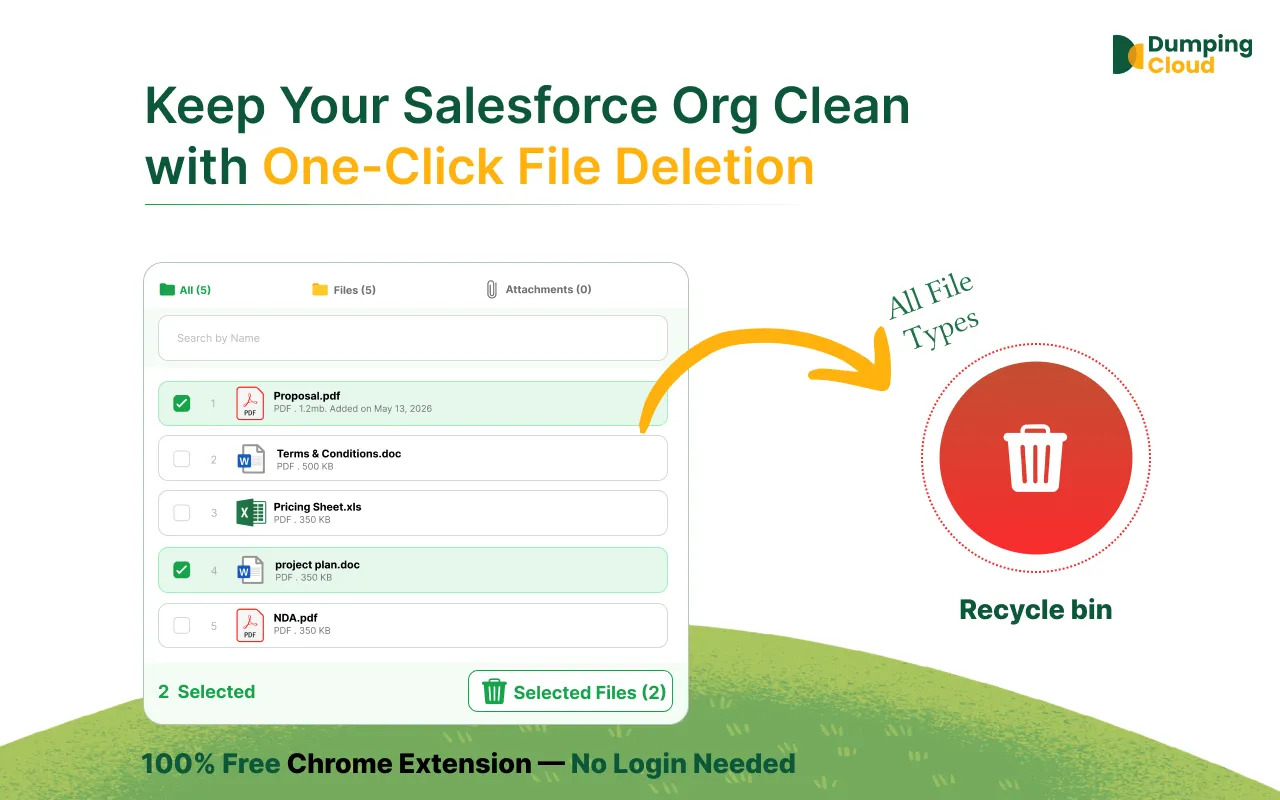
Misplaced files are an unavoidable reality in any active Salesforce Org. But resolving them should not require a developer, an API call, or a tedious download-delete-re-upload cycle. The Move feature in DumpingCloud – Salesforce Files Manager gives Admins a direct, reliable, and auditable way to relocate files between records in seconds — preserving file integrity, respecting Salesforce permissions, and keeping your Org organized at all times.
The Problem: Files Land in the Wrong Place. Moving Them is a Nightmare.
It happens more often than it should.
A sales rep uploads a signed contract to the wrong Opportunity. A support agent attaches a customer document to the incorrect Case. An Admin merges two Accounts and needs to consolidate files from both records into one. A file uploaded months ago now needs to live on a different record as part of a data restructuring exercise.
In native Salesforce, there is no built-in mechanism to move a file from one record to another. Your options are limited and painful:
- Download the file locally, navigate to the target record, and re-upload it manually — then delete the original
- Write Apex or use the Salesforce API to programmatically re-link ContentDocumentLink records
- Accept that the file stays where it is and manage the confusion downstream
None of these are acceptable for Admins operating at scale.
DumpingCloud – Salesforce Files Manager introduces a direct, no-code Move operation — allowing you to migrate salesforce files from any source record to any target record within the same Org, in just a few clicks.
What the Move Feature Does
The Move feature in DumpingCloud allows you to:
- Move a single file (or attachment) from one Salesforce record to another
- Mass Migrate Salesforce files (or attachments) simultaneously in a single operation
- Move files across any record types — from an Account to a Case, an Opportunity to a Contact, or between two records of the same type
- Remove the file from the source record automatically once moved, keeping your Org clean and avoiding duplicate file links
- Perform the operation without re-authenticating — the extension uses your active Salesforce session throughout
How Move Differs from Copy
It is important to understand the distinction between the two operations:
| Operation | Source Record | Target Record | Result |
|---|---|---|---|
| Move | File is removed | File appears | File exists only on the target record |
| Copy | File remains | File appears | File exists on both records |
Use Move when the file belongs exclusively on the target record and should no longer be associated with the source. Use Copy when the file needs to be accessible from multiple records simultaneously.
Who Benefits Most
The Move feature is particularly valuable for Salesforce Admins in the following scenarios:
- Incorrect uploads — Quickly correcting files that were attached to the wrong record by a user
- Record merges — Consolidating files after merging duplicate Accounts, Contacts, or Leads
- Data restructuring — Relocating files as part of org-wide data model changes or migration projects
- Opportunity-to-Contract transitions — Moving proposal and quote files from an Opportunity to its associated Contract record once a deal is closed
- Case escalations — Transferring all attachments from a child Case to a parent Case during escalation workflows
- Org clean-up initiatives — Reorganizing files that have accumulated on the wrong records over time
How to Move Files in Salesforce between records with DumpingCloud?
Prerequisites
- DumpingCloud – Salesforce File Manager is installed in your browser from the appropriate browser extension store.(Install here)
- You are logged into your Salesforce Org in the same browser
- You have the necessary Salesforce permissions to view and manage files on both the source and target records
01
Step 1
Navigate to the Source Record
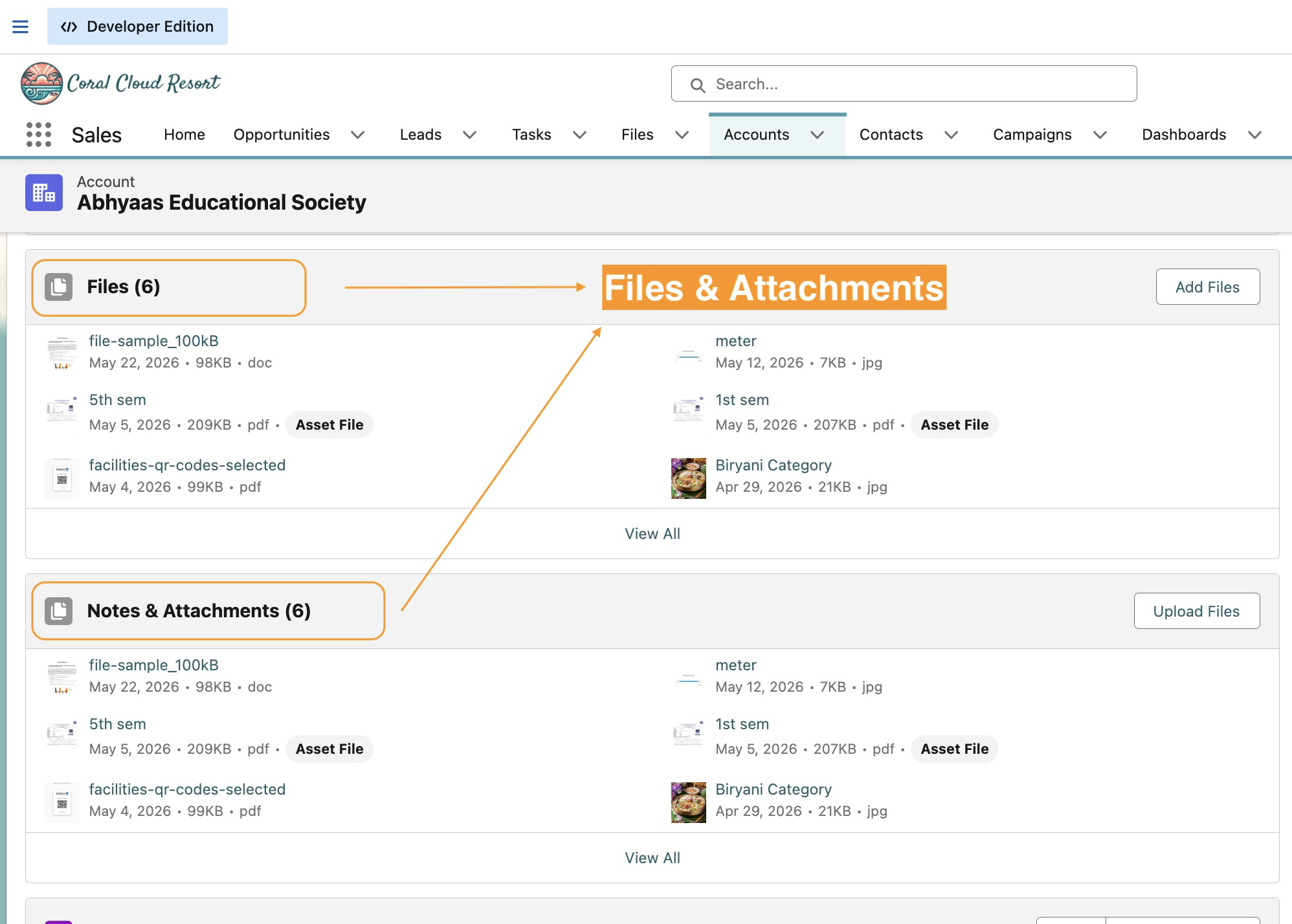
Open Google Chrome and log in to your Salesforce Org. Navigate to the record that currently holds the file(s) you want to move — this is your source record.
02
Step 2
Open DumpingCloud – Salesforce Files Manager
Click the DumpingCloud icon. The extension automatically detects your active Salesforce session. No additional login is required.
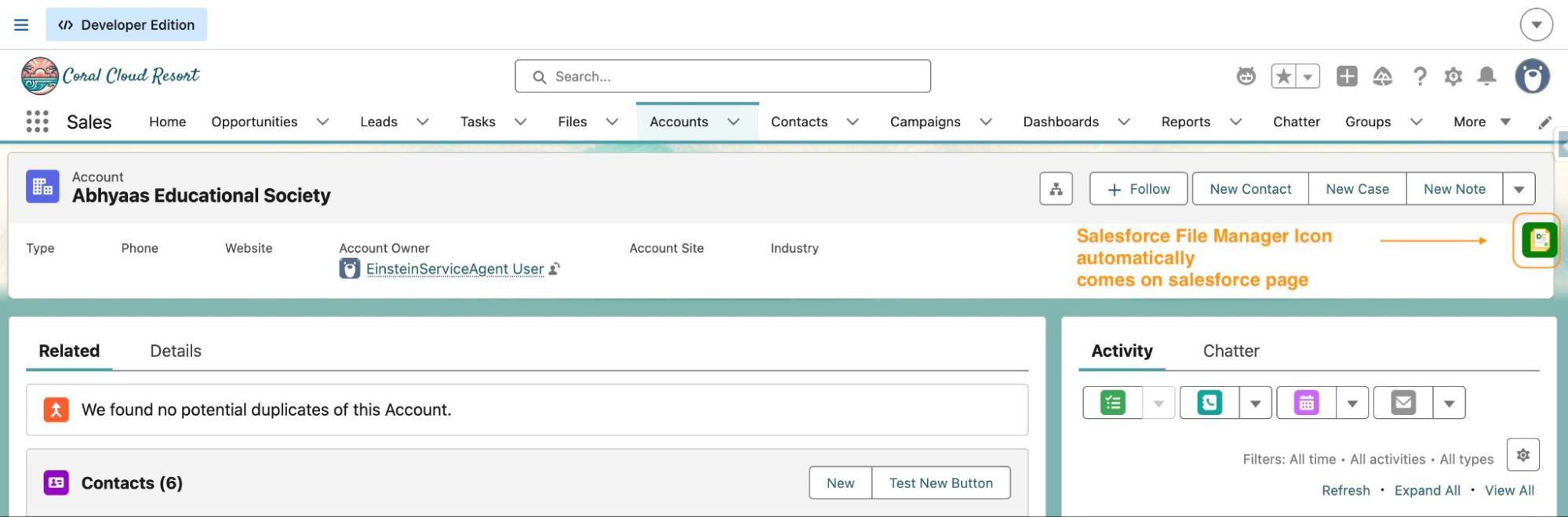
The extension panel will open and automatically load all files and attachments associated with the current record.

03
Step 3
Select the File(s) to Move
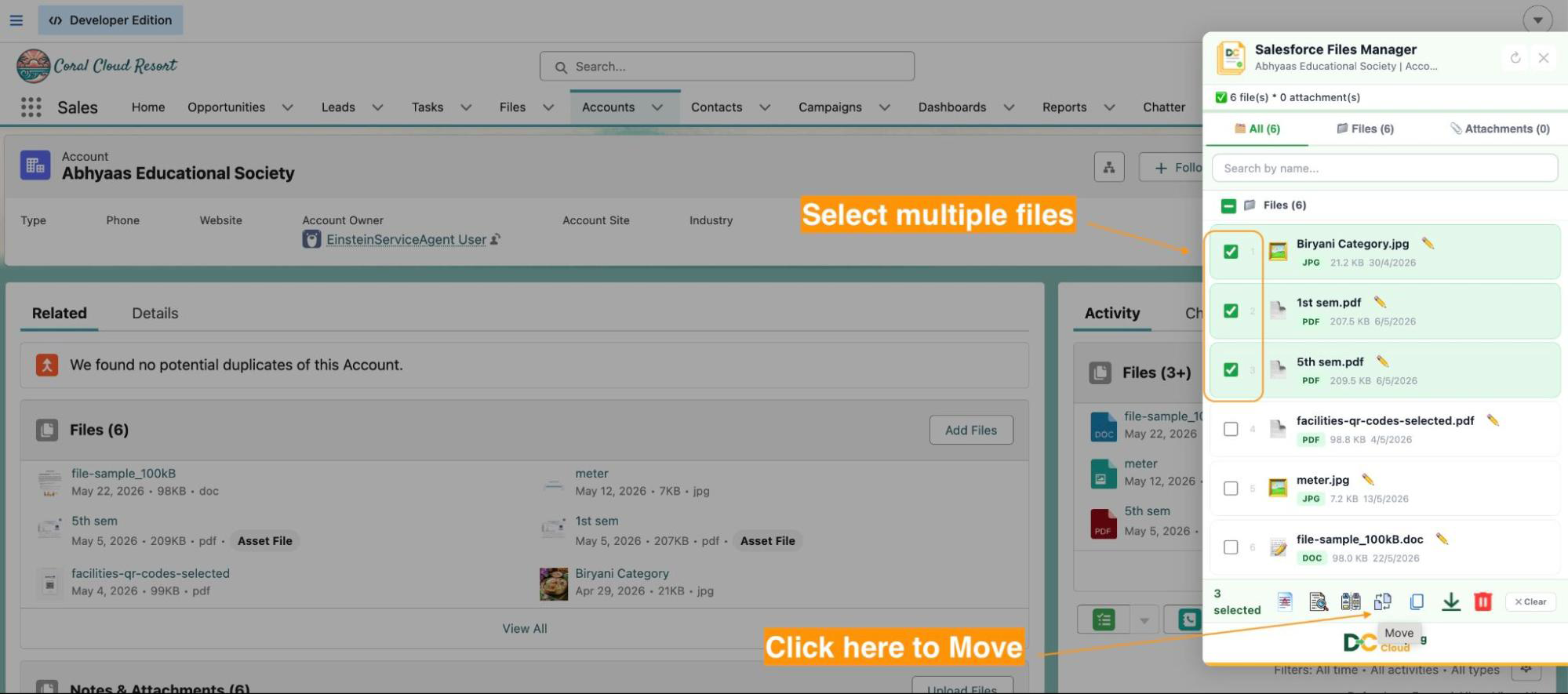
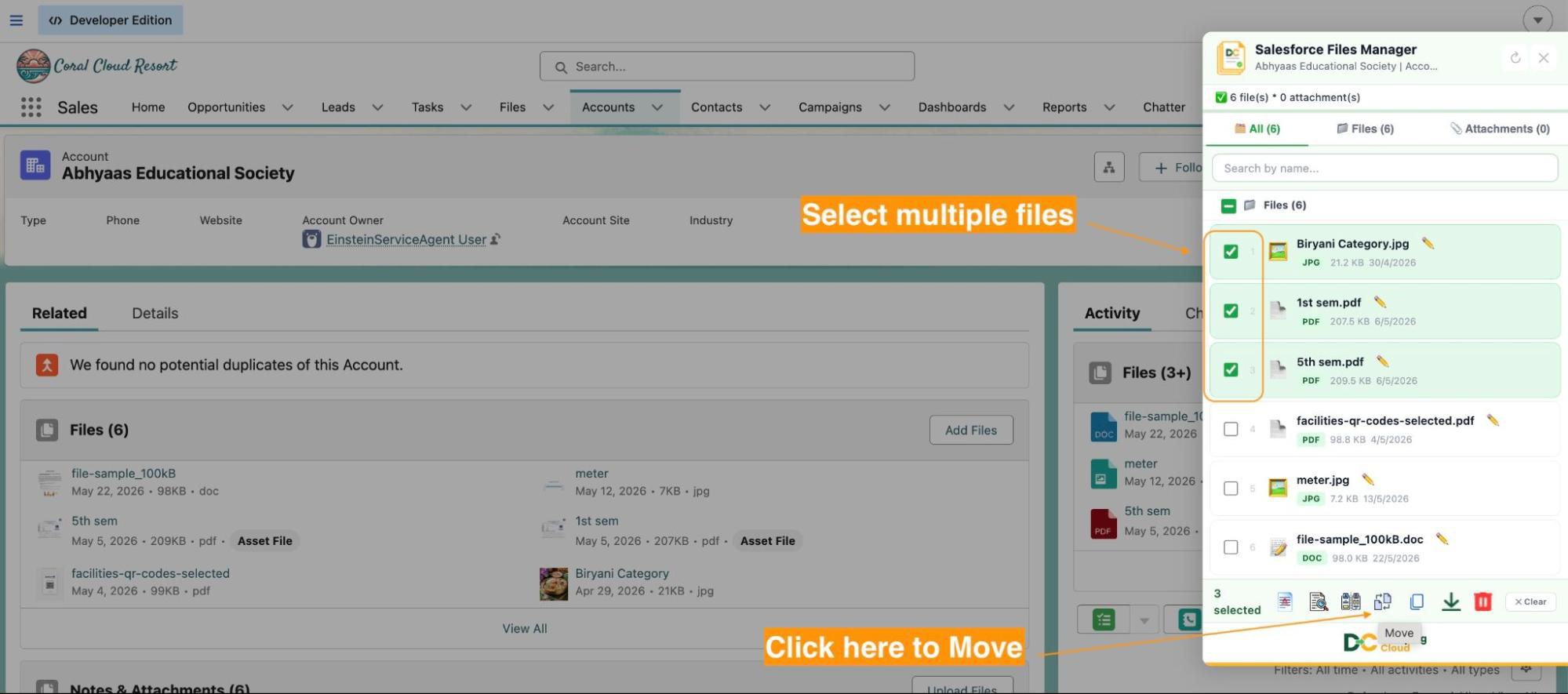
To move a single file: Click the checkbox next to the file you wish to move.
To move multiple files: Click the checkboxes next to each file you want to relocate. You may also use “Select All” to select every file on the record in one action.
04
Step 4
Click the “Move” Button
With your files selected, click the “Move” button in the extension panel action bar.
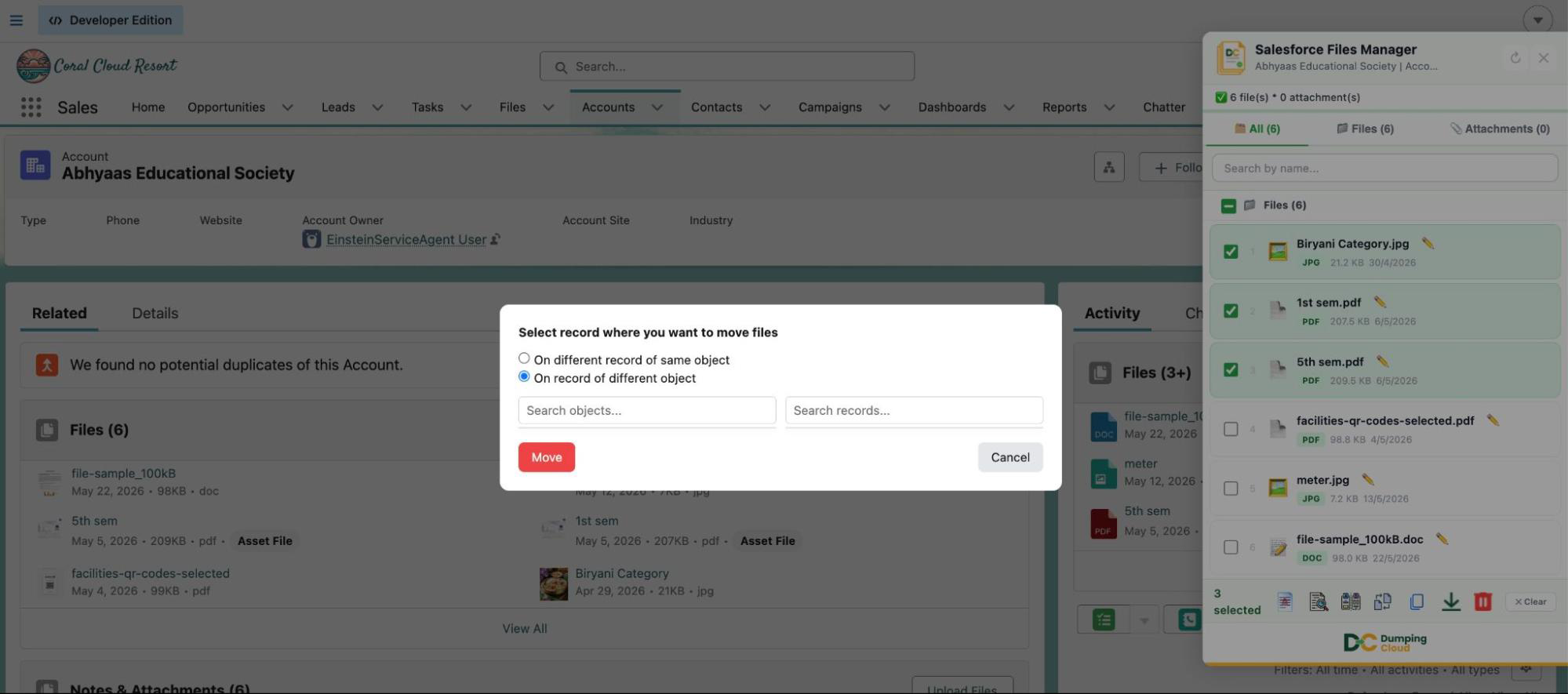
A target record selection prompt will appear, asking you to specify the destination record:
- automatically load all files and attachments
- Select the record of different object
05
Step 5
Specify the Target Record
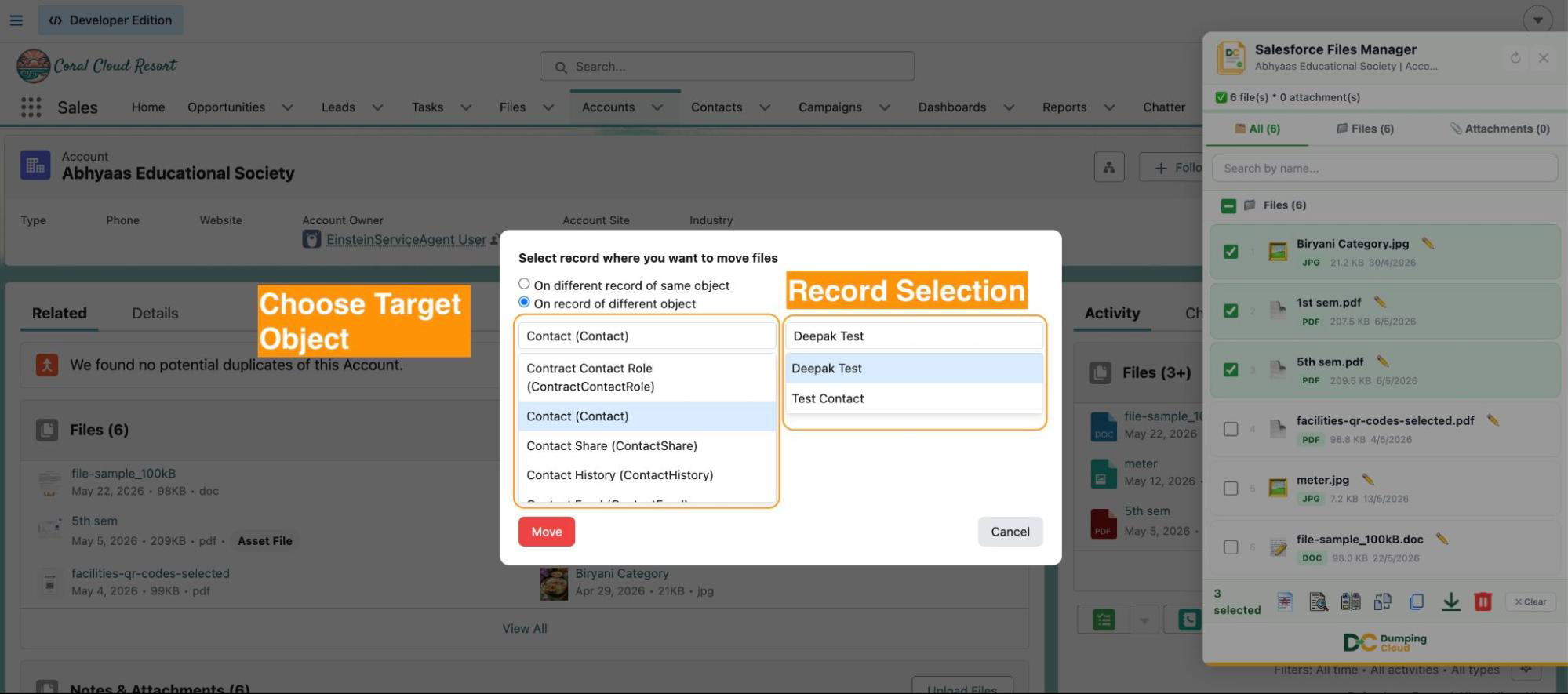
In the target record prompt, enter the name or ID of the destination record where the files should be moved. The extension will search within your Salesforce Org and display matching records for you to confirm.
Select the correct target record from the results.
06
Step 6
Confirm the Move
Review your selection — the files to be moved and the target record — then click “Confirm Move” to execute the operation. The extension will:
- Link the selected files to the target record in Salesforce
- Remove the file association from the source record
- Display a success confirmation once the operation is complete

07
Step 7
Verify on the Target Record
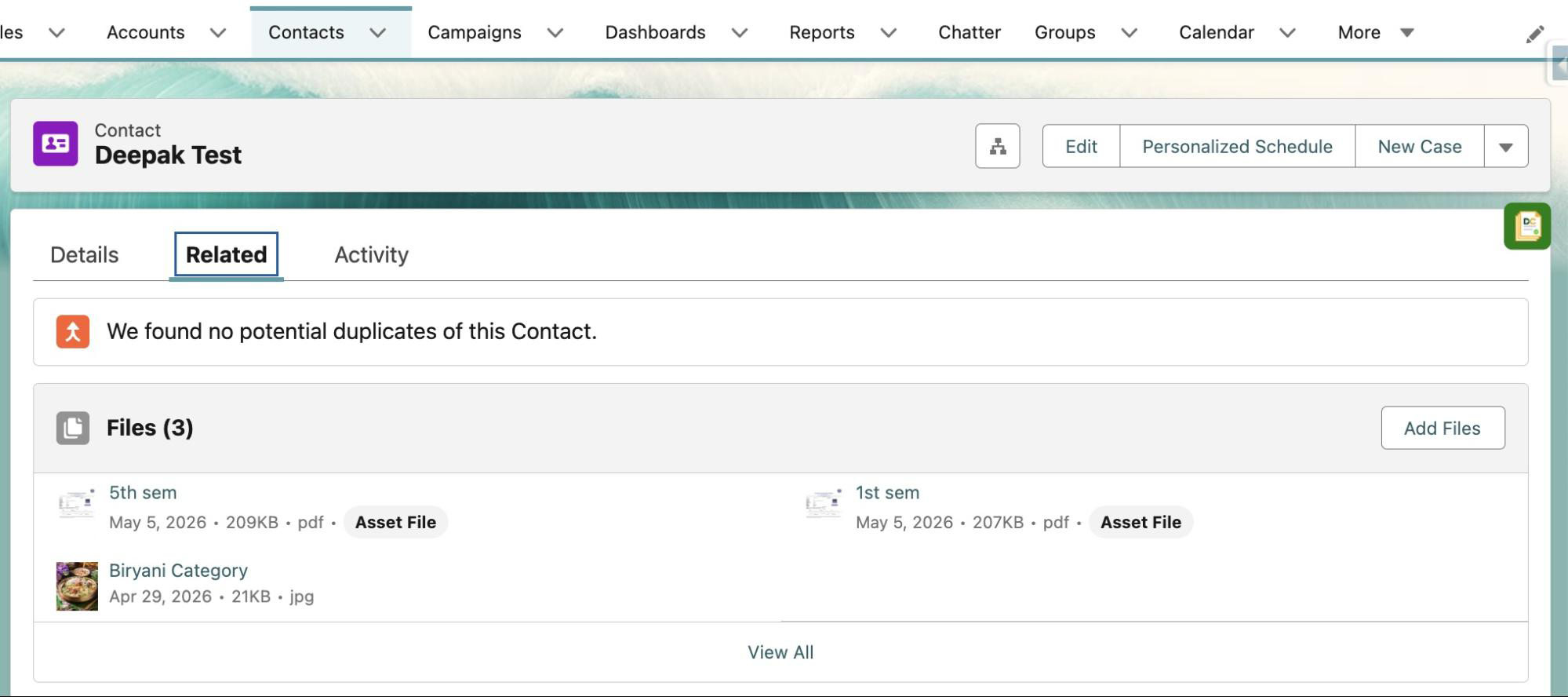
Navigate to the target record in Salesforce and check the Files related list to confirm the files have arrived correctly. The source record’s Files related list will no longer show the moved files.
Key Advantages Over Native Salesforce
| Capability | Native Salesforce | Salesforce Files Manager |
|---|---|---|
| Move a single file between records | ❌ Not supported | ✅ Supported |
| Move multiple files simultaneously | ❌ Not supported | ✅ Supported |
| Move across different object types | ❌ Not supported | ✅ Supported |
| Requires Apex / API development | ✅ Required | ❌ No code needed |
| Removes file from source automatically | ❌ Manual deletion required | ✅ Automatic |
| Works across all record types | — | ✅ All standard & custom objects |
Install DumpingCloud
👉 Try DumpingCloud — on your favorite browser

Frequently Asked Questions
What if a file is linked to multiple records — will deleting it remove it from all of them?
If a file (ContentDocument) is associated with multiple records, deleting it from one record removes only that specific association (ContentDocumentLink). The file remains accessible from all other records it is linked to. The file is only fully deleted when removed from its last associated record.
Is there a confirmation step before files are deleted?
Yes. DumpingCloud - Salesforce Files Manager displays a confirmation prompt listing the selected files before any deletion is executed. No files are removed until you explicitly confirm the action.
Can I undo a bulk delete?
Individual file restoration is possible via the Salesforce Recycle Bin within 15 days of deletion. There is no one-click bulk undo within the extension, which is why the confirmation prompt and careful selection are important.
Do I need System Administrator permissions to delete files?
You need sufficient Salesforce permissions to delete files on the relevant record. The extension respects your existing Salesforce profile and sharing rules — it cannot delete files your user does not have permission to remove.
Will deleting files through the extension affect Salesforce storage immediately?
Files moved to the Recycle Bin continue to count against your Salesforce storage until they are permanently deleted (after 15 days or upon manually emptying the Recycle Bin). To reclaim storage immediately, empty the Recycle Bin after deletion.
Ready to manage Salesforce Files faster?
Download, move, rename, merge, split, convert, compare, and manage your Salesforce Files — without leaving Salesforce.