
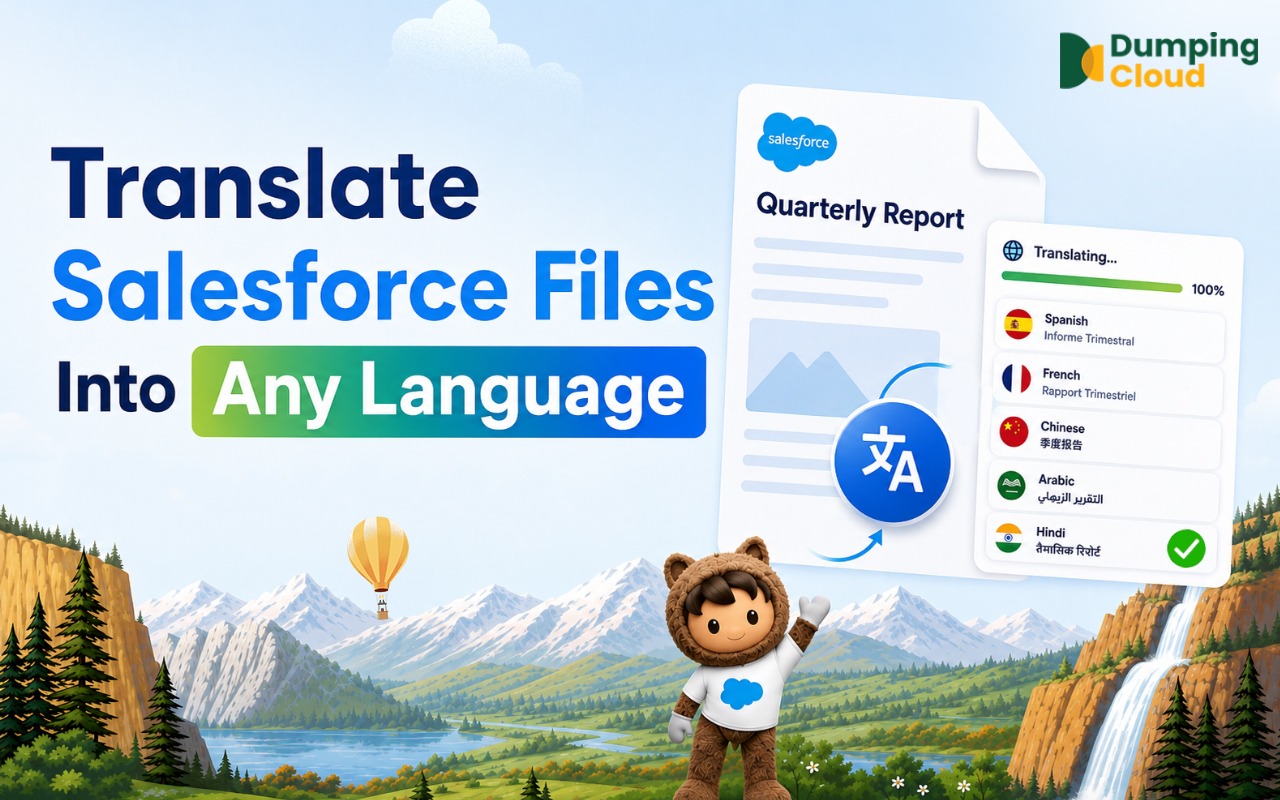
Language should never be a barrier to working effectively with files stored in your Salesforce Org. Yet without a native translation capability, that is precisely what it becomes — forcing teams into slow, disconnected manual workflows that sit entirely outside the platform where the work happens.
Quick Answer
The Translate feature in DumpingCloud—Salesforce Files Manager closes this gap entirely. With support for all major world languages, automatic source language detection, compatibility across all file types, and the flexibility to replace the original or save a new translated version alongside it, professional-quality file translation is now a seamless part of your Salesforce workflow — available on any record, in any language, in a matter of clicks.
The Problem: Global Teams and International Clients, But No Way to Translate Salesforce Files
Salesforce is used by organizations across every continent and each department has similar kind of actions:
- Sales teams close deals in multiple languages.
- Support agents handle cases from international customers.
- Legal teams review contracts drafted in foreign jurisdictions.
- HR departments onboard employees across different countries.
Yet when a file stored in Salesforce needs to be translated — a French contract, a German technical specification, a Spanish support document, a Japanese proposal — the native salesforce platform offers absolutely nothing.
For every file. Every time. Across every language. The current workflow for most teams is deeply inefficient. They have to follow below steps as:
- Download the file
- Paste the content into a translation tool or send it to a translation service
- Wait for the result
- Reformat the output into the original document structure
- Re-upload it to Salesforce.
This process is slow, inconsistent, dependent on external tools or third-party vendors, and entirely disconnected from the Salesforce record where the file lives and where the work happens.
DumpingCloud – Salesforce Files Manager eliminates this friction entirely. The Translate feature allows Admins and users to translate salesforce files — in any supported format — into any major world language, directly from the extension panel, and save the translated version back to the same Salesforce record without ever leaving the browser.
What the Translate Feature Does
The Translate feature in DumpingCloud allows you to:
- Translate any Salesforce file into any major world language in a single operation
- Support all file types — PDFs, Word documents, images with text, spreadsheets, and more
- Choose how the translated file is saved — either replace the original file on the record, or save it as a new separate file alongside the original
- Perform the translation entirely within the extension panel — no external tools, no copy-pasting, no re-uploading
Language Support
The Translate feature supports all major world languages, covering the primary languages used in global business, legal, government, and operational contexts.
Who Benefits Most
The Translate feature delivers immediate value across a wide range of roles and departments within a Salesforce-using organisation:
- Global sales teams — Translating proposals, quotes, and product specifications into the prospect’s native language before sharing, without leaving the Opportunity record
- Customer support teams — Translating incoming case attachments from international customers to understand the issue, or sending translated resolution documents back to clients
- Legal and compliance teams — Accessing foreign-language contracts, regulatory documents, and legal correspondence stored in Salesforce without engaging an external translation service for routine reviews
- HR and people operations — Translating onboarding documents, policy files, and employee communications for internationally distributed teams
- Procurement and supply chain — Translating supplier documents, technical specifications, and import/export paperwork stored against Account or Contract records
- Executive and strategy teams — Reviewing translated versions of international market reports, partner agreements, and competitor materials stored in Salesforce
Guide to Translate Salesforce Files Using DumpingCloud
Prerequisites
Before you begin, ensure the following:
- DumpingCloud- Salesforce File Manager is installed in your browser from the appropriate browser extension store. (Install here)
- You are logged into your Salesforce Org in the same Chrome browser
- You have the necessary Salesforce permissions to view and edit files on the target record
01
Step 1
Navigate to the Record
Open Google Chrome and log in to your Salesforce Org. Navigate to the record containing the file(s) you want to translate — for example, a Contract with a foreign-language agreement, or a Case with an international customer attachment.
02
Step 2
Open DumpingCloud Chrome Extension
Click the DumpingCloud icon. The extension automatically detects your active Salesforce session. No additional login is required.
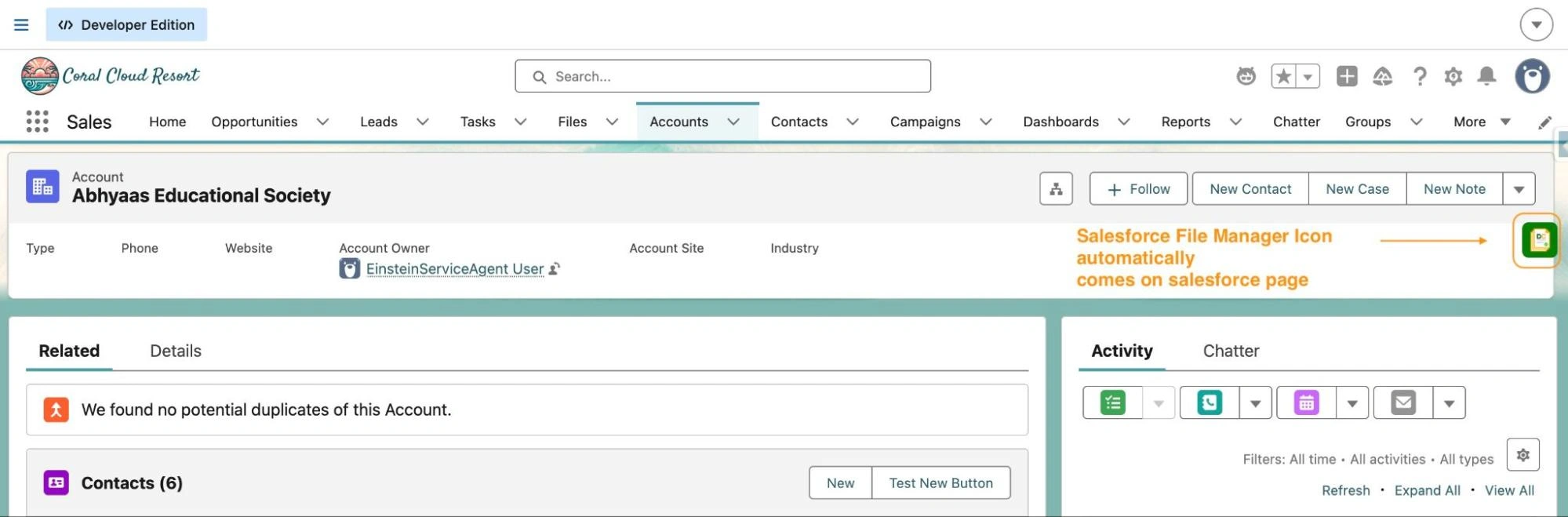
The extension panel will open and automatically load all files and attachments associated with the current record.
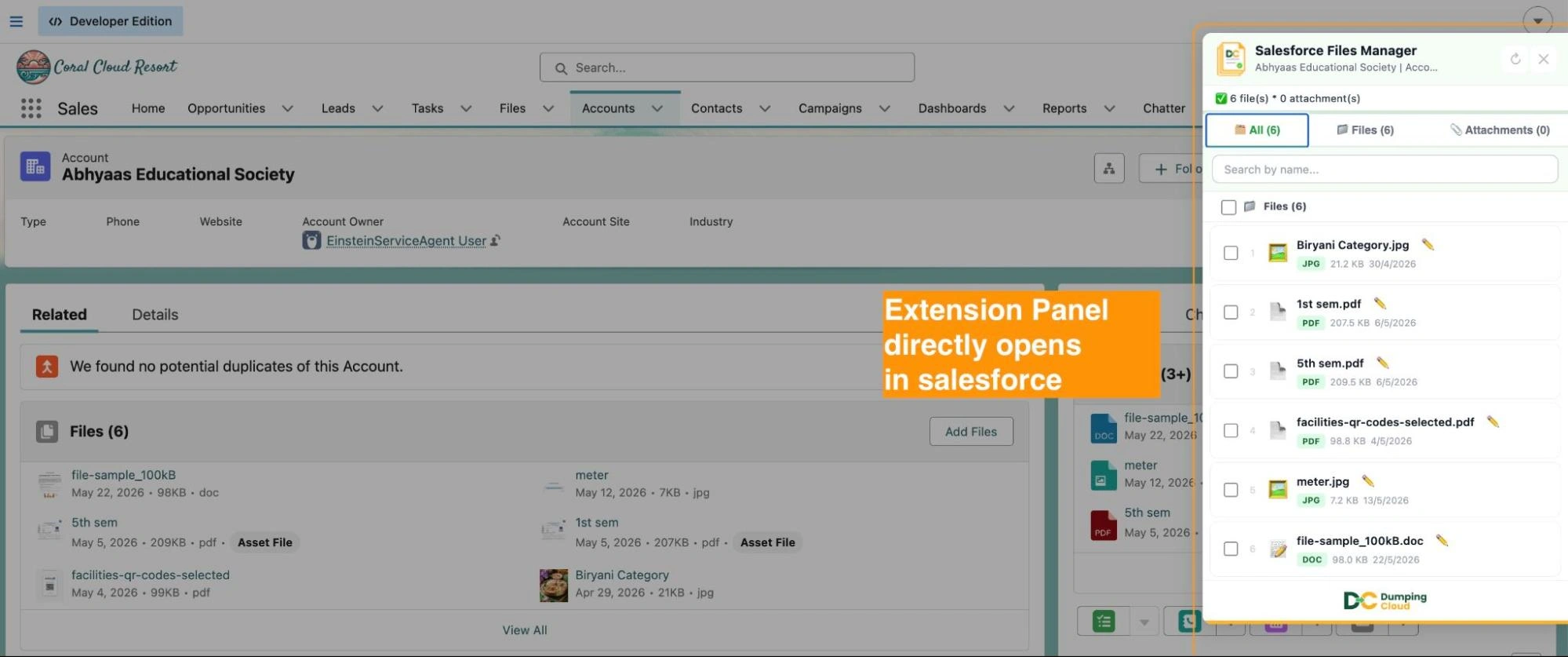
03
Step 3
Select the File(s) to Translate
Click the checkbox next to the specific file you wish to translate.
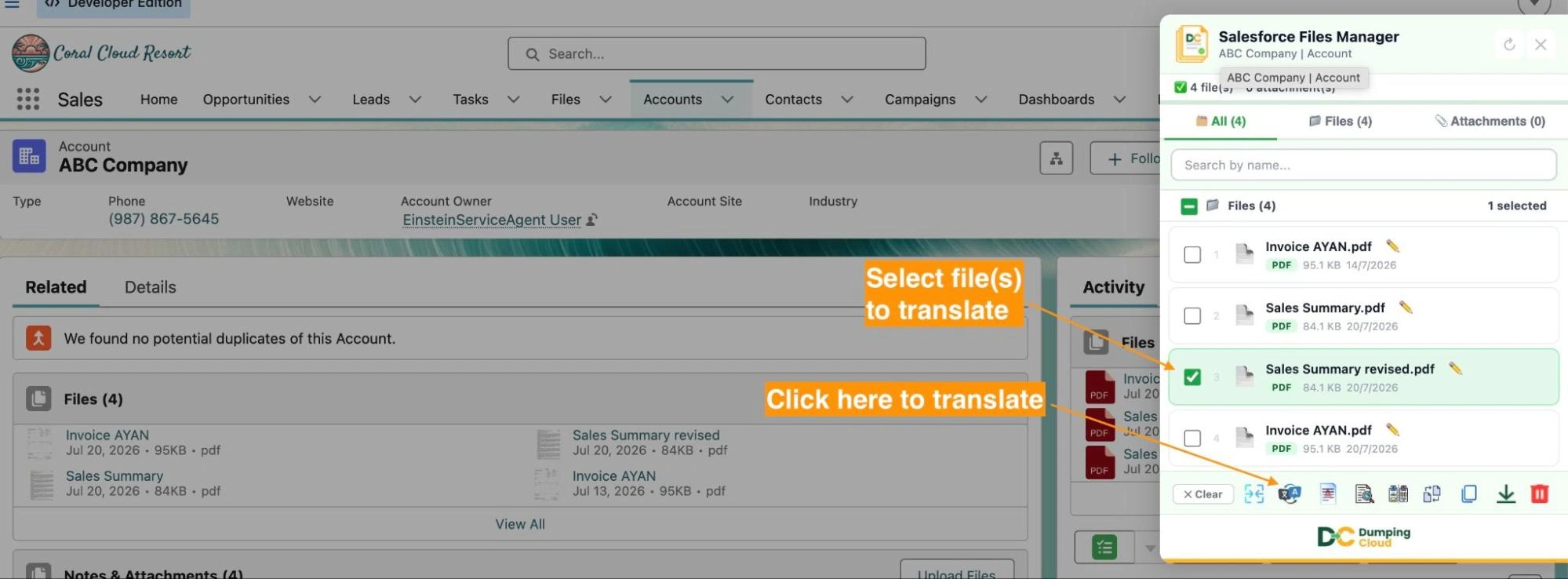
With your files selected, click the “Translate” button in the extension panel action bar. The Translate configuration panel will open.
04
Step 4
Select the Target Language
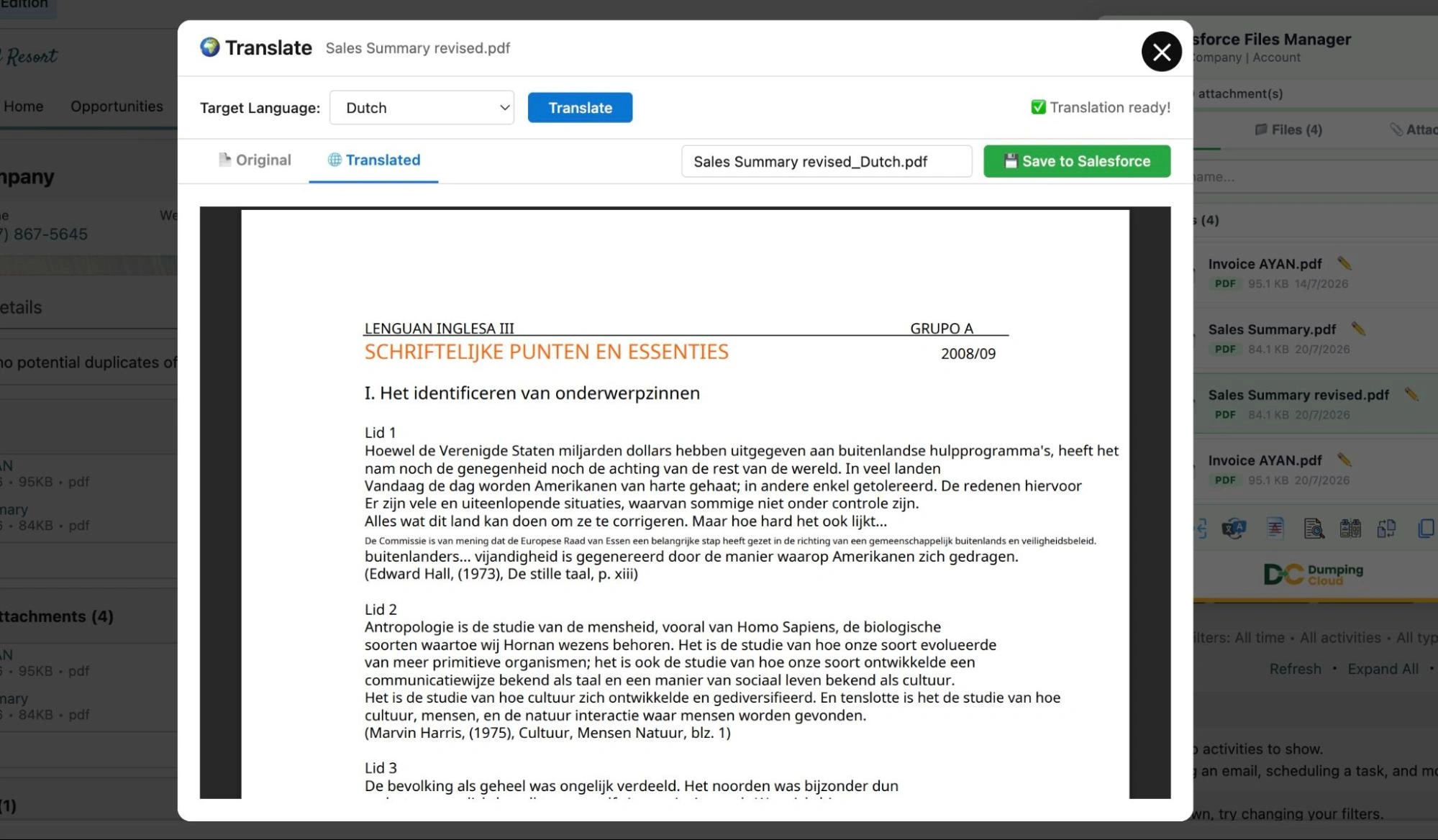
In the Translate configuration panel, select the language you want the file(s) translated into from the language dropdown. You can search for a language by name for quick selection.
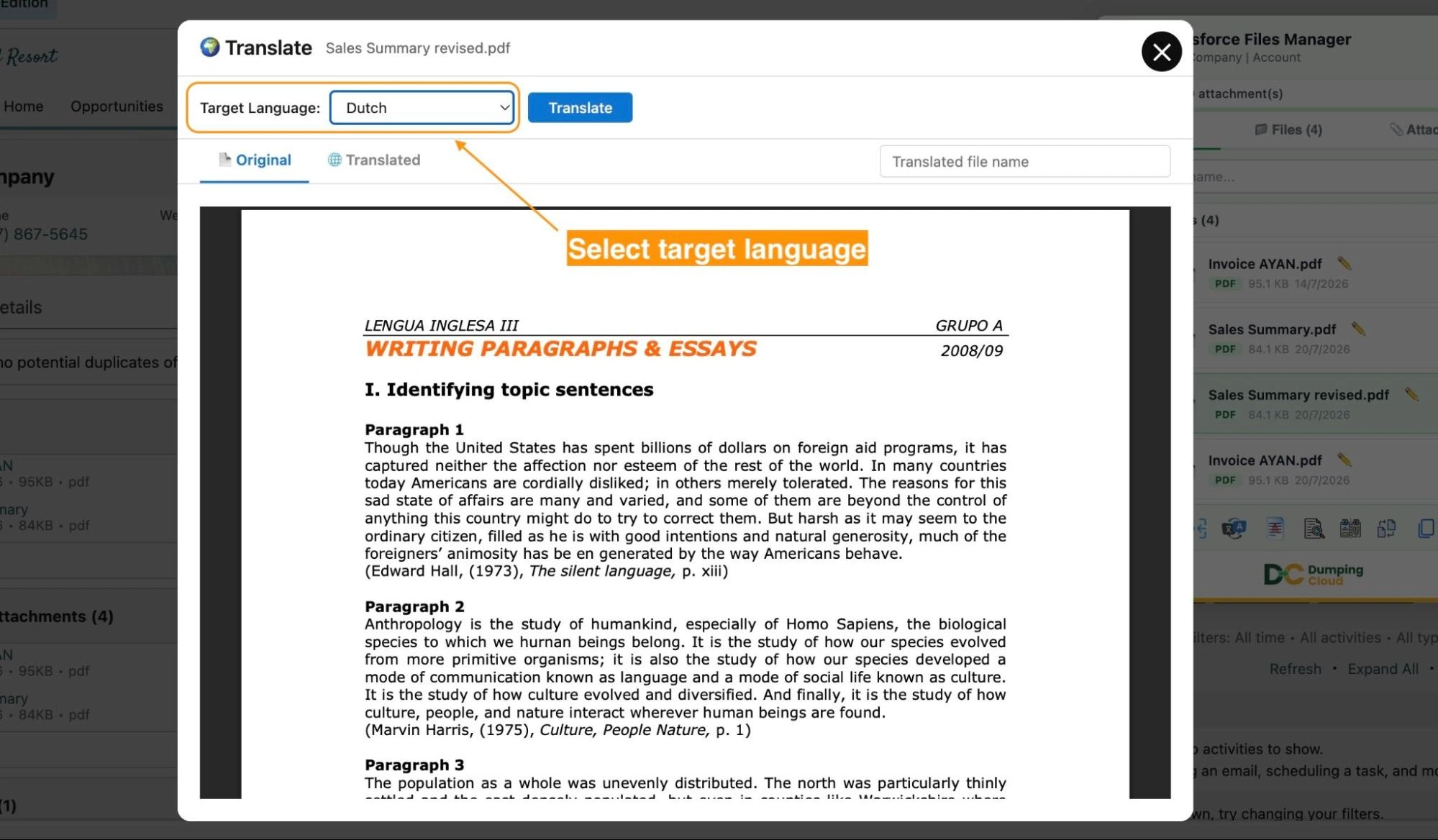
The source language is automatically detected from the file content — no manual selection required.
05
Step 5
Apply the Translation
Click “Translate” to execute the operation. The extension will process the selected file(s), perform the translation into the target language.
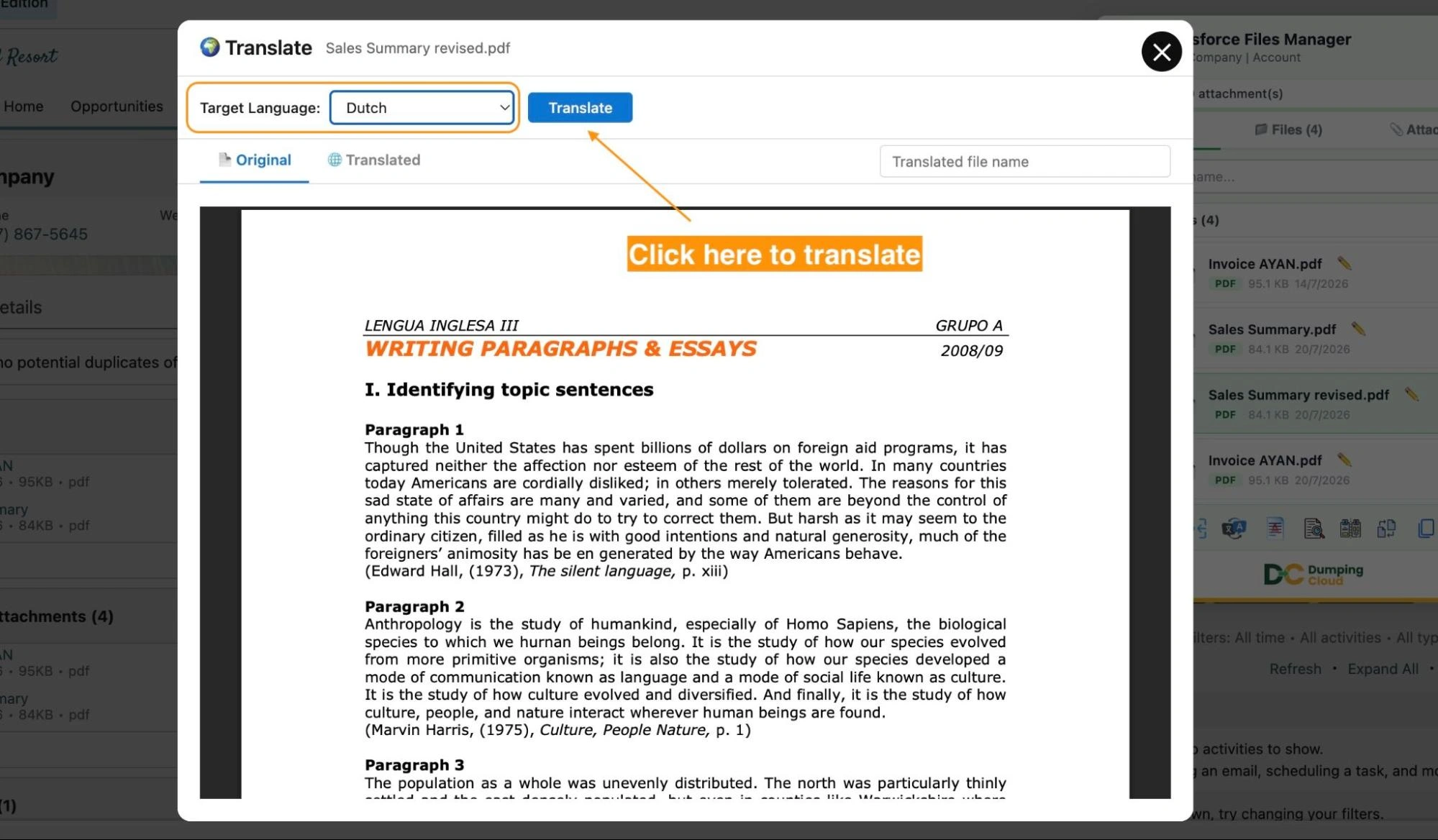
A progress indicator will display while the translation is in progress. For larger files, this may take a few moments.
06
Step 6
Review and Verify the Translated File
Once complete, a success confirmation will display showing the file name(s) and the target language applied. Use the in-window preview feature to view the translated file directly in the extension panel under the “Translated”.
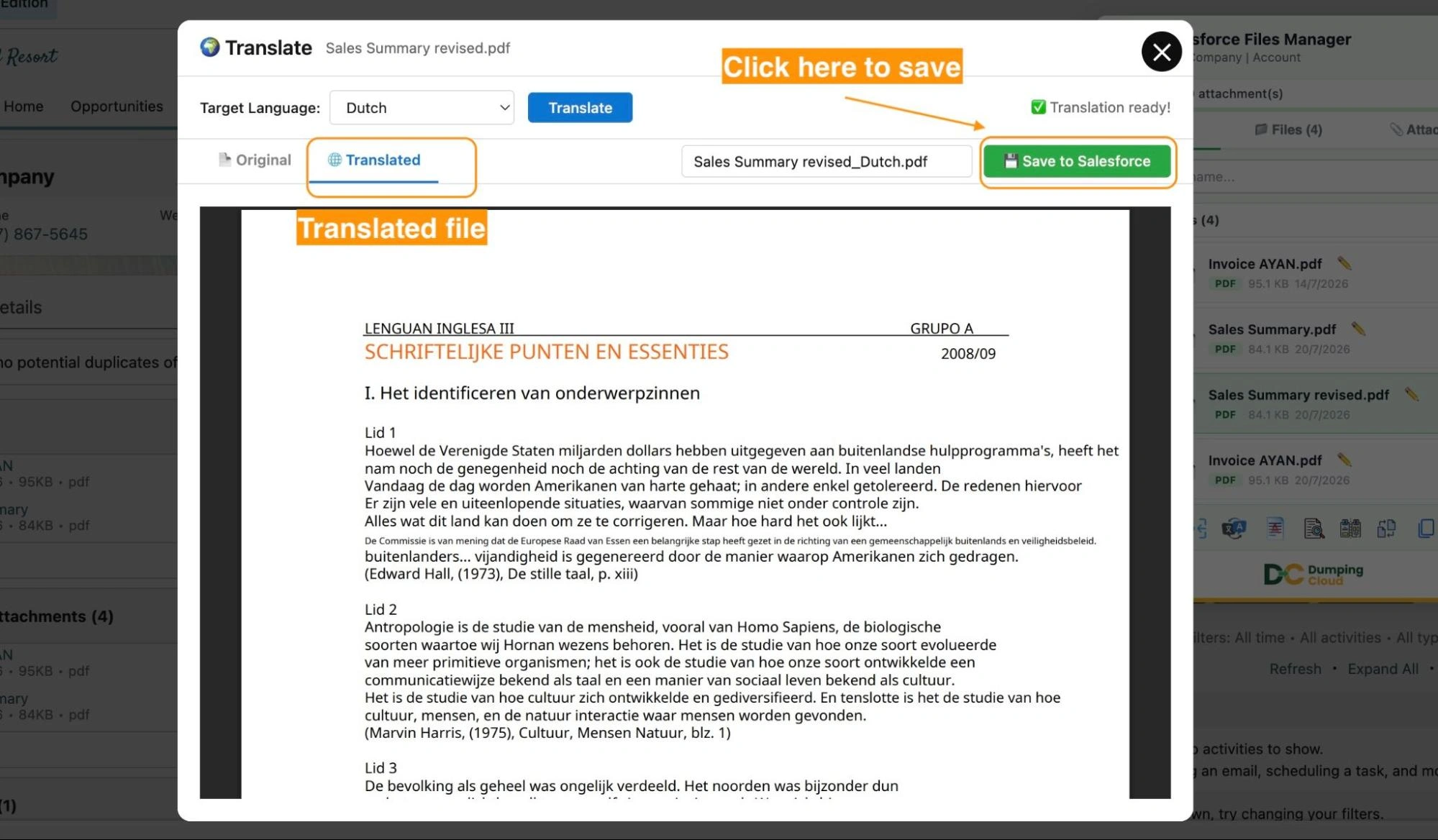
If you choose “Save to Salesforce”, it will save the translated file under the Files related list on the same record.
Navigate to the Files related list on the Salesforce record to confirm both the original and translated versions are present and correctly named.
Key Advantages Over the Manual Approach
| Capability | Manual Process | DumpingCloud |
|---|---|---|
| Translate File | Download → external tool → reformat → re-upload | ✅ Directly in the extension |
| Translate multiple files at once | ❌ One at a time | ✅ Bulk operation supported |
| Supported languages | Depends on tool used | ✅ All major world languages |
| Auto-detect Source Language | Depends on tool | ✅ Automatic detection |
| Save original and translation side by side | ❌ Manual re-upload required | ✅ “Save as new file” option |
| Time per file | Minutes to hours | Seconds to minutes |
Ready to manage Salesforce Files faster?
Download, move, rename, merge, split, convert, compare, and manage your Salesforce Files — without leaving Salesforce.

Frequently Asked Questions
How accurate are the translations?
The Translate feature uses AI-powered translation to deliver high-quality output across all supported languages. For routine business documents, the accuracy is suitable for internal review, general comprehension, and operational use. For legally binding documents or highly technical content, it is recommended to have a qualified reviewer validate the translation before formal use.
Can I translate multiple files into different target languages in one operation?
A single translate operation applies the same target language to all selected files. To translate different files into different languages, perform separate translate operations for each target language.
If I choose "Save as new file", will the original file remain unchanged?
Yes. The "Save as new file" option creates a separate translated file on the same Salesforce record without modifying the original in any way. Both versions will be available in the Files related list.
Can I translate files that contain images or scanned content?
Yes. The extension supports all file types, including image-based and scanned documents. OCR (Optical Character Recognition) is applied where necessary to extract text from image-based content before translation.
Does the translated file preserve the original formatting and layout?
The extension aims to preserve the formatting and layout of the original document in the translated output. Complex layouts with advanced formatting may require minor adjustments after translation, particularly for right-to-left languages such as Arabic and Hebrew.
Do I need System Administrator permissions to use the Translate feature?
You need sufficient Salesforce permissions to view and edit files on the relevant record. The extension respects your existing Salesforce profile and sharing rules.