
File format mismatches and Base64 are two friction points that slow down Salesforce users and developers every day and both have traditionally required leaving the platform to resolve.
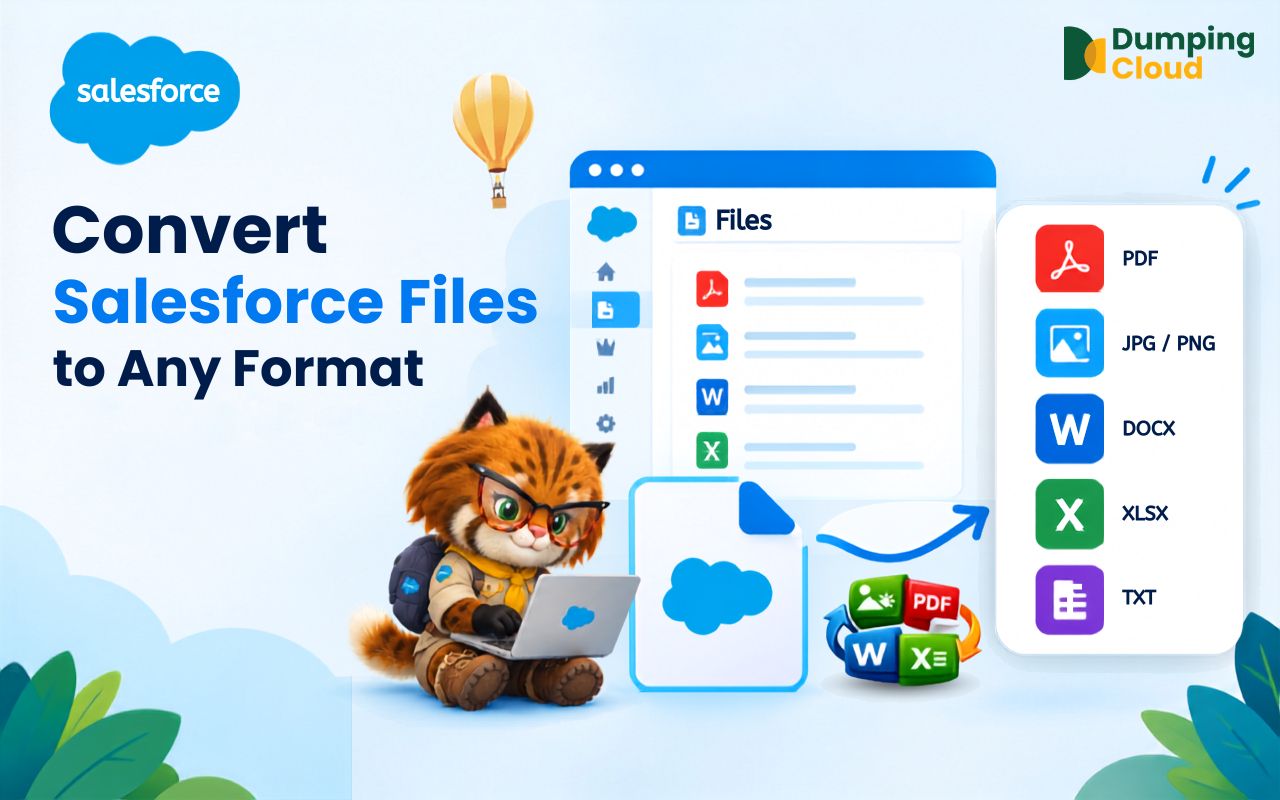
The Convert feature in Dumping Cloud — Salesforce File Manager handles file format conversion natively Word to PDF, PDF to Word, Image to PDF, Text to PDF, and more with the converted file saved back to the record, to your desktop, or both, in a single operation.
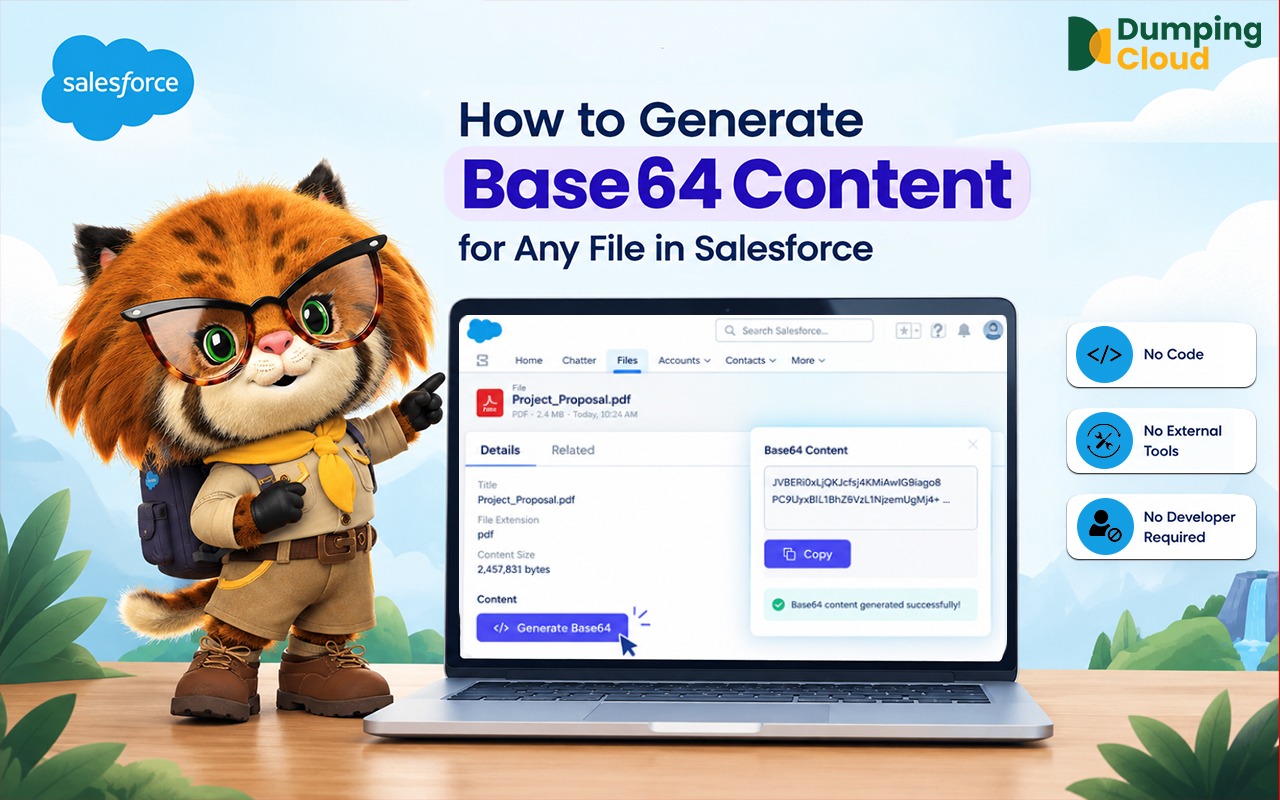
The Generate Base64 feature gives developers and power users instant access to the encoded content of any Salesforce file copyable to the clipboard for immediate use in Apex, APIs, or Lightning components, or saveable as a file on the record for future reference.
Two capabilities. Zero external tools. All inside Salesforce.
Quick Answer
You can convert Salesforce Files directly from the Dumping Cloud — Salesforce File Manager extension without downloading them, using a third-party converter, or re-uploading the converted file.
Select the file, choose the target format, select your save destination, and click Save.
Why Are File Format Mismatches a Problem in Salesforce?
File format conversion is a common requirement in Salesforce workflows. For example:
- A client requests a PDF, but the file on the record is a Word document.
- A partner needs an editable Word version of a PDF stored on a Contract record.
- An Admin needs to convert a batch of text files to PDF for archiving.
In native Salesforce, these conversions typically require you to leave the platform and use an external tool.
For every file, the manual process involves several steps:
01
Step 1
Download the File
02
Step 2
Open a Third-Party Converter or Desktop Application
03
Step 3
Process the File
04
Step 4
Save the Converted File
05
Step 5
Re-upload the File to Salesforce
For a single file, that is an unnecessary interruption. Across a team doing this regularly, the extra downloading, converting, and uploading can become a significant drain on productivity.
Dumping Cloud — Salesforce File Manager solves this with powerful file-management capabilities built directly into the browser extension.
- Convert — transform a Salesforce file from one format to another directly from the record page.
What Does the Salesforce File Convert Feature Do?
The Convert feature allows you to select a file stored on a Salesforce record and convert it to a different format. You can save the output back to the same Salesforce record, save it to your desktop, or do both — entirely within the DumpingCloud extension panel.
Supported Salesforce File Conversions
| From | To |
|---|---|
| Word (.docx) | |
| Word (.docx) | |
| Excel (.xlsx) | |
| PowerPoint (.pptx) | |
| Image (JPG, PNG, etc.) | |
| Text (.txt) | |
| Image (JPG, PNG) | |
| HTML | |
| And more | Based on supported Salesforce file types |
Every conversion is handled within DumpingCloud, eliminating the need for an external converter, desktop application, or download-convert-re-upload workflow.
Who Can Benefit From Salesforce File Conversion?
Sales teams — A prospect asks for a PDF version of a proposal stored as a Word document on an Opportunity. Convert it without leaving the record.
Legal teams — A contract arrives as a PDF but needs to be edited. Convert PDF to Word directly from the Contract record, make changes, and save it back.
Support teams — Customer-submitted files arrive in formats incompatible with internal systems. Convert them to a standard format without downloading or using external tools.
Finance teams — Excel-based financial models need to be shared externally as PDFs for audit or client review. Convert them directly from the Account or Contract record.
Salesforce Admins — Standardize file formats across records. Convert legacy text or image files to PDF as part of a data-quality or archiving initiative.
Developers — Convert files during testing workflows, or use the Base64 feature to get the file content representation needed for API integration.
How to Convert Salesforce Files Using Dumping Cloud
Prerequisites Before You Begin
- A supported browser is installed: Google Chrome, Mozilla Firefox, Microsoft Edge, or Safari. (Install now)
- Dumping Cloud — Salesforce File Manager is installed in your browser from the appropriate browser extension store.
- You are logged into your Salesforce Org in the same browser where Dumping Cloud is installed.
- The file you want to convert is available on a Salesforce record.
- You have the necessary Salesforce permissions to view and manage files on the target record.
Follow These Steps to Convert Salesforce Files
01
Step 1
Navigate to the Record and Open the Extension
Open your supported browser and log in to your Salesforce Org. Navigate to the record containing the file you want to convert.
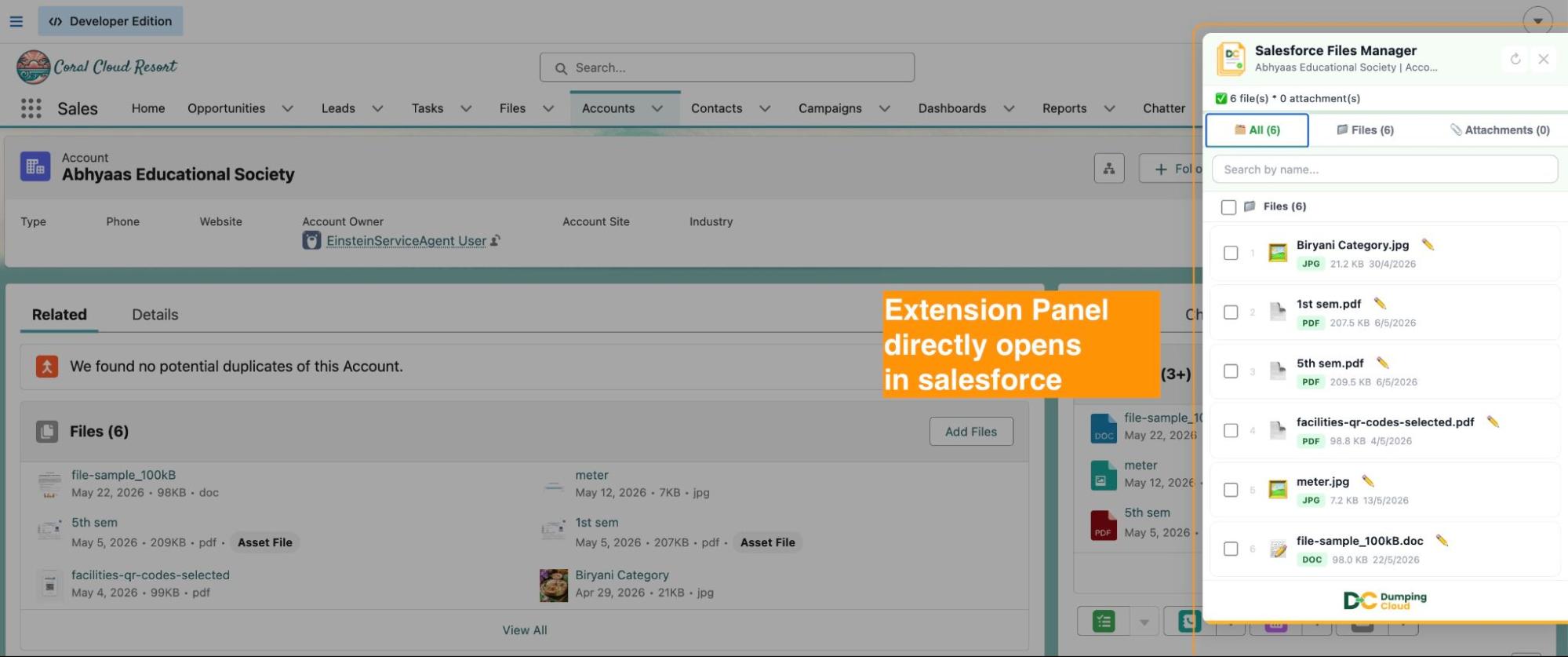
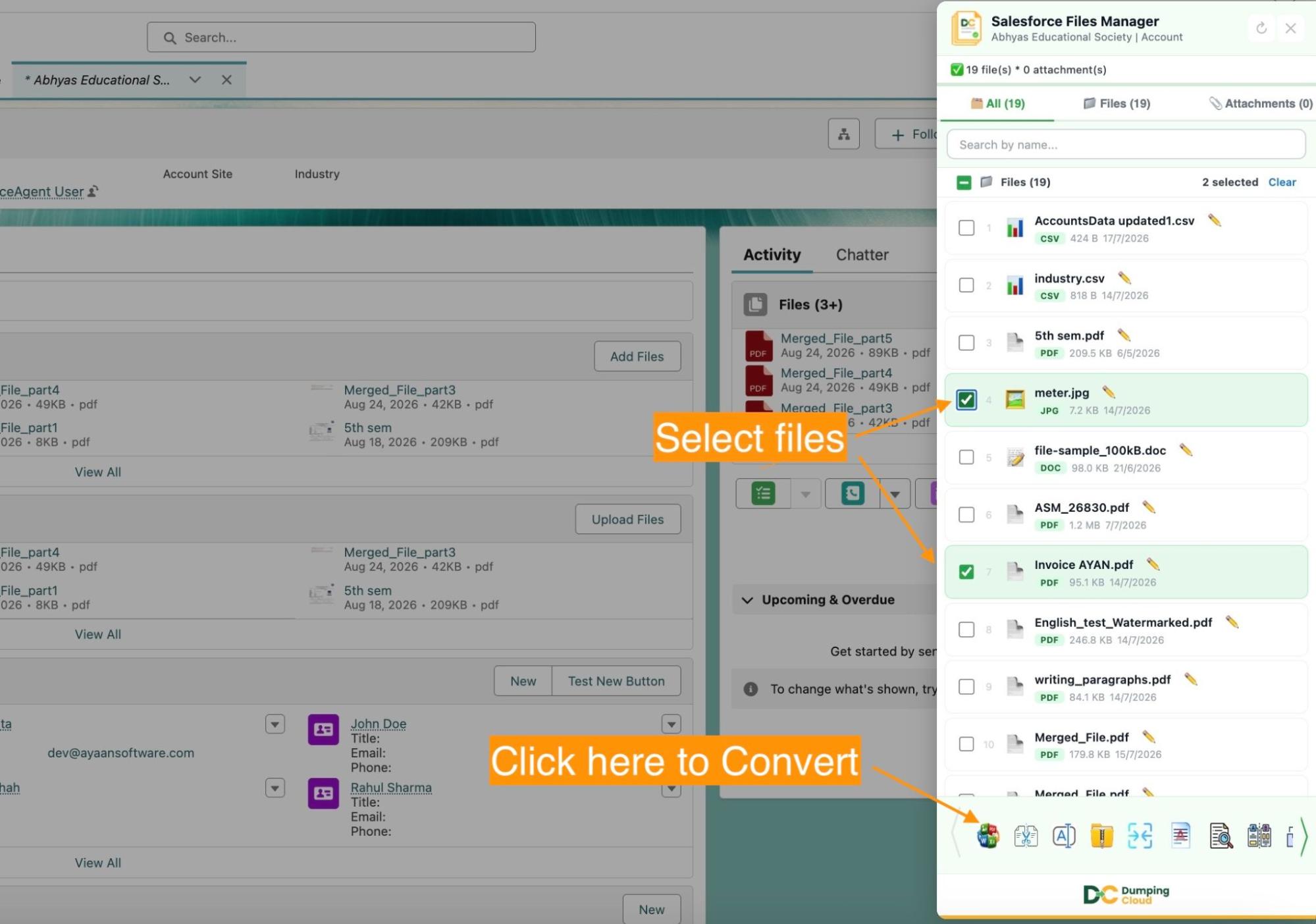
Click the Dumping Cloud — Salesforce File Manager icon in your browser toolbar to open the extension panel. The panel will load the files associated with the current record.
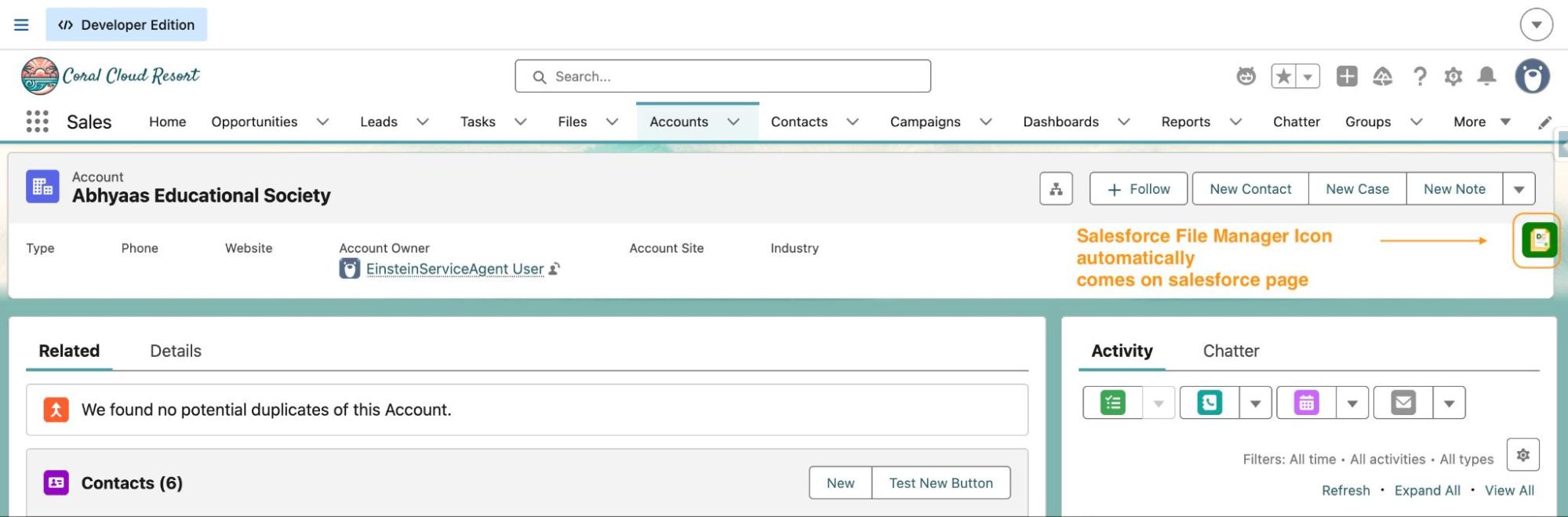
The extension panel automatically loads the files and attachments associated with the current record.
02
Step 2
Select the File to Convert
Click the checkbox next to the file you want to convert.
03
Step 3
Click the Convert Button
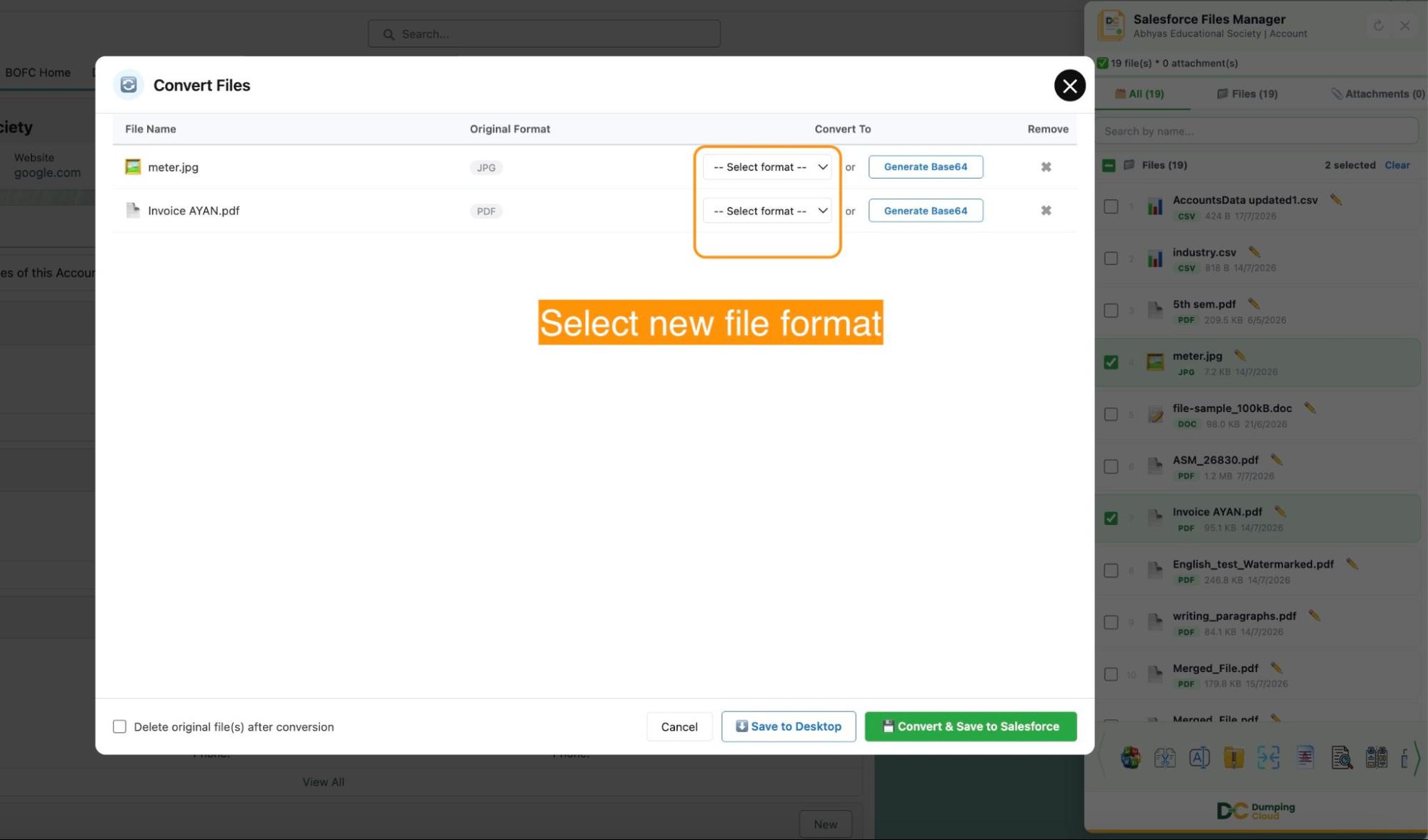
Click the Convert button in the action bar. The conversion configuration panel will open.
Select the Target Format
Choose the format you want to convert the file to from the dropdown, such as Word to PDF, PDF to Word, or Image to PDF.
04
Step 4
Choose Your Save Destination
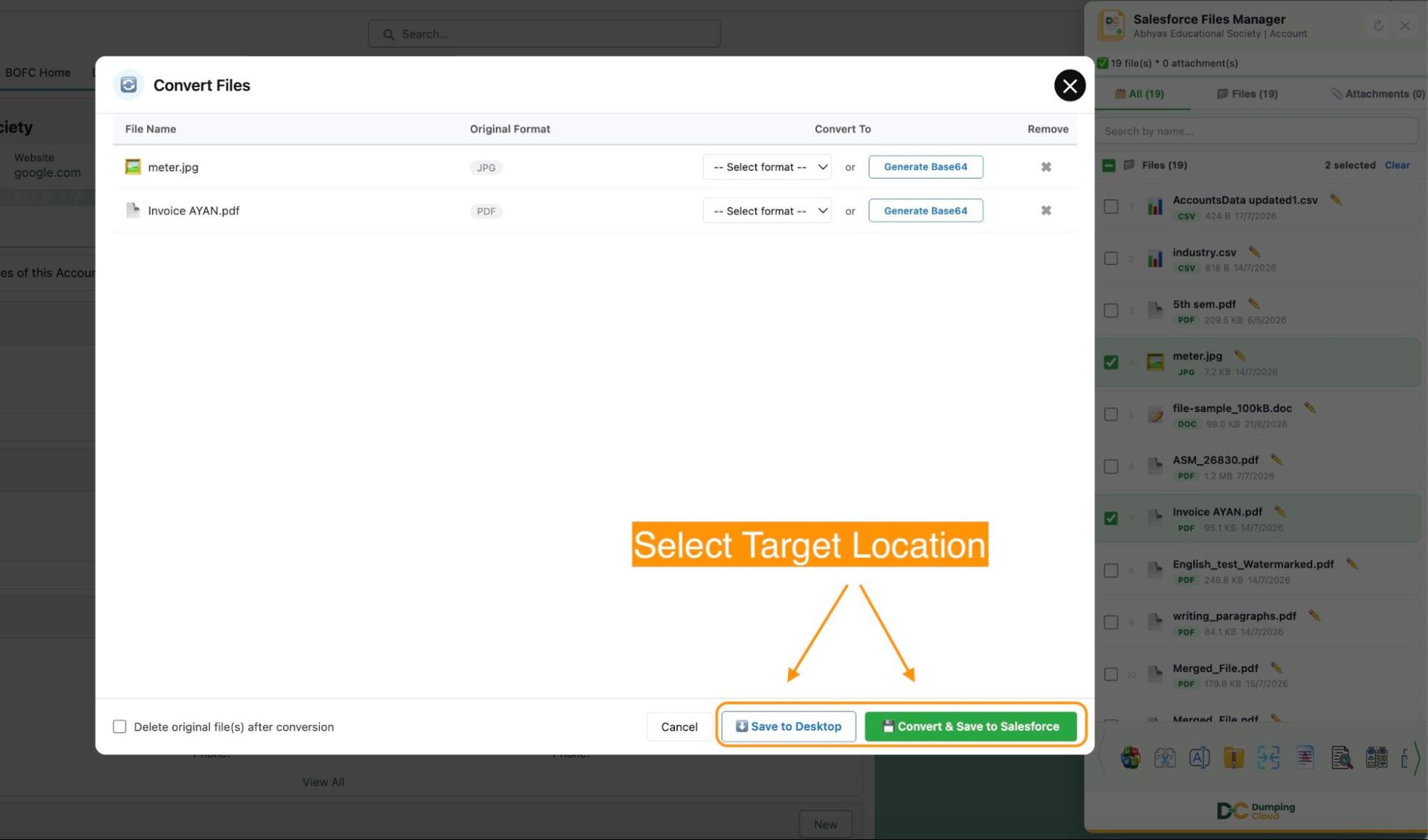
Select where the converted file should be saved — the Salesforce record, your desktop, or both.
05
Step 5
Click Save
Click the Save button to execute the conversion. The extension processes the file and delivers the converted output to your chosen destination.
A success confirmation displays the converted file name and save location.
Key Advantages Over Manual Approaches
| Capability | Manual Approach | Dumping Cloud |
|---|---|---|
| Convert one file format to another | Download → external tool → re-upload | In-panel, one operation |
| Convert multiple files at a time | Download → external tool → re-upload | In-panel workflow |
| Save converted file to Salesforce record | Manual re-upload required | Automatic |
| Save converted file to desktop | After manual conversion | Built-in option |
| Stay within Salesforce workflow | Requires external tools | Entirely in-browser |
Why It Matters
Dumping Cloud removes the unnecessary steps between finding a Salesforce File and getting it into the format you need.
Instead of downloading, converting, saving, and uploading again, you can manage the conversion directly from your Salesforce workflow.
Ready to manage Salesforce Files faster?
Download, move, rename, merge, split, convert, compare, and manage your Salesforce Files — without leaving Salesforce.

Frequently Asked Questions
What file formats can I convert using Dumping Cloud?
Dumping Cloud supports several common file conversions, including Word to PDF, PDF to Word, Excel to PDF, PowerPoint to PDF, images to PDF, text to PDF, PDF to images, HTML to PDF, and other supported file types.
Can I convert PDF files to Word directly from Salesforce?
Yes. You can select a PDF stored on a Salesforce record, choose Word as the target format, and save the converted file to the Salesforce record, your desktop, or both, depending on the available options.
Can I convert multiple Salesforce files at once?
Yes. Dumping Cloud supports converting multiple selected files in a single operation, helping reduce the repetitive download-and-re-upload process.
Does converting a Salesforce file delete or modify the original file?
No. The original file remains unchanged. The conversion creates a separate output file, so you can keep, rename, move, version, or delete the original and converted files independently.