
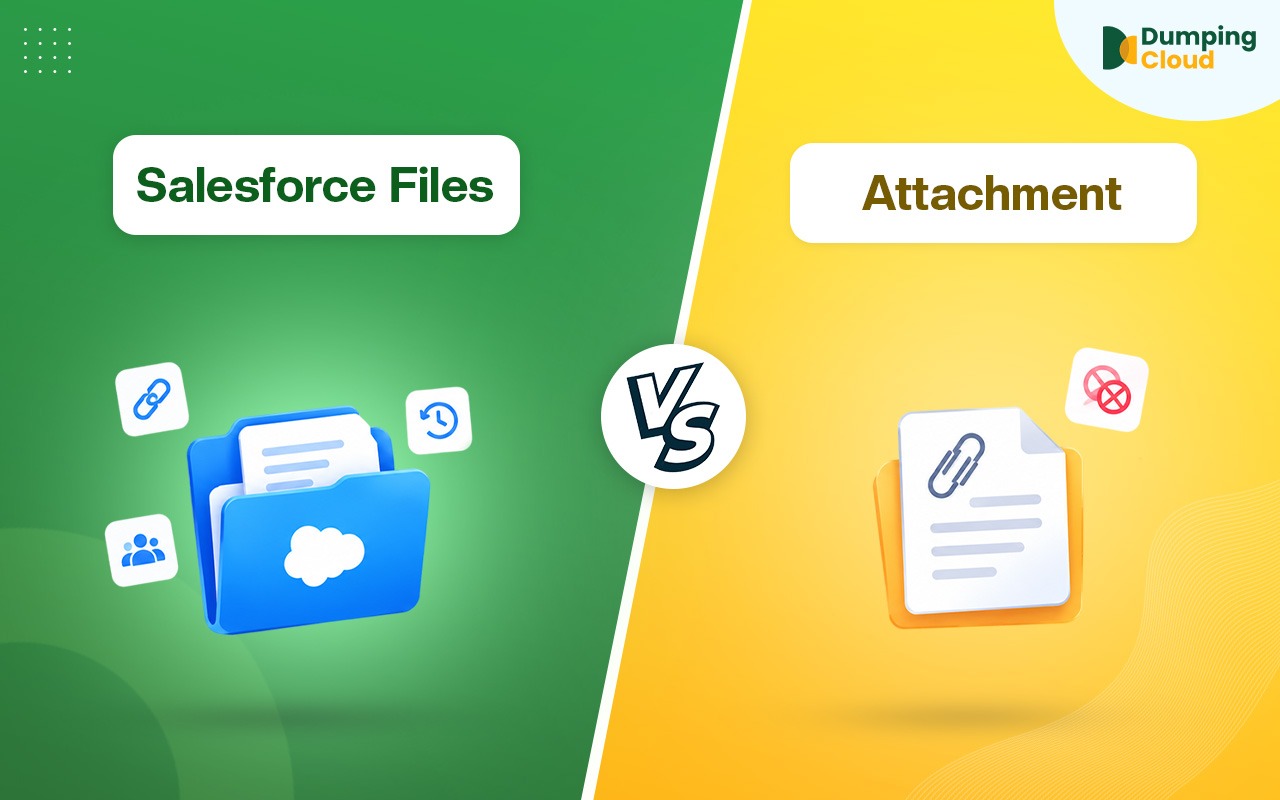
If you’ve spent any time in Salesforce, you have probably uploaded a document to a record and never thought twice about it. But behind that one click, Salesforce is doing one of two completely different things: saving it as an attachment or saving it as a file. Which one happens changes what you can do with that document later: whether you can share it, version it, or link it anywhere else. Here is the difference, in plain terms.
What are Salesforce Attachments?
Attachments are Salesforce’s legacy way of storing files. Each attachment is a record on the Attachment object and is associated with a parent record through the ParentId field.
An attachment has one parent record, so the same attachment cannot be directly linked to multiple records. Attachments also don’t provide native file versioning. If you upload another copy, it is treated as a separate attachment rather than becoming a new version of the existing attachment.
- Max size: 25 MB
- Linked to: One parent record only
- Versioning: No native version history
What are Salesforce Files?
Salesforce Files are the modern file-storage model and are built around three related objects: ContentDocument, ContentVersion, and ContentDocumentLink. This separation allows the same file to be associated with multiple records, users, groups, or other supported entities while maintaining its version history.
- Max size: 2 GB per file
- Linked to: Multiple records, users, groups, etc.
- Versioning: Yes, multiple versions of the same file can be stored and accessed.
So what’s actually different?
| Basis | Attachments | Files |
|---|---|---|
| Max file size | 25MB | 2GB |
| Linked to | One record | Multiple records |
| Version history | No | Yes |
| Storage type | Data Storage (limited, pricier) | File Storage (cheaper, larger) |
| Searchable in Lightning | No | Yes |
| Sharing | Locked to the parent record | Shareable with users, groups, records |
Why did Salesforce move away from Attachments?
Because the one-record model doesn’t scale. If the same contract needs to sit on an Account, an Opportunity, and a Case, Attachments force you to upload it three separate times, three copies, three times the storage, zero version tracking. Files let you upload once and link it wherever it’s needed.
Salesforce noticed this too: since Spring ’17, Lightning Experience doesn’t even create new Attachment records from the UI anymore. Upload a file through the Notes & Attachments related list today, and it’s saved as a File behind the scenes, regardless of which list it shows up in.
Can one Salesforce File be linked to multiple records?
Yes. This is the whole point of the three-object model:
- ContentDocument: The file’s identity. Name, owner, type. One per file, no matter how many versions exist.
- ContentVersion: Each uploaded copy of the file’s content. New upload = new version, old ones stay put.
- ContentDocumentLink: The connector. One row per place the file is shared, so a single file can sit on an Account, an Opportunity, and a Case at the same time without three separate uploads.
Attachments can’t do any of this. One file, one record, that’s the ceiling.
Should you migrate your old Attachments to Files?
If you’re on Lightning, yes. Salesforce isn’t actively developing Attachments anymore, and there are two concrete reasons to move:
- Storage cost. Attachments eat into Data Storage, which is smaller and pricier to expand. Files use File Storage, which is cheaper and usually more generous. Migrating existing Attachments can free up storage without buying more.
- Sharing. If a document needs to live on more than one record, Attachments simply can’t do it, you’re stuck re-uploading duplicates.
Migration means converting old Attachment records into ContentVersion/ContentDocument records and re-linking them to their original records. Salesforce has a setting for new uploads (Setup → Feature Settings → Salesforce Files), and bulk-conversion tools exist for moving historical data.
Which one should you use?
Files, basically always. There’s no real case for building anything new on Attachments in 2026, it’s not getting new features, it can’t be searched in Lightning, and it can’t be shared past one record. Attachments only matter now if you’ve got legacy Apex or old integrations still pointed at that object.
Once you’re on Files, the real problem is managing them
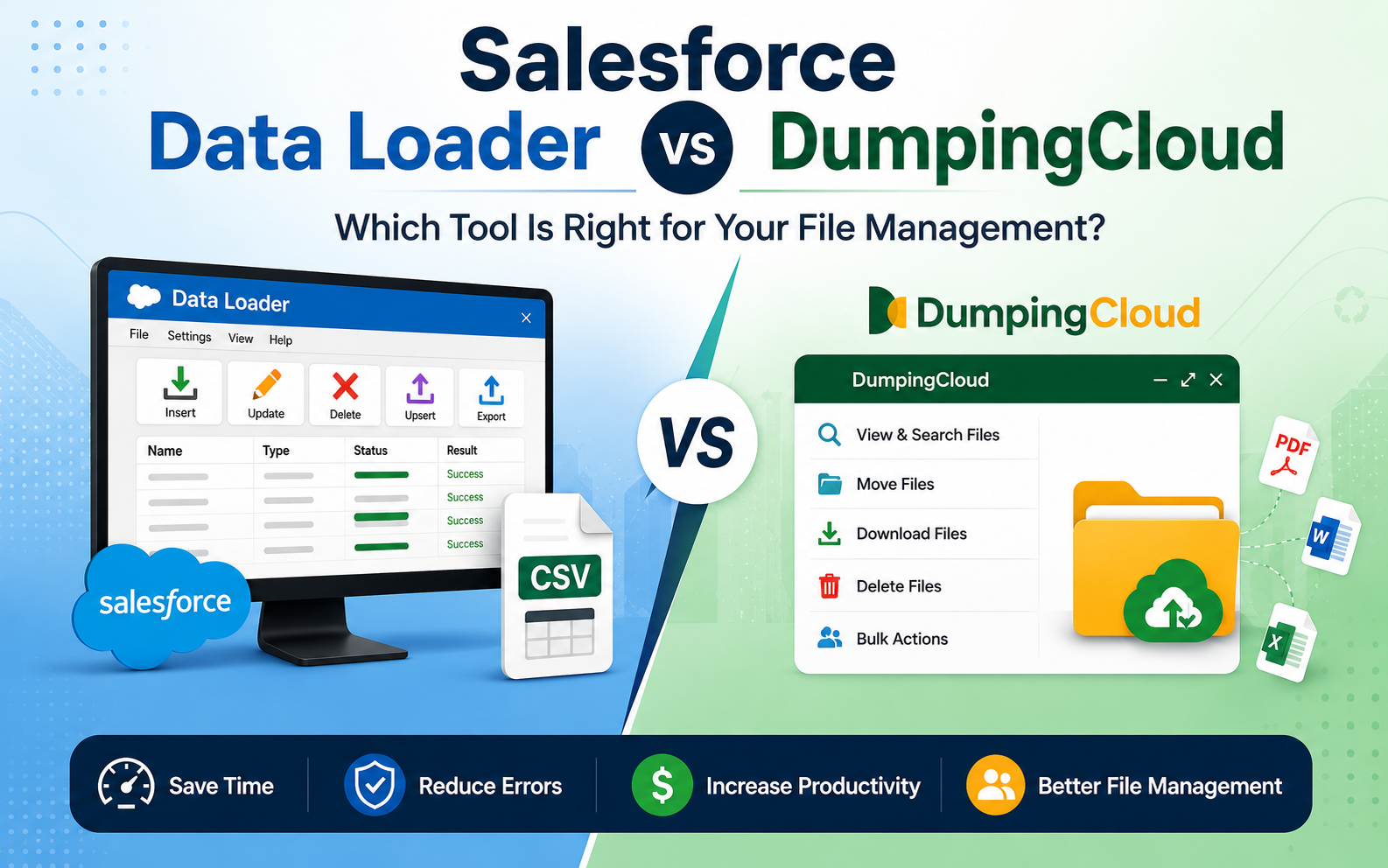
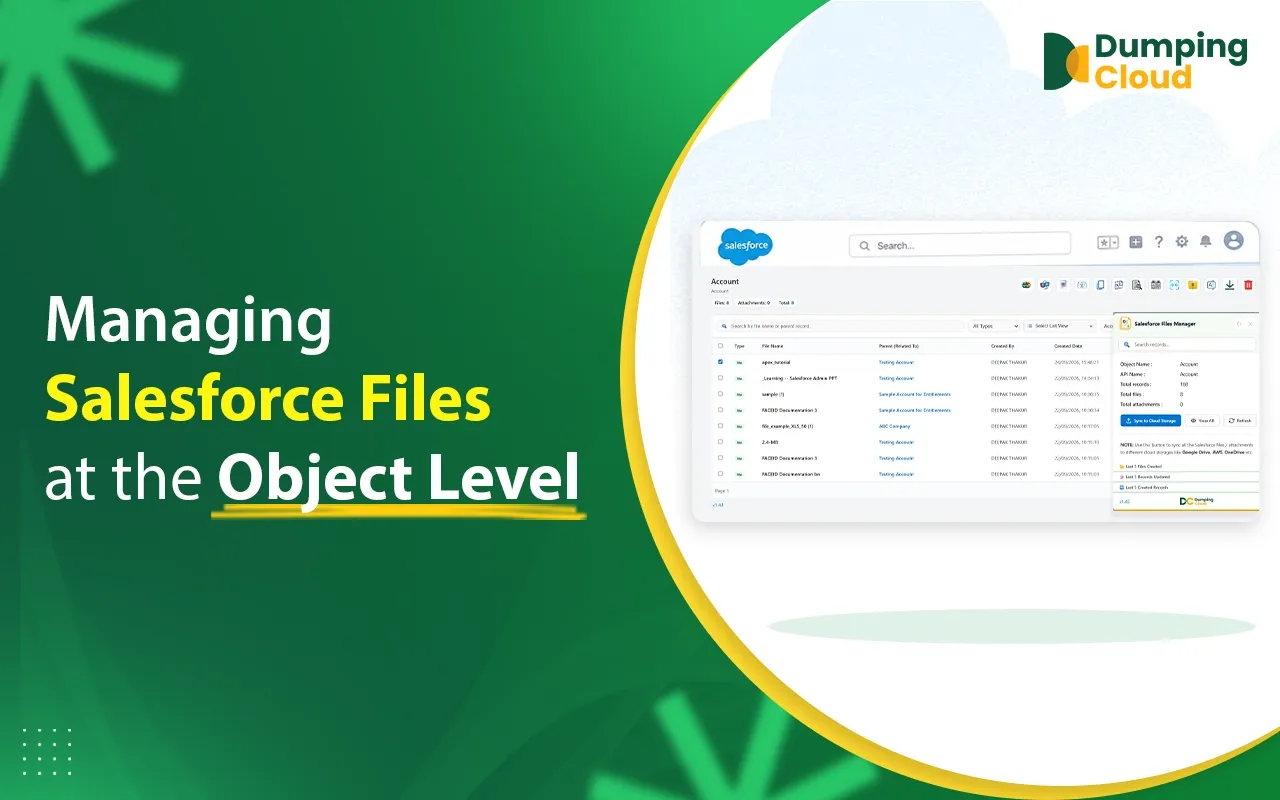
Here’s the part most guides skip: Salesforce doesn’t give you a good way to handle Files in bulk. Want to move ten files to a different record? Rename fifty of them with a consistent pattern? Merge three PDFs into one before sending to a client? Out of the box, that’s one file at a time, every time, or a Data Loader job, if you’re an admin who has the patience for it.
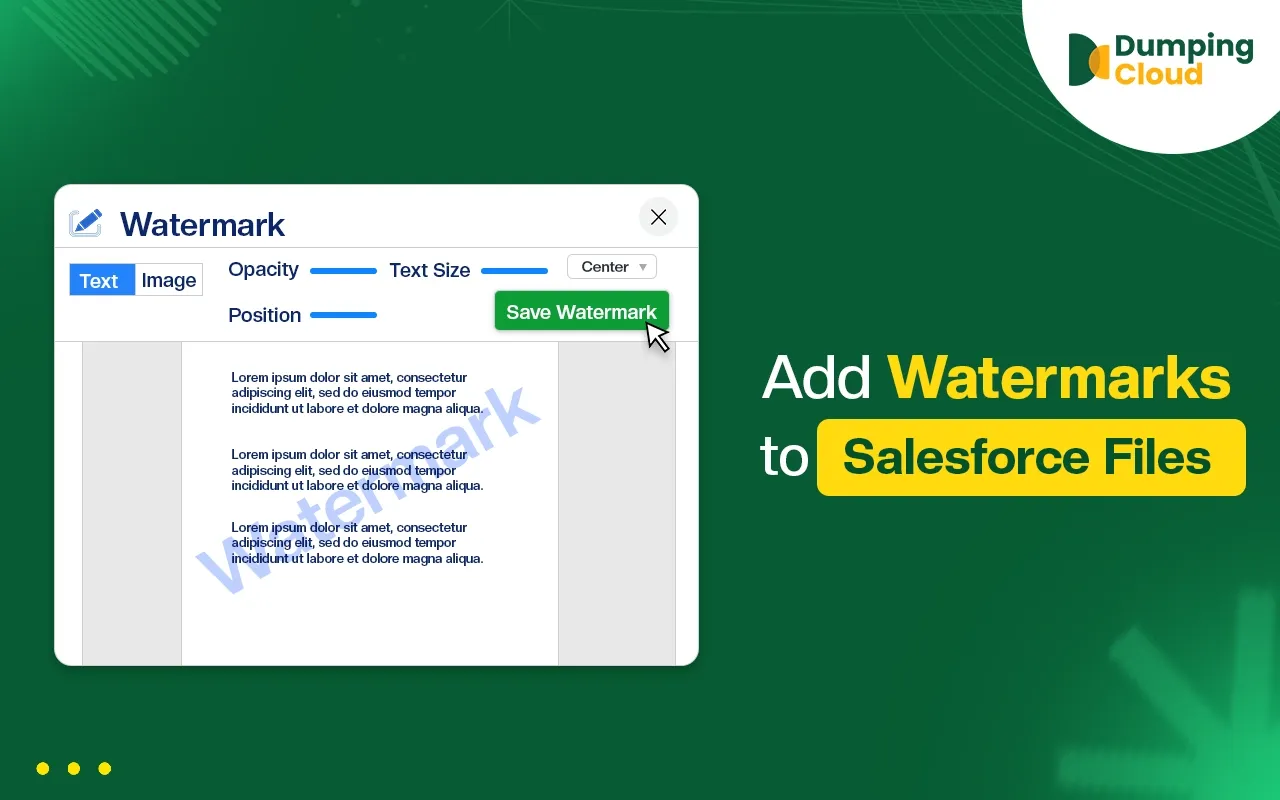
That is the gap DumpingCloud is built for. It’s a free Chrome extension that runs right inside your Salesforce records and handles the bulk work natively:
- Move files between records without Data Loader or a script
- Merge multiple files into one PDF in a few clicks
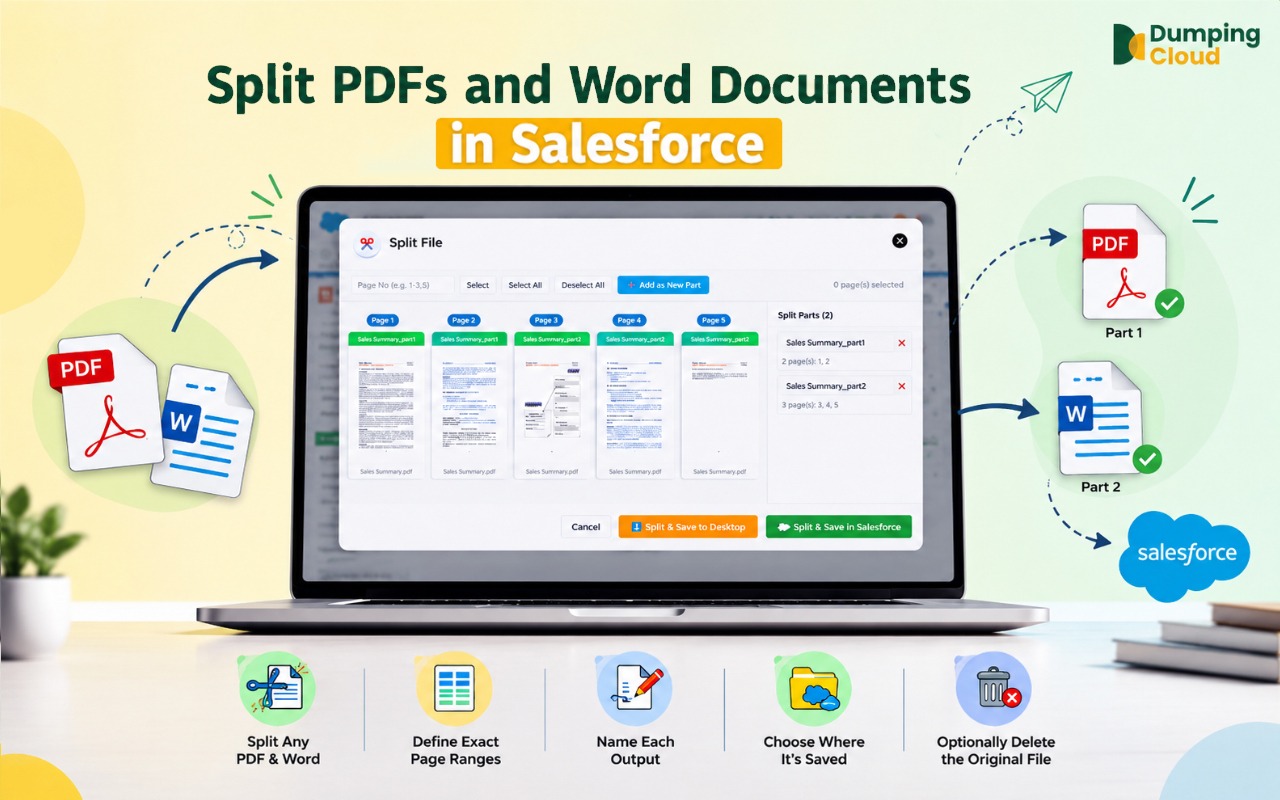
- Split a PDF or Word doc into smaller pieces, saved straight back to the record
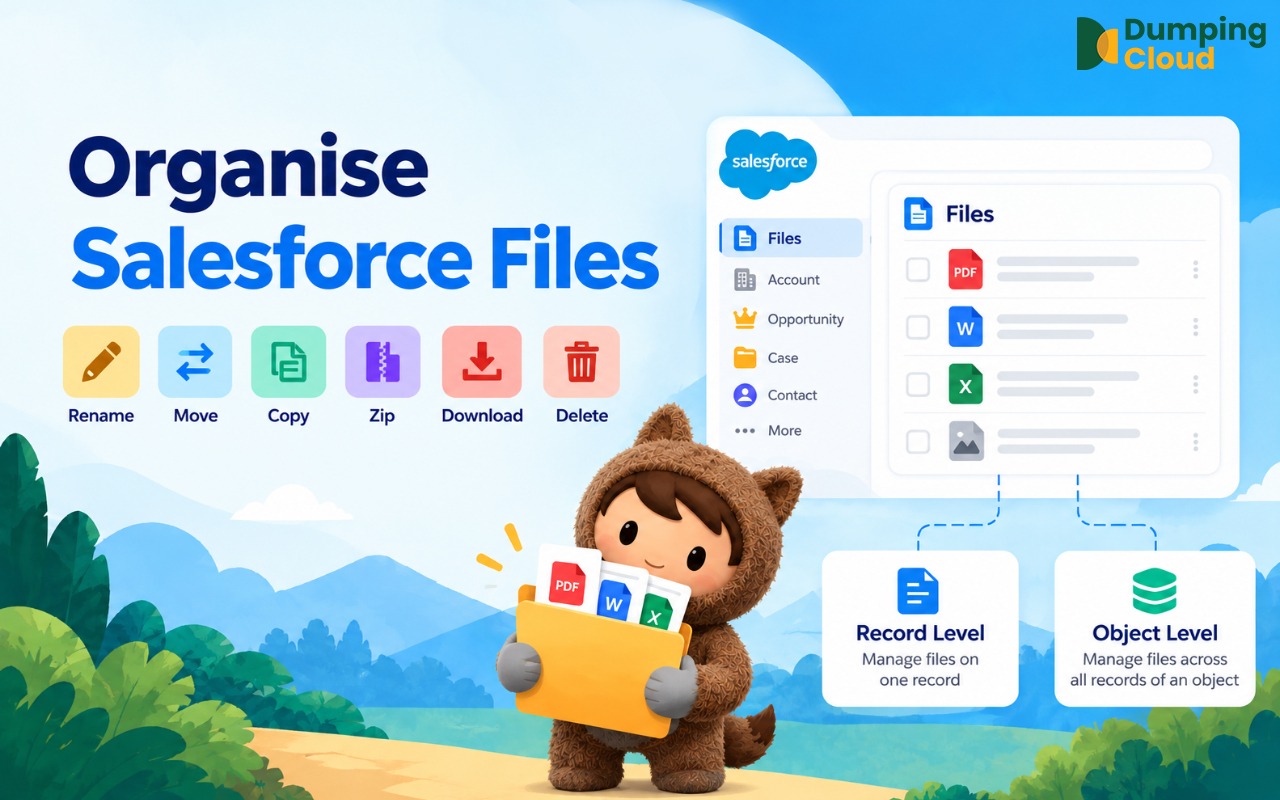
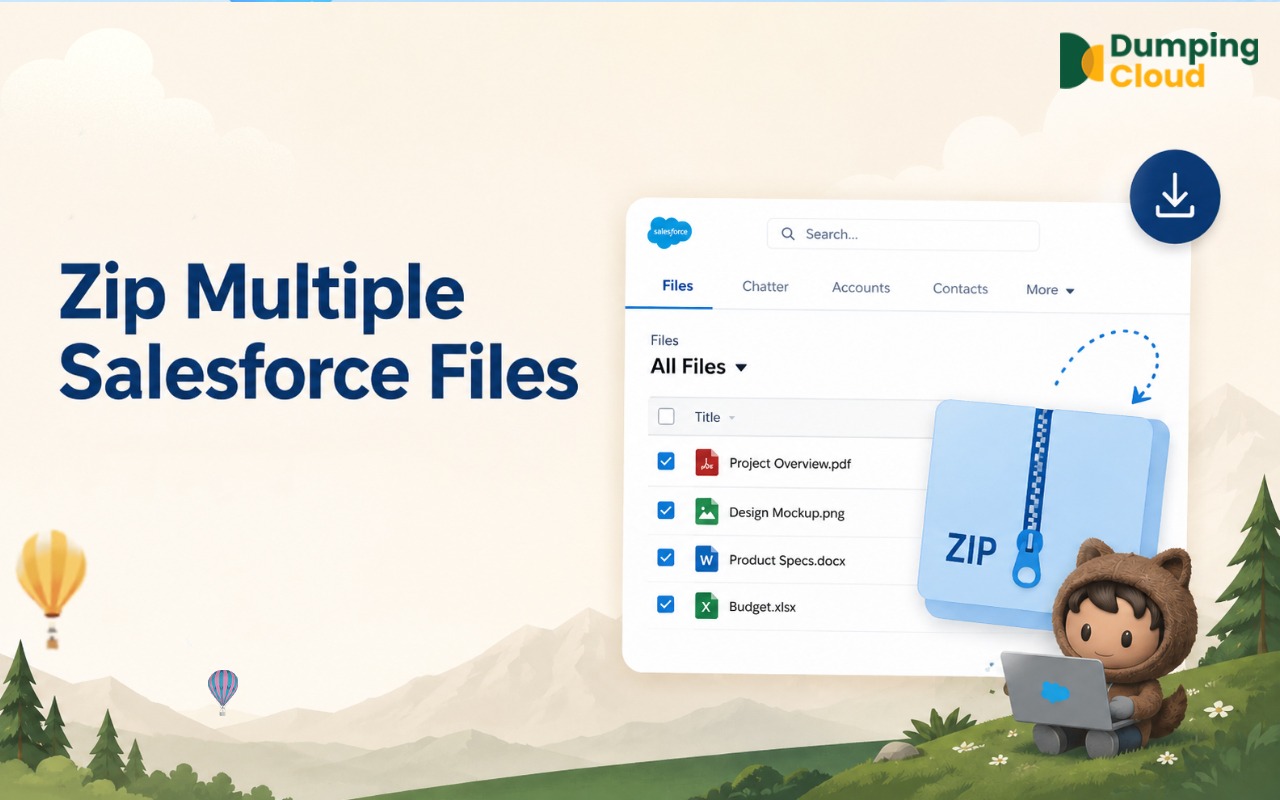
- Copy, rename in bulk, zip and download, or mass delete, all without leaving the record page
- No login, no setup, nothing installed on Salesforce’s side, it works inside your existing session
If migrating from Attachments left you with a pile of Files that now need sorting, this is the part that actually saves the time.
Frequently Asked Questions
Are Salesforce Attachments still used?
Mostly as existing data. Since Spring '17, Lightning doesn't create new Attachment records from the UI, new uploads become Files automatically.
Can one Salesforce File be linked to multiple records?
Yes, through ContentDocumentLink. Attachments can't, each one belongs to a single record.
What is ContentDocumentLink in Salesforce?
The object connecting a File to whatever it's shared with, a record, user, group, or library.
Can Salesforce Attachments be migrated to Salesforce Files?
Yes, using Salesforce's built-in setting plus a bulk migration tool, then re-linking each file to its original record.
What is the difference between ContentDocument and ContentVersion?
ContentDocument is the file's identity, one per file. ContentVersion is each uploaded copy of the content, one file can have many.
Manage Salesforce Files Without the Busywork
Once your files are in Salesforce Files, managing them shouldn't mean handling one file at a time.