
Quick Answer
You can reduce Salesforce file storage cost with four simple actions: bulk delete files you don’t need, zip files to make them smaller, download files to keep a safe copy, and sync the rest to a cheaper cloud like Google Drive, OneDrive, Dropbox or AWS. The free DumpingCloud browser extension lets you do all four in bulk, right inside Salesforce, with no login. That’s the whole idea behind this, the rest of this guide shows you how, step by step.
How to Reduce Salesforce File Storage Cost
Imagine you have a company with lots of documents for example invoices, customer files, reports etc) which are all stored in one place. As your company grows the space in that store starts to fill up. As the storage capacity starts to end it automatically costs more and more for more space you start to look for ways to store less used files elsewhere.
Now imagine keeping the files your team uses daily in Salesforce while moving older documents to a more affordable cloud storage service, such as Google Drive, OneDrive, Dropbox, or Amazon S3. Your team can still access those documents when needed, but you may not have to pay to keep every file inside Salesforce.
That is the idea behind reducing Salesforce storage costs, keeping important records where your team needs them and moving suitable files elsewhere instead of paying for extra Salesforce storage unnecessarily. In this guide you get to know about the 4 easy actions of DumpingCloud that help you in reducing the salesforce storage cost.
Why is Salesforce Storage so Expensive?
Salesforce keeps two kinds of storage:
- Data storage holds records like Accounts, Contacts, Leads and Cases.
- File storage holds files like PDFs, contracts, invoices, images and email attachments.
Every Salesforce plan comes with some free file space. Most editions include about 10 GB per org, but your exact number depends on your plan, so check it in Setup → Storage Usage. When you use more than your limit, you have to buy extra storage. The price depends on your contract, but a commonly quoted number is about $5 per GB per month. Regular cloud storage can cost as little as $0.02 per GB per month, which is the typical price for object storage like Amazon S3.
Here is what that looks like for 100 GB of extra files:
- 100 GB × $5 = $500 per month
- $500 × 12 = $6,000 per year
And most of those files are old contracts, closed-case attachments and past quotes that nobody opens anymore. You are paying premium rent for things that sit in a corner.
First, Check What is Filling Your Storage
Before you fix anything, find the problem. It takes one minute.
- Open Setup in Salesforce.
- Type Storage Usage in the Quick Find box.
- Click it and look at the numbers.
You will see how much file storage and data storage you’ve used. This matters because moving files only helps if file storage is the one that’s full. If data storage is the full one, files aren’t your problem.
4 Easy Actions to Reduce Salesforce Storage Cost
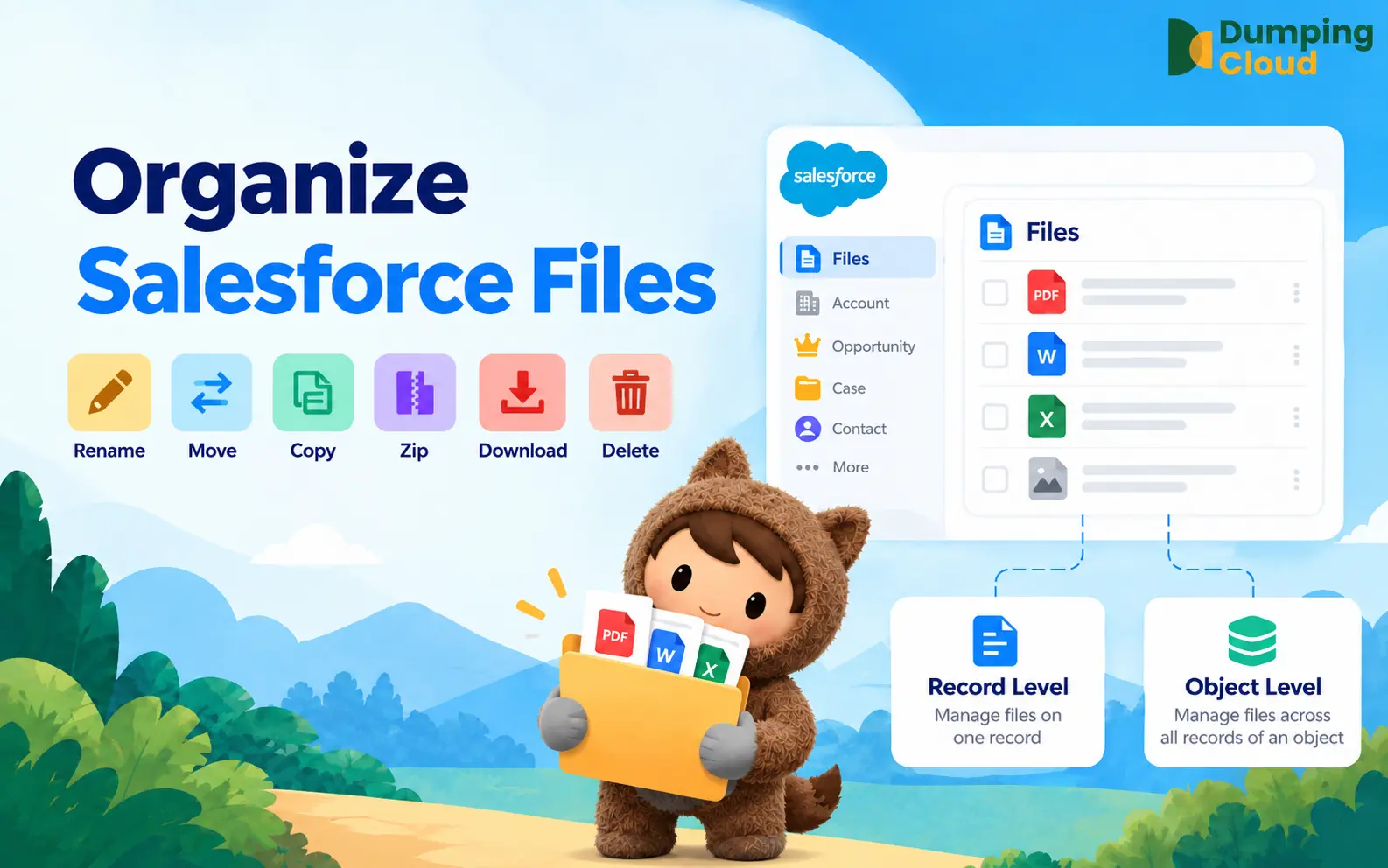
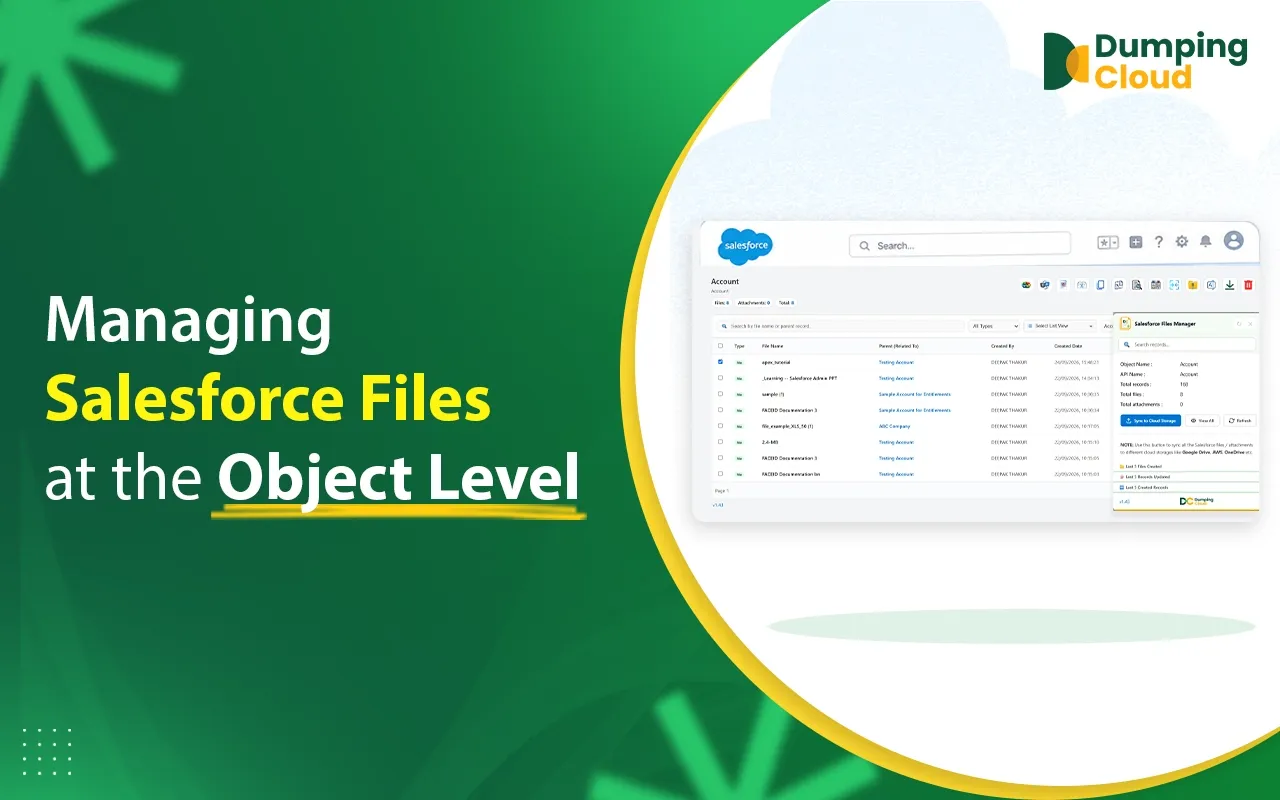
DumpingCloud is a free browser extension (Chrome, Firefox, Edge and Safari). It adds bulk file tools to your Salesforce record and object pages. Here are the four actions that save you money.
Action 1: Bulk Delete Files You Don’t Need
Every office has junk. Salesforce does too:
- The same PDF uploaded five times
- Old test files from sandboxes and demos
- Attachments on records nobody uses anymore
Deleting these one by one is painful. With DumpingCloud, you select many files at once and delete them in a few clicks.
Good to know:
- You get a confirmation screen that lists the files before anything is deleted.
- Deleted files go to the Salesforce Recycle Bin and can be restored for 15 days.
- Important: files in the Recycle Bin still count toward your storage. To free up space right away, empty the Recycle Bin after you delete it.
Suggested Read: How to mass delete files in Salesforce
Action 2: Zip Files to Use Less Space
Zipping is like packing a suitcase with a vacuum bag. The same clothes fit in less room.
DumpingCloud can zip many Salesforce files into one smaller file, even if they’re different types (PDFs, Word files, Excel sheets, images and more). You can save the zip to your computer or back to the record.
An honest tip: zipping works best on text-heavy files like Word documents, Excel sheets and CSVs. Files that are already squeezed, like many PDFs and photos, shrink less. So zipping is a nice helper, but it’s not the biggest saver.
If you choose to delete the originals after zipping, check that the zip file opens properly first.
Suggested Read: How to zip Salesforce files
Action 3: Download Files so You Always Have a Safe Copy
Before you remove anything, it’s smart to keep a copy. Think of it as taking a photo of your homework before you hand it in.
With DumpingCloud, you can select many files on a record and download them all at once, instead of saving one file at a time. Your files keep their original names, so they stay easy to find. The download doesn’t touch the originals in Salesforce.
Once you’ve checked your downloaded copies, you can delete the originals from Salesforce to free up space.
Tip: if a record has a very large number of files, download in batches so your browser stays fast.
Suggested Read: How to bulk download Salesforce files
Action 4: Sync Salesforce Files to Your Own Cloud
This is the one that saves the most money. Instead of paying Salesforce prices to hold files that people rarely open, sync them to a cheaper cloud you already use. DumpingCloud connects Salesforce files with:
-
- Google Drive
- OneDrive
- Dropbox
- AWS
- Salesforce
- Microsoft 365
You can run a one-time sync with Sync Now, or set a schedule so new files move over automatically. Your files stay safe in your own cloud account, and DumpingCloud works as the bridge between the two.
Once you’ve confirmed the files are in your cloud, you can remove the originals from Salesforce and watch your usage go down.
How Much Can You Really Save?
Let’s use the same 100 GB example. Say you move 80 GB of old files to cheap cloud storage and keep 20 GB in Salesforce.
| Storage | Salesforce | DumpingCloud |
|---|---|---|
| Files in Salesforce | 100 GB × $5 = $500.00 | 20 GB × $5 = $100.00 |
| Files in your Cloud | None | 80 GB × $0.02 = $1.60 |
| Monthly Total | $500.00 | $101.60 |
That is $398.40 saved every month, about 80% of the bill. Over a year, it’s roughly $4,780.
These numbers use $5 per GB as a round example and $0.02 per GB for object storage like Amazon S3. Google Drive, OneDrive, Dropbox and Microsoft 365 are usually priced by plan, so many teams fit these files into storage they already pay for. Check your own contract and plan.
Step-by-step: Your First Clean-up With DumpingCloud
01
Install the free DumpingCloud extension for your browser.
02
Open Salesforce in the same browser. There is no login or setup, because it works inside your existing session.
03
Open a record or object page that has files.
04
Download the important files, so you have a safe copy.
05
Sync your files to Google Drive, OneDrive, Dropbox, AWS or another cloud.
06
Check a few files in the cloud to make sure they open properly.
07
Bulk delete the originals from Salesforce, and zip anything you want to keep smaller.
08
Empty the Recycle Bin, then check Setup → Storage Usage again. Salesforce can take a little while to update the numbers.
Mistakes to Avoid
- Deleting too early: Copy first, check, then delete.
- Forgetting the Recycle Bin: Deleted files still count until the bin is emptied.
- Ignoring legal rules: Some industries must keep records for years. Make sure your cloud storage meets those rules before moving anything.
- Doing it only once: New files arrive every day, so use a scheduled sync.
- Moving everything: Keep the files your team opens daily where they are. Move the old, rarely used ones.
Why Teams choose DumpingCloud
- It’s free: No subscription, no hidden login.
- It works in bulk: Salesforce handles one file at a time, but DumpingCloud handles hundreds.
- It’s native: It runs on your Salesforce pages, so you don’t jump between tools.
- It’s simple: Admins can learn it in minutes.
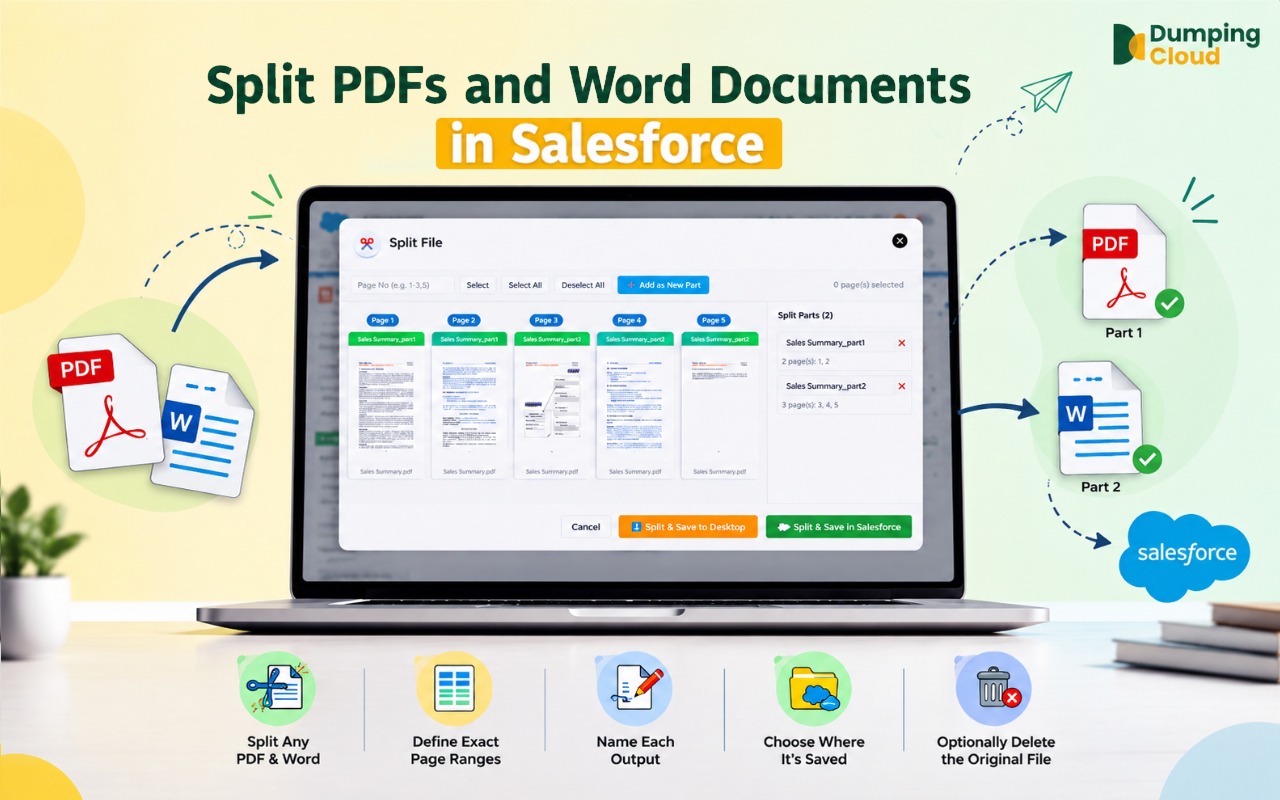
- It does more than save money: You can also preview, move, copy, rename, merge, split, watermark, convert and translate files into 49 languages.
Conclusion
You don’t have to choose between keeping your files and keeping your budget. Delete the clutter, zip what you can, download a safe copy, and sync the rest to a cloud that costs a fraction of Salesforce. Your files stay safe, your team stays fast, and your bill gets smaller.
Source : https://appexchange.salesforce.com/image_host/29aa6102-1025-4b87-998c-4cc7bf9a19aa.pdf
Stop Overpaying for Salesforce File Storage
Move older files to affordable cloud storage and manage hundreds of files in bulk.

Frequently Asked Questions
How much does extra Salesforce storage cost?
Pricing depends on your contract, but about $5 per GB per month is a commonly quoted figure. Confirm your real rate with your Salesforce account executive.
Is cloud storage really cheaper than Salesforce storage?
Yes, usually by a lot. Object storage like Amazon S3 can cost around $0.02 per GB per month, and Google Drive, OneDrive and Dropbox are often covered by plans you already pay for.
Will I lose my files if I move them out of Salesforce?
No, as long as you sync first, check the copies, and only then delete the originals.
Do deleted Salesforce files free up space right away?
Not always. Deleted files sit in the Recycle Bin for up to 15 days and still count toward your storage. Empty the Recycle Bin to reclaim space right away.
Does zipping files save storage?
It can, mostly for text-heavy files like Word, Excel and CSV. Files that are already compressed, such as many PDFs and photos, shrink less.