
If you run a Salesforce org, you already know the pattern. Files pile up on Accounts, Opportunities and Cases. Storage fills up. Someone has to download, rename, merge or clean up hundreds of files by hand, and extra storage keeps getting more expensive. The good news is that you no longer need five separate tools for this. In this guide we compare five of the best file management tools for Salesforce, DumpingCloud, CloudFiles, XfilesPro, Titan Files and Odaseva, so you can pick the right one.
Why Salesforce File Management Is Harder Than It Looks
Salesforce is great at records, but not at bulk file work. Admins and sales ops teams commonly run into the same four problems:
- Storage costs: File storage is limited by edition, and buying more adds up. Titan’s own guide cites roughly $5 per GB for additional storage.
- No bulk actions: Downloading, moving, copying or renaming files across many records & objects usually means repetitive manual work or custom code.
- Scattered files: Teams keep files in Salesforce, Google Drive, OneDrive, SharePoint and more, with no single place to manage them.
- Backup anxiety: Business-critical contracts and confidential documents deserve a copy in a cloud you own.
What to Look For in a Salesforce File Management Tool
Before comparing tools, check them against these criteria:
- Bulk file actions: Download, delete, move, copy, merge, rename and more, in bulk.
- Cloud sync: Automatic or scheduled sync to the storage you already pay for.
- Folder structure: Does it keep the Salesforce parent-child hierarchy (Account > Opportunity > Case) in the cloud?
- Managing files in the cloud: Can you manage the synced files in bulk, not just move them?
- Data ownership: Does the vendor store your files or not?
- Setup effort and cost: Is it a quick install or a long implementation, and what does it cost?
The 5 Best Salesforce File Management Tools
| Feature | DumpingCloud | CloudFiles | XfilesPro | Titan Files | Odaseva |
|---|---|---|---|---|---|
| Best for | Bulk file management + cloud sync | Native document management | Storage cost reduction | No-code automation | Enterprise backup and compliance |
| Price | Free | Org-based Enterprise pricing | Paid (check listing) | Contact company | Custom |
| Cloud sync | 6 clouds | Two-way sync | Bidirectional sync | Storage integrations | Backup-focused |
| Bulk actions on Salesforce files | 15 actions | Basic file operations | Limited | Merge and automation | Not a focus |
| Manage files in the cloud in bulk | Yes | No | No | No | No |
| Keeps folder structure | Yes | Yes | Yes | Yes | N/A |
| Stores your files on vendor servers | No | No (Mirror Drive) | Depends on setup | Depends on setup | Yes (backup) |
| Setup | Browser extension, no login step | AppExchange install | AppExchange install | AppExchange install | Enterprise onboarding |
1. DumpingCloud: Best Overall Salesforce File Management Tool
Best for: Admins, consultants and teams who want bulk file management and cloud sync in one free tool.
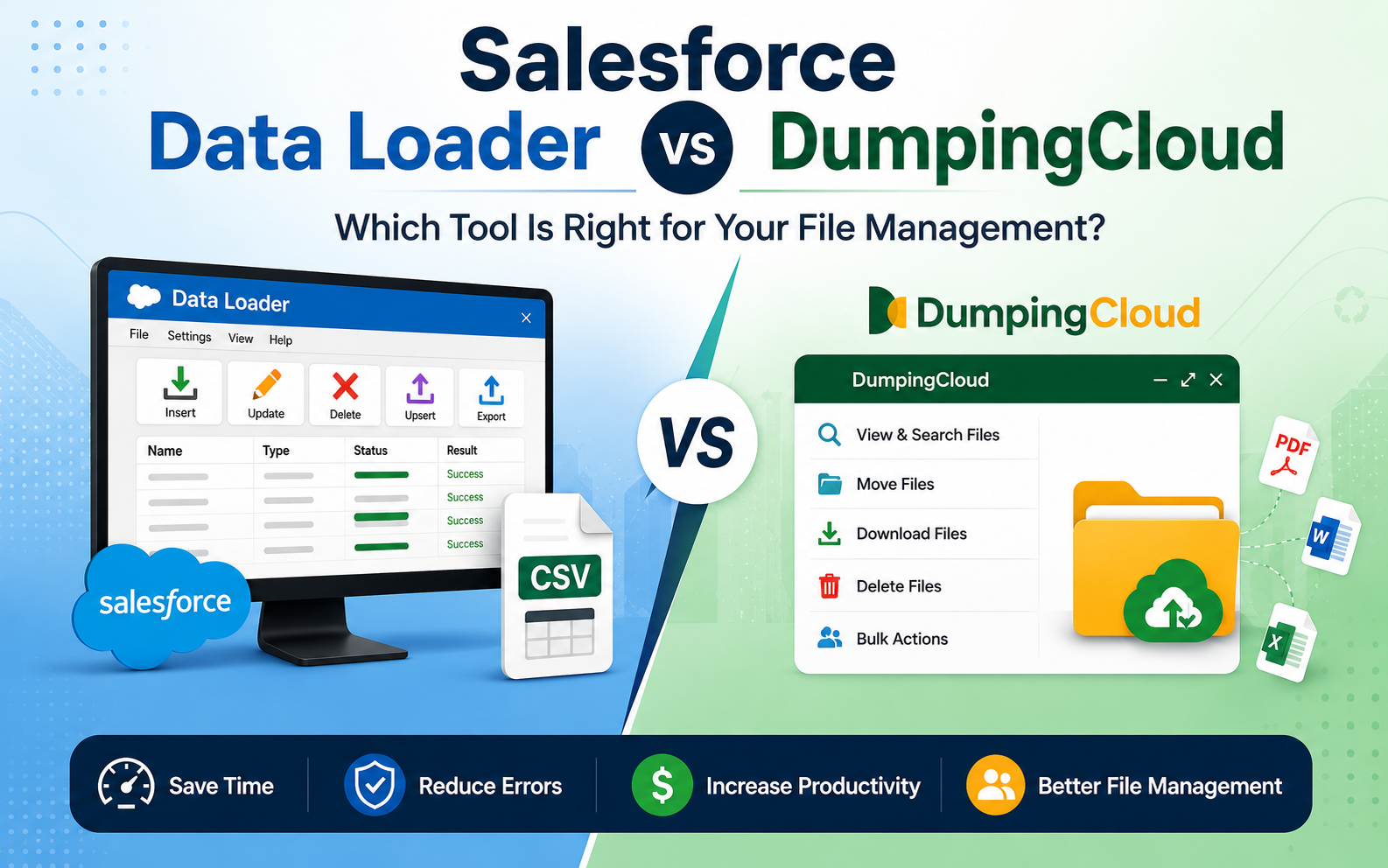
DumpingCloud is a browser extension that works with Salesforce, and it’s the only tool on this list that combines three things in one place: Salesforce file management, cloud sync, and bulk file management on the cloud itself.
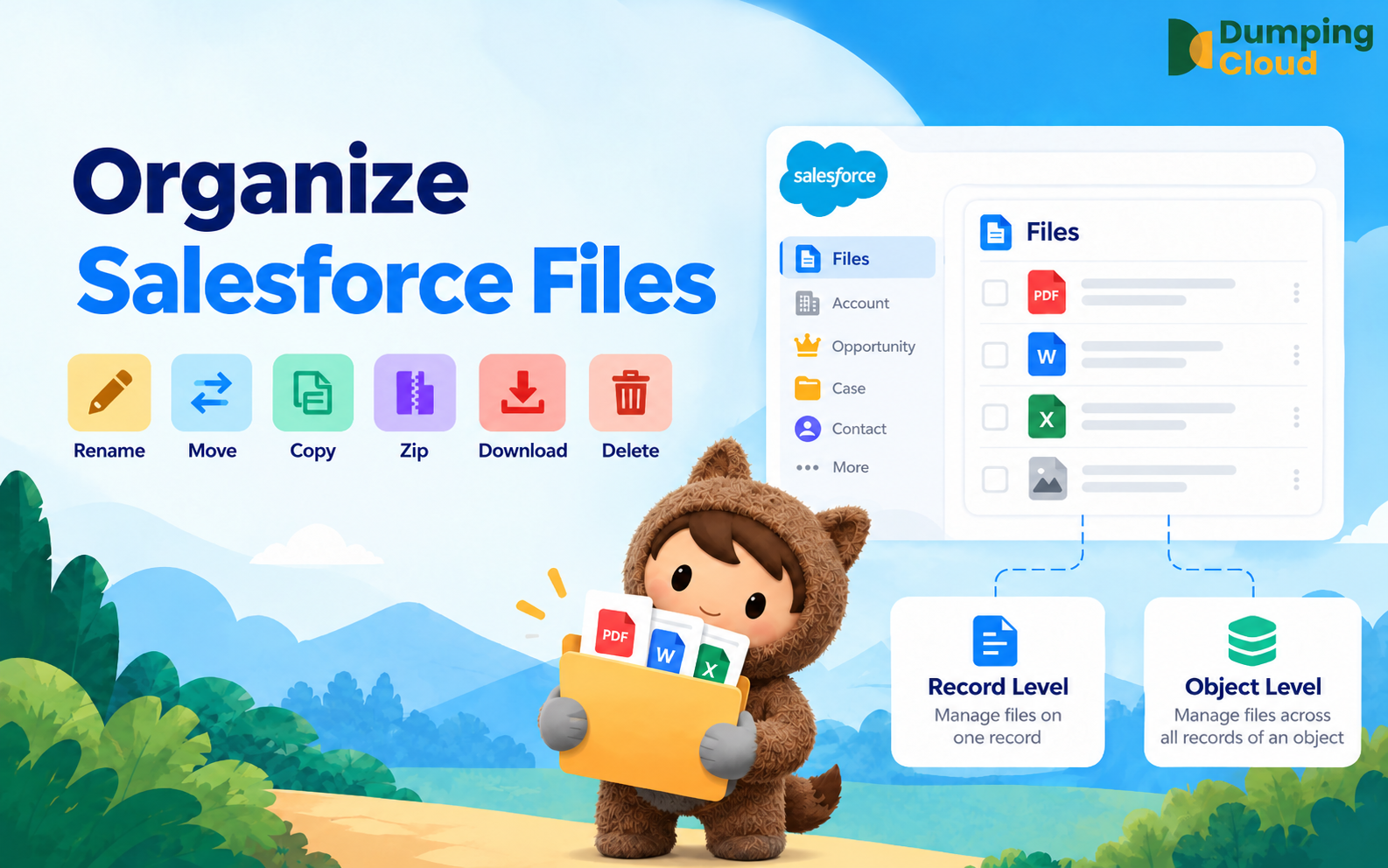
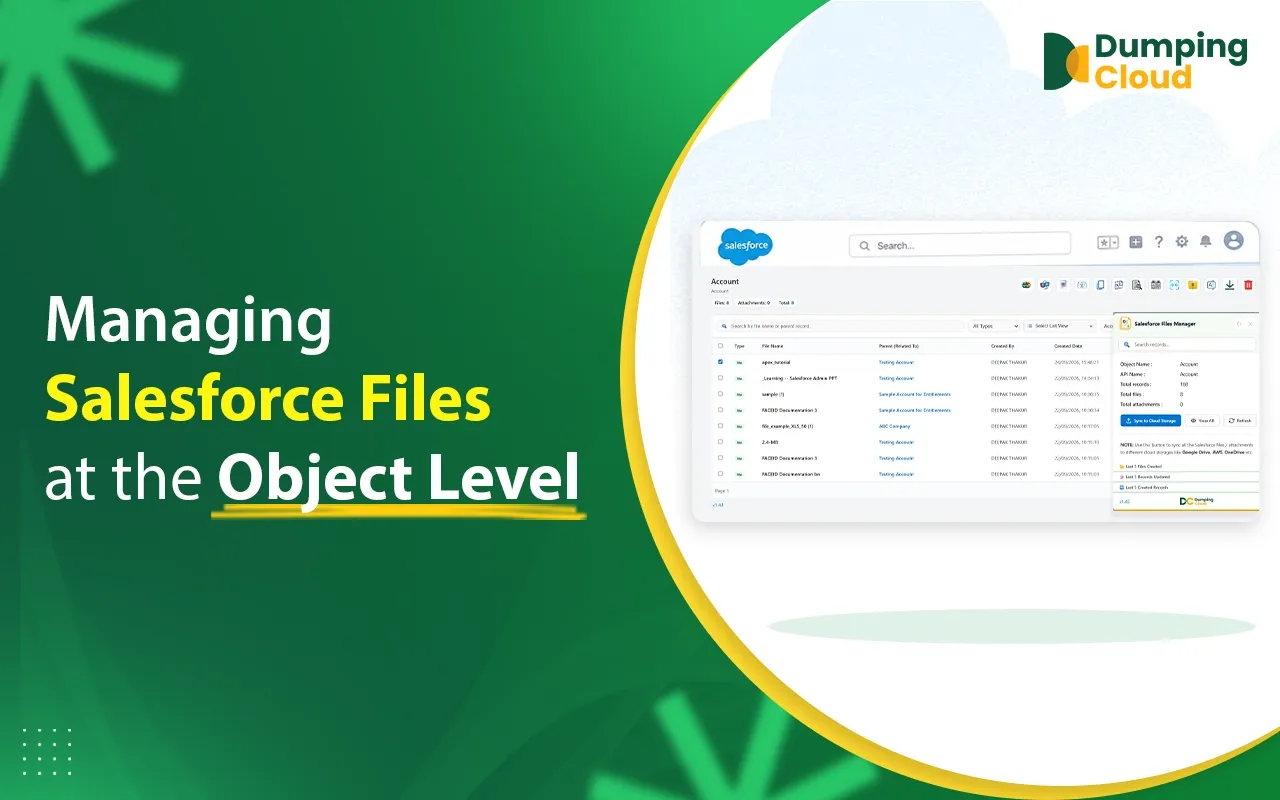
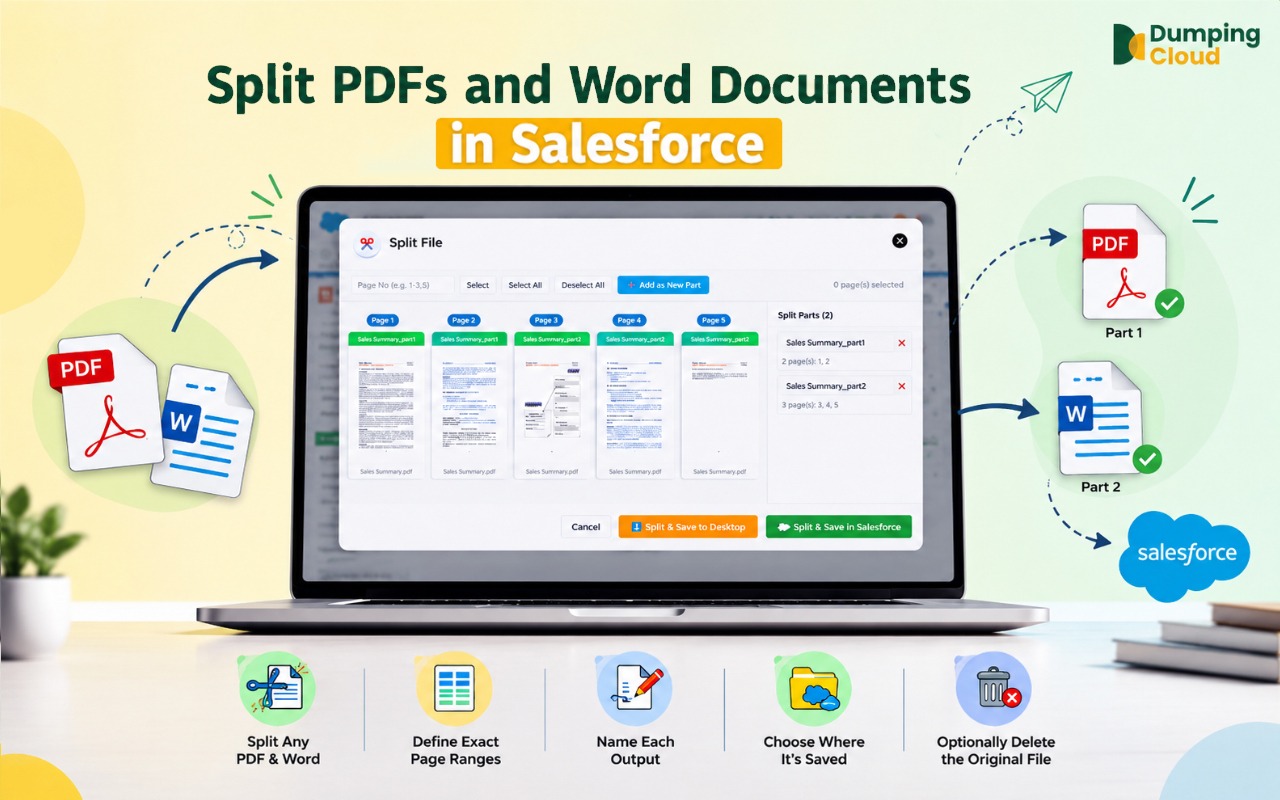
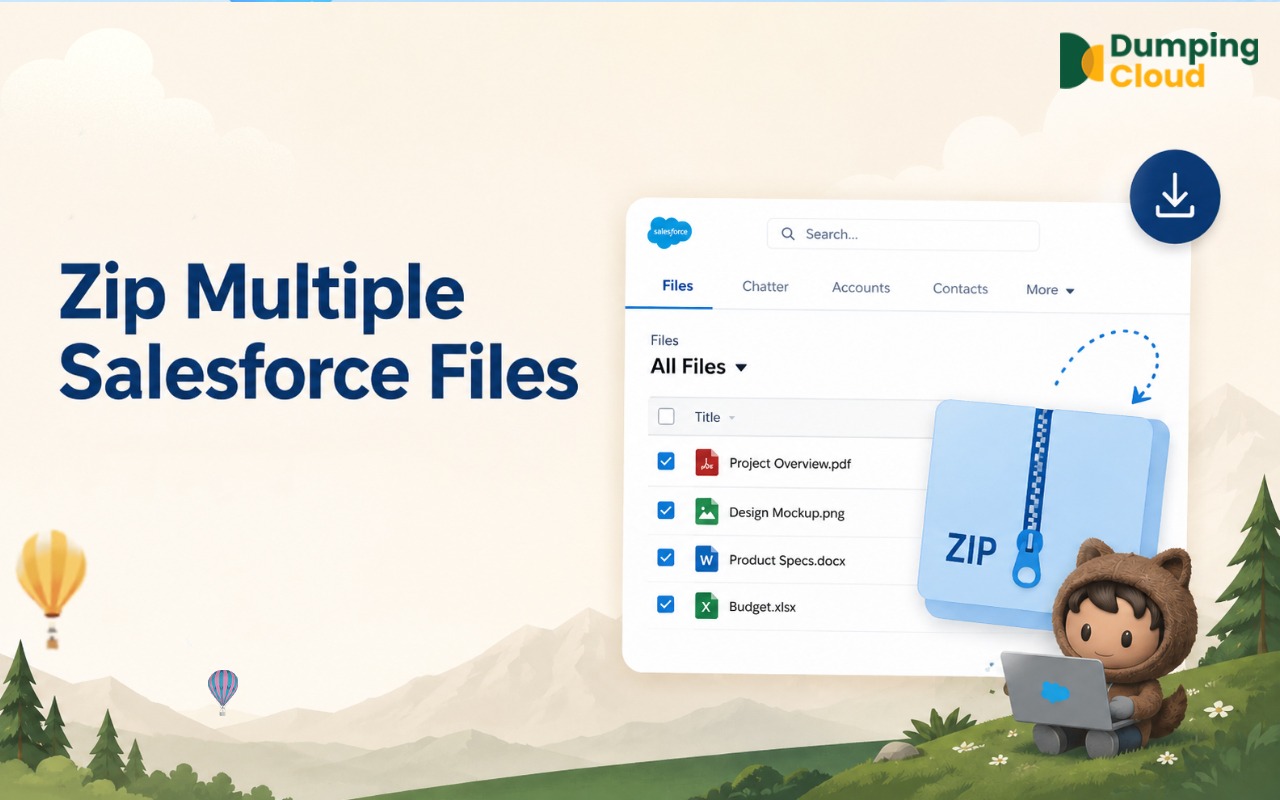
1. Salesforce file management: Instead of one tool for downloading, another for organizing, and another for cleanup, you get 15 file actions in one place. These include download, delete, move, copy, merge, rename, compare, watermark, and translate, all in bulk. The extension loads your files automatically when Salesforce is open in the same browser, so there’s no separate login or connection step.
2. Cloud Sync to 6 platforms: The new Cloud Sync feature syncs your Salesforce files to Google Drive, OneDrive, Dropbox, Amazon S3, Microsoft Azure and SharePoint. You can hit Sync Now. Files land in the same parent-child folder structure as in Salesforce (Accounts > Acme Corporation > Contract.pdf), and you can open synced files from Salesforce without any extra login.
3. Manage files on the cloud like you do in Salesforce: This is what sets DumpingCloud apart. Once your files are in Google Drive, OneDrive, Dropbox, S3, Azure or SharePoint, you can manage them there in bulk with the same actions you use on Salesforce files. Most tools stop at moving files to the cloud. DumpingCloud lets you keep organizing them afterwards.
Your Data. Your Cloud. Your Salesforce org and your cloud accounts belong to you. DumpingCloud is just the pathway and doesn’t store any file or data in its own storage.
Pros
- Free to use
- 15 bulk file actions in one tool
- Sync to 6 clouds
- Keeps the Salesforce folder structure in the cloud
- Bulk file management on the cloud side too
- No storage on DumpingCloud’s servers
- Available on Chrome, Safari, Firefox and Edge
- 4.9 rating on the Chrome Web Store
Cons
- Doesn’t offer enterprise backup, archiving or compliance features like Odaseva does.
2. CloudFiles: Good for Native Document Management
Best for: Teams that want documents managed natively on the Salesforce record.
CloudFiles connects to SharePoint, Google Drive, OneDrive, Amazon S3, Dropbox and Box. Its Document Management plan offers two-way sync, auto-generated folder structures on standard or custom objects, and file operations like upload, download, rename, move and delete. Its Mirror Drive architecture keeps files in your own connected cloud storage and shows them on the Salesforce record.
Pros: Two-way sync, wide storage support, Experience Cloud and mobile support.
Cons: Pricing is org-based Enterprise pricing, so there’s no simple free option. Its listed file operations are narrower than DumpingCloud’s 15 bulk actions.
3. XfilesPro: Good for Offloading Storage
Best for: Companies whose main goal is cutting Salesforce storage costs with external storage.
XfilesPro moves Salesforce files to external storage so you can reduce what you pay for native storage. It supports Amazon S3, Google Drive, Dropbox, Box, FTP, Shared Drive and SMB, with a folder hierarchy and drag-and-drop uploads. It also offers bidirectional sync between Salesforce and external storage, and the vendor claims a storage cost drop of around 45%.
Pros: Strong storage offloading, many storage options including on-premise, long track record.
Cons: The focus is on storage rather than bulk file actions, and it’s a paid product, so check the AppExchange listing for current pricing.
4. Titan Files: Good for No-Code Automation
Best for: Teams already using Titan who want automation, OCR and record mapping.
Titan Files connects S3, SharePoint, Box, Google Drive or Dropbox and maps files to the right Salesforce records without Apex or Flows. It also adds no-code automation, virus scanning and OCR. Its feature set includes merging files within Salesforce and sharing files externally through Salesforce Flows.
Pros: Strong automation, OCR and virus scanning, highly rated on the AppExchange.
Cons: Pricing isn’t published, so you contact the company, and it can be more than you need if you just want bulk actions and sync.
5. Odaseva: Best for Enterprise Backup and Compliance
Best for: Large enterprises with strict compliance and disaster recovery needs.
Odaseva is not really a file manager. It’s an enterprise Salesforce data platform covering backup and restore, archiving, compliance and data automation. Pricing is typically customized based on factors like data volume and required features.
Pros: Enterprise-grade backup, archiving and compliance.
Cons: It’s built for large organizations and budgets. It’s overkill if your goal is day-to-day bulk file work and syncing files to your own cloud.
How to Choose the Right Salesforce File Management Tool
Which tool you should choose depends on what you need most. For free bulk file actions, cloud sync and cloud-side file management, go with DumpingCloud. If you want documents managed on records with Enterprise support, look at CloudFiles. To offload storage to external or on-premise systems, consider XfilesPro. For no-code automation, OCR and virus scanning, Titan Files is the fit. And for enterprise backup, archiving and compliance, choose Odaseva.
For most admins, consultants and sales ops teams, DumpingCloud is the best place to start. It handles everyday bulk actions, cuts costs by syncing to clouds you already pay for, lets you manage those cloud files in bulk, and it’s free.
Conclusion
Salesforce file management used to mean juggling several tools. DumpingCloud puts file management, cloud sync and cloud file organization in one free extension. It’s the #1 pick on this list
Your Salesforce Files Deserve a Smarter Workflow.
Join the smarter way to manage Salesforce files with bulk actions and cloud sync in one free browser extension.

Frequently Asked Questions
How can I reduce Salesforce file storage costs?
Sync your files to a cloud you already pay for, such as Google Drive, OneDrive, Dropbox, Amazon S3, Microsoft Azure or SharePoint. With DumpingCloud you can sync automatically or on a schedule, keep the same folder structure, and still open the files from Salesforce, so you rely less on extra Salesforce storage.
Which cloud platforms does DumpingCloud sync Salesforce files to?
DumpingCloud syncs Salesforce files to six platforms: Google Drive, OneDrive, Dropbox, Amazon S3, Microsoft Azure and SharePoint. You can start a sync right away or set a recurring schedule, such as daily at a set time.
Can I manage files on the cloud in bulk, not just in Salesforce?
Yes. DumpingCloud lets you manage files stored in your connected cloud platforms the same way you manage Salesforce files, with bulk actions like download, move, copy, rename and merge. Most tools only move files to the cloud and stop there.
Does Salesforce have a document management system?
No, Salesforce does not offer a dedicated bulk file management system, but there are tools available like Dumping cloud which offer bulk actions like merge, copy, delete, download, rename, zip, preview, sync, etc.