
Quick Answer
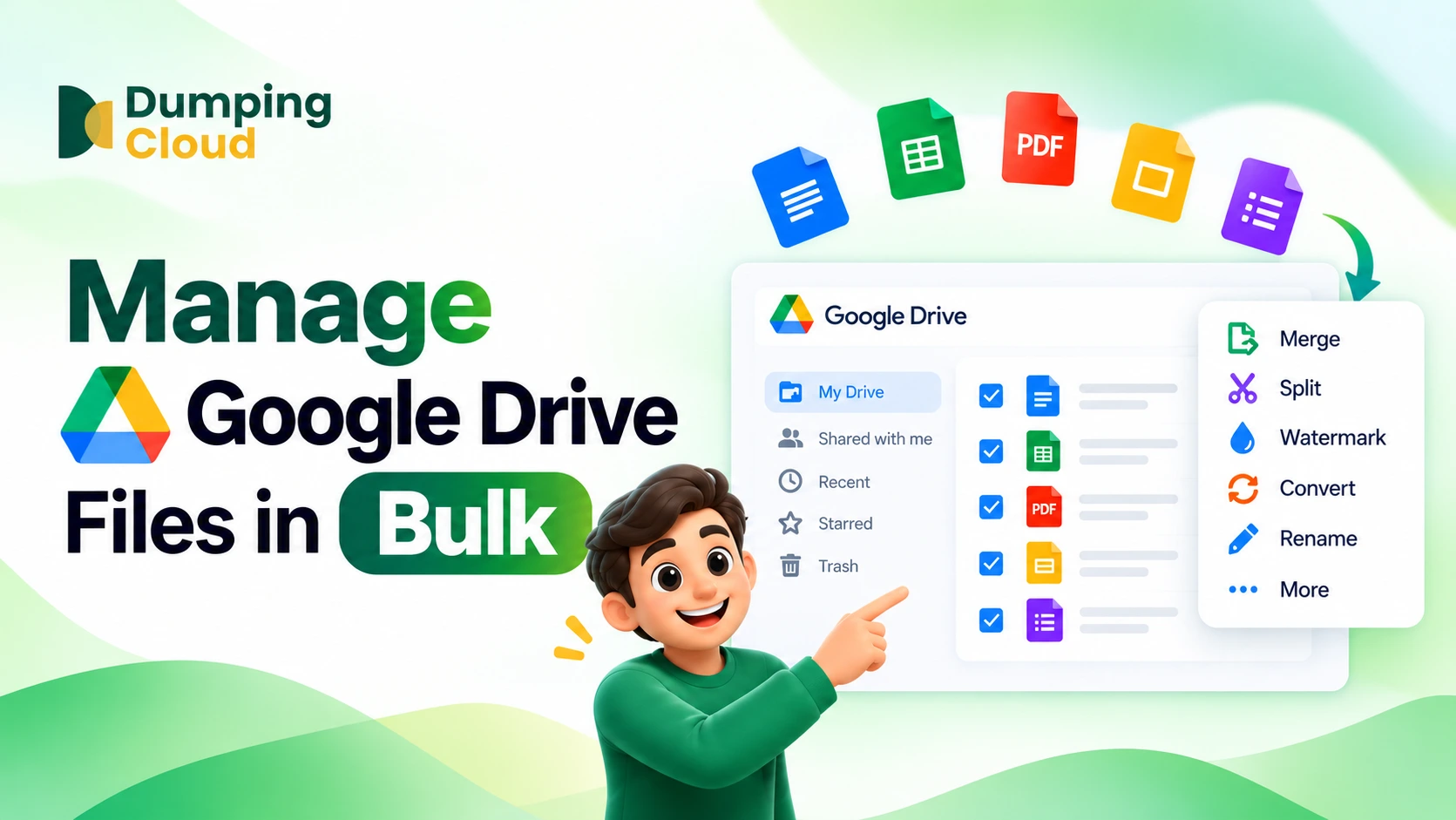
To manage Google Drive files in bulk, install the DumpingCloud extension, link your Google Drive account through Target Organization, open Cloud Explorer, select your files and choose an action such as Merge, Split, Watermark, Convert or Rename.
Your Google Drive. Your DumpingCloud. One Experience.
Google Drive is brilliant for storing and sharing files. But when it comes to actually doing something with those files, the experience falls apart fast.
Challenges:
- Need to merge two Drive PDFs into one? Download both. Open an external PDF tool. Merge. Re-upload.
- Need to watermark a contract stored in Drive? Download it. Open an editor. Apply the watermark. Re-upload.
- Need to split a 40-page Drive document into sections? Download it. Find a splitter tool. Process it. Re-upload.
- Need to compare two versions of a Drive file side by side? Download both. Open them in separate windows. Hope for the best.
Google Drive has no built-in bulk Merge, Split, Watermark, Convert or Base64 features. For anything beyond basic storage and sharing, you are always one download away from a third-party tool, and one re-upload away from getting back to where you started.
DumpingCloud changes this. Link your Google Drive account and DumpingCloud mirrors your entire Drive structure right inside the browser: every folder, every file, exactly as it appears in Drive. You get no tab switching and no downloading and re-uploading, and you never need to log in to Drive again once it’s linked.
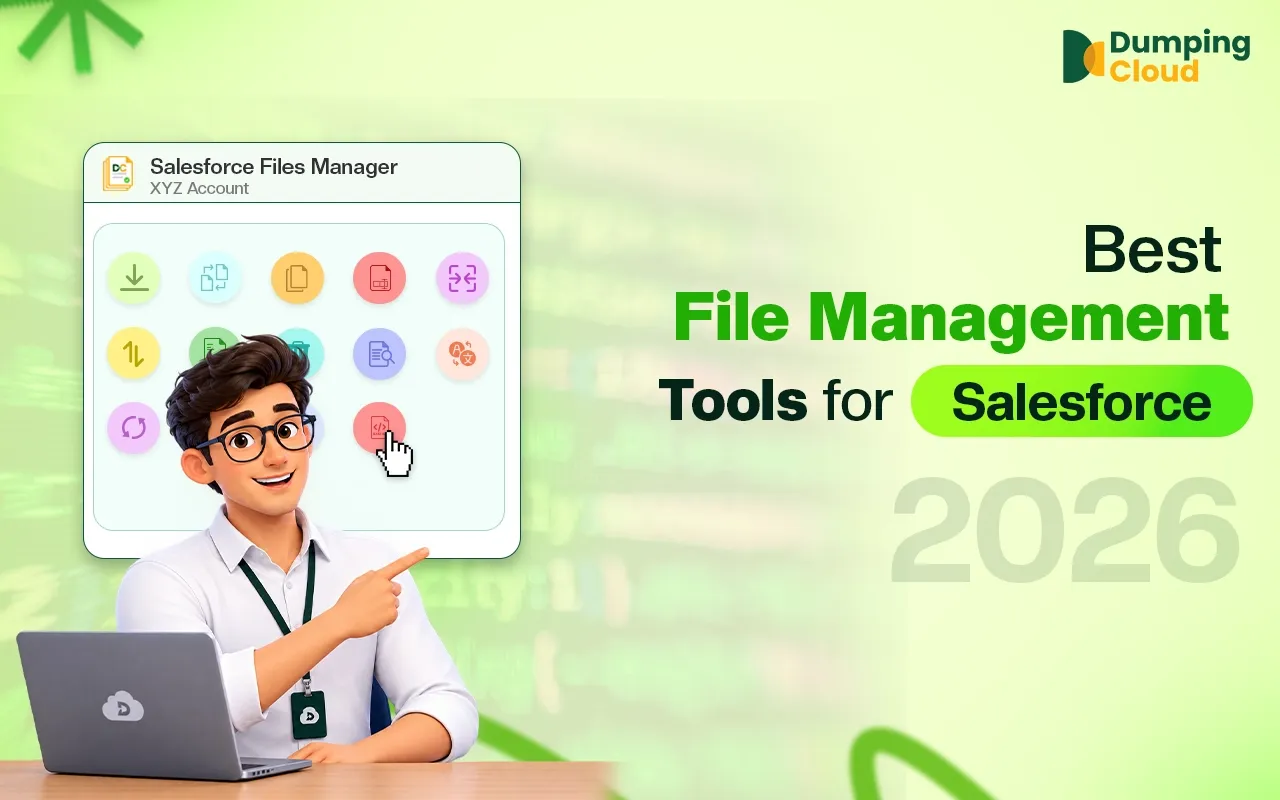
Every DumpingCloud file action is now available directly on your Drive files:
👉 Add DumpingCloud to your browser free.
What You Need
- Google Chrome, Mozilla Firefox, Safari or Microsoft Edge
- The DumpingCloud extension installed
- A Google account with access to the Drive you want to link
- An active internet connection
What This Feature Does
- Link one or multiple Google Drive accounts to DumpingCloud in a few simple steps
- See your exact Drive folder and file structure mirrored inside DumpingCloud: same hierarchy, same names, same organisation as your Drive
- Browse, navigate and manage Drive files as if you were inside Google Drive itself, without ever opening Drive
- Apply all 16 DumpingCloud file actions to any file in your linked Drive, directly from the extension
- Link multiple Drive accounts, personal and business side by side, all accessible within DumpingCloud without separate logins
How to Manage Google Drive Files in Bulk: Step by Step
01
Step 1: Install DumpingCloud
Search for DumpingCloud in your browser’s extension store, or visit the direct link: https://dumpingcloud.com
This takes you to the official DumpingCloud listing. Click “Install” or “Add to browser” in the top-right corner.
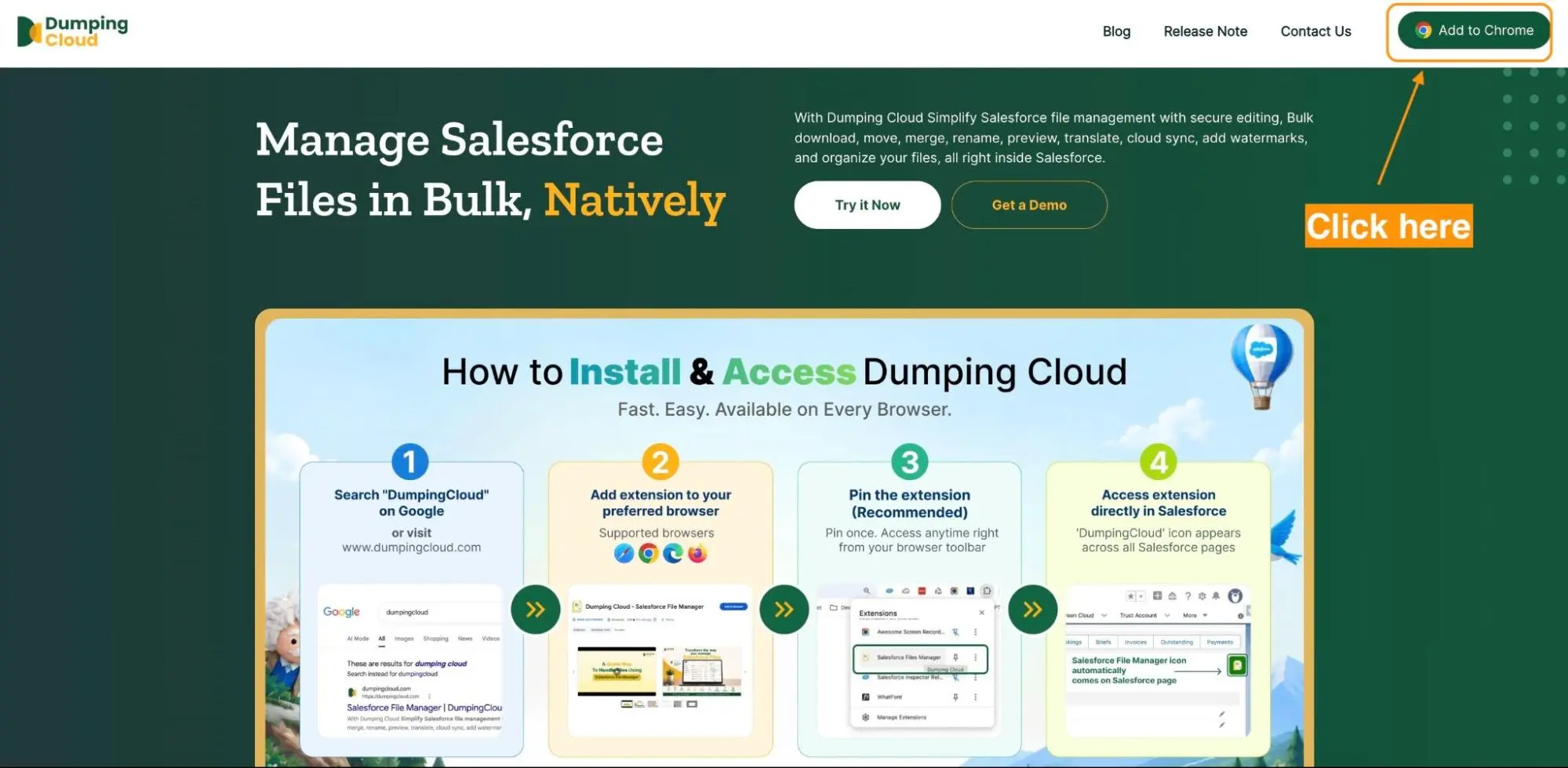
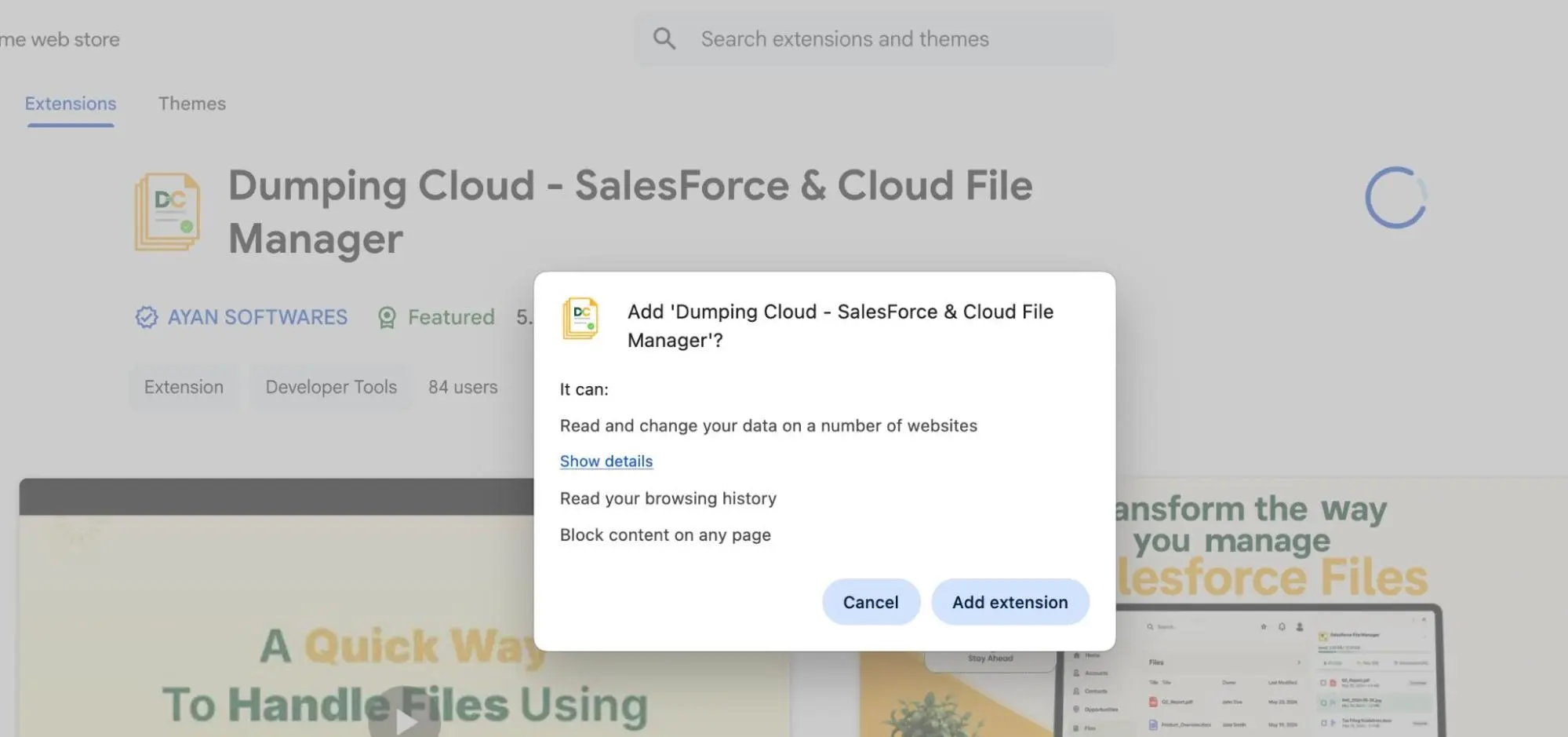
Confirm the installation. On the extension page, click the “Add” button in the top-right area of the listing. A confirmation dialog will list the permissions the extension needs . Click “Add extension” to proceed. The DumpingCloud icon will appear in your browser toolbar once installed.
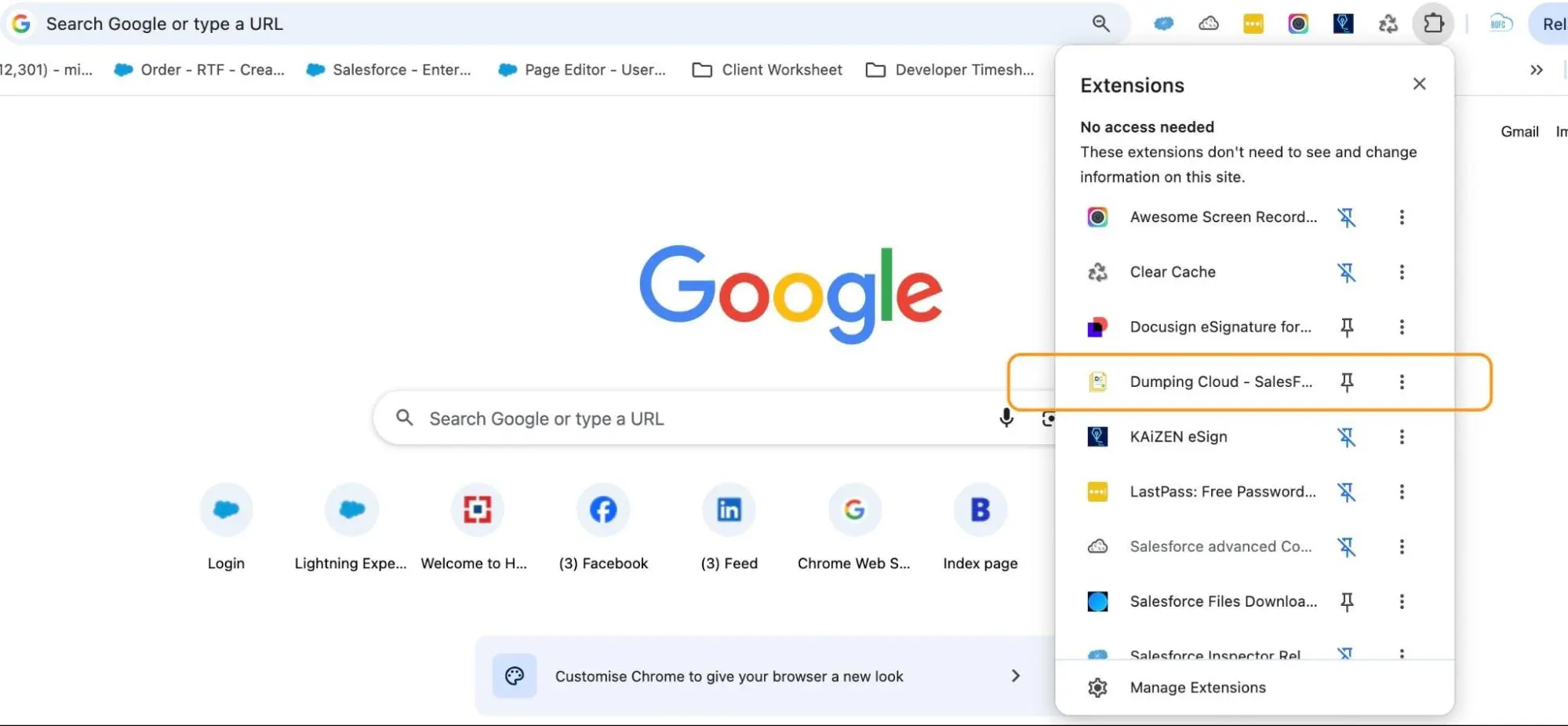
Pin the extension (recommended). Newly installed extensions may be hidden in the Extensions menu (the puzzle-piece icon 🧩 in the top-right corner of your browser). To keep “Dumping Cloud – Files Manager” easily accessible:
-
- Click the puzzle-piece icon in the toolbar
- Find DumpingCloud – Files Manager in the list
- Click the pin icon next to it
The icon will now always be visible in your toolbar for one-click access.
02
Step 2: Link Your Google Drive Account
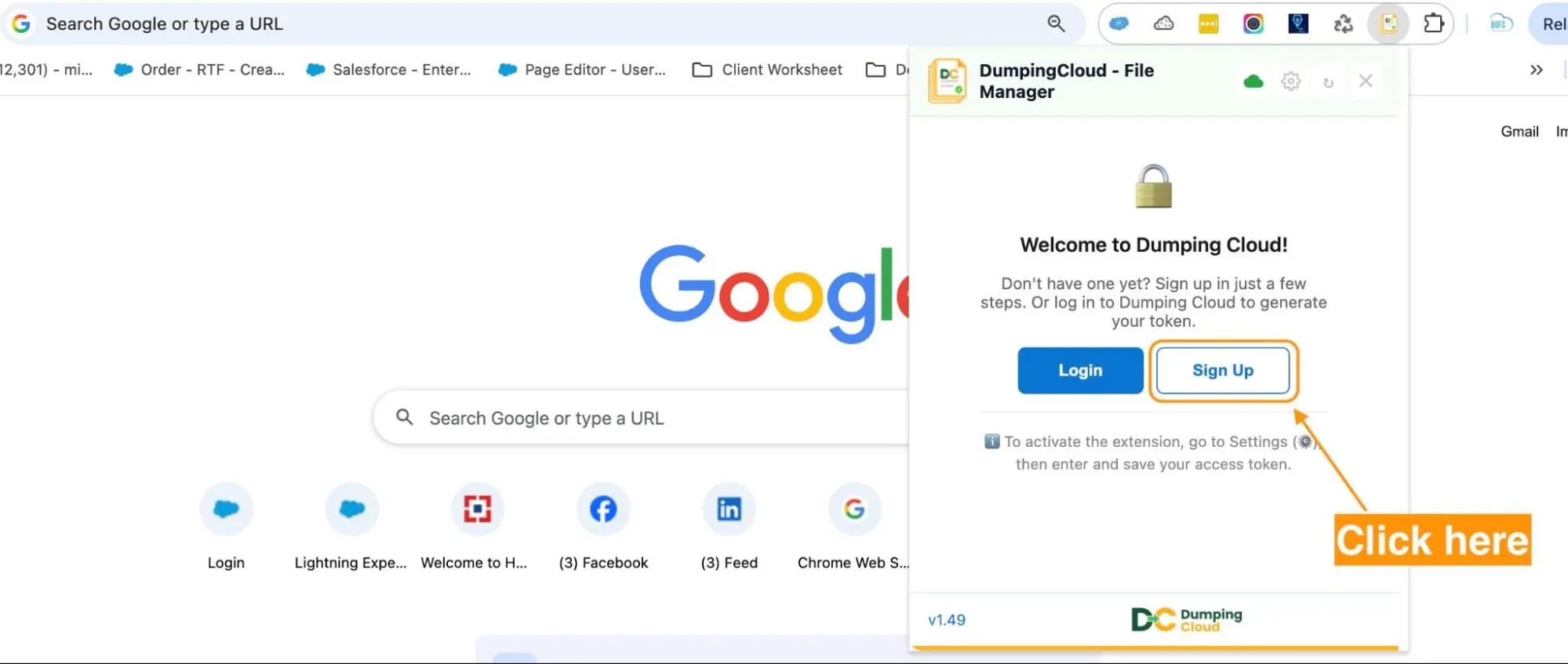
Open DumpingCloud and sign in. Click the DumpingCloud icon in your browser toolbar to open the extension panel. First-time users should click Sign Up to create a DumpingCloud account. Existing users can click Open Portal or Log In. Either takes you to the login page of the DumpingCloud portal.
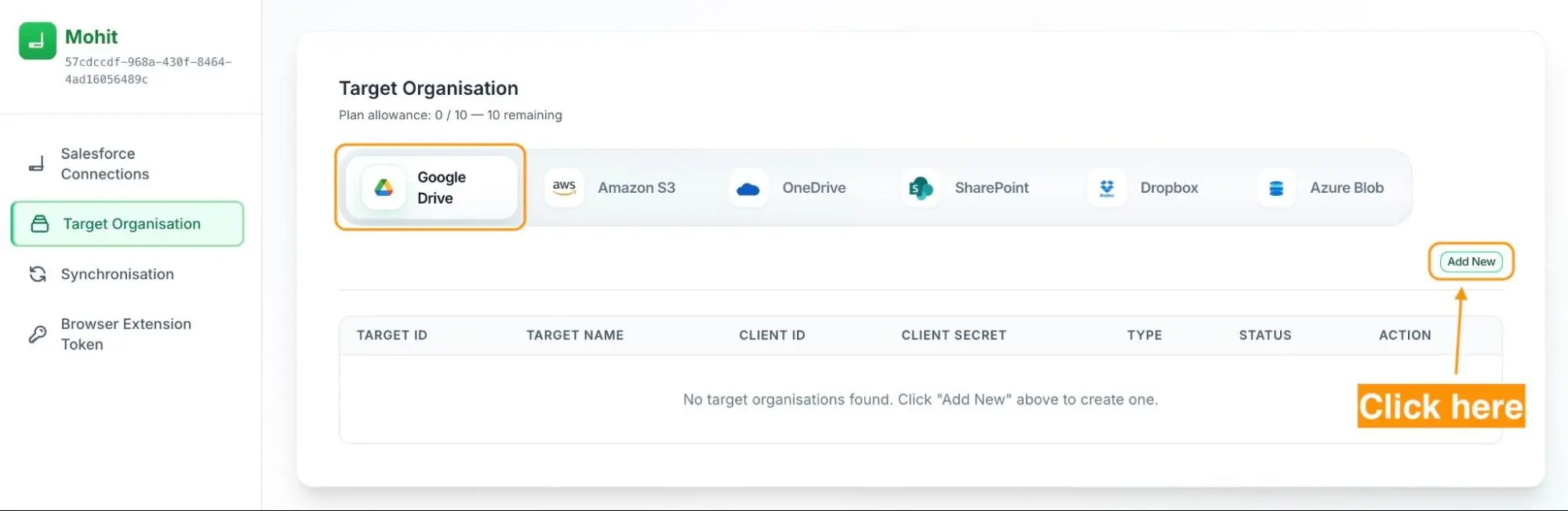
Navigate to Target Organization. In the DumpingCloud portal, click “Target Organization” in the navigation menu. Select Google Drive as the platform type and click “Add New”. A guided popup will walk you through the remaining steps to link your Google Drive account securely via Google OAuth.
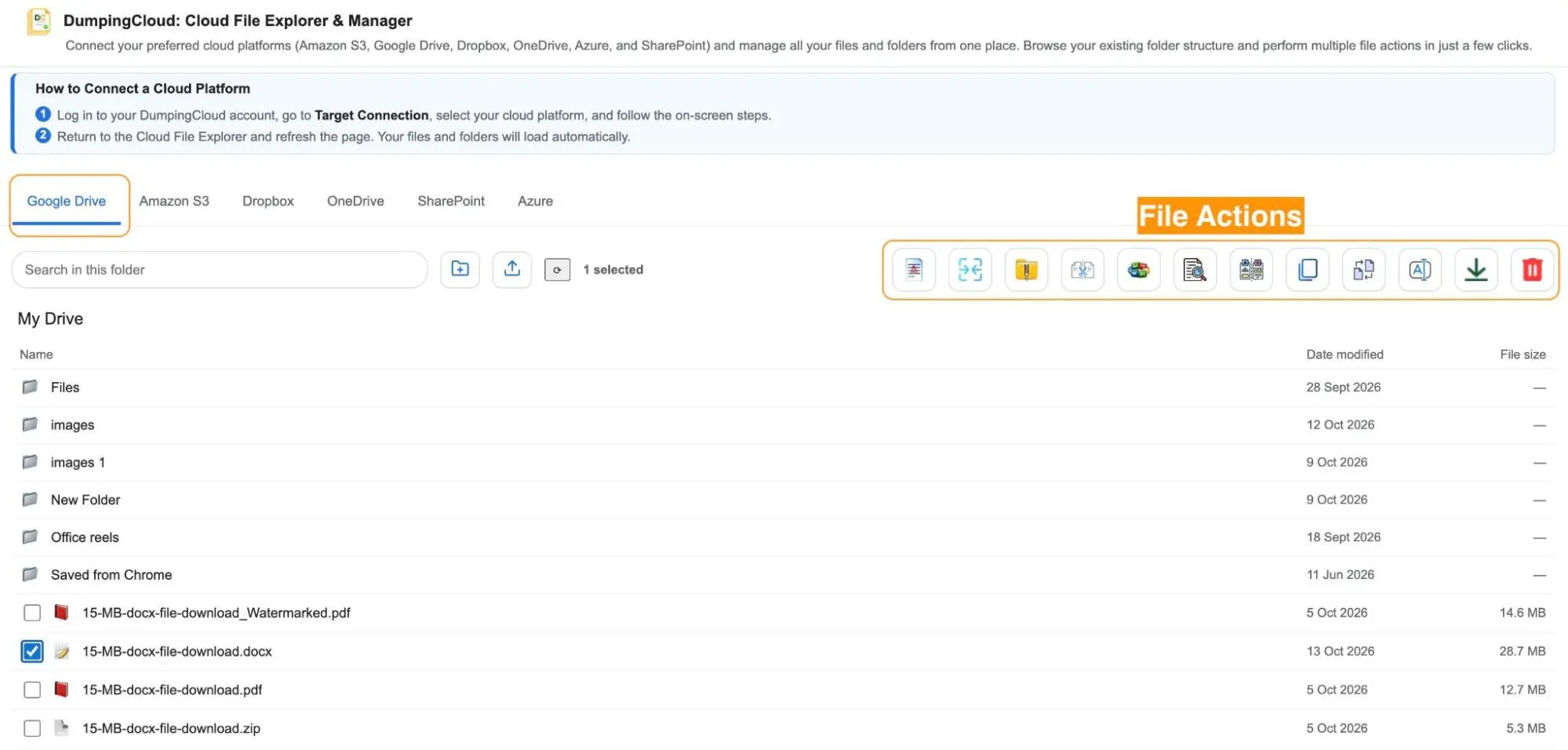
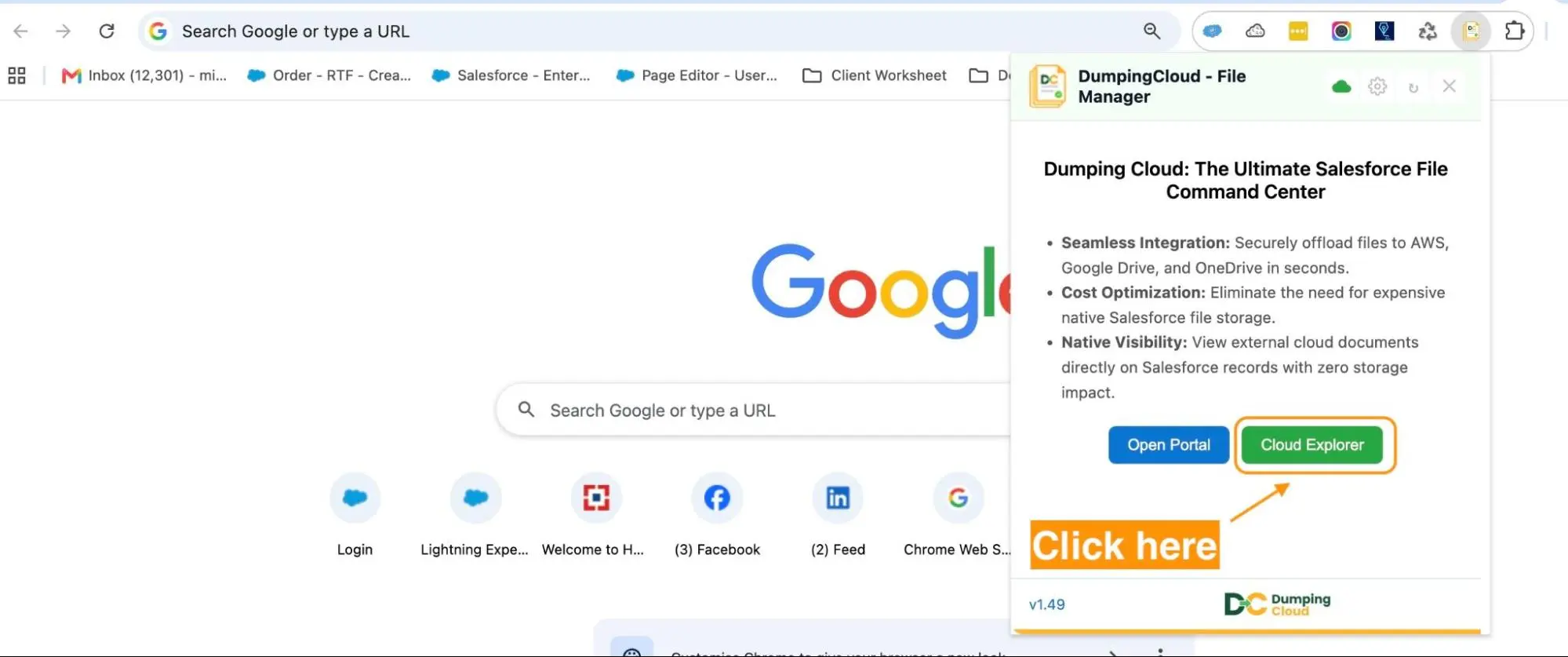
Click the Cloud Explorer button. Once your Google Drive account is linked, return to the browser extension and click the “Cloud Explorer” button to open your linked Drive within DumpingCloud.
Your Drive structure appears. DumpingCloud loads the Google Drive structure inside the extension panel. Your folders and files appear exactly as they are organised in Drive: the same hierarchy, the same names, the same nested structure. No additional steps. Your Drive is now accessible from DumpingCloud.
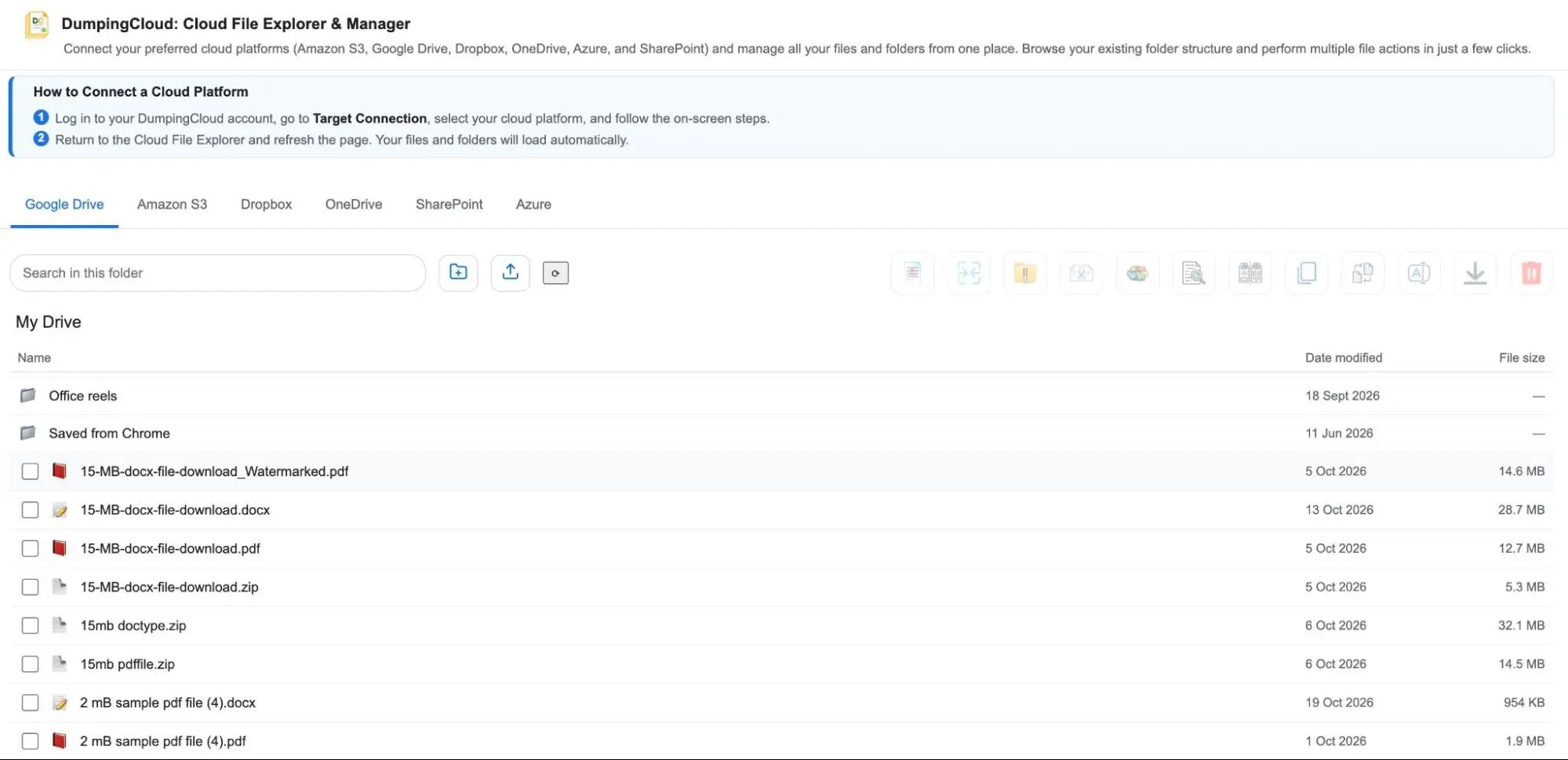
Link additional accounts (optional). Need to access multiple Drive accounts, such as a personal account and a company account, or accounts across different Google Workspaces? Add multiple Target Organizations of Google Drive type and view the files and folders of all of them.
03
Step 3: Browse and Select Your Files
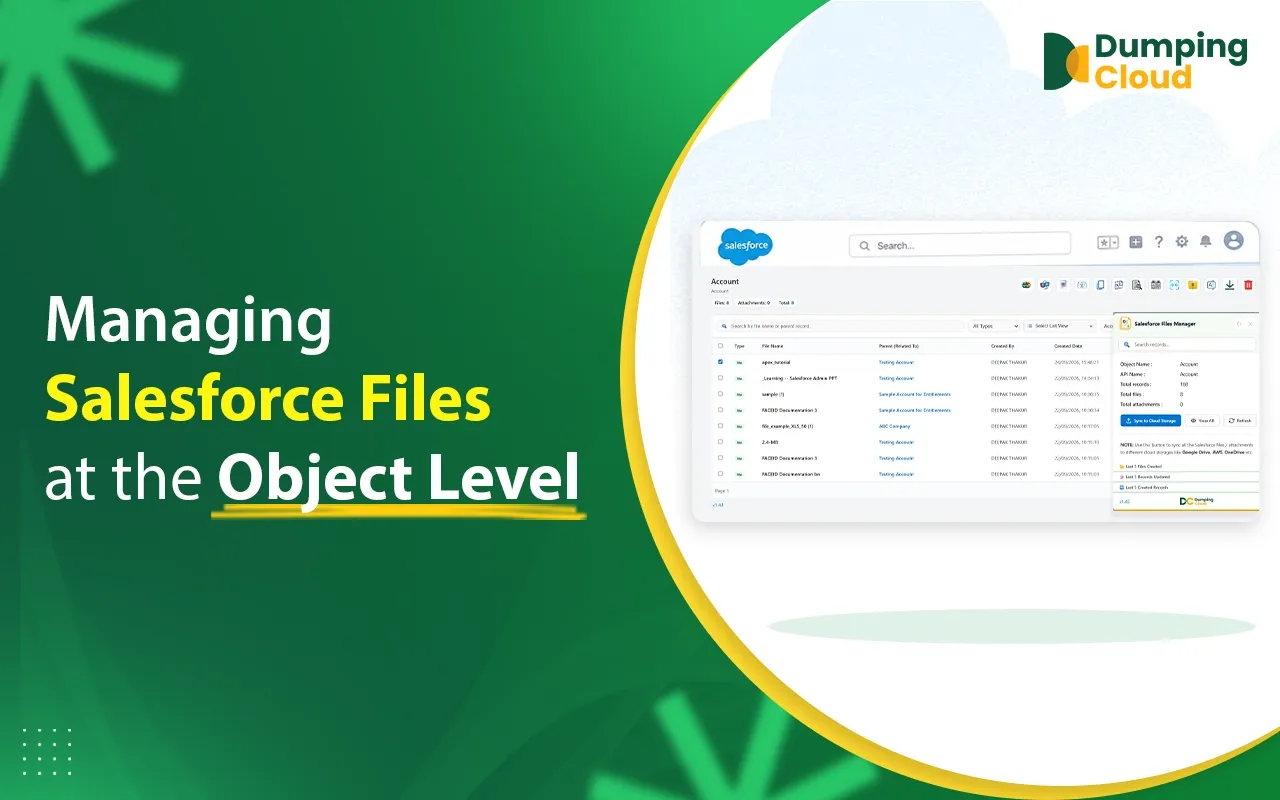
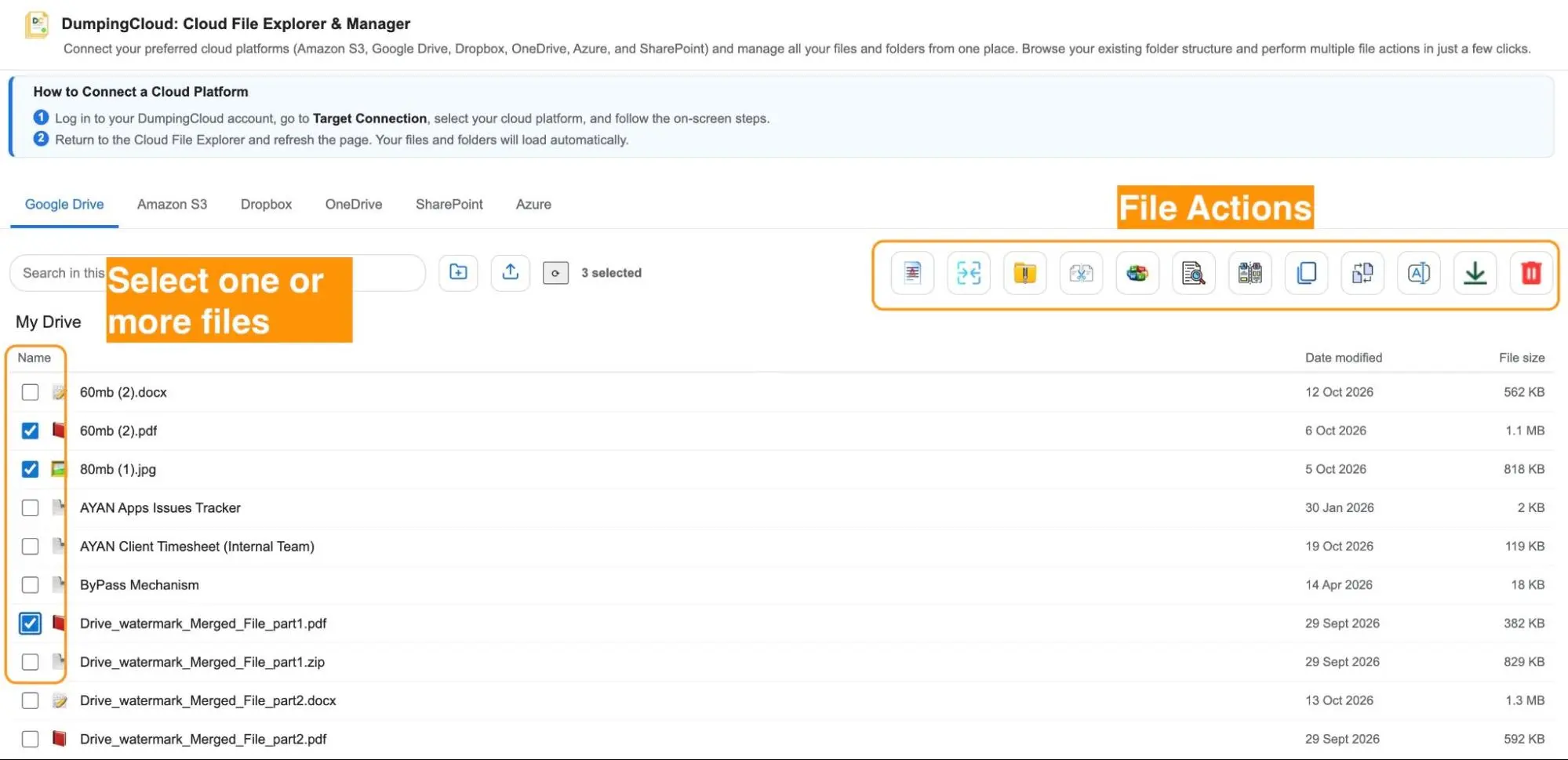
Use the folder tree in the DumpingCloud panel to navigate your Drive. Click any folder to expand it and view its contents. Files appear in the file list panel with their name, type, size and last modified date visible.
Click the checkbox next to any file to select it. Select multiple files across different folders, or use “Select All” to select every file in the current folder view.
04
Step 4: Choose a Bulk File Action
With your files selected, the full DumpingCloud action bar is available at the top of the panel. Every file action works on Drive files exactly as it does on Salesforce files:
| Action | What It Does on Google Drive Files |
|---|---|
| ⬇ Download | Download selected Drive files directly to your desktop |
| 🗑 Delete | Delete selected files from your Google Drive |
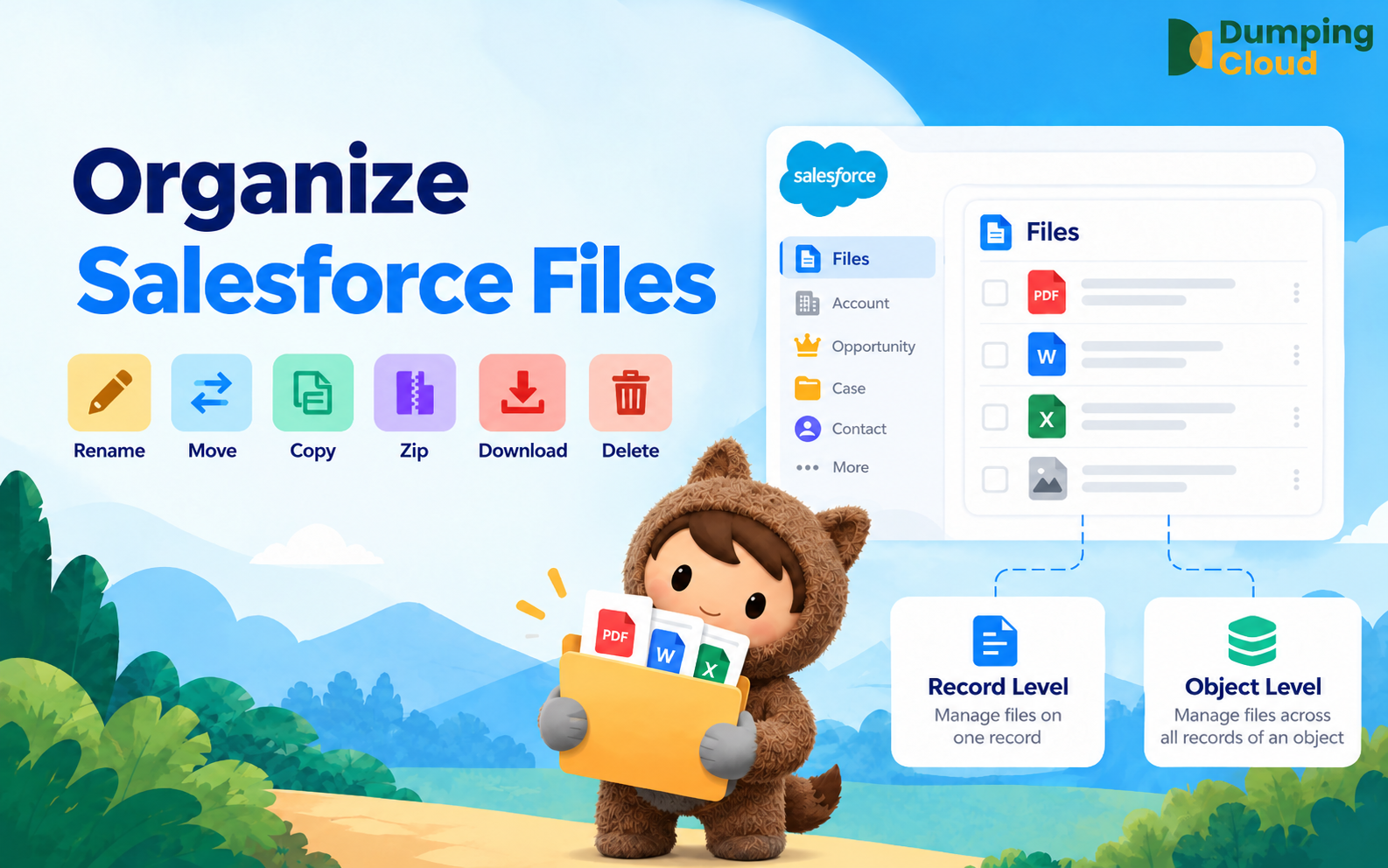
| ↔ Move | Move files between folders within your Google Drive |
| ⧉ Copy | Create independent copies of files within your Google Drive |
| 🔗 Merge | Merge multiple Drive files into a single PDF with page-level control |
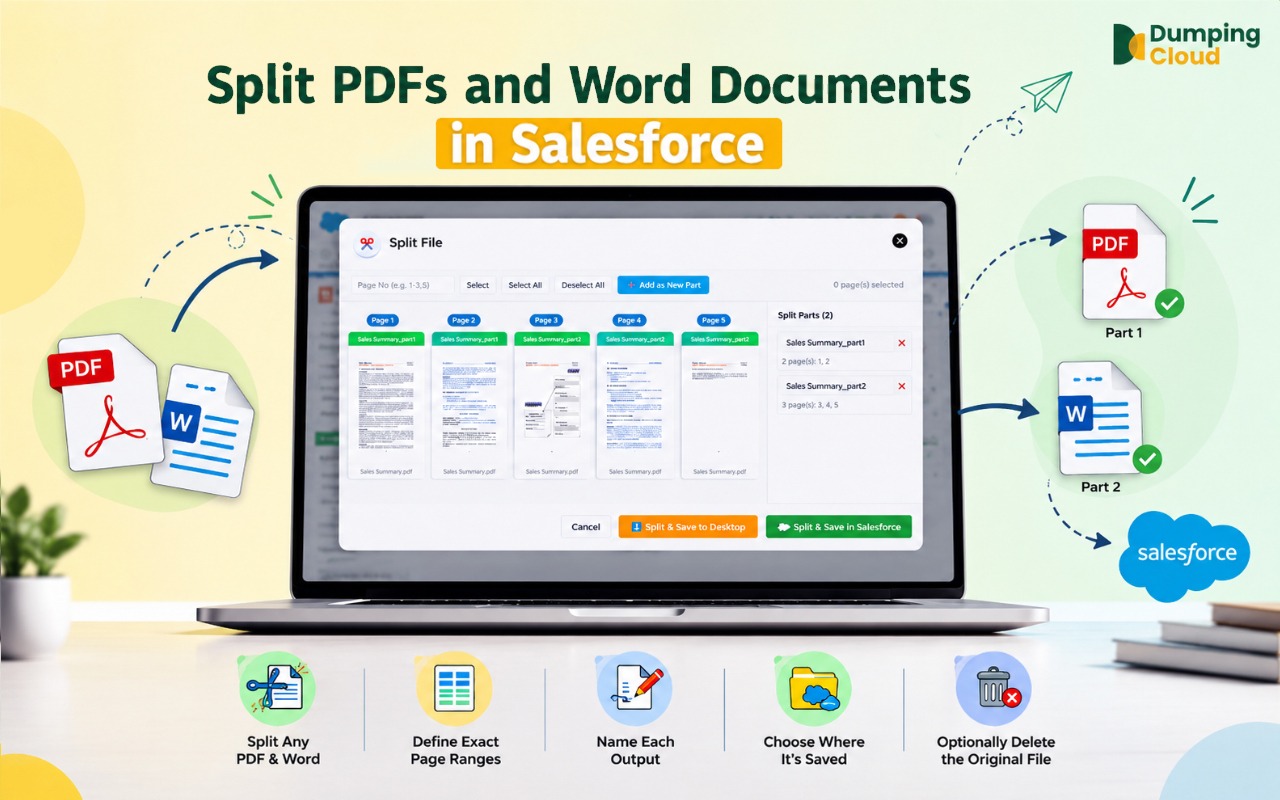
| ✂️ Split | Split a PDF or Word doc from Drive into separate files by page range |
| 📦 Zip | Compress Drive files into a zip archive, saved to Drive or desktop |
| 💧 Watermark | Apply text or image watermarks to Drive files |
| 🌐 Translate | Translate Drive files into any of 49 supported languages |
| ⚖ Compare | Compare two Drive files side by side in synchronised split-screen |
| 👁 Preview | Preview Drive files in-window without downloading |
| ✏ Rename | Rename Drive files individually or in bulk with naming patterns |
| ✍ eSign | Send Drive files for electronic signature |
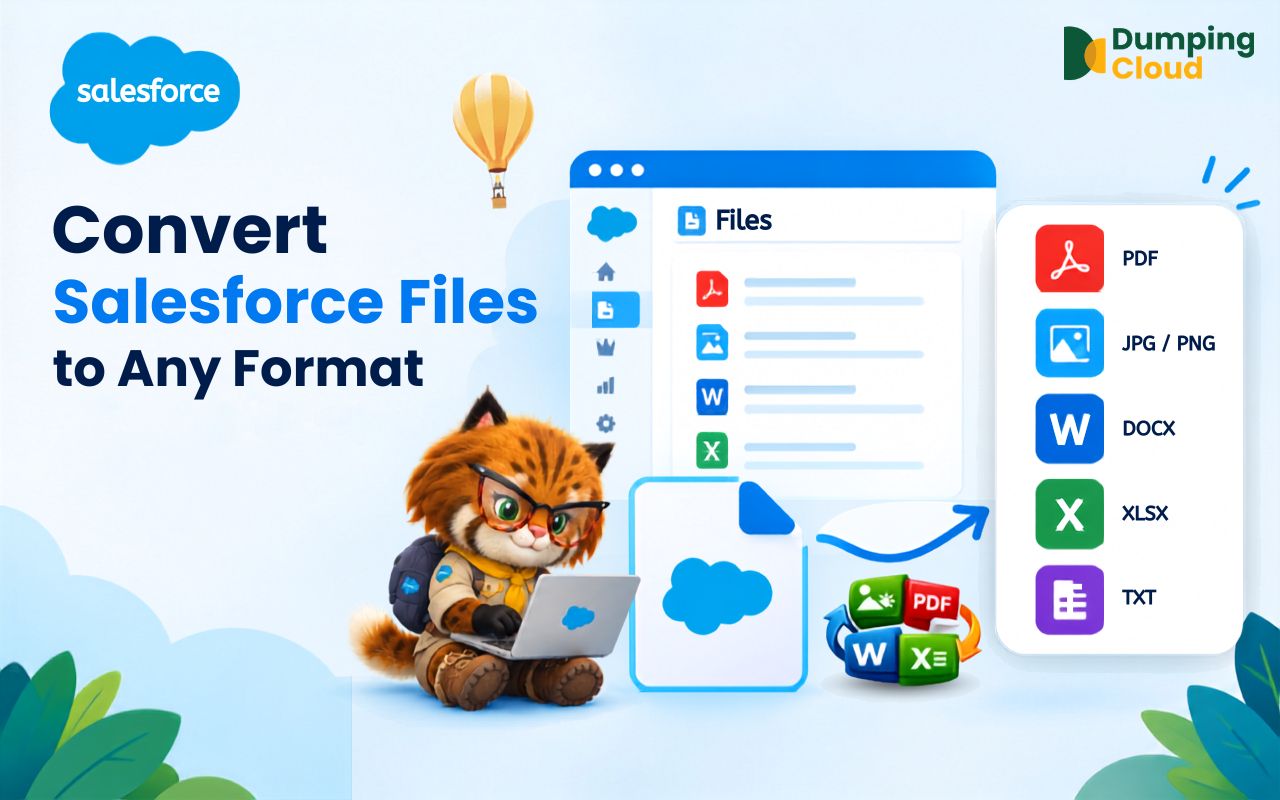
| 🔃 Convert | Convert Drive files between formats, saved back to Drive or desktop |
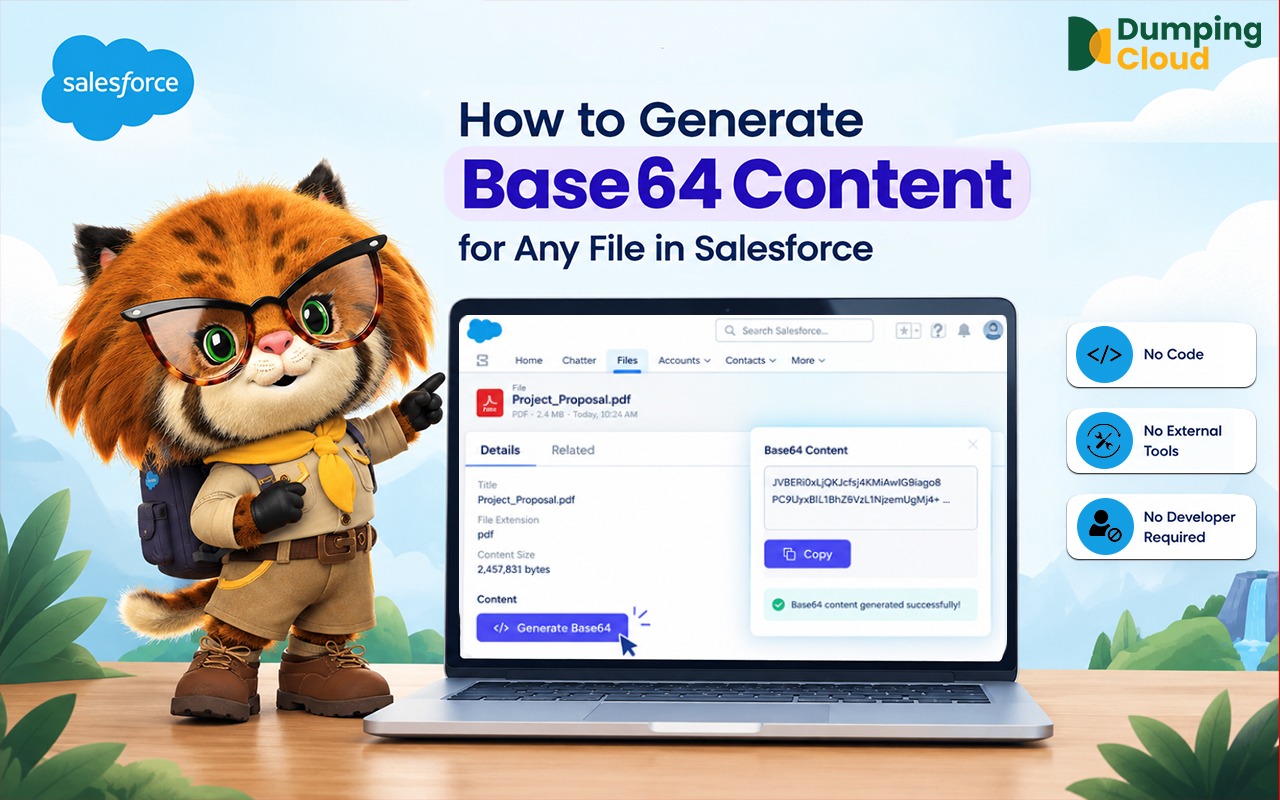
| ⌥ Base64 | Generate Base64 content for Drive files, copy or save as a text file |
Example: merge 20 invoices in one go. Open the Invoices folder in Cloud Explorer, click Select All, choose Merge, drag the files into the order you want, and save the merged PDF back to Drive. No downloads and no separate PDF tool.
Example: rename a whole folder. Select all files in a folder, choose Rename, set a pattern such as Client_Contract_{number}, preview the new names and confirm.
05
Step 5: Review, Confirm, and Save
Each action follows the same confirmation and save flow as Salesforce file operations. For actions that produce an output file (Convert, Merge, Split, Zip, Watermark), you choose whether to save the result back to Google Drive, download it to your desktop, or both.
Bulk File Actions in Practice: Who Benefits Most
Sales and Business Teams: Client proposals, pitch decks and pricing documents stored in shared Drive folders. Watermark them with your company logo, convert them to PDF and send for eSign, all from DumpingCloud without opening Drive.
Salesforce Admins: Documentation, data dictionaries and process guides stored in team Drive folders. Manage, rename, zip and organise them without switching between tools.
Legal and Compliance Teams: Contracts and agreements stored in Drive. Watermark them as DRAFT or CONFIDENTIAL, translate them for international review, compare two versions side by side and send for eSign.
Content and Marketing Teams: Brand assets, images and documents stored in Drive. Convert image files to PDF, add watermarks, preview before sharing and rename files to meet naming conventions, all in one place.
Finance Teams: Invoices, statements and financial documents stored in Drive. Merge them into one PDF for submission, zip them into an archive for audits, or convert Excel files to PDF for distribution.
Developers and Technical Teams: Any Drive-stored file. Generate Base64 content for integrations, convert files between formats for testing and preview documents without downloading.
Summary
Google Drive is one of the most widely used file storage platforms in the world. Until now, the only way to perform advanced file operations on Drive files was to download them, use external tools and upload the results back.
Link your Google Drive account once, and your entire Drive structure appears inside DumpingCloud, ready for all 16 file actions without switching tabs or re-uploading anything.
One extension. Your Salesforce files. Your Google Drive files. All file actions. All in one place.
“Want to see how this works for Salesforce files? Read our guide to the best Salesforce file management tools.”
Related Source: https://support.google.com/drive/answer/6374270
Tired of the download, edit, re-upload loop?
Add DumpingCloud to your browser and run all 16 file actions on your Google Drive files in one panel.

Frequently Asked Questions
Can I unlink a Google Drive account from DumpingCloud?
Yes. Navigate to the Target Organization section in the DumpingCloud portal and click the unlink or remove option next to the account you want to disconnect. Once removed, DumpingCloud will no longer have access to that Drive account.
Can I link both a personal Google account and a Google Workspace account?
Yes. DumpingCloud supports multiple simultaneous Google Drive connections. Each account is displayed as a separate Drive source in the extension, with its own independent folder and file structure.
Do file actions on Google Drive affect the original files?
Actions that modify files (Delete, Rename, and Move) affect the files in your Google Drive directly. Actions that produce a new output (Merge, Split, Zip, Watermark, Translate, Convert) give you the option to save the output to Drive or download it to your desktop. Read-only actions (Preview, Compare, Base64) do not modify any files.
How many Google Drive accounts can I link?
Multiple accounts can be linked simultaneously, and there is no fixed limit. Link personal, team and Google Workspace accounts side by side, all accessible from a single DumpingCloud session.