
If you’ve ever spent hours download, delete, rename, or manage files one by one inside Salesforce, you already know the pain. The native Salesforce Files related list is functional but barely. It wasn’t built for bulk operations, and every manual action eats into your day.
DumpingCloud – Salesforce File Manager is a free browser extension built specifically for Salesforce Admins, Developers, and power users who are done fighting the platform’s file limitations. It is available for Google Chrome, Mozilla Firefox, Microsoft Edge, and Safari, giving you a flexible way to manage Salesforce Files directly from your Salesforce record pages.
This guide walks you through exactly how to install it.
What Is the DumpingCloud – Salesforce File Manager?
DumpingCloud is a browser extension by AYAN SOFTWARES that works directly with your existing Salesforce session. It is available on Google Chrome, Mozilla Firefox, Microsoft Edge, and Safari. It requires no separate login — it automatically detects your active Salesforce session and activates on Salesforce record pages.
Available on all Popular Browsers
You can use DumpingCloud with the browser you already use for Salesforce:
No matter which supported browser you use, DumpingCloud works with your existing Salesforce session so you can manage Salesforce Files directly from your record pages.
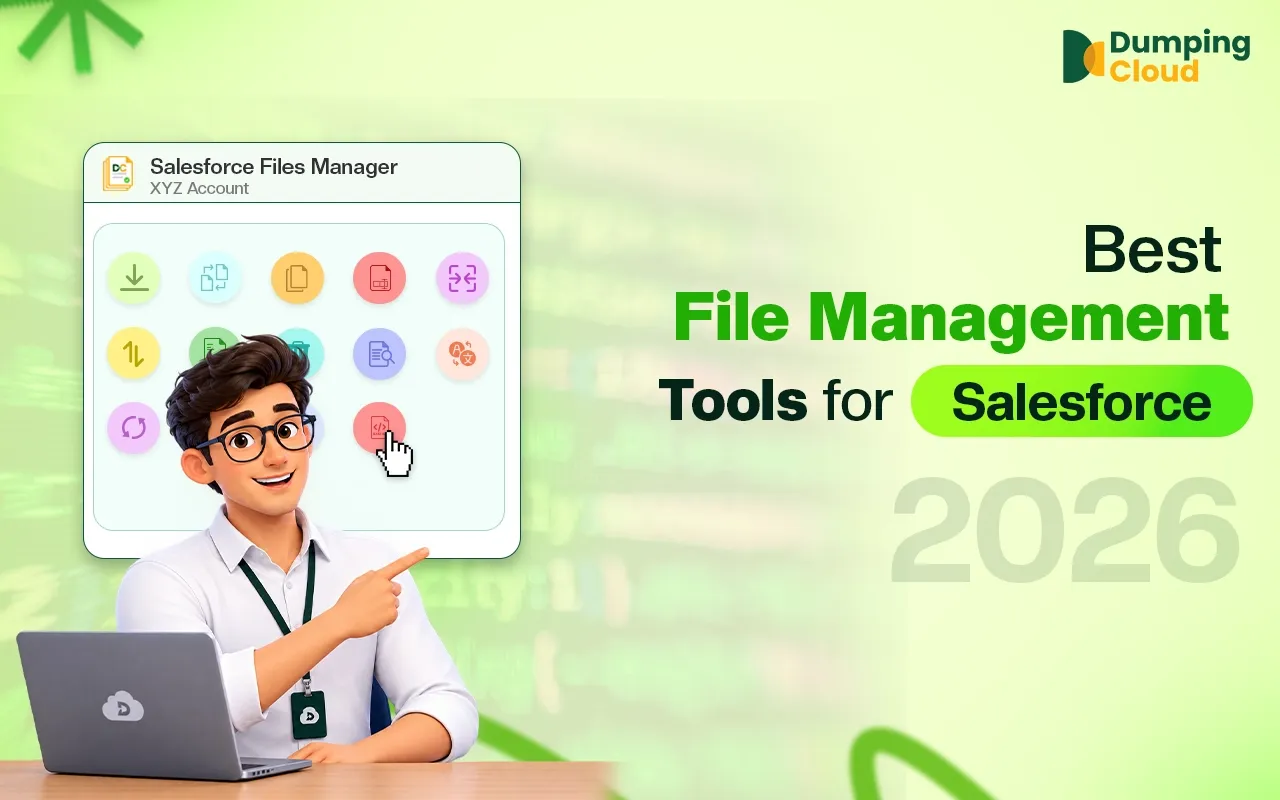
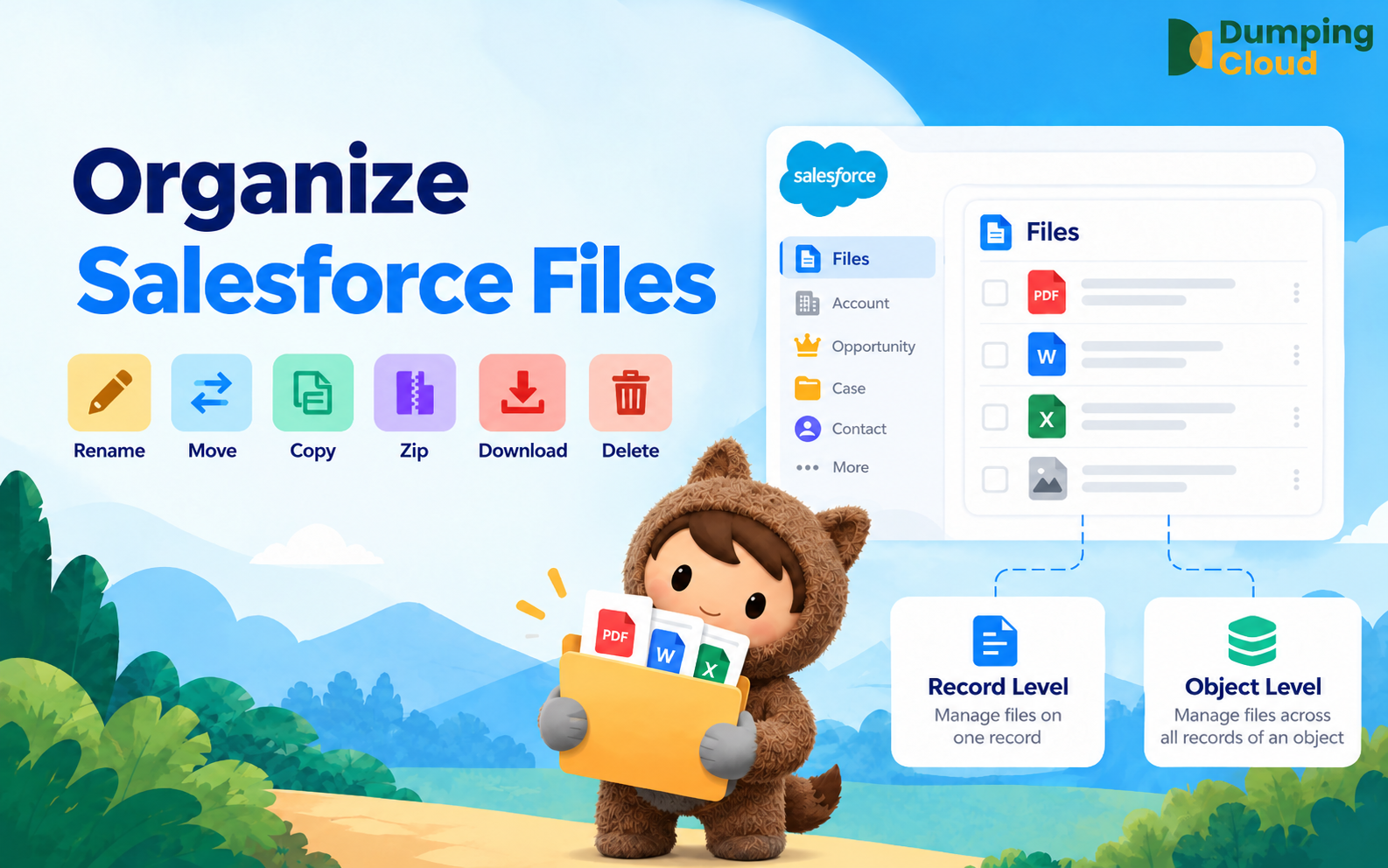
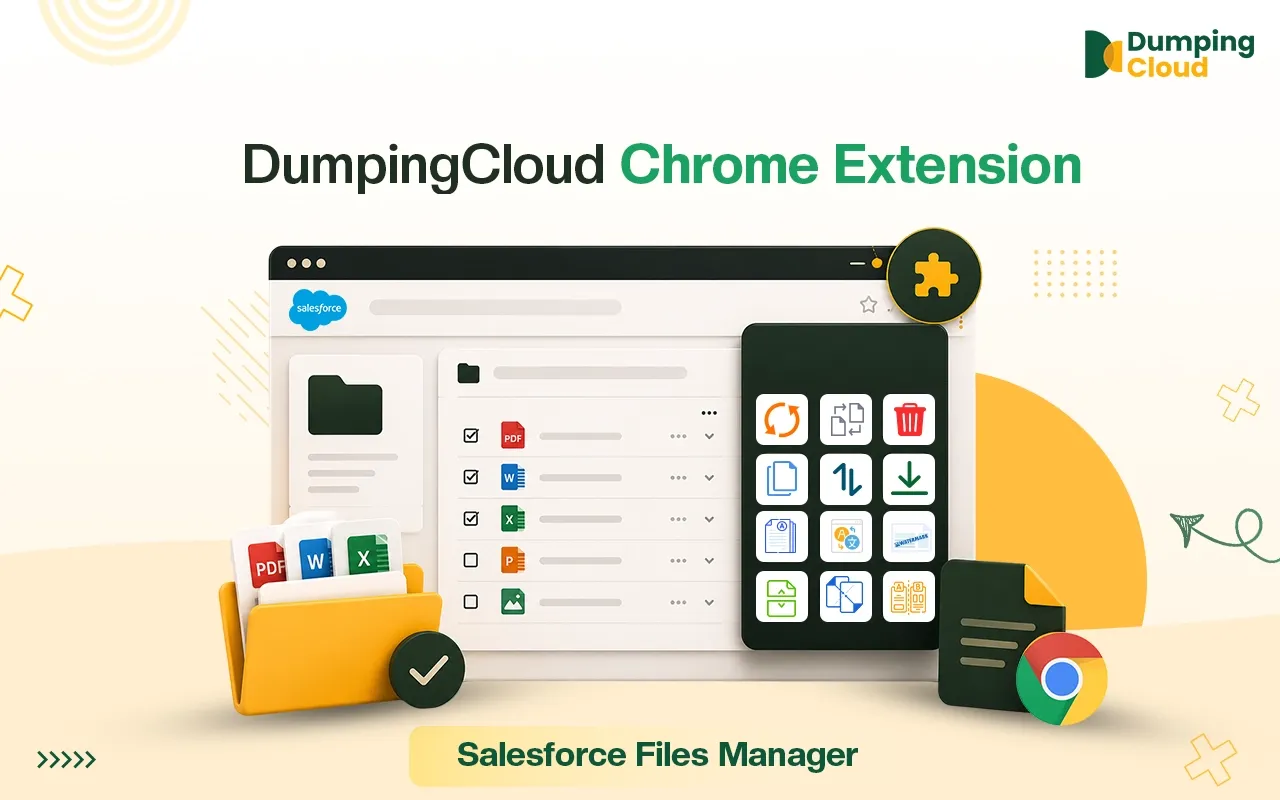
Here’s a snapshot of what it can do:
- Bulk Download Salesforce Files — Select multiple files from any record and download all in one click
- Mass Delete Salesforce Files— Select multiple files from any record and delete all files in one click
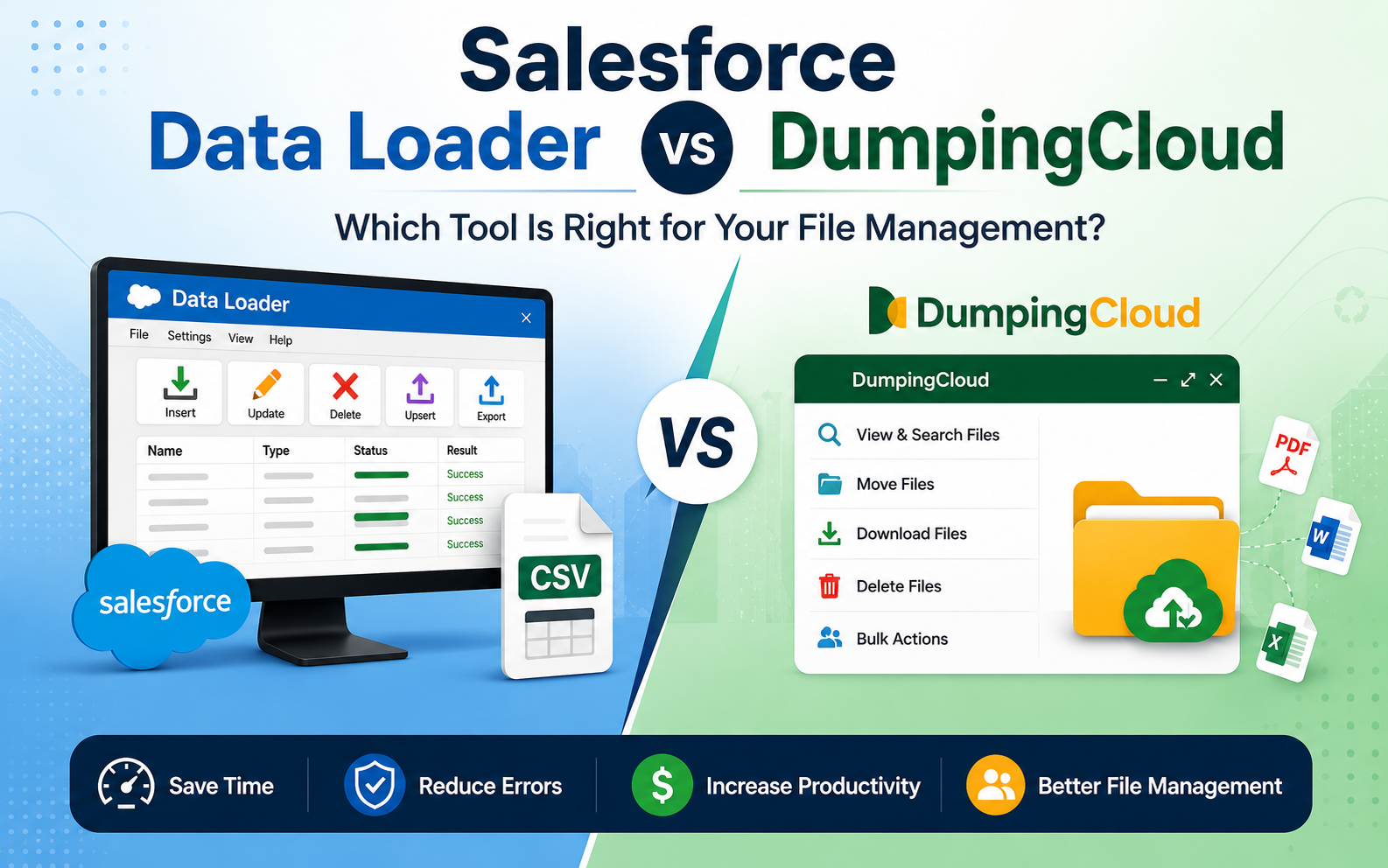
- Move Multiple Files in Salesforce — Transfer files b/w records within the same Org, like a Data Loader for files
- Copy Multiple Files in Salesforce — Copy files between records within the same Org, like a Data Loader for files
- Bulk Rename Salesforce Files — Apply naming patterns across multiple files at once
- Side-by-side Salesforce Files Comparison — Compare documents visually without downloading them
- Translate Salesforce Files — Translate file content into different languages instantly without leaving Salesforce
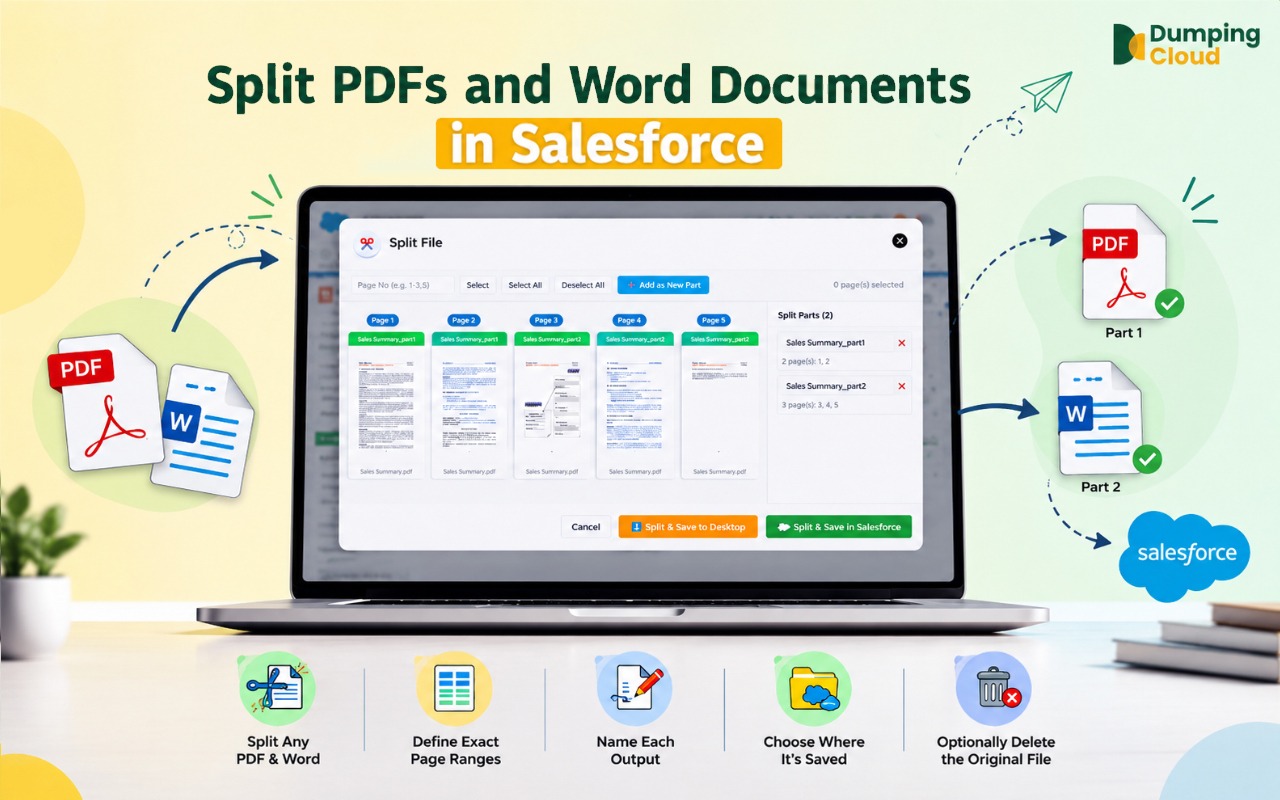
- Split Pdf in Salesforce — Break large PDFs into parts.
- Merge Pdf in Salesforce — Combine multiple PDFs into one
- Add Watermark in Salesforce Files — Stamp text or image watermarks onto files directly from the record page, no third-party tools needed
- In-window Preview — View images and PDFs directly inside the extension without opening new tabs
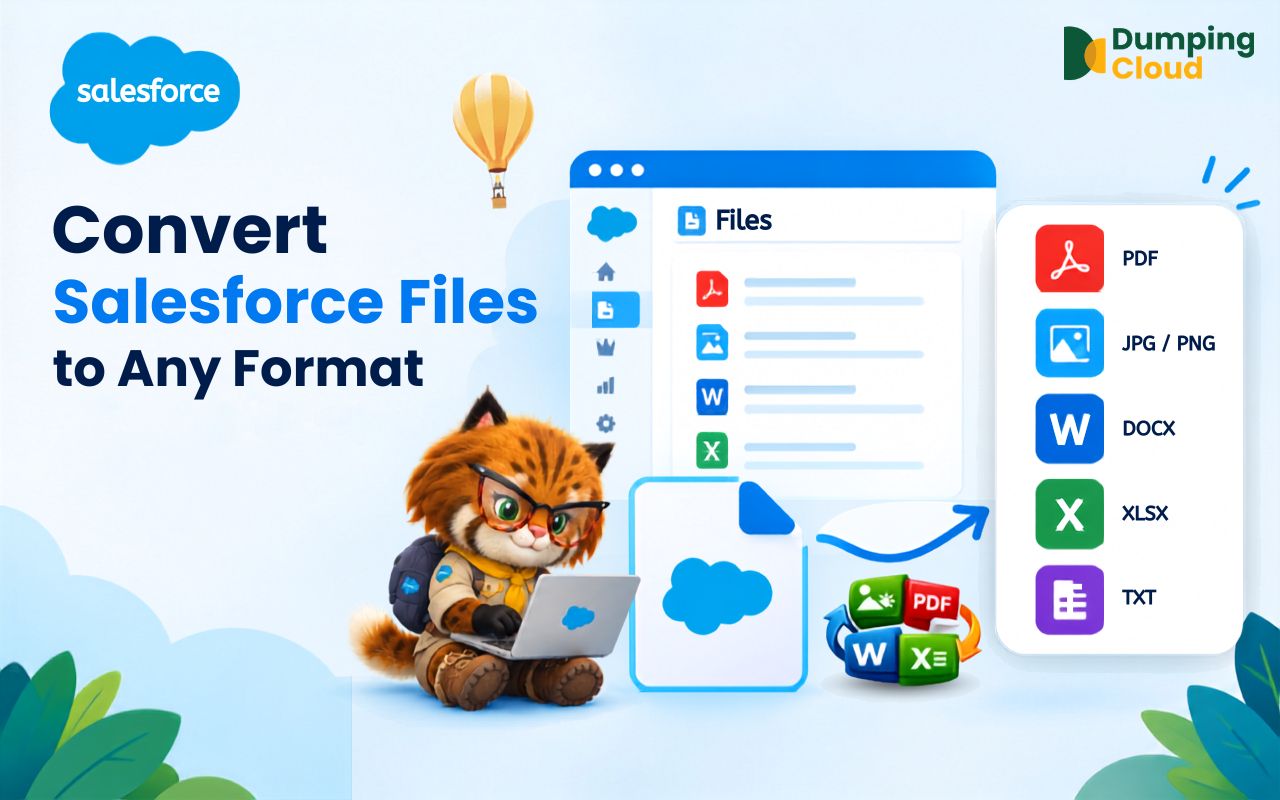
- Convert File Type in Salesforce — Convert files between formats (e.g., PDF to Word, image to PDF) right from the extension panel
- Digital eSign — Send documents for digital signature directly from the file manager interface.
Why Use a Dedicated Salesforce File Management Tool?
Salesforce’s built-in Files related list handles one file at a time. For orgs with hundreds of attachments per record contracts, invoices, case attachments, proposals that one-at-a-time model doesn’t scale. A dedicated Salesforce file management tool like DumpingCloud closes that gap by turning single-file actions into bulk workflows, without requiring any change to how files are stored in Salesforce.
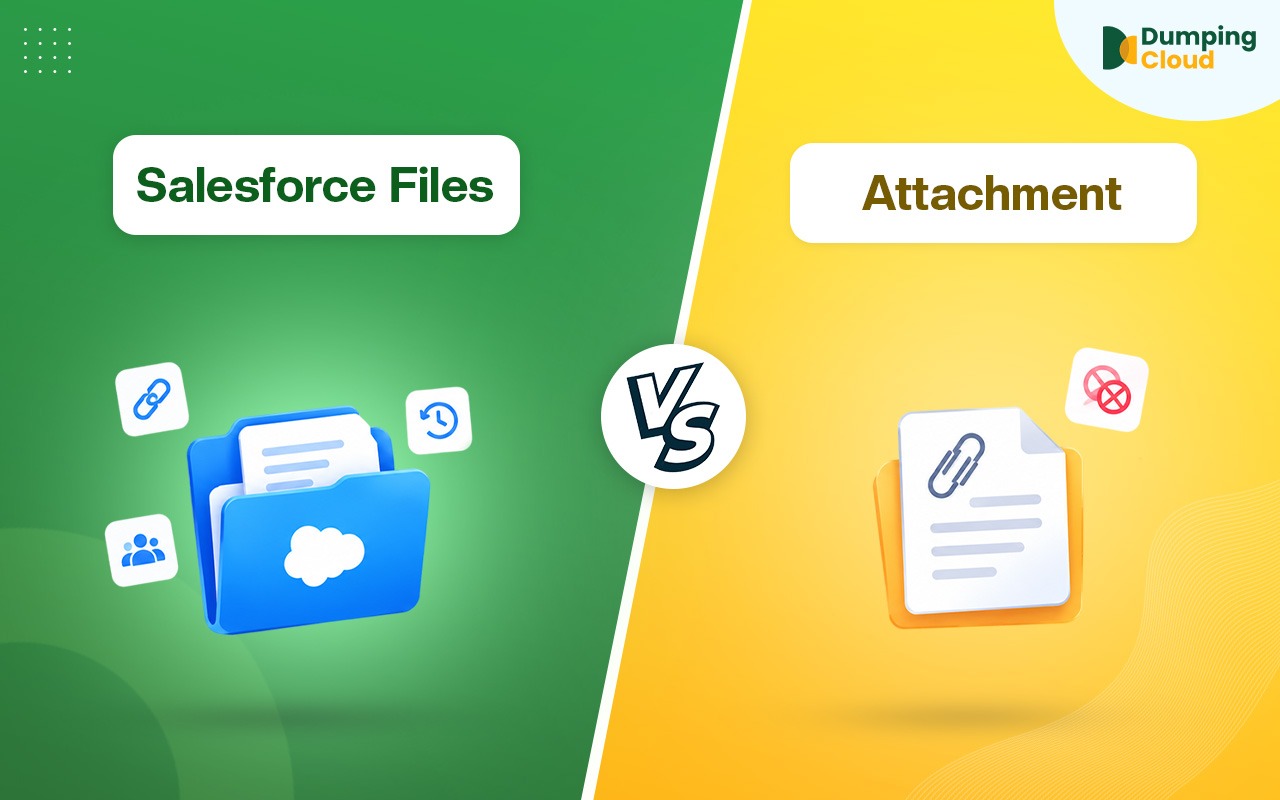
Native Salesforce Files vs Dumping Cloud
| Capability | Native Salesforce Files | Dumping Cloud |
|---|---|---|
| Bulk download/delete | ❌ One file at a time | ✅ Bulk actions |
| Move/copy files between records | ❌ Manual process | ✅ Directly in the extension |
| Bulk rename files | ❌ Not available | ✅ Bulk rename |
| In-app file preview & comparison | Limited | ✅ Built into the extension |
| Watermark, translate & convert files | ❌ Not available | ✅ Built-in tools |
| PDF split & merge | ❌ Not available | ✅ Directly in the extension |
| eSign from the file panel | ❌ Not available | ✅ Built-in eSign workflow |
| Setup required | No extension required | ✅ Browser extension, no login |
Before You Begin
Make sure you have the following:
- A supported browser: Google Chrome, Mozilla Firefox, Microsoft Edge, or Safari
- An active Salesforce account (any edition)
- A stable internet connection
- DumpingCloud installed for your preferred browser
Step-by-Step Installation Guide
01
Step 1
Install DumpingCloud for Your Browser
Click the link below & install it into your favourite browser:
This will take you directly to the official Dumping Cloud – Salesforce File Manager page on the Chrome Web Store. Or search “Dumping Cloud –Salesforce File Manager” on google

02
Step 2
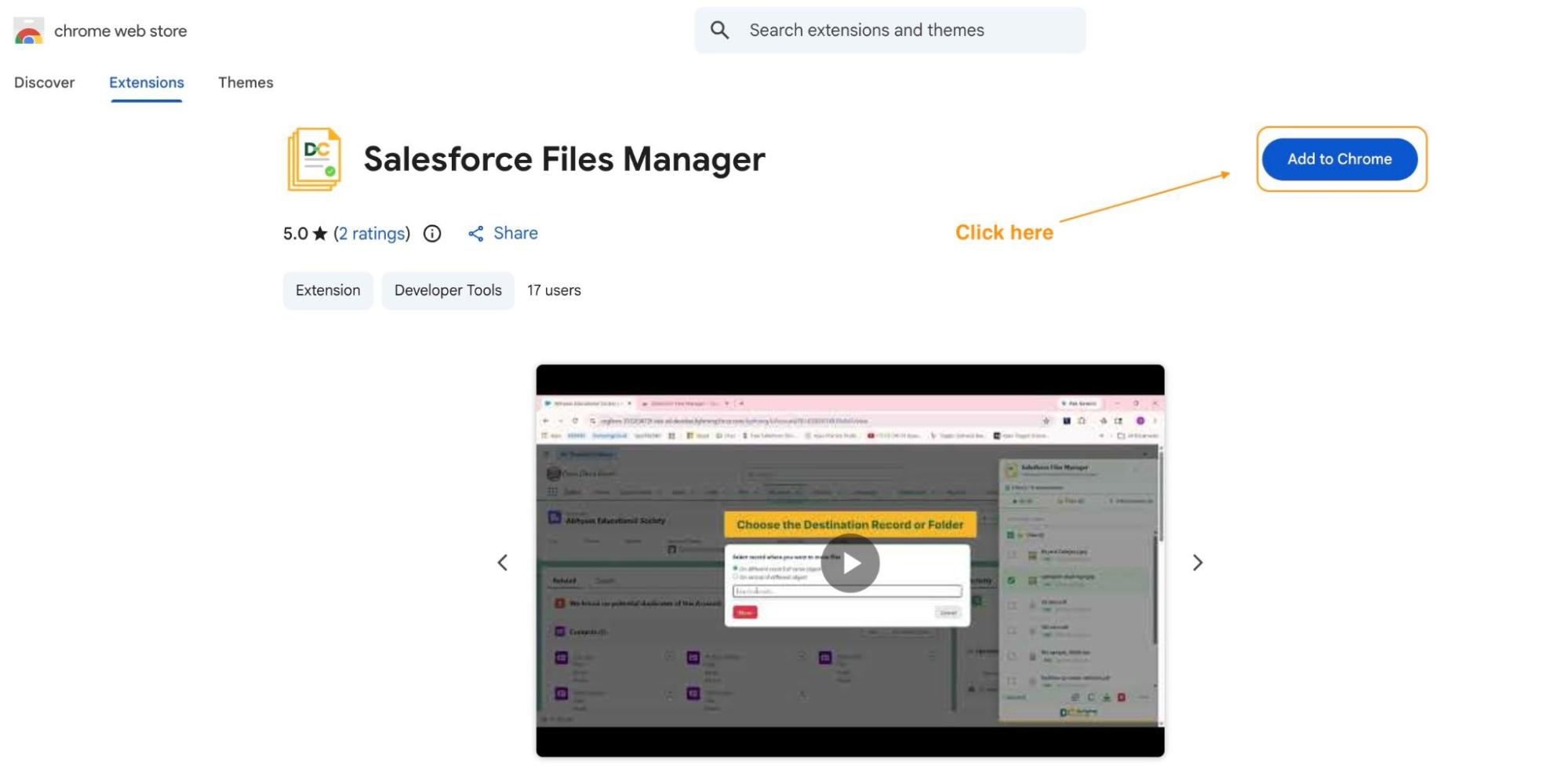
Click “Add to Chrome”
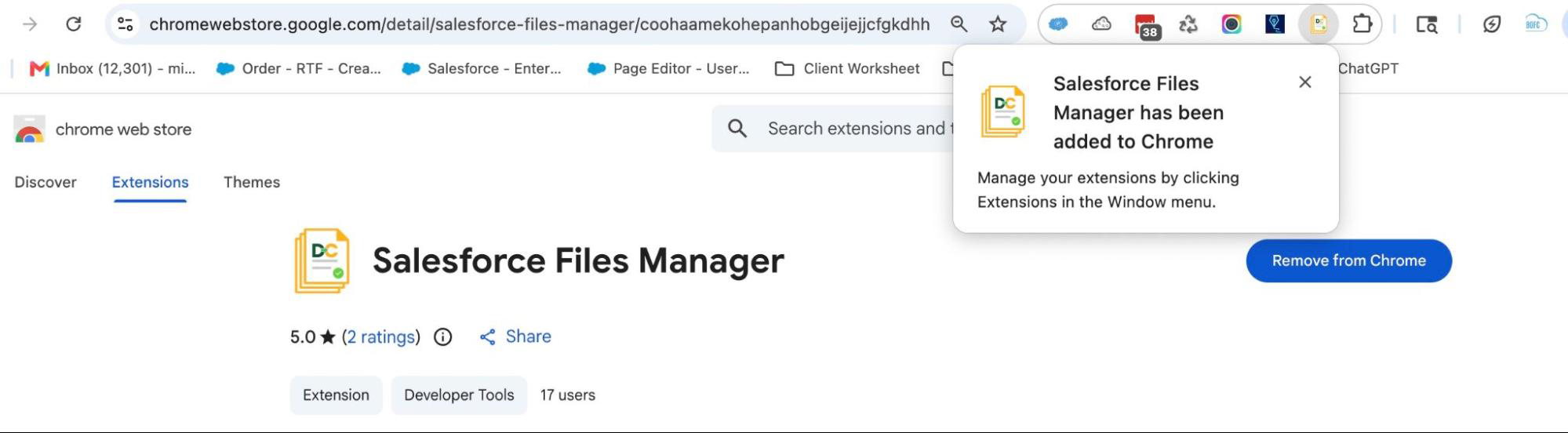
On the extension page, you’ll see a blue “Add to Chrome“ button in the top-right area of the listing. Click it.
03
Step 3
Confirm the Installation
A dialog box will appear asking you to confirm. It will list the permissions the extension needs to function (such as access to your active Salesforce tabs).
Click “Add extension” to proceed.
Chrome will download and install the extension automatically. You’ll see a confirmation message once it’s done, and the Salesforce File Manager icon will appear in your Chrome toolbar.
04
Step 4
Pin the Extension (Recommended)
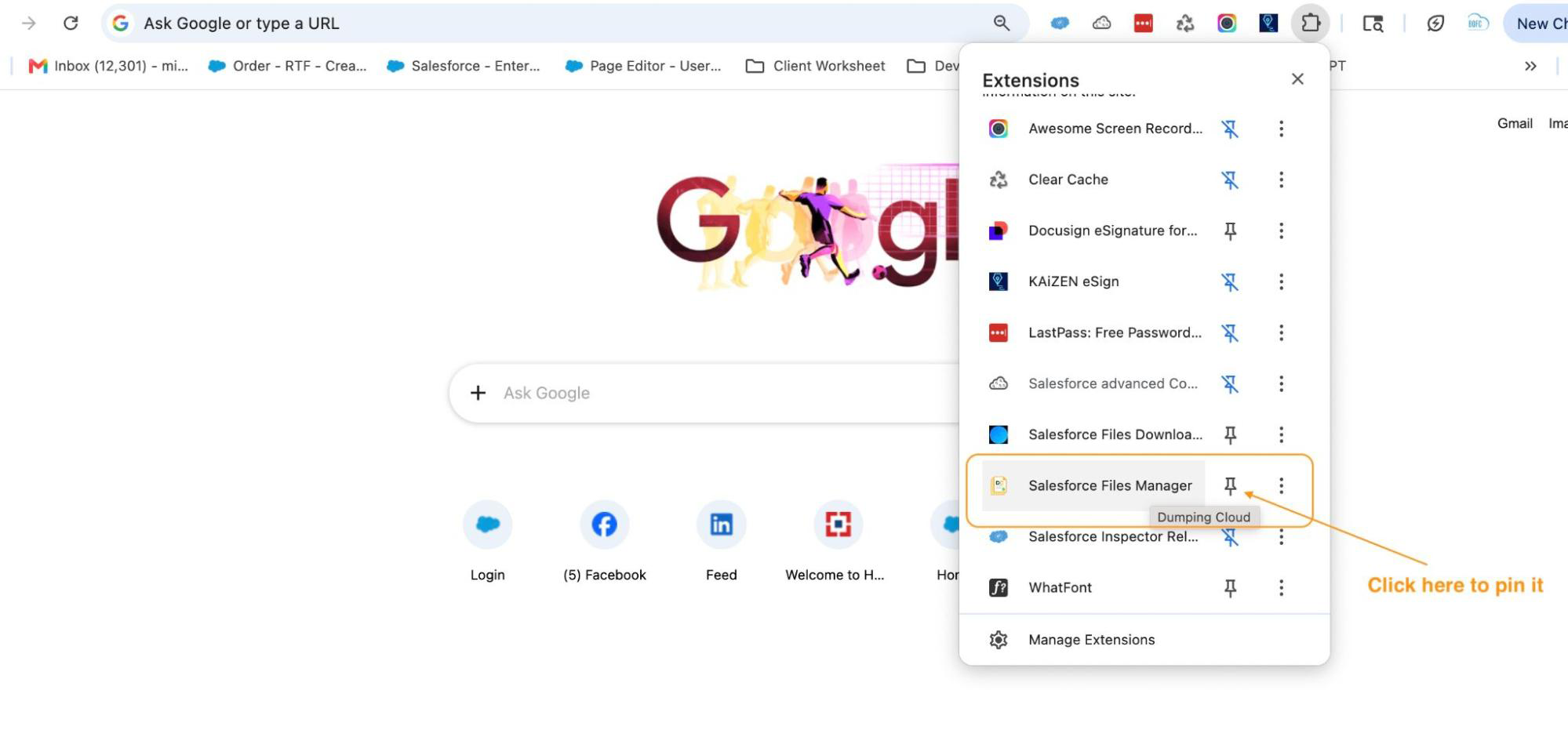
By default, newly installed extensions may be hidden in the Extensions menu (the puzzle-piece icon 🧩 in the top-right corner of Chrome).
To keep Dumping Cloud easily accessible:
- Click the puzzle-piece icon in the Chrome toolbar
- Find Salesforce File Manager in the list
- Click the pin icon next to it
The extension icon will now always be visible in your toolbar for one-click access.
05
Step 5
Open a Salesforce Record Page
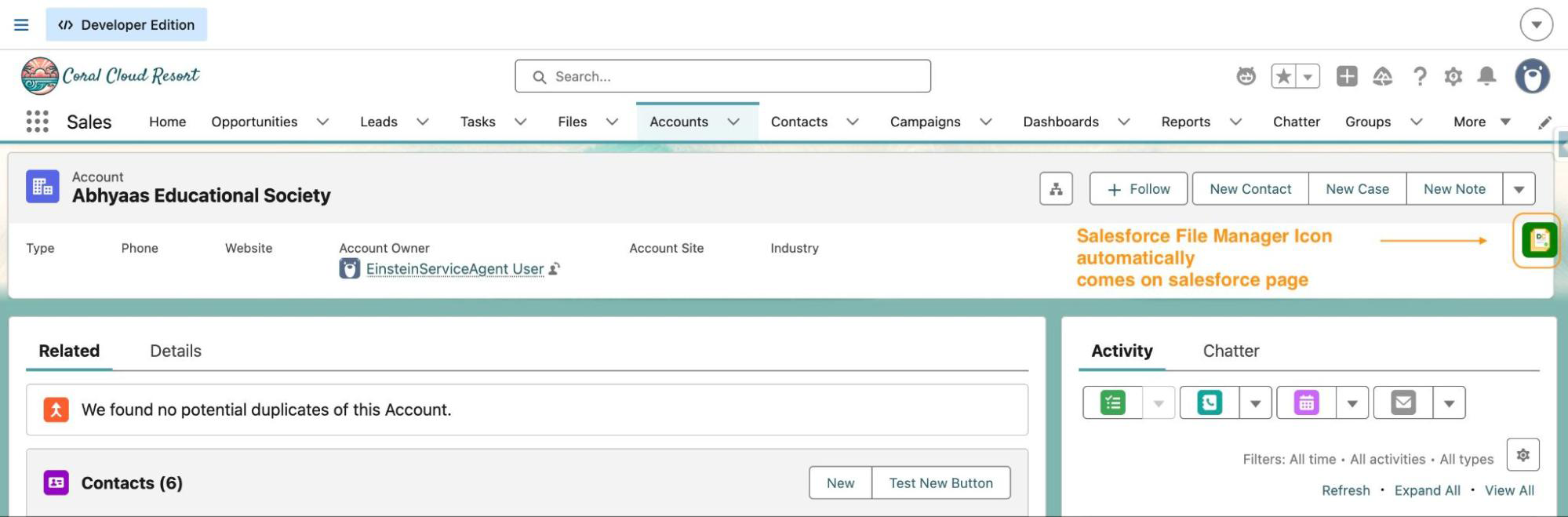
Navigate to your Salesforce Org and open any record that has files attached — for example, an Account, Opportunity, Case, or Contact.
The extension automatically detects your active Salesforce session. No additional login is required.
06
Step 6
Launch the Extension
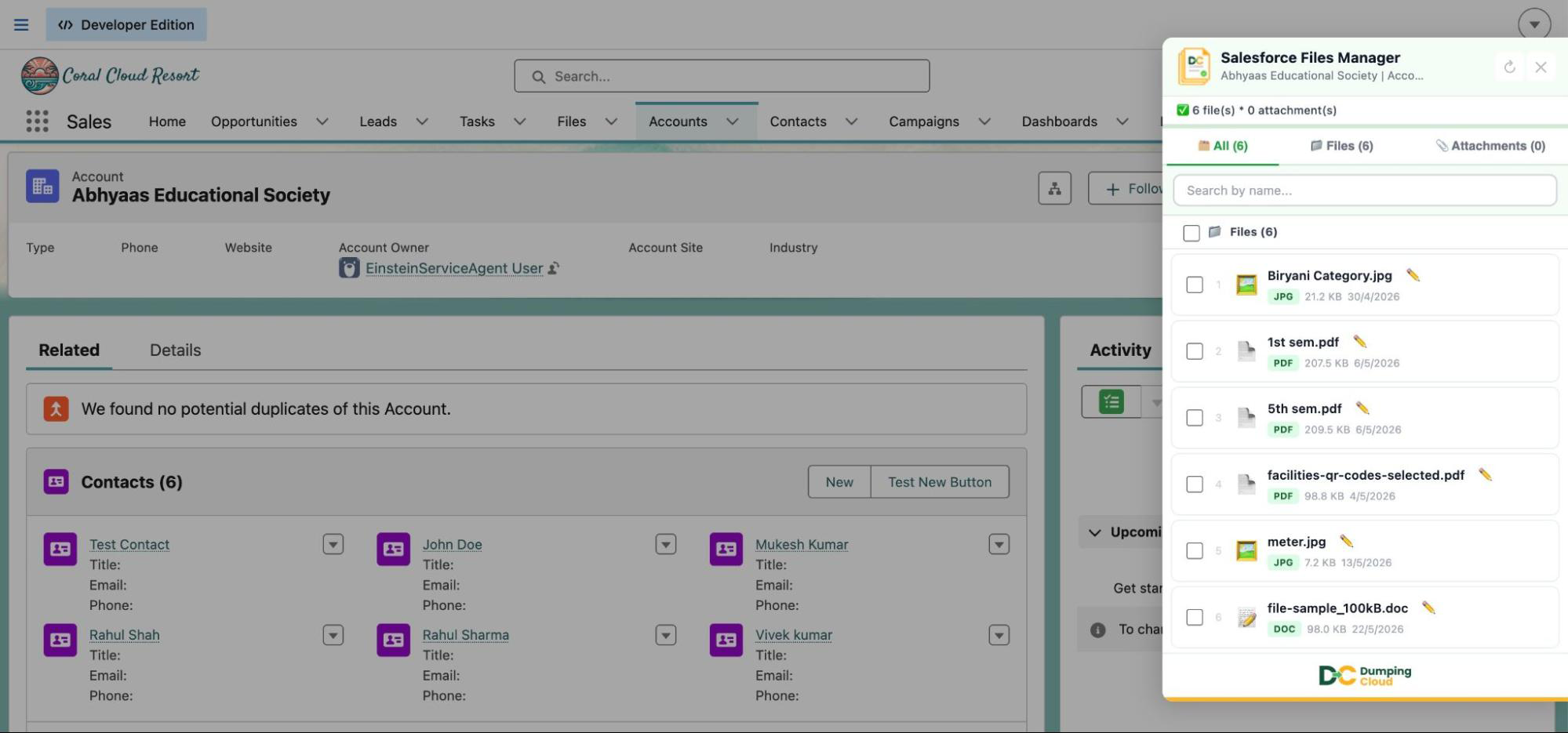
Click the Dumping Cloud – Salesforce File Manager icon in your Chrome toolbar while you’re on a Salesforce record page.
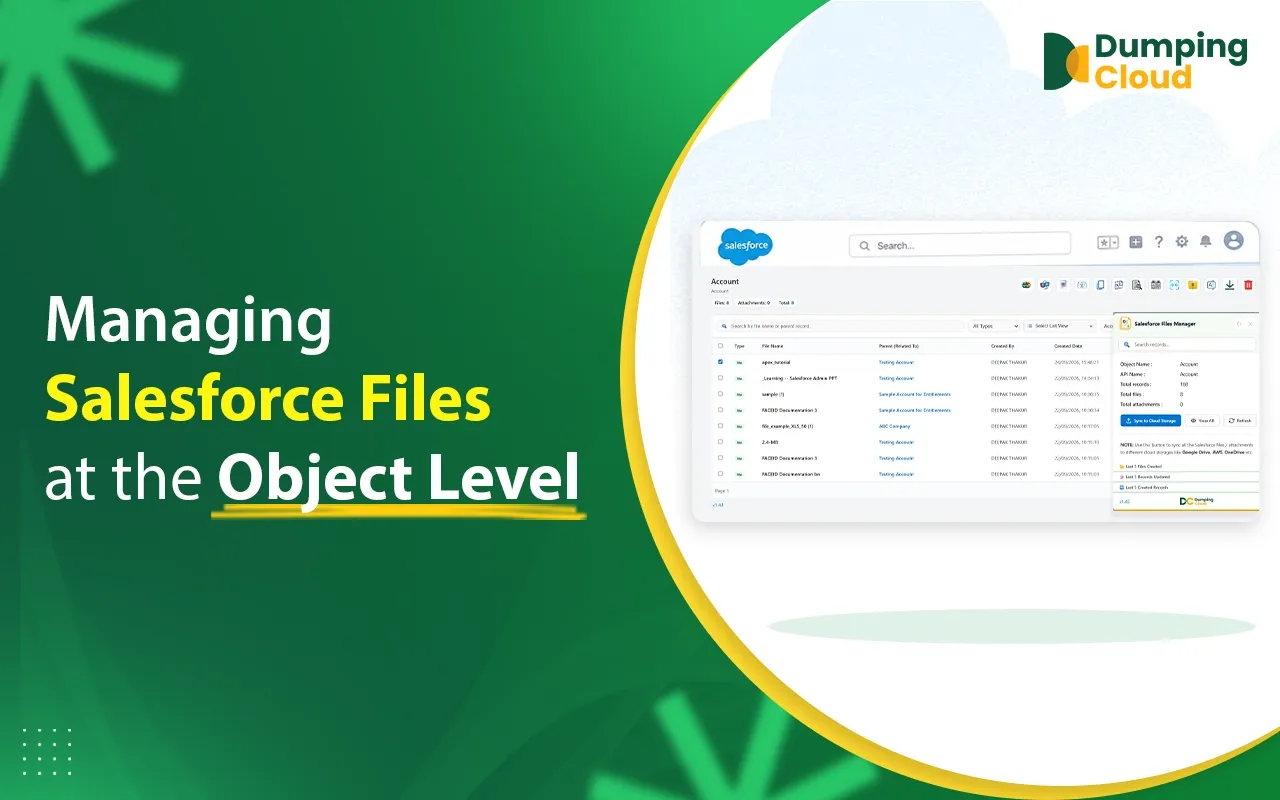
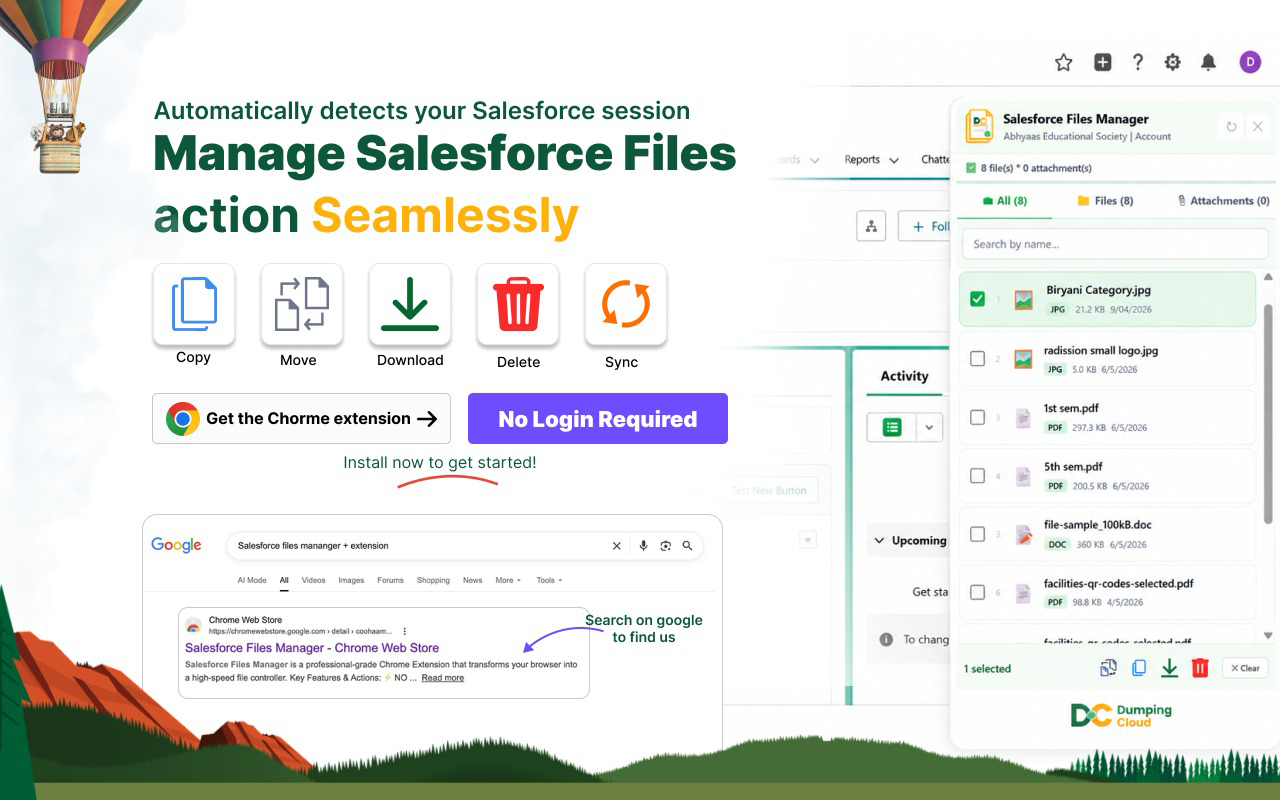
The extension panel will open, displaying all files and attachments associated with that record. From here, you can select files and use the full suite of actions — download, delete, move, copy, rename, preview, merge, split, eSign, or sync to cloud storage.
How to Organize and Search Files in Salesforce with DumpingCloud
Once installed, DumpingCloud turns everyday Salesforce file organization tasks into a few clicks:
- To manage files in Salesforce in bulk: open any record, select multiple files in the DumpingCloud panel, and apply a single action (download, delete, move, or rename) to all of them at once.
- To search Salesforce files faster: use the extension panel’s search instead of scrolling through the native Files related list.
- To keep naming consistent: apply DumpingCloud’s bulk rename patterns across a batch of files rather than renaming one at a time.
Troubleshooting : DumpingCloud – Salesforce File Manager
The extension doesn’t detect my Salesforce session. Make sure you’re logged into Salesforce in the same browser and browser profile where DumpingCloud is installed. Refresh the Salesforce record page and try again.
I don’t see any files in the extension panel. Confirm the Salesforce record has files attached in its Files related list — DumpingCloud reads from those existing record files.
Privacy & Data Security
DumpingCloud – Salesforce File Manager has a clear privacy stance: the developer does not collect or use your data. Your files and Salesforce session remain within your browser. No data is sold to third parties or used for purposes outside the extension’s core functionality.
The extension is published by AYAN SOFTWARES, a verified trader on the Chrome Web Store, and is compliant with EU laws.
Get Started Today
Installing the Dumping Cloud – Salesforce File Manager takes under a minute, and the time savings start immediately. Whether you’re a Salesforce Admin cleaning up a cluttered Org, a developer managing file attachments across records, or a sales professional sending documents for eSign — this extension removes the friction.
Ready to manage Salesforce Files faster?
Download, move, rename, merge, split, convert, compare, and manage your Salesforce Files — without leaving Salesforce.

Frequently Asked Questions
Which browsers does DumpingCloud support?
DumpingCloud is available for Google Chrome, Mozilla Firefox, Microsoft Edge, and Safari. You can install it on the browser you use to access Salesforce and manage your Salesforce Files directly from your record pages.
Do I need to log in separately to use DumpingCloud?
No. The extension automatically detects your active Salesforce session and activates directly on record pages there's no separate account or login.
Is my Salesforce org data safe with DumpingCloud?
Yes. DumpingCloud does not collect or use your data your files and Salesforce session stay within your browser, and nothing is sold to third parties. The extension is published by a verified Chrome Web Store developer and is EU compliant.
Who is DumpingCloud built for?
Salesforce Admins, Developers, and power users who regularly manage large volumes of files and attachments and are limited by Salesforce's one-at-a-time native file handling.
Do I need to use Chrome to use DumpingCloud?
No. DumpingCloud is not limited to Chrome. It is available on Google Chrome, Mozilla Firefox, Microsoft Edge, and Safari, allowing Salesforce users to manage their files from their preferred supported browser.