
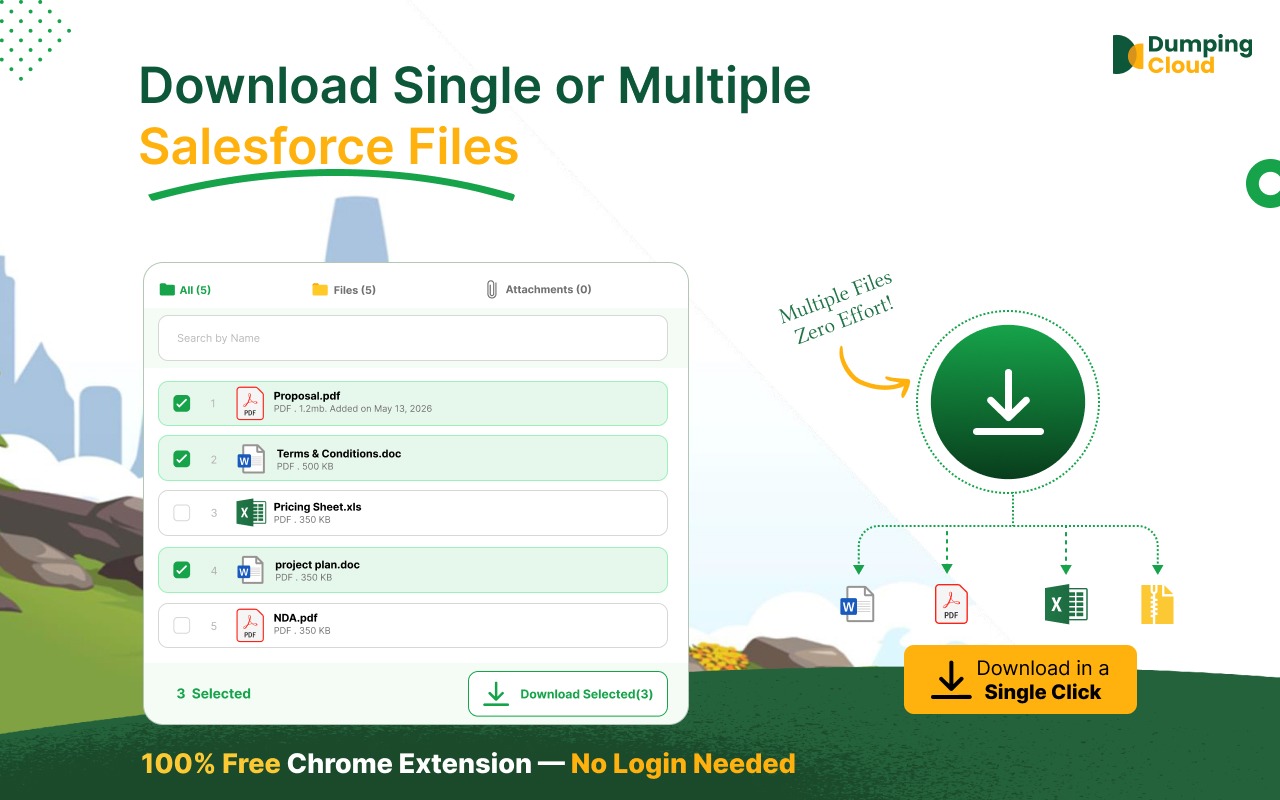
Downloading multiple files from Salesforce can become time-consuming when you need documents from a Case, Account, Opportunity, or another record. Instead of downloading each file individually, DumpingCloud – Salesforce Files Manager helps you select and download multiple files and attachments from a record in a few clicks.
Whether you’re preparing documents for a compliance audit, collecting client deliverables, or organizing files before a data migration, DumpingCloud simplifies the process directly from your active Salesforce session.
The Problem Every Salesforce Admin Knows
You have a Case with 30 attachments. A client needs all of them.
What does Salesforce give you natively? The ability to download one file at a time. Click. Wait. Click. Wait. Repeat — thirty times.
For Salesforce Admins managing high-volume records across Accounts, Cases, Opportunities, or Contracts or any custom object, this is not just inconvenient — it is a measurable drain on productivity. There is no native bulk files download capability in Salesforce, and workarounds typically involve custom reports, developer scripts, or manual Data Loader configurations that are overkill for day-to-day file operations.
DumpingCloud – Salesforce Files Manager eliminates this limitation entirely. With a single extension installed in Chrome, Admins can bulk download salesforce files and attachments in a matter of clicks — no code, no configuration, no compromise.
What the Download Feature does
The Download feature in DumpingCloud allows you to:
- Download a single file from any Salesforce record with one click
- Select and download multiple files simultaneously from the same record
- Download single or multiple Attachments simultaneously from the same record
- Download all files at once with a single “Select All” action
- Access files and attachments from any standard or custom Salesforce record — Accounts, Contacts, Opportunities, Cases, Contracts, or any custom object and more
- Perform downloads without re-authenticating — the extension automatically uses your active Salesforce session

Who Benefits Most
While this feature is valuable across teams, Salesforce Admins in particular will find it indispensable in the following scenarios:
- Data migrations — Extracting files from records before org restructuring or merging
- Compliance & audit requests — Quickly packaging all documents associated with a record for legal or compliance review
- Client deliverables — Pulling all contract, proposal, or report files from an Opportunity in one action
- Org maintenance — Reviewing and archiving files before deletion or record cleanup
- Support escalations — Downloading all attachments from a Case to share with an engineering or external team
Step-by-Step guide to Download Files and attachments from Salesforce
Prerequisites
Before you begin, ensure the following:
- DumpingCloud – Salesforce File Manager is installed in your browser from the appropriate browser extension store (Install here)
- You are logged into your Salesforce Org in the same browser
01
Step 1
Navigate to the Salesforce Record
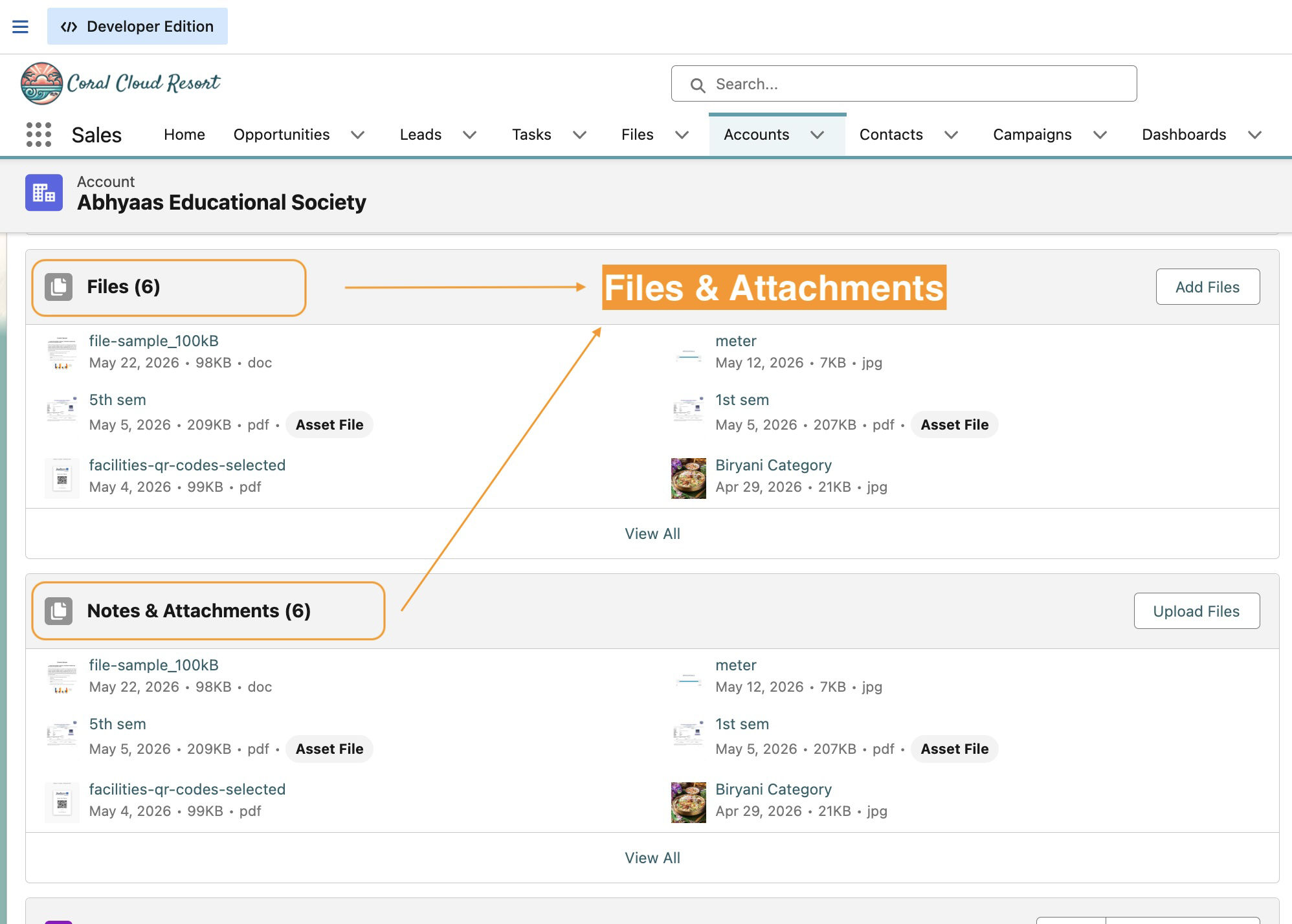
Open Google Chrome and log in to your Salesforce Org. Navigate to any record that contains files/attachments — for example, an Account, Opportunity, Case, or Contact or any custom object.
Ensure the record has files visible in the Files related list.
02
Step 2
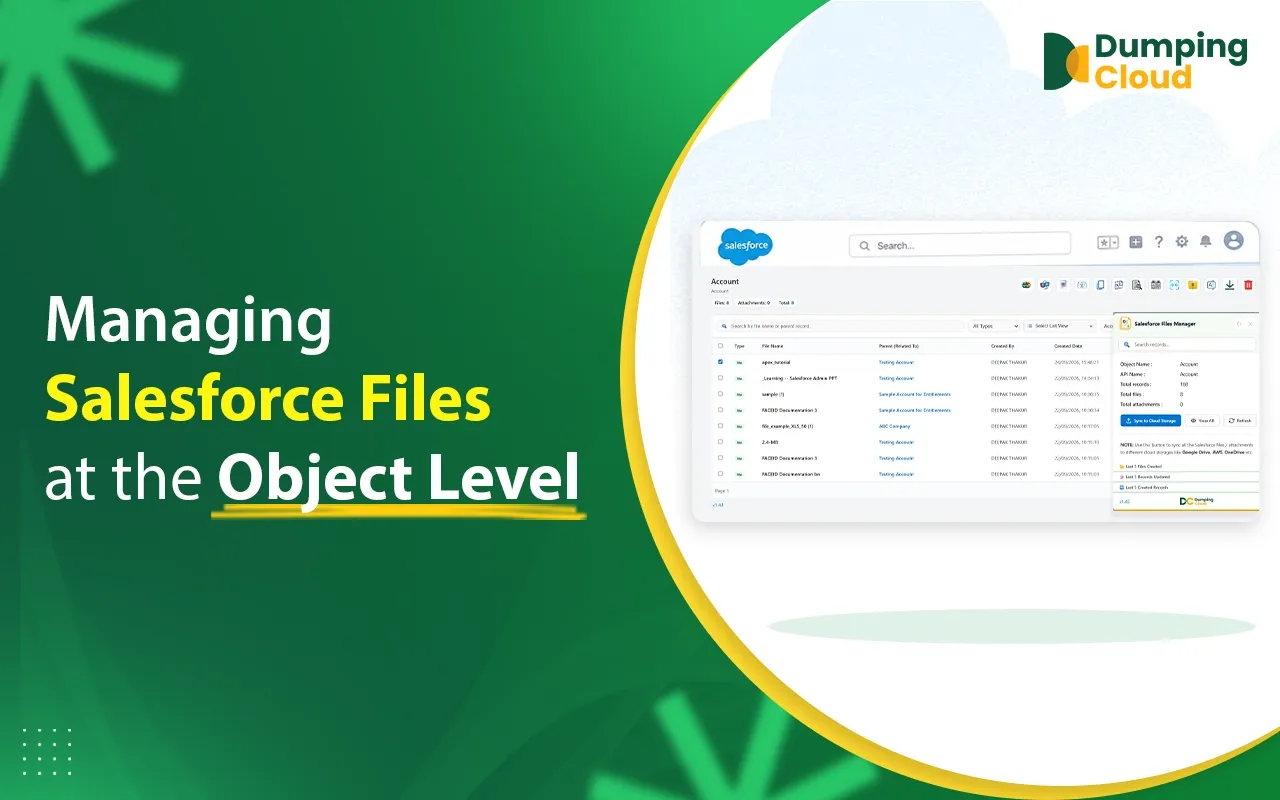
Open DumpingCloud – Salesforce Files Manager
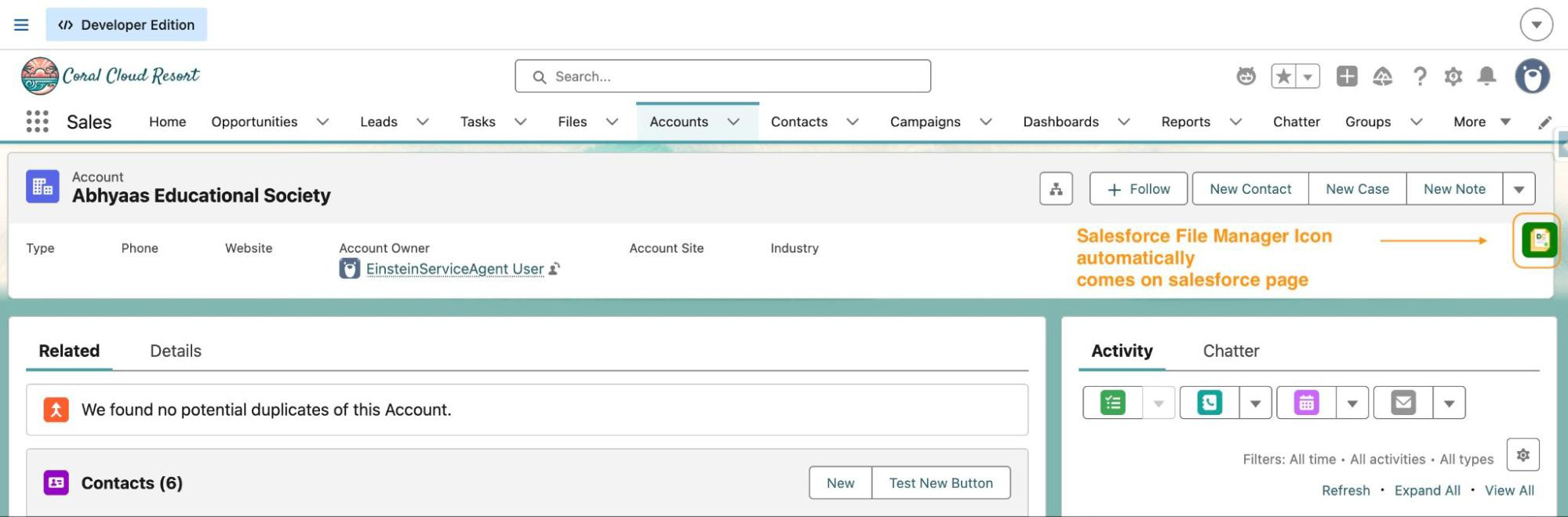
Click the DumpingCloud – Salesforce Files Manager icon. The extension automatically detects your active Salesforce session. No additional login is required.
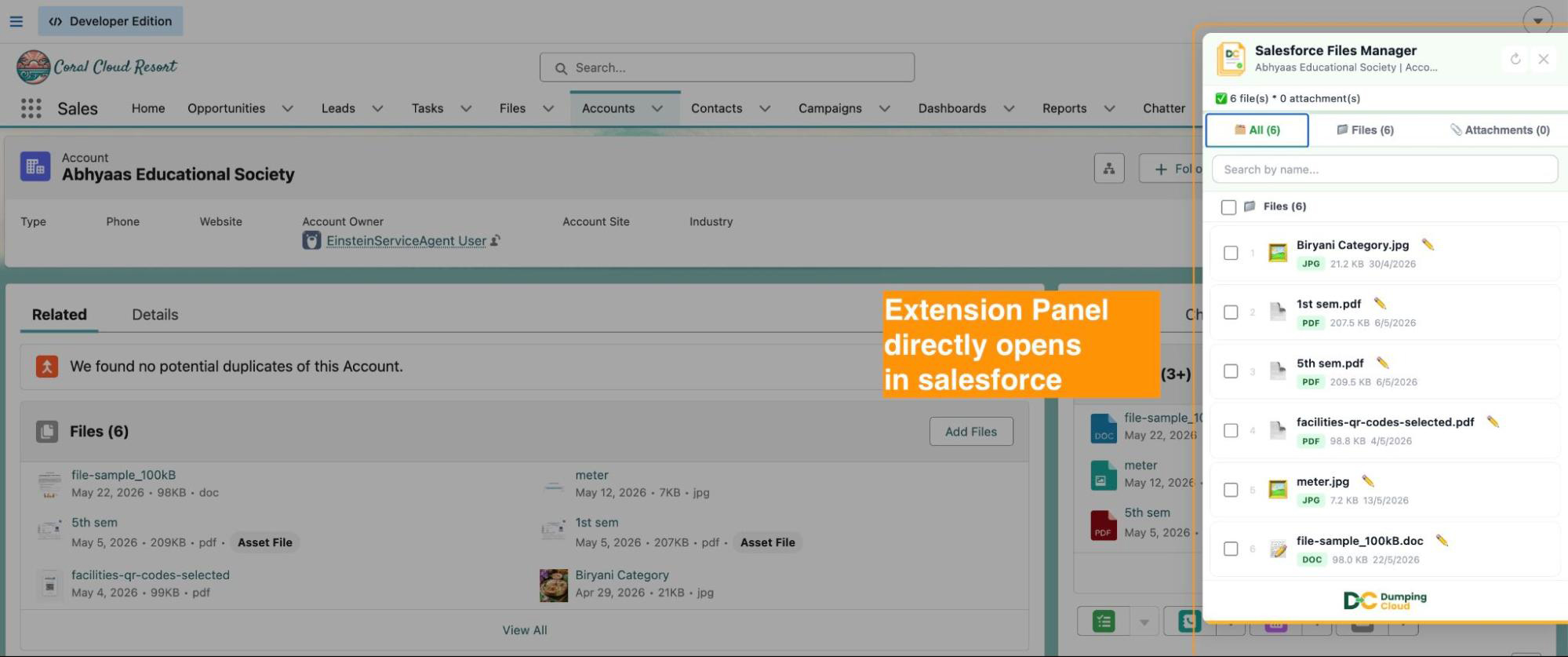
The extension panel will open and automatically load all files and attachments associated with the current record.
03
Step 3
Select the File(s) You Want to Download
To download a single file: Click the checkbox next to the specific file you wish to download. The file row will highlight to confirm your selection.
To download multiple salesforce files: Click the checkboxes next to each file you want to include. You can select any combination of files across the list.
To download all files at once: Click the “Select All” checkbox at the top of the file list. All files on the record will be selected in one action.
04
Step 4
Click the Download Button
With your files selected, click the “Download” button in the extension panel.
- If you selected a single file, it will download directly to your browser’s default download location.
- If you selected bulk files, the extension will package them and download all selected files, keeping your browser responsive throughout the process.
05
Step 5
Access Your Downloaded Files
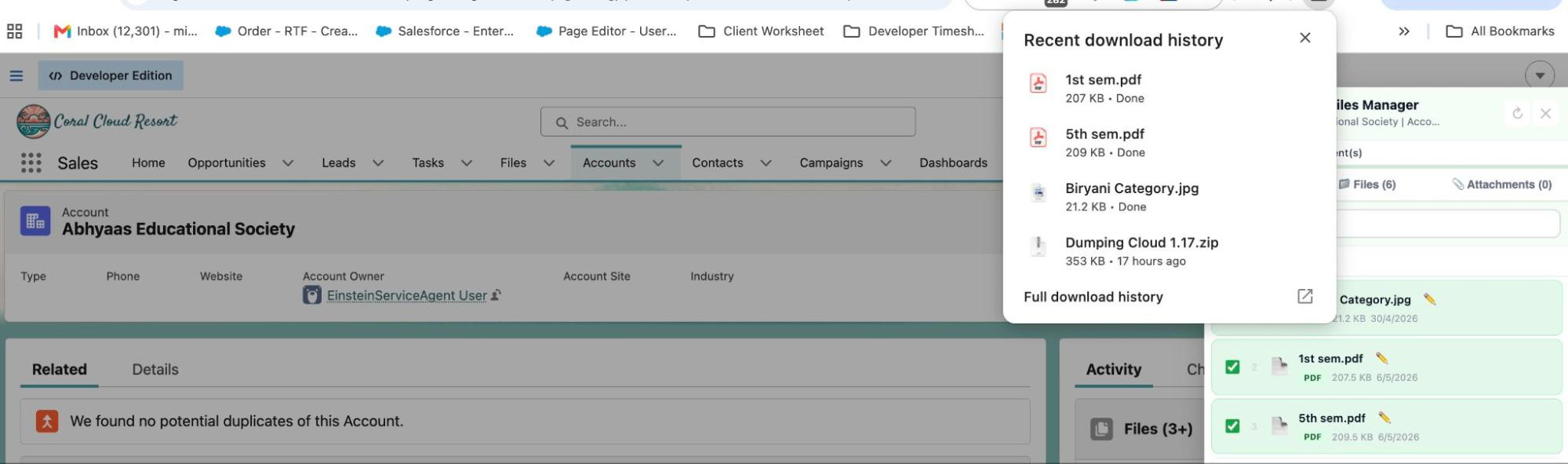
Once the download is complete, your files will be available in your system’s default Downloads folder (or the folder configured in your Chrome download settings).
File names are preserved exactly as they appear in Salesforce, ensuring traceability back to the original records.
Key Advantages Over Native Salesforce
| Capability | Native Salesforce | DumpingCloud |
|---|---|---|
| Download a single file | ✅ Supported | ✅ Supported |
| Download multiple files at once | ❌ Not supported | ✅ Supported |
| Download all files in one click | ❌ Not supported | ✅ Supported |
| Requires developer setup | — | ❌ No setup needed |
| Works across all record types | Partial | ✅ All standard & custom objects |
| Separate login required | — | ❌ Uses existing session |
Install DumpingCloud – Salesforce Files Manager
👉Add to your favourite browser — Free
Ready to manage Salesforce Files faster?
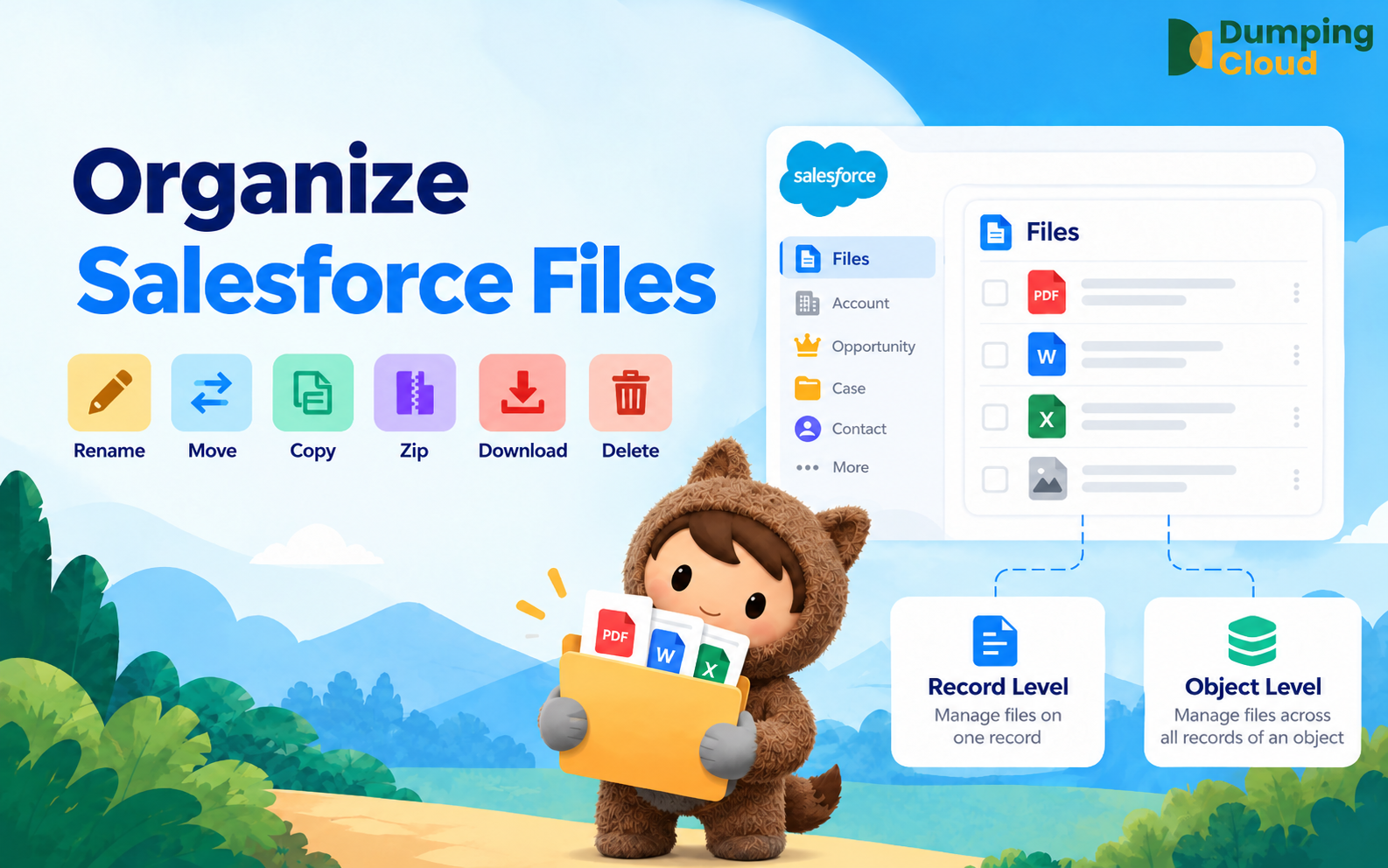
Download, move, rename, merge, split, convert, compare, and manage your Salesforce Files — without leaving Salesforce.

Frequently Asked Questions
Is there a limit to how many files I can download at once?
The extension handles bulk downloads efficiently. For records with very large numbers of files, it is recommended to download in batches to maintain browser performance.
Will the original file names be preserved?
Yes. Files are downloaded with their original Salesforce file names, making it easy to identify and organize them post-download.
Does this work on custom objects?
Yes. DumpingCloud - Salesforce Files Manager works on any record page — standard or custom — as long as files are attached via the Salesforce Files framework.
Do I need to be a System Administrator to use this?
You need sufficient Salesforce permissions to view the files on a given record. The extension respects your existing Salesforce profile and sharing rules — it can only access files your user is already permitted to see.