
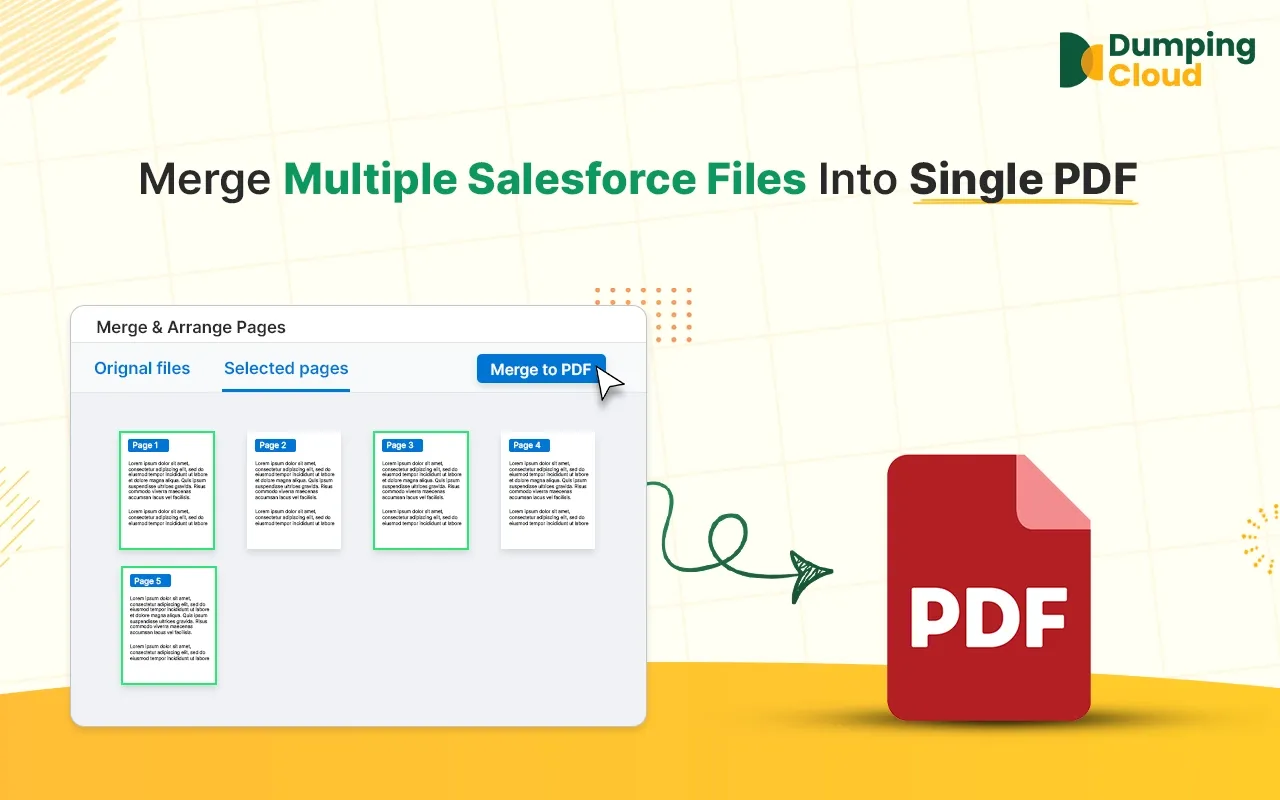
Scattered files on a Salesforce record are a daily reality — but delivering them as a single, professionally assembled document should not require a trip outside the platform. The PDF Merge feature in Dumping Cloud – Salesforce Files Manager brings a full page-level editing experience directly into Salesforce: select your files, choose the exact pages you need, drag them into the right order, rotate any that are misaligned, remove anything that should not be included, undo freely, and save the polished merged PDF — all in one session, on any record, in under a minute.
Whether you are assembling a deal package for a prospect, consolidating a contract with all its exhibits, packaging case documentation for a client, or combining HR documents for a new hire, the Merge Salesforce Files feature gives you the precision, control, and speed the task demands.
The Problem: Multiple Files on the Same Record That Should Be One Document — and No Way to Combine Them natively in Salesforce
Every Salesforce record tells a story. And often, that story is spread across multiple separate files.
Scenario 1 : A Contract record holds a cover letter, the main agreement, three exhibits, and a signature page — all uploaded as individual files.
Scenario 2 : An Opportunity has a proposal document, a pricing sheet, a case study, and a product brochure that all need to go to the prospect as a single, professional PDF package.
Scenario 3 : A Case contains a sequence of diagnostic reports, each filed at a different stage of the investigation, that need to be combined into one consolidated document for the final resolution summary.
Scenario 4 : An HR record has an offer letter, a job description, and a benefits overview that should be sent together as a unified onboarding pack.
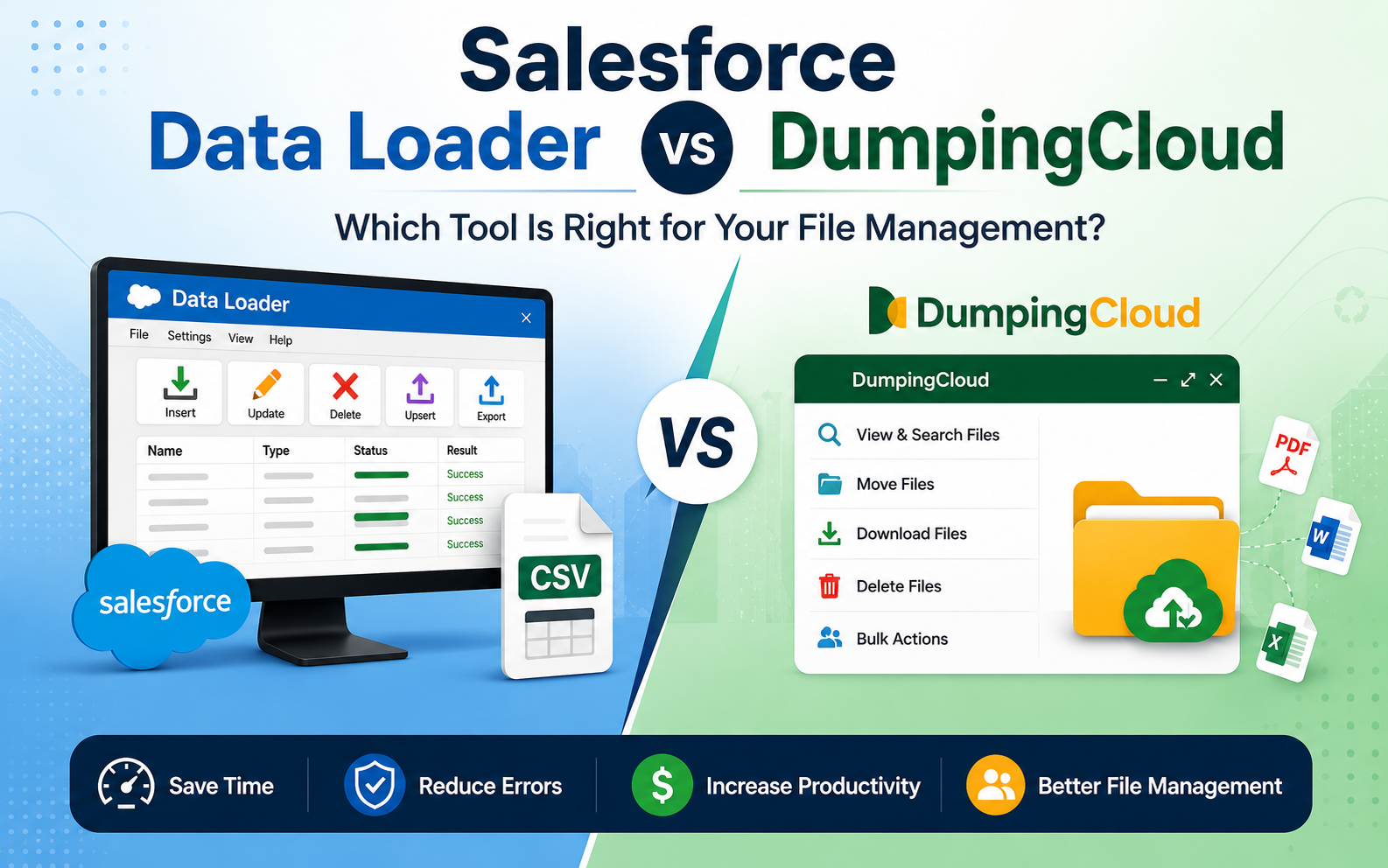
Current Legacy Solution: In every one of these scenarios, the correct output is one file. But native Salesforce has no ability to combine files. The only path available is to download every file individually, open a PDF editor or third-party merging tool, import all the files, arrange them in the correct order, export the merged result, and re-upload it to the Salesforce record.
This process is slow, tool-dependent, error-prone, and entirely disconnected from the Salesforce record where the files live and where the work happens.
DumpingCloud – Salesforce Files Manager solves this with a built-in PDF Merge feature :
- Giving you a full page-level editor to select files
- Pick individual pages of each file
- Control page order
- Rotate pages
- Remove unwanted pages
- Undo mistakes and produce a single polished merged PDF saved directly back to the Salesforce record — all without leaving the salesforce.
What the Merge Salesforce Files Feature Does?
The PDF Merge feature in Dumping Cloud -Salesforce Files Manager allows you to:
- Select any two or more files from the same Salesforce record and combine them into a single PDF
- Merge any file type — PDFs, Word documents, images, spreadsheets, presentations, and more are all supported as inputs, with the output always produced as a unified PDF
- Select individual pages from multi-page files — click thumbnails manually or enter page ranges using print-style notation (e.g., “1-3, 7, 11-14”) to include only the exact pages you need
- Reorder pages using drag-and-drop — arrange pages from across all selected files into exactly the right sequence before merging
- Rotate pages left or right — correct the orientation of any individual page directly in the merge editor
- Remove pages — exclude any page from the final output without affecting the original source file
- Undo any action — reverse page removals, rotations, or reordering mistakes at any point before saving
- Choose how the merged file is saved — overwrite an existing file on the record, or save as a brand new file alongside the originals
- Perform the entire operation within the extension panel — no PDF editor, no third-party merging tool, no downloading required
How to Merge Salesforce Files Using DumpingCloud
Prerequisites – Before you begin, ensure the following:
- DumpingCloud – Salesforce File Manager is installed in your browser from the appropriate browser extension store. (Install here)
- You are logged into your Salesforce Org in the browser
- All files you intend to merge are attached to the same Salesforce record
- You have the necessary Salesforce permissions to view and edit files on the target record
01
Step 1
Navigate to the Record and Open the Extension
Open Google Chrome and log in to your Salesforce Org. Navigate to the record containing the files you want to merge — for example, an Opportunity with multiple proposal components, or a Contract with separate agreement sections.
Click the DumpingCloud – Salesforce Files Manager icon in your Chrome toolbar to open the extension panel. The panel will load all files associated with the current record.

02
Step 2
Open DumpingCloud
Click the checkboxes next to each file you want to include in the merge operation. Select a minimum of two files.
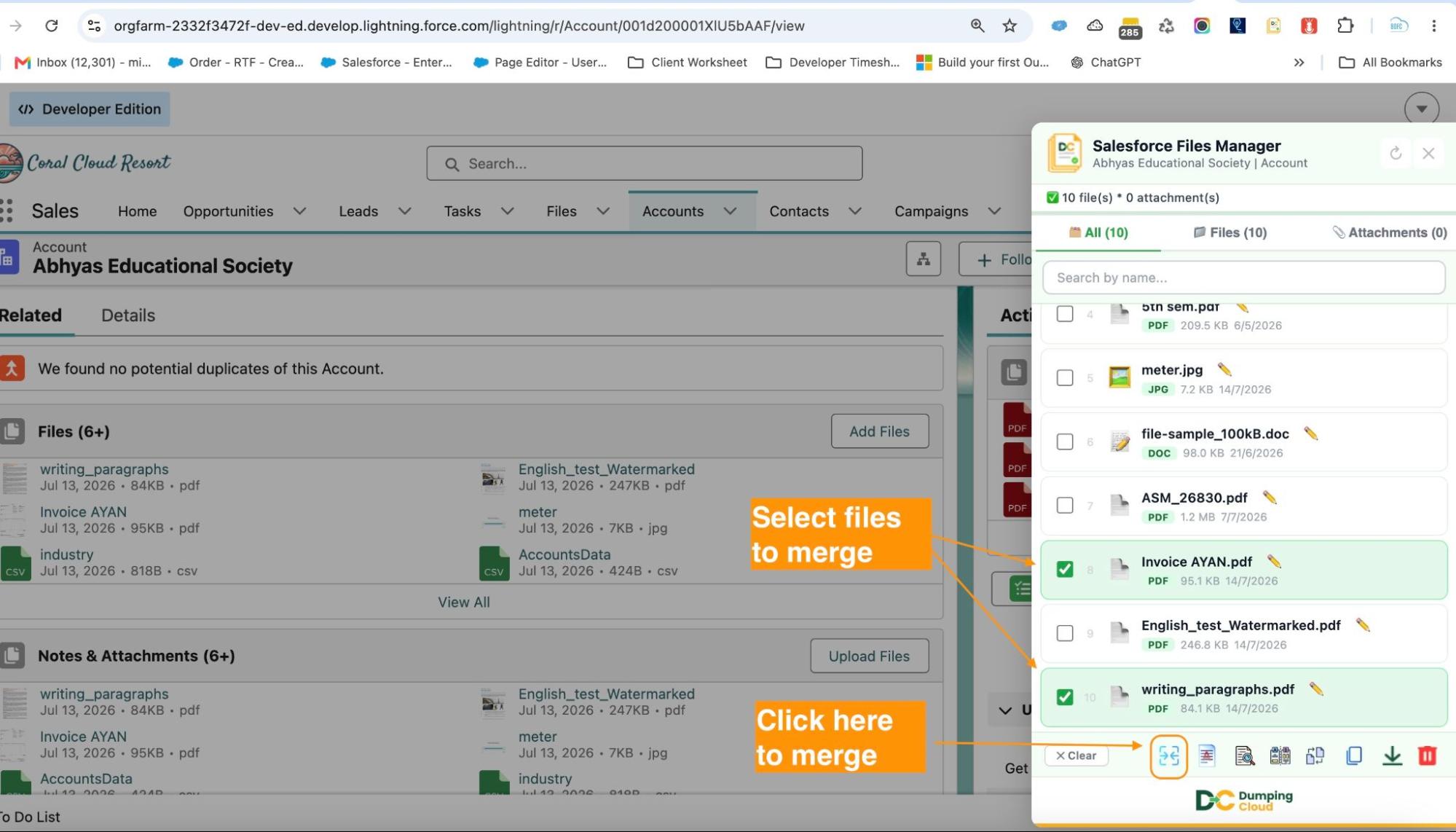
Click the “Merge” icon
With your files selected, click the “Merge” icon in the extension panel action bar. The merge editor will open, loading all pages from all selected files as individual thumbnails in a visual grid.

03
Step 3
Select the Pages to Include
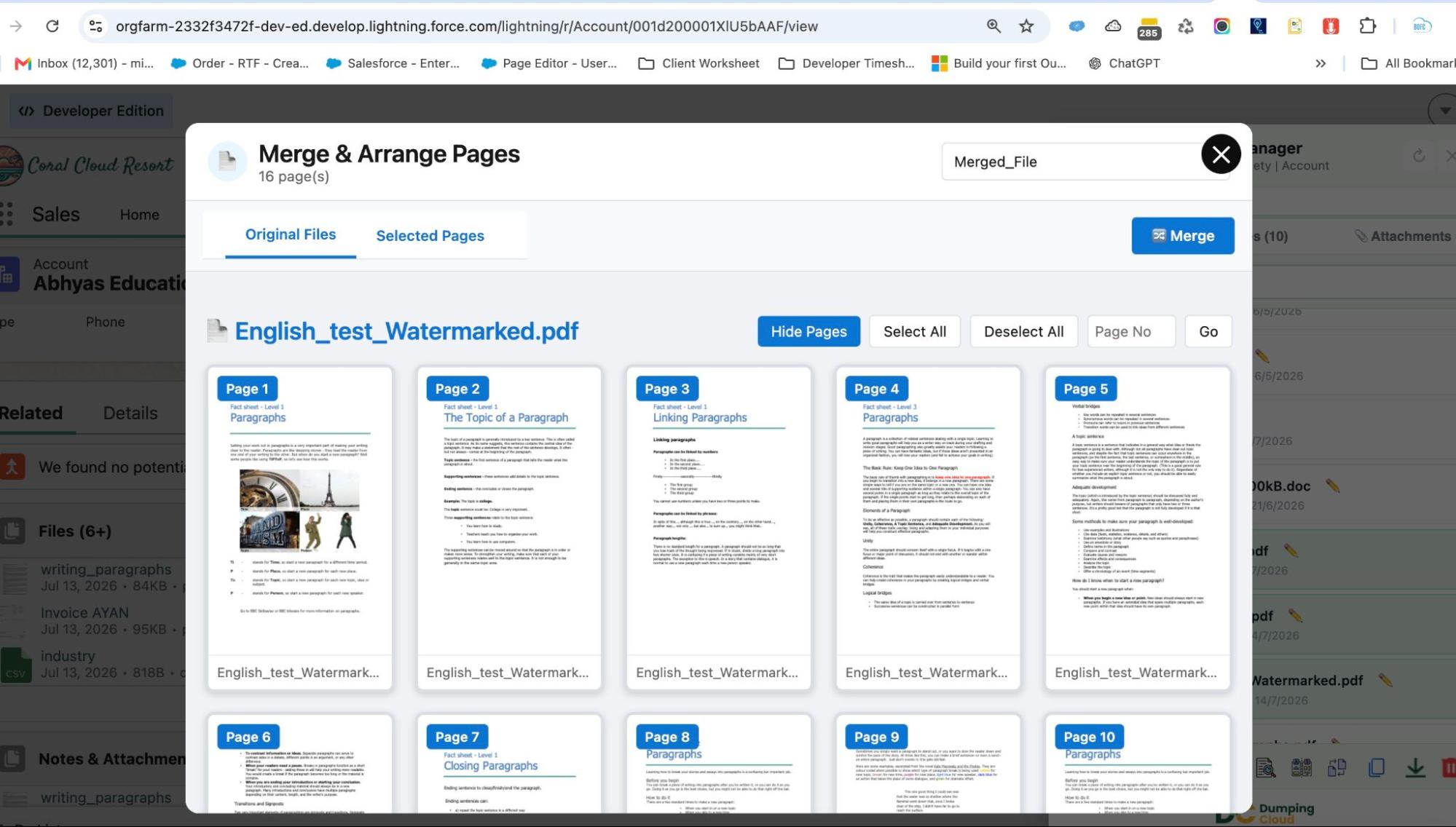
In the merge editor, all pages from all selected files are displayed as thumbnails and included by default. Specify exactly which pages to include using either method — or a combination of both:

Option 1 — Click to select or deselect thumbnails manually. Click any page thumbnail to deselect it (it will grey out). Click it again to re-include it. Best for shorter documents or when pages are easily identifiable from their thumbnails.
Option 2 — Enter a page range using print-style notation. Use the page number input field to type your page selection. The same syntax you use when printing works here:
- Single page: 5
- Continuous range: 3-7
- Multiple pages: 1, 4, 9
- Combined: 1-3, 7, 11-14
The thumbnail grid updates in real time to reflect your input, letting you visually confirm the selection before moving on. Both methods can be used together — for example, enter a range to get most of the pages, then click individual thumbnails to fine-tune the selection.

Once the page selection is done, Click the Merge button. It will display all the selected pages along with the set of actions.

04
Step 4
Reorder the Pages
Drag and drop page thumbnails to arrange them into the correct sequence for the final document. Pages from different source files can be freely mixed and interleaved. The page position numbers update in real time as you drag.

Use the Undo button at any point to reverse a reorder action if needed.
Click the remove icon on any page thumbnail to exclude it from the final merged output. The page is immediately removed from the grid. The original source file on the Salesforce record is unaffected.
05
Step 5
Rotate Any Pages as needed
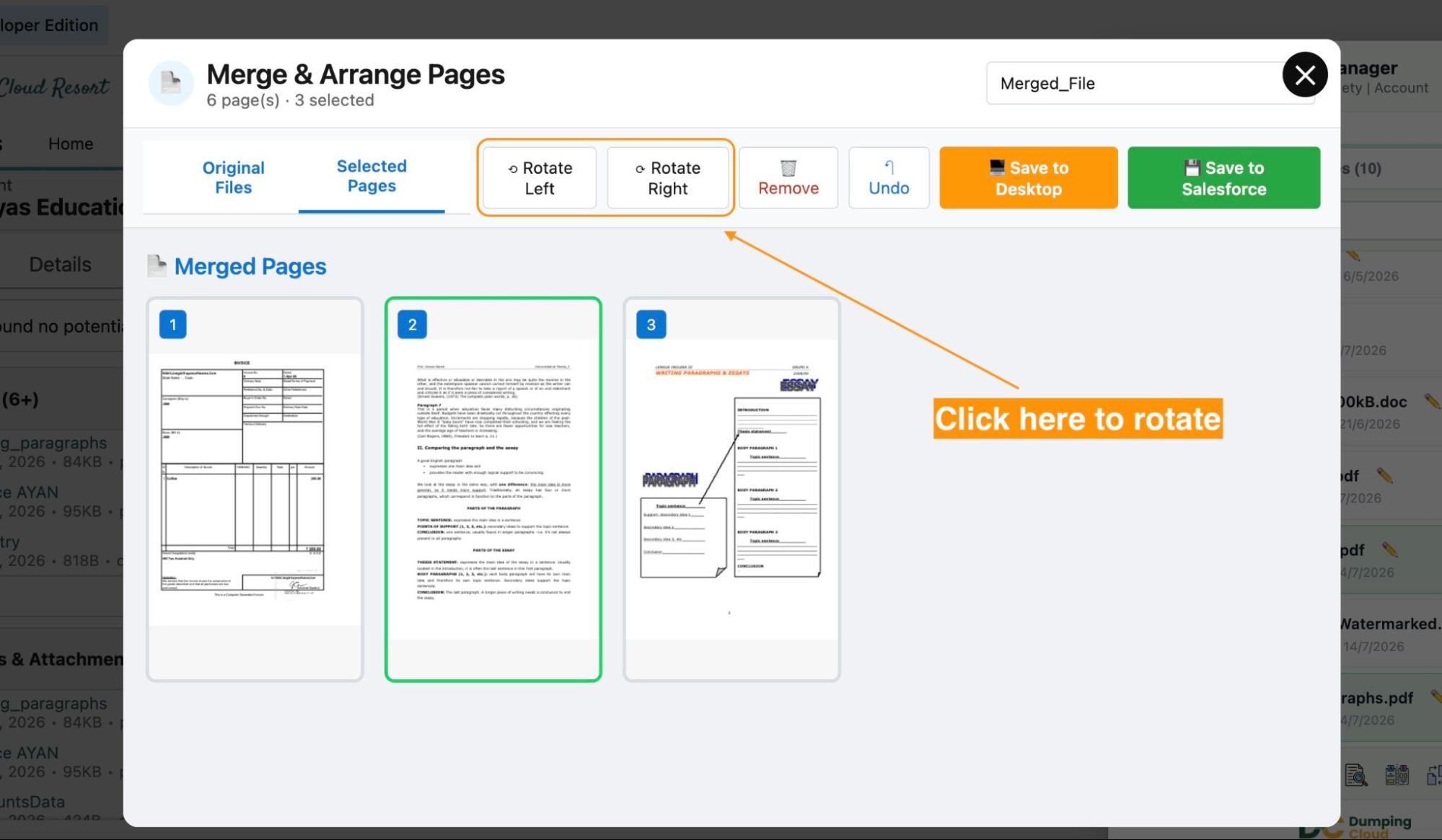
For any page displaying in the wrong orientation, click the rotate left or rotate right icon on its thumbnail to correct it. Rotation is applied immediately and is visible in the thumbnail preview.
Use the Undo button to reverse a rotation if needed.
06
Step 6
Name the Merged File and Choose Your Save Option
Enter a descriptive name for the merged PDF output (e.g., “DealPackage_ClientName.pdf”, “Contract_Complete_2026.pdf”). Then select your save option:
- Save as new file — Adds the merged PDF to the record alongside the originals
- Overwrite existing file — Replaces a selected existing file on the record with the merged PDF

07
Step 7
Verify on the Target Record
Once satisfied with the page selection, order, orientation, file name, and save option, click “Merge Now” to execute. The extension will process all selected pages, combine them in the defined sequence, and save the merged PDF to the Salesforce record.
A progress indicator will display during processing. Time will vary based on the number and size of pages being merged.
A success confirmation will display once the merge is complete. Use the in-window preview to open and review the merged PDF directly in the extension, confirming page sequence, orientation, and content. Navigate to the Files related list on the Salesforce record to confirm the merged file is saved and correctly named.
Key Advantages Over the Manual Approach
| Capability | Download → Merge Tool → Re-upload | DumpingCloud |
|---|---|---|
| Merge PDFs into one document | ✅ Via third-party tool | ✅ Directly inside Extension |
| Merge non-PDF files (Word, images, Excel) | Depends on Tool | ✅ All File Types Supported |
| Select individual pages from multi-page files | Depends on Tool | ✅ Click thumbnails or enter print-style page ranges |
| Drag-and-drop page reordering | Depends on Tool | ✅ Built into merge editor |
| Rotate individual pages left or right | Depends on Tool | ✅ Per-page rotation controls |
| Undo actions during editing | Depends on Tool | ✅ Full undo support |
| Overwrite existing or save as new file | ❌ Manual re-upload required | ✅ Both options available |
Install DumpingCloud
👉 Try DumpingCloud — on your favorite browser
Ready to manage Salesforce Files faster?
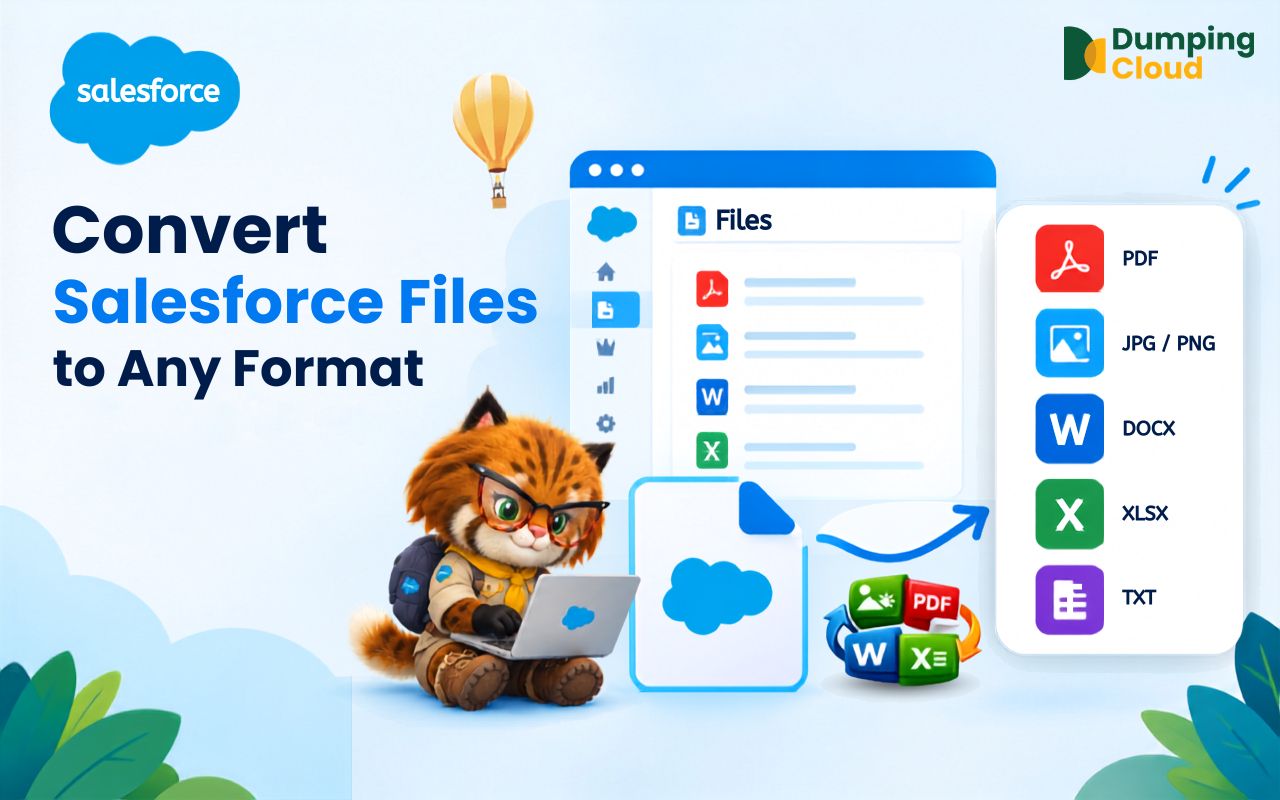
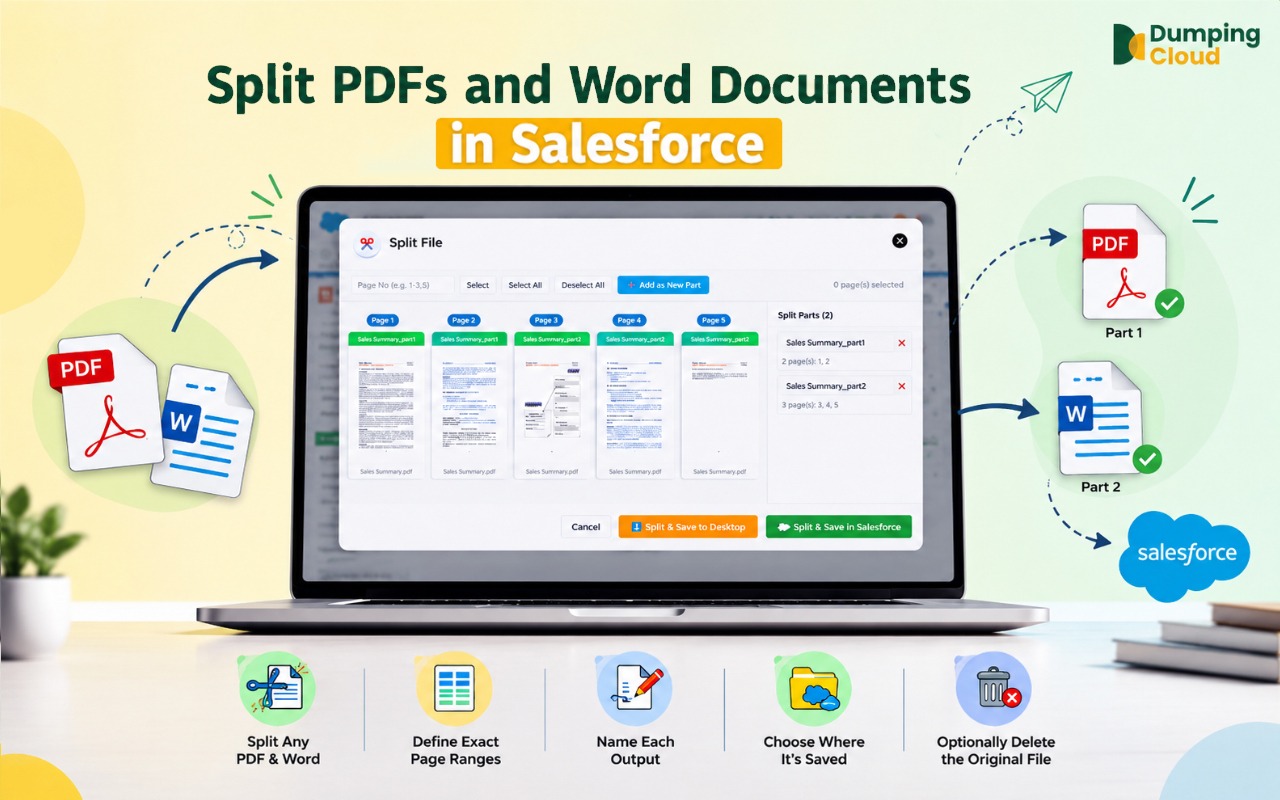
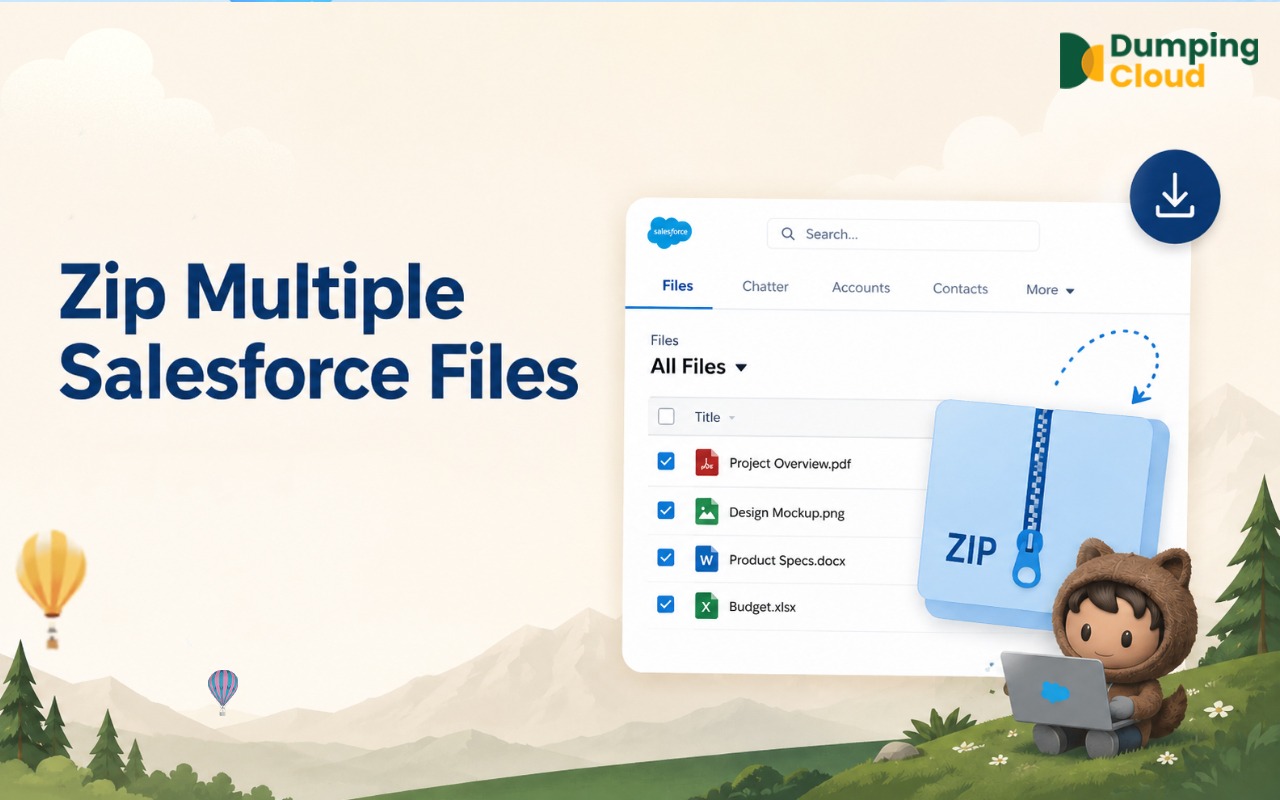
Download, move, rename, merge, split, convert, compare, and manage your Salesforce Files — without leaving Salesforce.

Frequently Asked Questions
Can I mix pages from different files in any order I choose?
Yes. The drag-and-drop page reordering in the merge editor allows you to freely interleave pages from any of the selected source files into any sequence, regardless of which file they originated from.
What happens if I rotate a page incorrectly?
Click the Undo button to reverse the rotation. Undo works across all editing actions — rotations, removals, and reorders — and can be applied repeatedly to step back through your changes.
Does removing a page from the merge editor affect the original file in Salesforce?
No. All edits in the merge editor — page removals, rotations, and reordering — affect only the merged output. The original source files on the Salesforce record remain completely unchanged.
Will the original source files be deleted after merging?
If you choose "Save as new file", all original source files remain on the record untouched. If you choose "Overwrite existing file", only the specific file you select to overwrite is replaced. No other source files are automatically removed.
Can I merge files from different Salesforce records?
The Merge feature operates on files attached to the same Salesforce record. To merge files from different records, use the Copy feature to bring all required files onto one record first, then perform the merge.
What is the output format of the merged document?
The output is always a single PDF, regardless of the input file types. All source files — PDFs, Word documents, images, spreadsheets, and presentations — are converted and combined into one unified PDF.
Does the merged PDF retain the text searchability of the original files?
Yes. Where source files contain searchable text, the merged PDF will preserve text searchability, making the document suitable for text search and copy-paste operations after merging.
Do I need System Administrator permissions to use the Merge feature?
You need sufficient Salesforce permissions to view and edit files on the relevant record. The extension respects your existing Salesforce profile and sharing rules.