
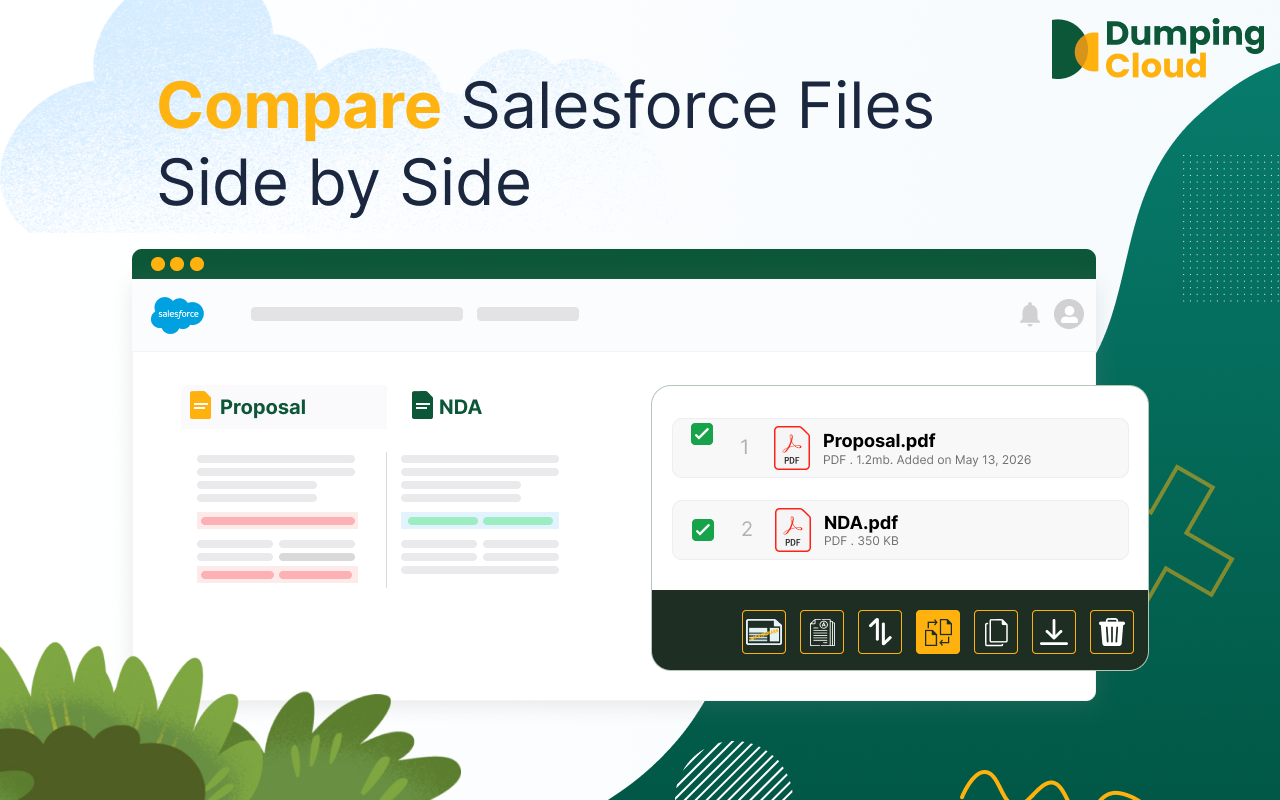
When multiple versions of a document exist on the same Salesforce record, reviewing what changed between them should be fast, structured, and something you can do without leaving the platform. The manual alternative — downloading both files, opening separate applications, and trying to spot differences across two independent windows — is slow and unreliable.
The Compare feature in DumpingCloud – Salesforce Files Manager replaces that process with a clean, synchronized, side-by-side viewing experience built directly into the extension panel. Any two files, any file type, the same record — open both in seconds, scroll in sync, and make informed decisions without a single download.
The Problem: Multiple Versions of a File on the Same Record, and No Way to Compare Them Inside Salesforce
Document versions accumulate fast on active Salesforce records.
A Contract record might hold the initial draft, a redlined version from legal, a revised draft incorporating changes, and the near-final copy awaiting signature — all stored as separate files on the same record. An Opportunity might have an original proposal and two revised versions submitted at different stages of negotiation. A Case might contain an initial diagnostic report and an updated one filed after further investigation.
The question every Admin, reviewer, or decision-maker inevitably faces is: what actually changed between these two files?
Native Salesforce offers no way to answer this from within the platform. The only option is to download both files, open each in a separate application, manually position the windows side by side, and switch back and forth to spot differences. For documents with significant length or complexity, this is not just inconvenient — it is genuinely error-prone. Changes get missed. Reviews take longer than they should. Decisions get delayed.
DumpingCloud – Salesforce Files Manager solves this with a dedicated side-by-side Compare feature — allowing users to compare salesforce files on the same Salesforce record and view them simultaneously in a split-screen panel, directly within the browser, without downloading either file.
What the Compare Feature Does
The Compare feature in DumpingCloud allows you to:
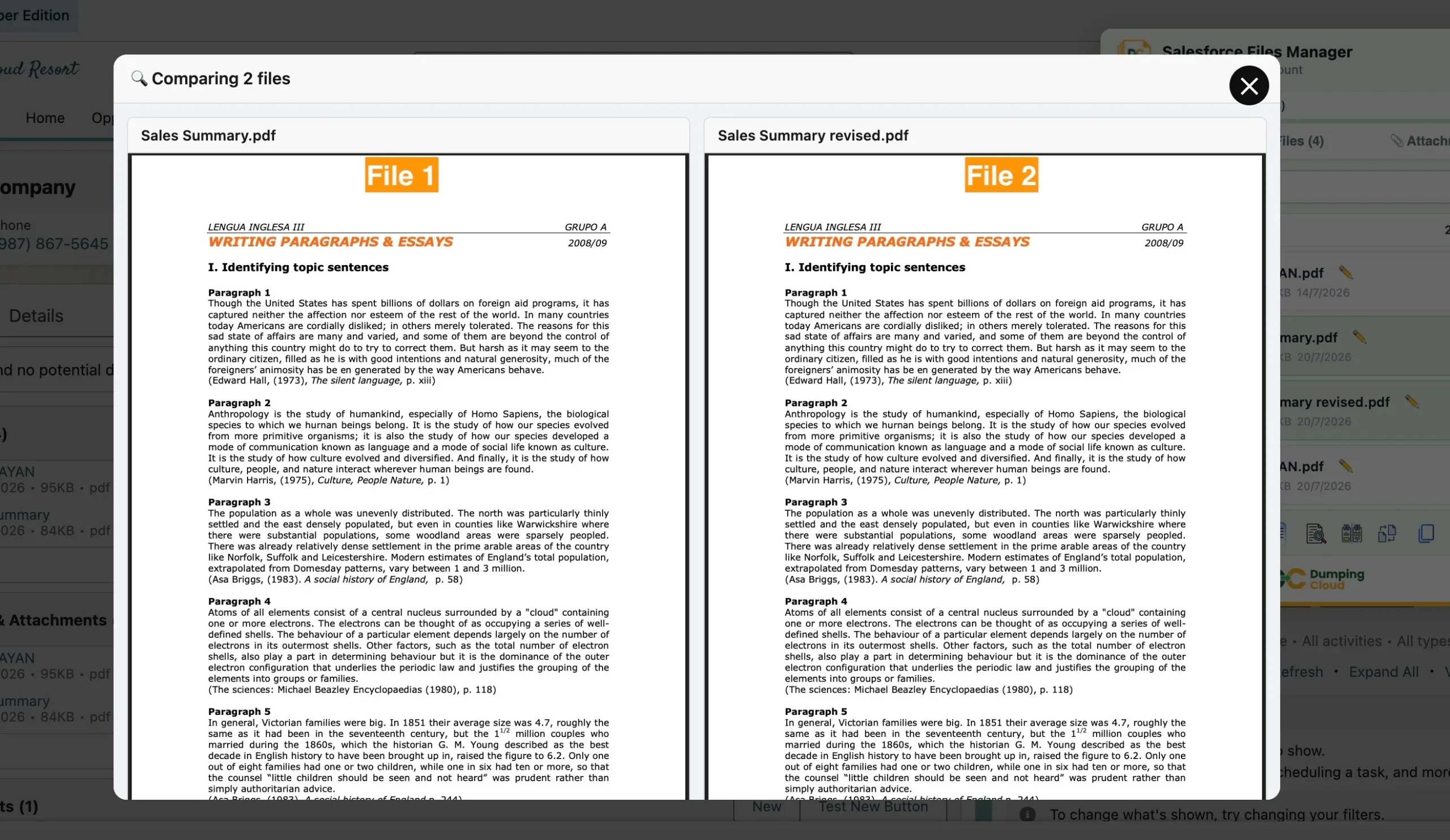
- Select any two files on the same Salesforce record and open them in a side-by-side visual comparison view
- View both files simultaneously in a split-screen panel within the extension — no external applications required
- Scroll both documents in sync to maintain positional alignment while reviewing corresponding sections
- Support all file types — PDFs, images, Word documents, spreadsheets, presentations, and more
- Perform the comparison entirely within the browser — no downloading, no third-party tools, no switching between applications
Who Benefits Most
The Compare feature addresses a common need across multiple roles and workflows in a Salesforce Org:
- Legal and contracts teams — Comparing the original contract draft against a redlined or revised version to identify exactly what clauses or terms have changed before proceeding to signature
- Sales teams — Reviewing two versions of a proposal to confirm what was updated between rounds of negotiation before sending the latest version to a prospect
- Salesforce Admins — Verifying that a corrected or updated document differs from the previous version in the expected way before archiving or deleting the older file
- Customer support teams — Comparing an initial diagnostic report with an updated one filed after further investigation to understand how the situation evolved
- Finance and procurement — Placing two versions of a purchase order, invoice, or financial statement side by side to verify the changes before approval
- Quality assurance and compliance — Ensuring that a revised policy document or regulatory submission reflects all required updates relative to the previous version
Step-by-Step: How to Compare Salesforce Files Using DumpingCloud
Prerequisites
Before you begin, ensure the following:
- Google Chrome is installed on your desktop
- DumpingCloud – Salesforce File Manager is installed in your browser from the appropriate browser extension store. (Install here)
- You are logged into your Salesforce Org in the same browser
- The two files you want to compare are both attached to the same Salesforce record
- You have the necessary Salesforce permissions to view the files on the target record
01
Step 1
Navigate to the Record and Open the Extension
Open Google Chrome and log in to your Salesforce Org. Navigate to the record containing the two files you want to compare — for example, a Contract with two document versions, or an Opportunity with two proposal drafts.
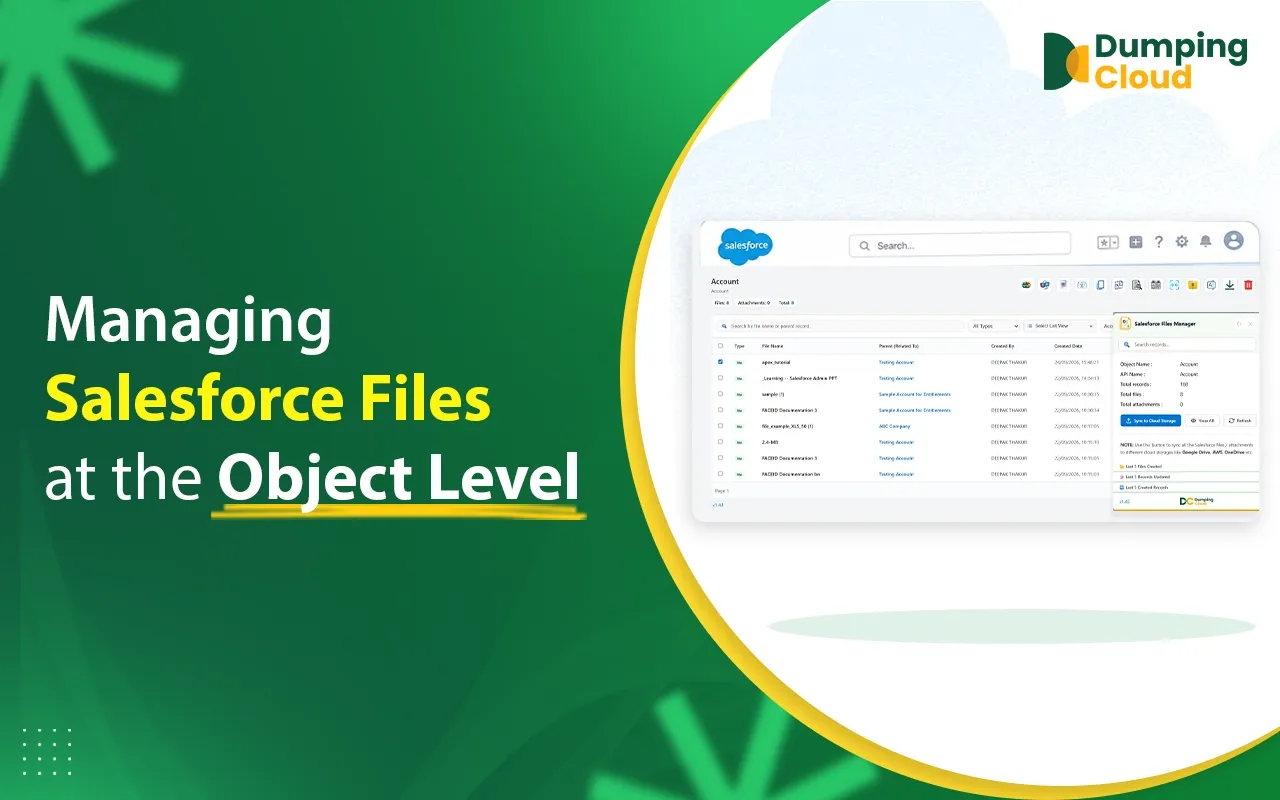
Click the DumpingCloud icon in your Chrome toolbar to open the extension panel. The panel will load all files associated with the current record.
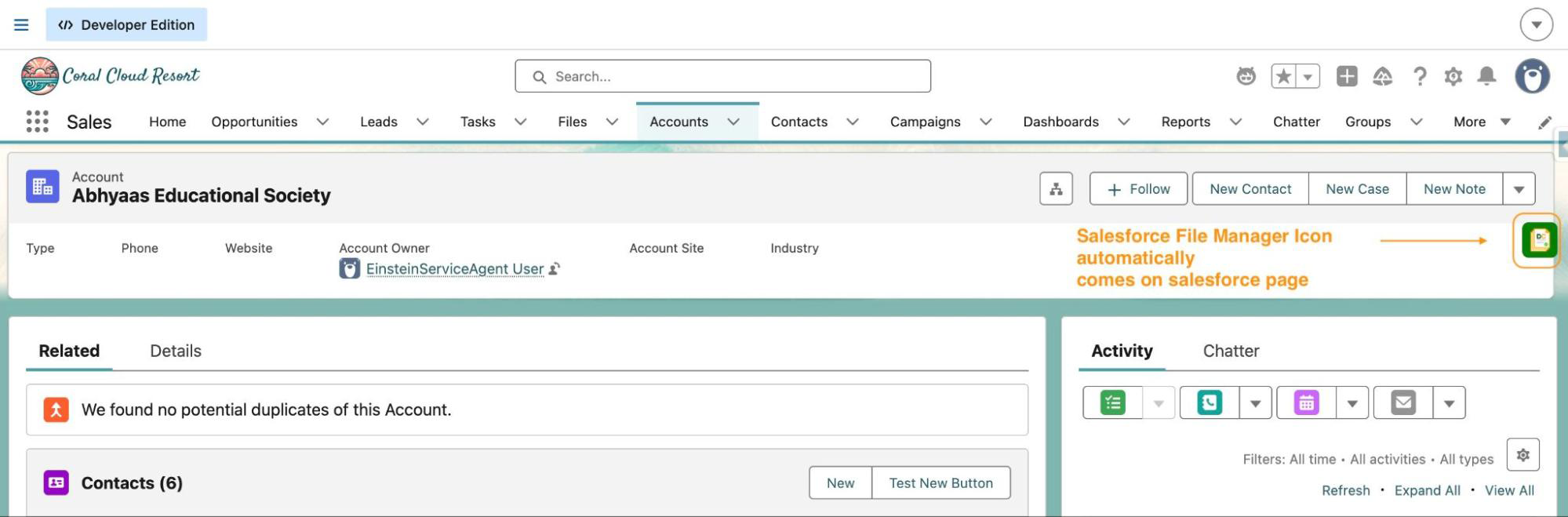
The extension panel will open and automatically load all files and attachments associated with the current record.
02
Step 2
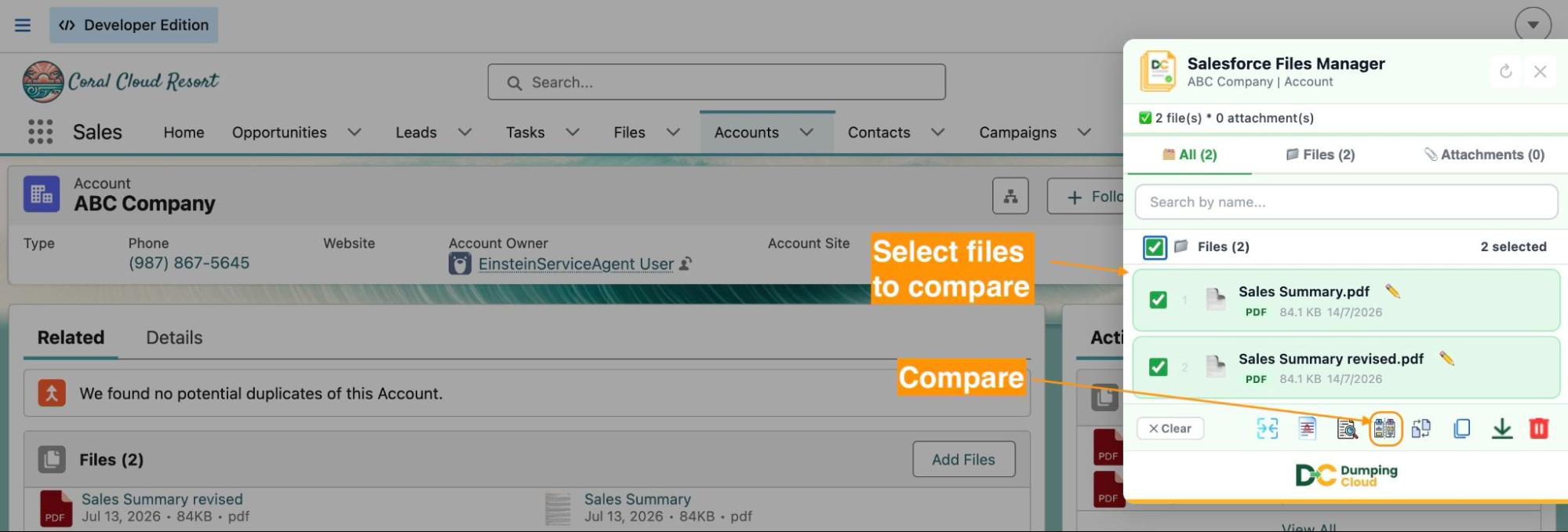
Select Exactly Two Files to Compare
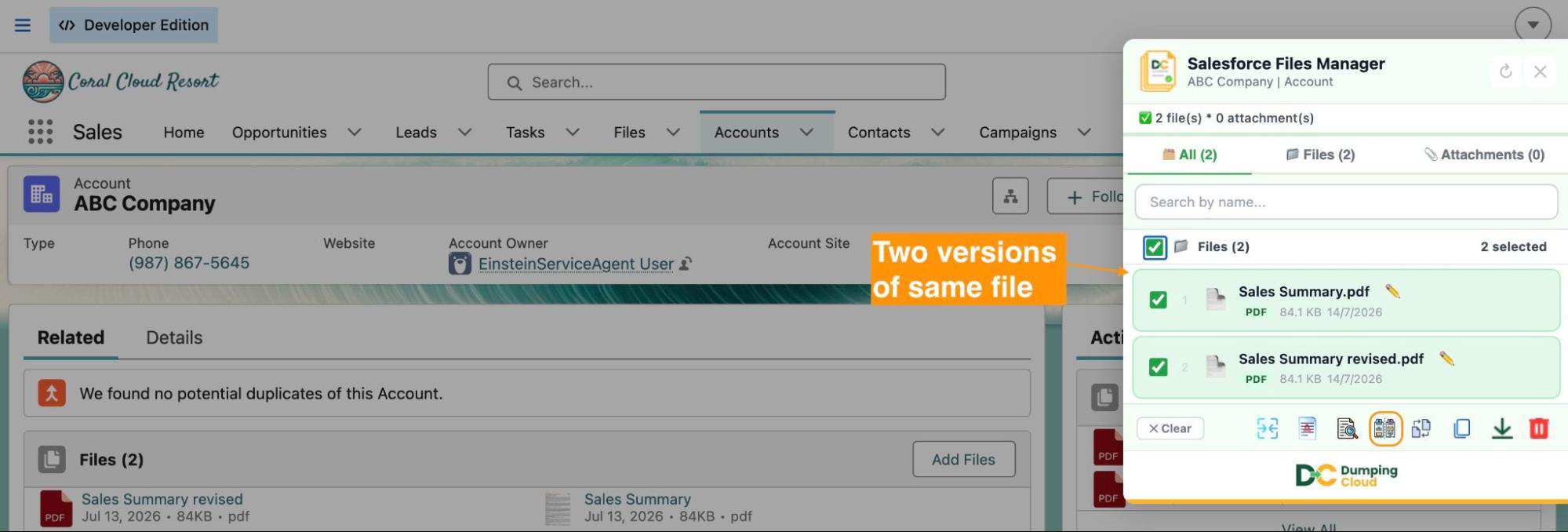
Click the checkboxes next to the two files you wish to compare. The Compare feature requires exactly two files to be selected — no more, no fewer.
The two selected files will be highlighted in the extension panel, with a file count indicator confirming two files are chosen.
Click the “Compare” icon
With exactly two files selected, click the “Compare” icon in the extension panel action bar.
03
Step 3
Review the Side-by-Side Comparison View
The extension will open the side-by-side comparison view, displaying both files simultaneously in a split-screen layout within the panel.
- The first selected file appears on the left panel
- The second selected file appears on the right panel
- Both file names are displayed at the top of their respective panels for clear identification
Scroll through either panel to review the file content. Both panels scroll in sync, keeping corresponding sections aligned for easier comparison.
04
Step 4
Navigate Through the Files
Use the scroll functionality within each panel to move through the document content. Both panels remain synchronised so that when you scroll one, the other follows — ensuring you always compare the same relative position in both files.
For paginated documents such as PDFs, use the page navigation controls at the bottom of each panel to jump to specific pages.
05
Step 5
Exit the Comparison View
Once your review is complete, click the close or back button to exit the comparison view and return to the main extension file list.
From there, you can take any follow-up action on the files — download, delete, rename, move, or any other operation available in the extension.
Key Advantages Over the Manual Approach
| Capability | Manual Process | DumpingCloud |
|---|---|---|
| Compare two files side by side | Download both → open in separate apps → manually align | ✅ Directly in the extension |
| Supported file types | Depends on local applications | ✅ All file types |
| Synchronised scrolling | ❌ Manual scroll coordination | ✅ Automatic sync scrolling |
| Stays within Salesforce workflow | ❌ Requires external applications | ✅ No external tools needed |
| Risk of missing changes | Higher — manual side-by-side is error-prone | Lower — structured split-screen view |
| Time to set up comparison | Minutes | Seconds |
Ready to manage Salesforce Files faster?
Download, move, rename, merge, split, convert, compare, and manage your Salesforce Files — without leaving Salesforce.

Frequently Asked Questions
Can I compare more than two files at once?
The Compare feature is designed as a two-file side-by-side comparison. Exactly two files must be selected to activate the Compare button. For multi-file review scenarios, compare files in pairs sequentially.
Does the Compare feature highlight differences between the two files automatically?
The current Compare feature is a side-by-side visual comparison — both files are displayed simultaneously for manual review. Automatic text difference highlighting (diff) is not part of the current feature set. For documents where precise change tracking is required, the redline or tracked changes features within the original authoring application (e.g., Microsoft Word) remain the most appropriate tool.
Does comparing files affect the original files in any way?
No. The Compare feature is entirely read-only. It opens a visual view of both files for review purposes only. No changes are made to either file, their content, their metadata, or their Salesforce record associations.
What file types can be compared?
The Compare feature supports all file types available in DumpingCloud, including PDFs, images, Word documents, Excel spreadsheets, PowerPoint presentations, and more.
Do both files need to be the same file type to be compared?
No. You can compare files of different types side by side — for example, a PDF version and a Word version of the same document. This can be useful when reviewing a source document against a converted or reformatted version.
Do I need System Administrator permissions to use the Compare feature?
You need sufficient Salesforce permissions to view the files on the relevant record. The Compare feature is read-only and does not modify any data, so no elevated permissions beyond file viewing are required.