


Watermarking is an essential document control practice — but until now, it has had no place in the native Salesforce workflow. The result has been inconsistent manual processes, third-party tool dependencies, and files leaving the Org without the protection, branding, or status markers they require.
The Watermark feature in DumpingCloud brings this capability directly into Salesforce — with support for text and image watermarks, full customisation over appearance, bulk file processing, and a live preview — all without downloading a single file or opening an external application. Whether you are protecting confidential documents, branding client-facing proposals, or marking draft agreements before review, professional watermarking is now a built-in part of your Salesforce file management workflow.
The Problem: Salesforce Files Leave Your Org Without Any Protection or Branding
Every day, files stored in Salesforce get downloaded, shared, forwarded, and printed — often without any indication of where they came from, who owns them, or what their status is.
A proposal shared with a prospect carries no mark of your organisation’s brand. A draft contract forwarded before final approval has no visible indication that it is not yet authorised. A confidential report downloaded from a Case record has no label warning recipients of its sensitivity. A document shared externally could be reproduced, redistributed, or misrepresented with no traceability back to your Org.
Watermarking is a long-established solution to these problems — but in native Salesforce, there is no built-in capability to apply watermarks to files. Admins and users who need to watermark documents must:
- Download the file
- Open it in a third-party editor
- Apply the watermark
- Save the file locally, and re-upload to Salesforce.
DumpingCloud – Salesforce Files Manager brings watermarking directly into the Salesforce workflow. With full support for both text and image watermarks, customisable appearance settings, and compatibility across all file types, Admins can now stamp any Salesforce file with a professional, controlled watermark in a matter of clicks — without leaving the record page.
What the Watermark Feature Does
The Watermark feature in “Dumping Cloud – Salesforce Files Manager” allows you to:
- Apply a text watermark — such as “CONFIDENTIAL”, “DRAFT”, “APPROVED”, your company name, or any custom text — to any file
- Apply an image watermark — such as a company logo or official stamp — to any file
- Add Watermark in all type of Salesforce files — PDFs, images, Word documents, and more
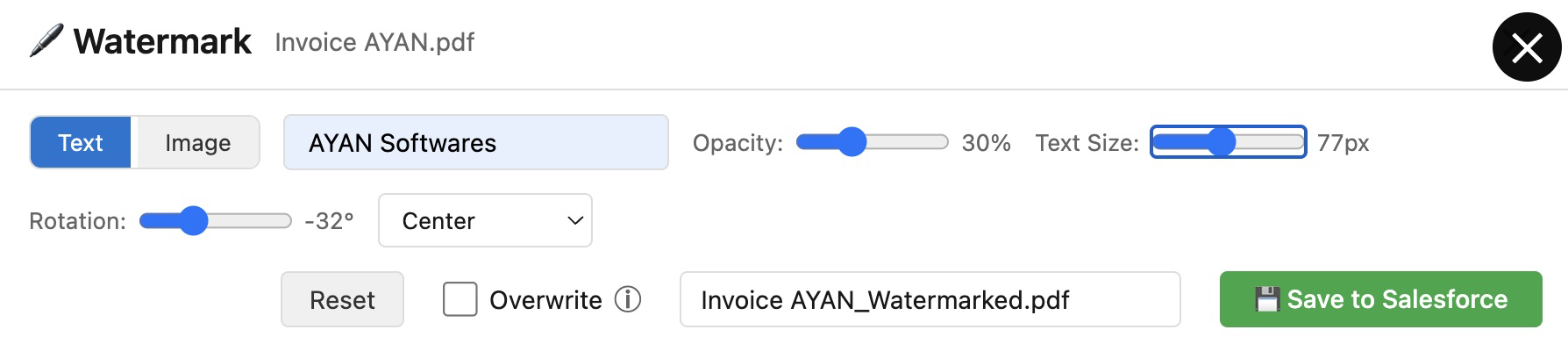
- Customise the watermark appearance with full control over position, opacity, font, size, and rotation
- Perform the operation directly from the extension panel, without downloading or opening any external tool

Watermark Types Supported
Text Watermark
Apply any custom text string as a watermark across your file. Common use cases include:
- “CONFIDENTIAL” — For sensitive internal documents shared externally
- “DRAFT” — For documents in review that should not be treated as final
- “APPROVED” — For documents that have completed an approval process
- “DO NOT DISTRIBUTE” — For materials with restricted circulation
- Company name or department — For brand identification and traceability
- Date or version stamp — For version control and audit traceability
Image Watermark
Upload and apply an image — such as a company logo, an official seal, or a confidentiality badge — as a watermark across your file. Ideal for:
- Brand identification on client-facing documents and proposals
- Official stamps on signed or approved documents
- Logo overlays on marketing materials stored in Salesforce
Customisation Options
DumpingCloud provides full control over how your watermark appears:
| Option | Description |
|---|---|
| Position | Place the watermark at the centre, corner, header, footer, or a custom position on the file |
| Opacity | Adjust transparency from fully opaque to a subtle, semi-transparent overlay |
| Font | Choose the typeface for text watermarks to match your brand or document style |
| Size | Control the scale of the watermark — from a discreet label to a prominent full-page overlay |
| Rotation | Rotate the watermark at any angle (e.g., diagonal placement at 45° is a common professional standard |
Who Benefits Most
The Watermark feature addresses a wide range of Admin and business requirements:
- Legal and compliance teams — Marking draft contracts, NDAs, and legal documents with “DRAFT” or “CONFIDENTIAL” before sharing for review
- Sales teams — Branding proposals, quotes, and presentations with the company logo before sending to prospects
- Finance and procurement — Stamping invoices and purchase orders with “APPROVED” or “PAID” status markers after processing
- Operations and HR — Applying “CONFIDENTIAL” or “DO NOT DISTRIBUTE” to sensitive internal documents before cross-departmental sharing
- Executive communications — Marking board materials, strategy documents, and investor reports with restricted-access labels
- Audit and regulatory preparedness — Ensuring all externally shared documents carry traceable identification marks for compliance purposes
Guide to Add Watermark in Salesforce Files with DumpingCloud
Prerequisites
Before you begin, ensure the following:
- DumpingCloud- Salesforce File Manager is installed in your browser from the appropriate browser extension store.
(Install here) - You are logged into your Salesforce Org in the same browser
- You have the necessary Salesforce permissions to view and edit files on the target record
- If applying an image watermark, your logo or stamp image is available on your local machine
01
Step 1
Navigate to the Source Record
Open Google Chrome and log in to your Salesforce Org. Navigate to the record that currently holds the file(s) you want to watermark — this is your source record.

02
Step 2
Open DumpingCloud – Salesforce Files Manager
Click the DumpingCloud icon. The extension automatically detects your active Salesforce session. No additional login is required.

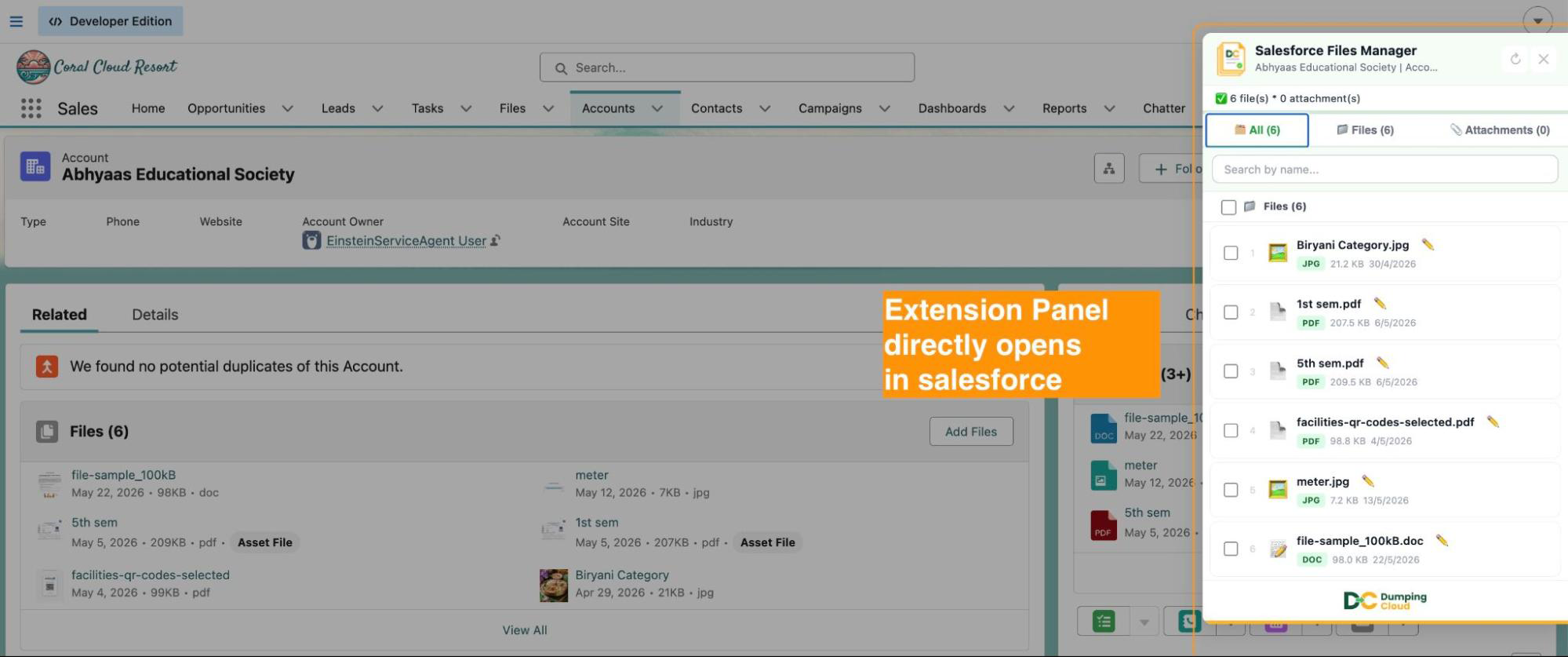
The extension panel will open and automatically load all files and attachments associated with the current record.
03
Step 3
Select the File(s) to Watermark
To watermark a single file: Click the checkbox next to the specific file you wish to watermark.
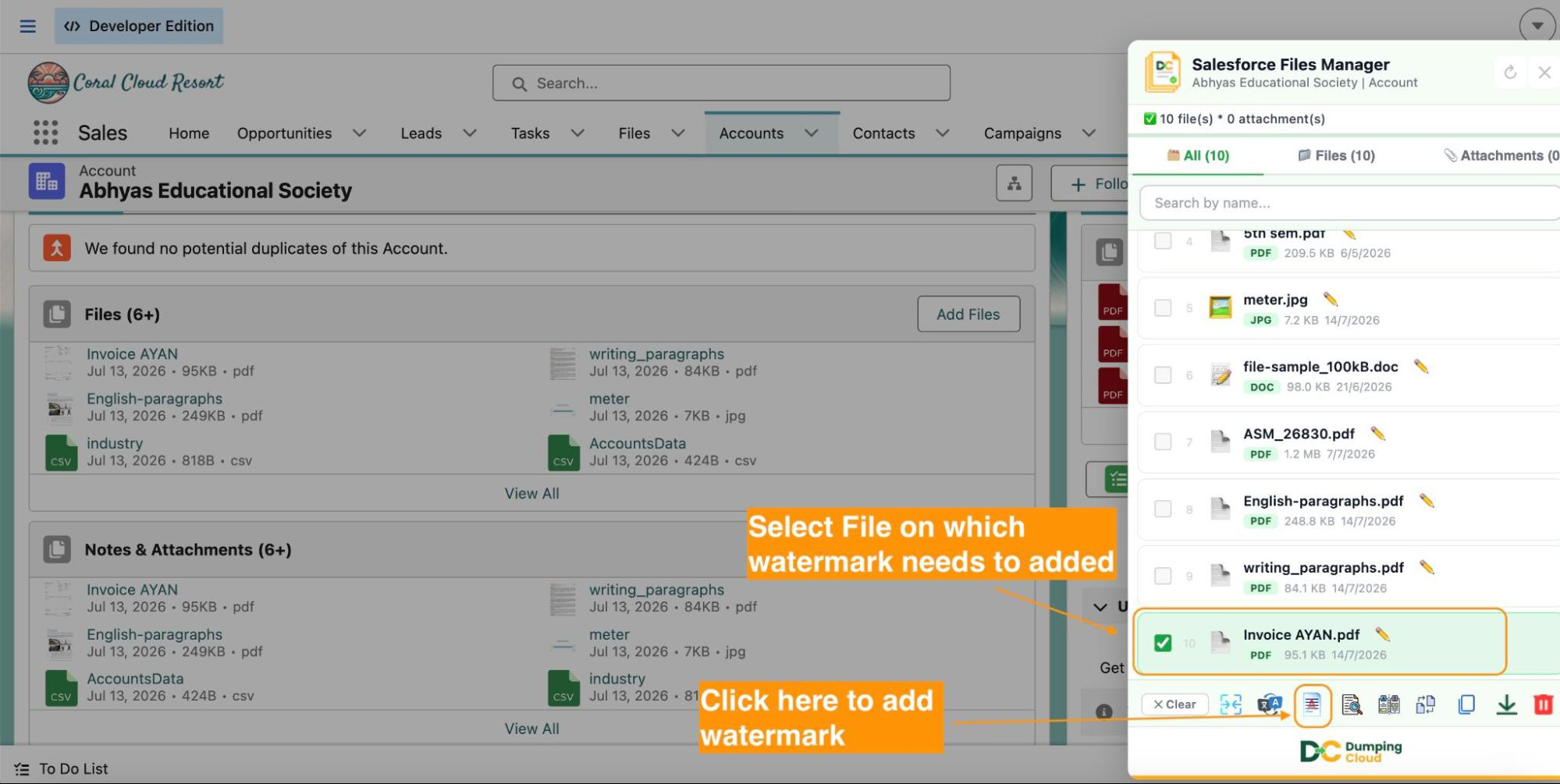
Click the “Watermark” icon – With your files selected, click the “Watermark” icon in the extension panel action bar. The Watermark configuration panel will open.
04
Step 4
Choose Your Watermark Type
In the Watermark configuration panel, users can select the watermark type and configuration for the watermark appearances.
Watermark type:
- Text Watermark: Select the text option and type your watermark text into the input field (e.g., “CONFIDENTIAL”, “DRAFT”, your company name).
- Image Watermark: Select the image option and upload your logo or stamp image from your local machine.
Watermark Appearance
Configure the watermark appearance using the available controls:
- Position — Select where on the file the watermark should appear (centre, corners, header, footer, or custom)
- Opacity — Use the slider to set the transparency level of the watermark
- Font — For text watermarks, choose your preferred typeface from the dropdown
- Size — Set the scale of the watermark relative to the file dimensions
- Rotation — Set the angle of the watermark (e.g., 45° for a diagonal stamp effect)
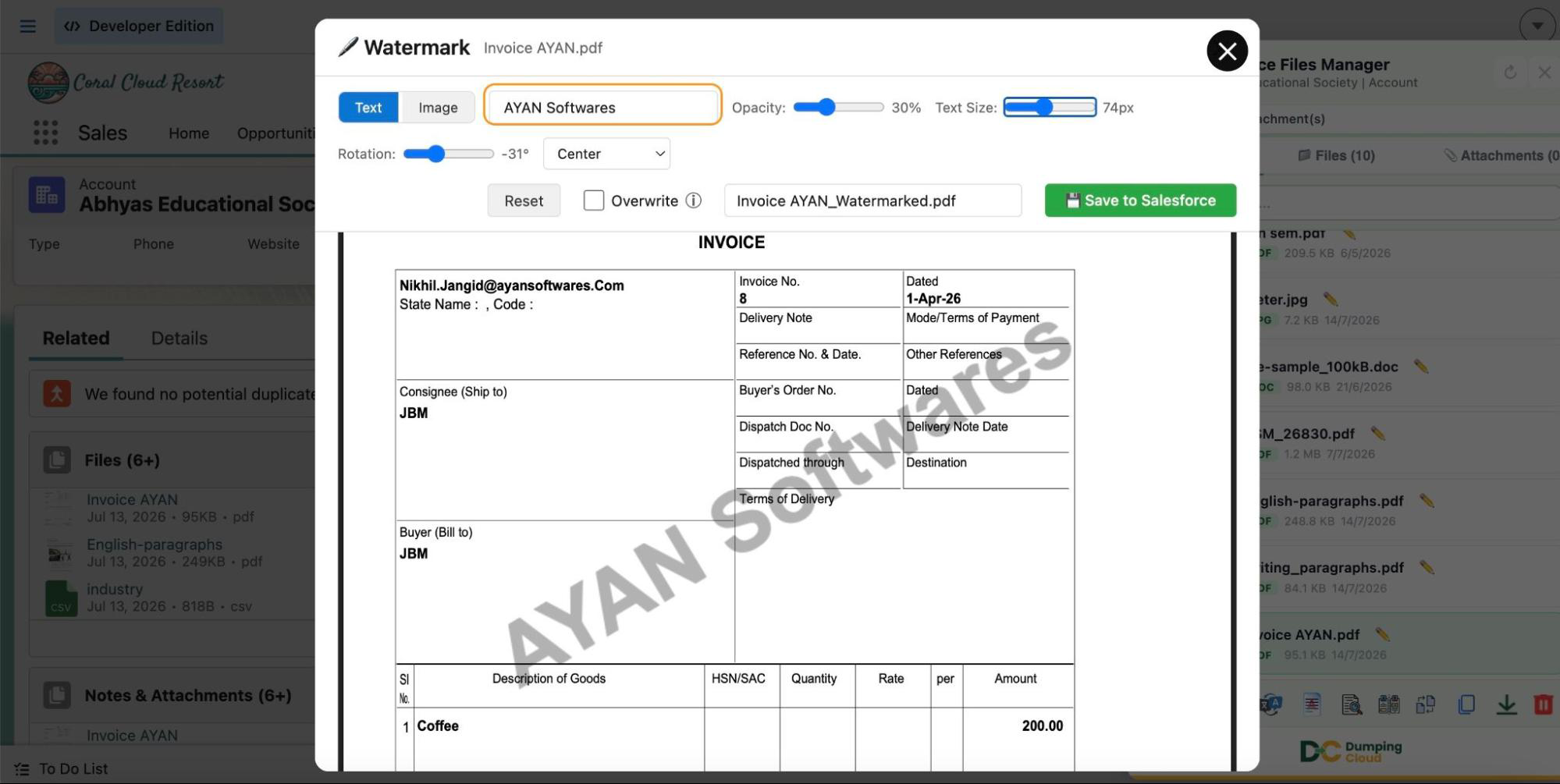
A live preview will update as you adjust each setting, allowing you to confirm the appearance before applying.
05
Step 5
Apply the Watermark
Once you are satisfied with the configuration and preview, click “Save to Salesforce”. The extension will process the selected file(s), apply the watermark according to your settings, and save the watermarked version (as a new file) back to the Salesforce record.
Overwrite: User has an option to select the checkbox for the “overwrite” in case the user wants to overwrite the existing file with the new watermarked file in salesforce.

06
Step 6
Verify the Watermarked File
The extension panel will refresh to show the updated file list. Use the in-window preview feature to open the watermarked file directly in the extension and confirm the result before sharing or distributing. Navigate to the Files related list on the Salesforce record to confirm the watermarked file is now saved in the Org.
Key Advantages Over the Manual Approach
| Capability | Download → Edit → Re-upload | Salesforce Files Manager |
|---|---|---|
| Apply a text watermark | ✅ Via third-party tool | ✅ Directly in the extension |
| Apply an image watermark | ✅ Via third-party tool | ✅ Directly in the extension |
| Watermark multiple files at once | ❌ One at a time | ✅ Bulk operation supported |
| Customise position, opacity, font, size, rotation | Depends on tool | ✅ Full control in-panel |
| Live preview before applying | Depends on tool | ✅ Real-time preview |
| Stays within Salesforce workflow | ❌ Requires external app | ✅ No external tools needed |
| Time to watermark a file | Minutes per file | Seconds per file |
Ready to manage Salesforce Files faster?
Download, move, rename, merge, split, convert, compare, and manage your Salesforce Files — without leaving Salesforce.

Frequently Asked Questions
Can I apply different watermarks to different files in the same operation?
Bulk watermarking applies the same watermark configuration to all selected files in a single operation. To apply different watermarks to different files, perform separate watermark operations for each configuration.
Can I remove a watermark after it has been applied?
Watermarks applied to files are embedded into the document. They cannot be removed via the extension once applied.
Does watermarking affect the file's version history in Salesforce?
Applying a watermark saves an updated version of the file to Salesforce. Users still have an option to overwrite existing files.
Do I need System Administrator permissions to use the Watermark feature?
You need sufficient Salesforce permissions to view and edit the files on the relevant record. The extension respects your existing Salesforce profile and sharing rules.