
Can you find the signed contract for a customer in under one minute? If not, you are not alone. Files pile up fast in Salesforce. Nowadays there are two ways to store documents in Salesforce. Some are stored as old Attachments, while others are stored as Files. Many have names like scan1.pdf. Over time, records get messy, storage fills up, and simple jobs take too long.
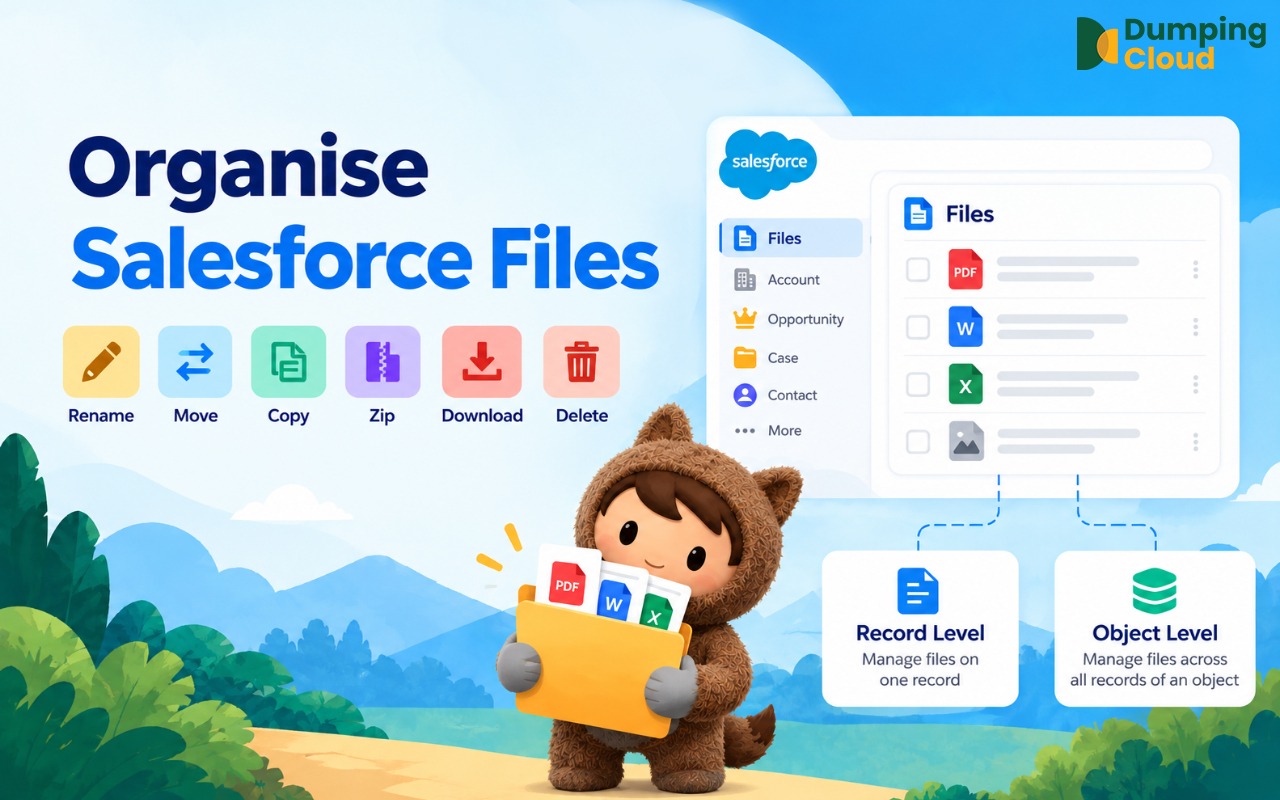
In this guide, you will learn what Salesforce Files and Attachments are, how to organize Salesforce files & attachments at the record level and the object level with no code, what the limits are, and how a real team can use these steps. We keep every step short and simple.
Quick Answer
Standard Salesforce works on one file at a time, so a free Salesforce file manager like
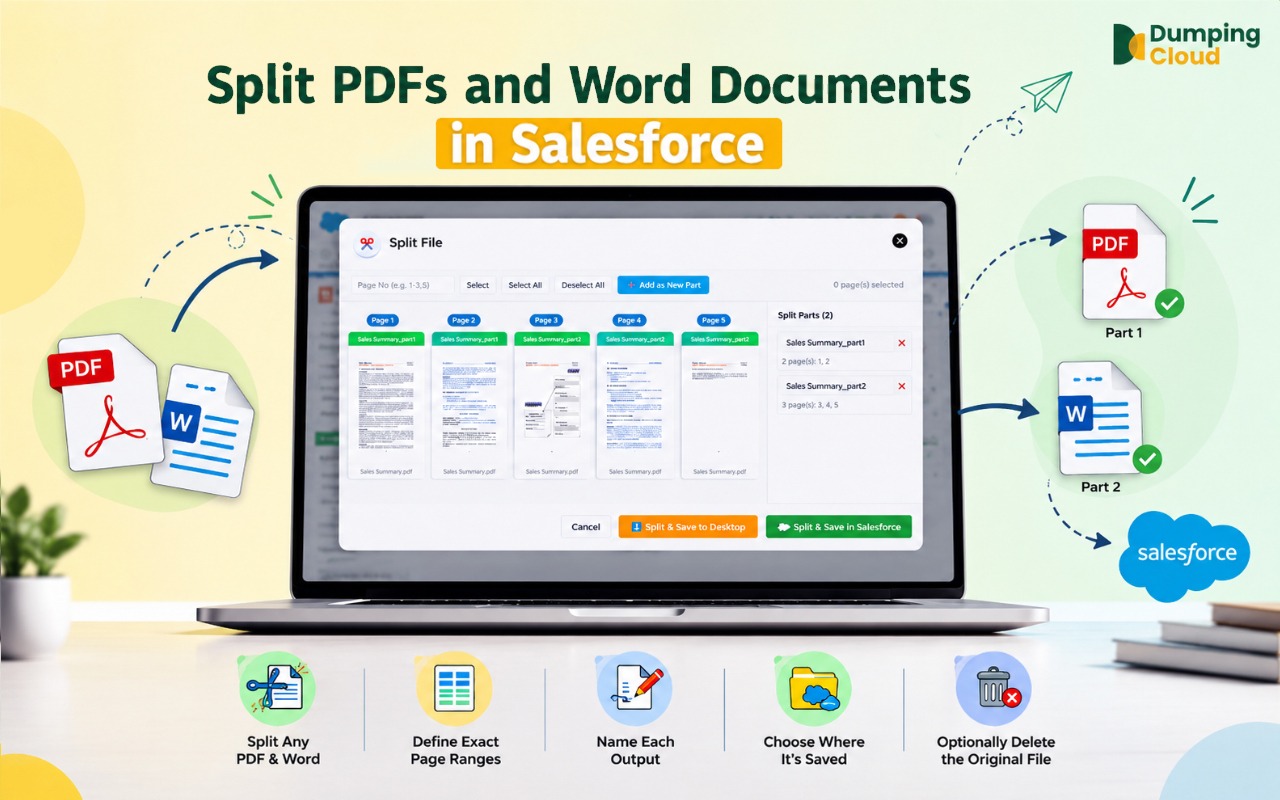
DumpingCloud helps you organize Salesforce files by renaming, moving, copying, zipping, and deleting many files in a few clicks.
Record level means tidying the files on one record.
Object level means tidying the files across all records of one object.
Every method in this guide works with clicks only. You do not need to write code.
Know the limits before you start. We list them honestly in this guide.
What Are Salesforce Files and Attachments?
Salesforce gives you two ways to store a document on a record. They look alike, but they work very differently.
- Files are the newer way. A file can be up to 2 GB. You can link one file to many records. Salesforce keeps old versions and shows a preview.
- Attachments are the older way. An attachment can be up to 25 MB. It belongs to only one record and has no version history.
Salesforce Files vs Attachments
| Question | Files | Attachments |
|---|---|---|
| Maximum size | Up to 2 GB | Up to 25 MB |
| Link to many records? | Yes | No, only one |
| Keep old versions? | Yes | No |
| Preview? | Yes | Limited |
| Which one to use? | Use this for new work | Only for old data |
What Is No-Code File Management in Salesforce?
No-code means you use clicks, not programs. You do not need Apex, Flow, or Data Loader scripts to organize Salesforce files.
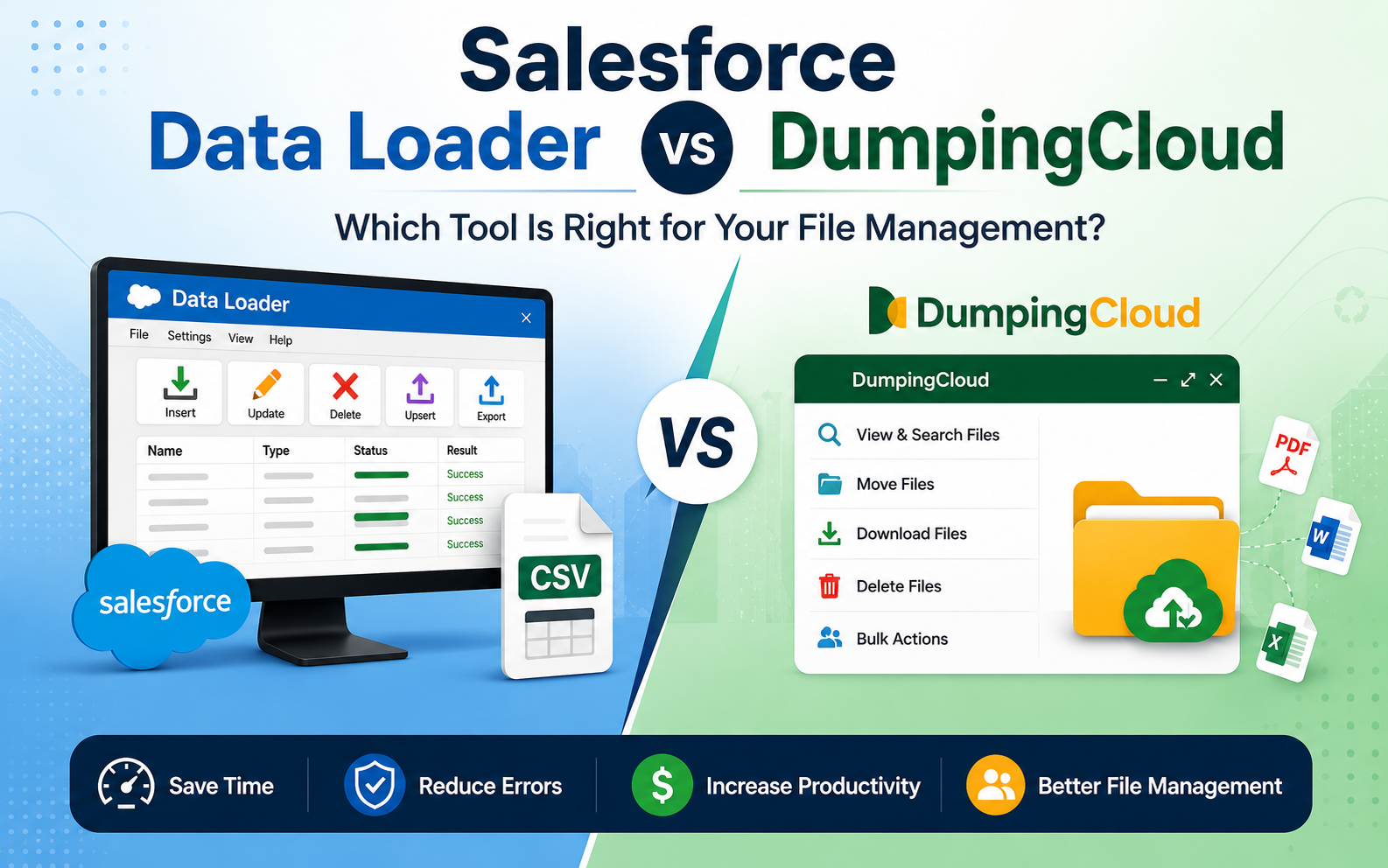
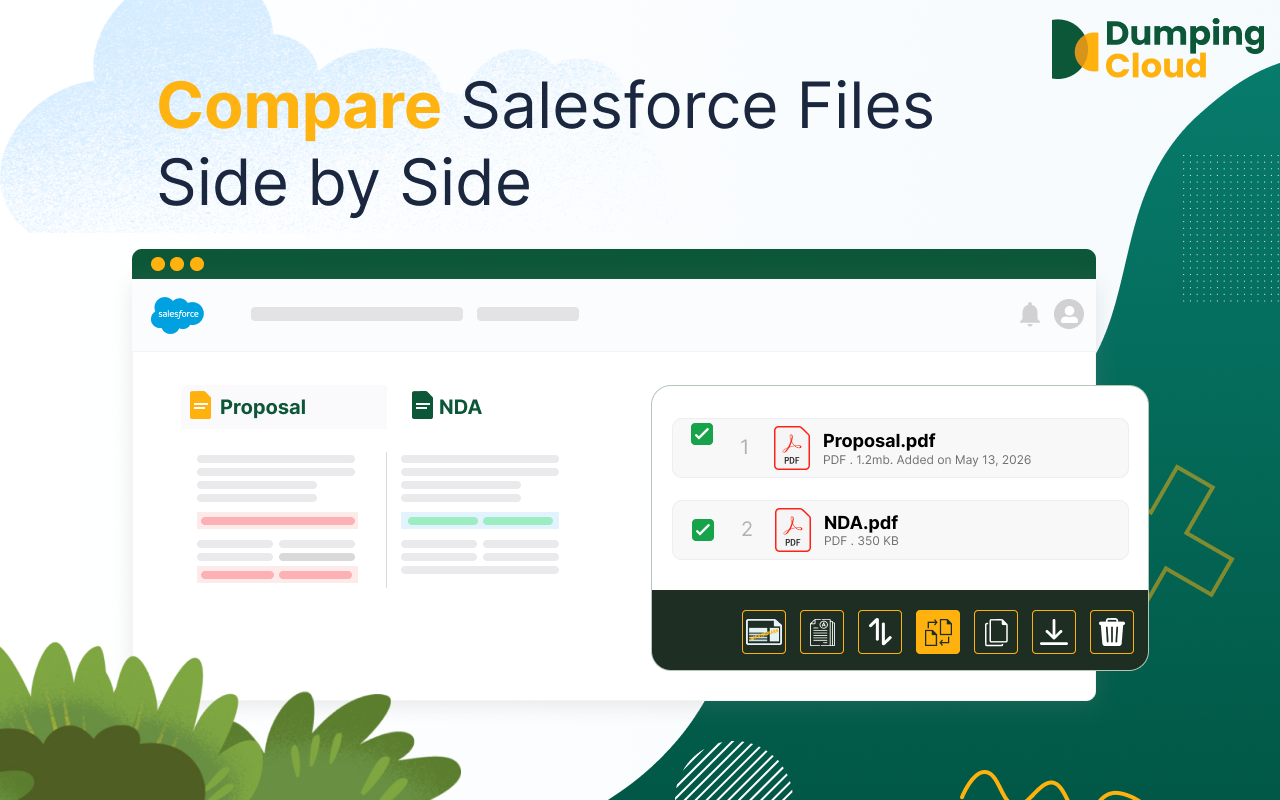
There is one problem. Standard Salesforce works with one file at a time. To rename ten files, you open ten files. To move files to another record, you often need Data Loader or a script. To merge files, you need outside software.
DumpingCloud solves this. It is a free Salesforce File Manager browser extension. It runs inside your own Salesforce session, so there is no separate login and no org connection to set up. It is available for Chrome, Firefox, Edge, and Safari.
You can organize Salesforce files at two levels: the record level and the object level. Let us look at both.
How to Organize Salesforce Files at the Record Level?
A record is one item in Salesforce, like one Account, one Case, or one Opportunity. Record-level file management means you tidy the files on that one record.
Steps
01
Step 1
Open a Salesforce Record
Open any Salesforce record that has files or attachments.
02
Step 2
Open DumpingCloud
Click the DumpingCloud icon in your browser toolbar. The file panel opens.
03
Step 3
Select Your Files
Tick the files you want. You can pick many files at once.
04
Step 4
Choose an Action
Choose an action such as Rename, Move, Copy, Zip, or Delete. Then confirm.
What You Can Do at the Record Level?
Move
- Send a file to another record. The file is not deleted. Only its link changes. It works across objects,
for example from an Account to a Case.
See how to move files between records.
Copy
- Make a full, separate copy of a file on another record.
See how to copy Salesforce files.
Zip
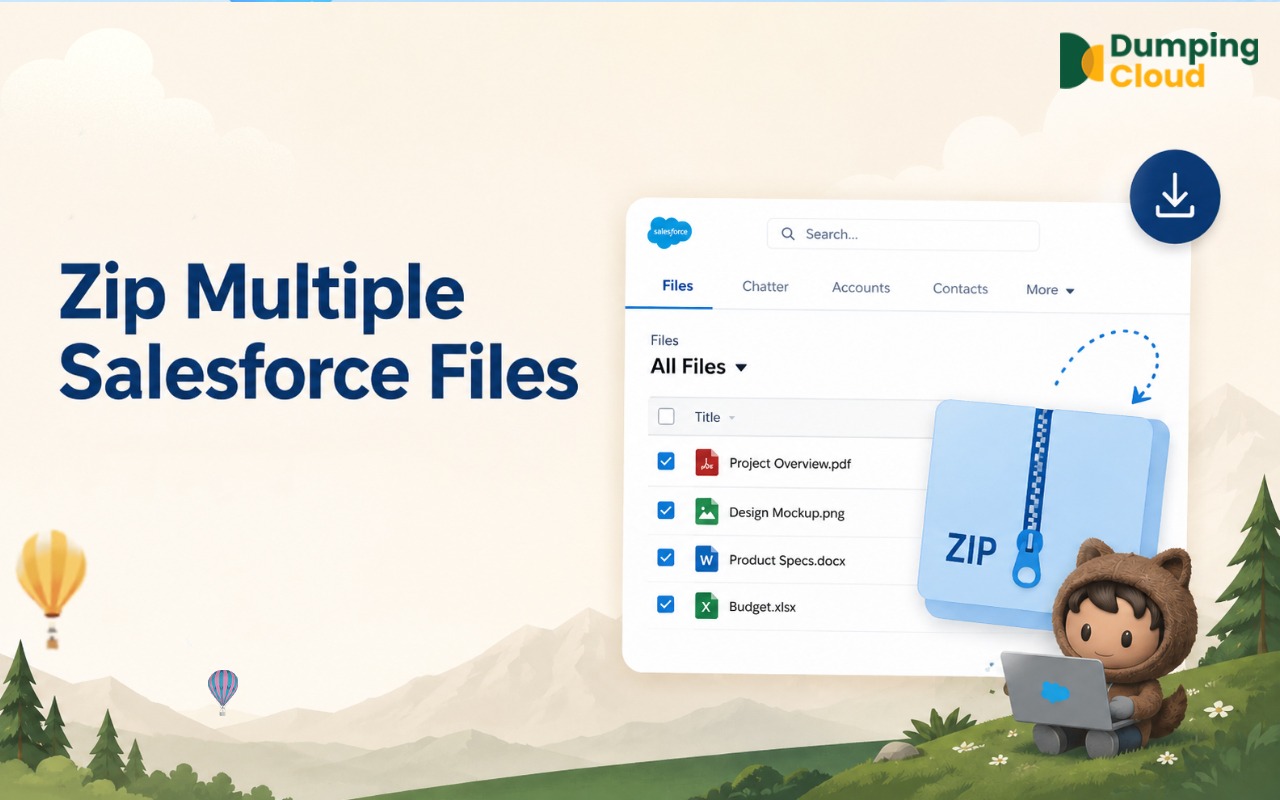
- Put many files of any type into one zip. Save the zip to your desktop or back on the record.
Your original files stay safe unless you choose to delete them.
See how to zip Salesforce files.
Rename
- Give many files new names at once. Add a prefix, a suffix, or a number sequence.
Renaming only changes the file name. The content and version history stay the same.
See how to mass rename Salesforce files.
Delete
- Select and remove several files or attachments in a single click without any hassle in bulk.
How to Organize Salesforce Files at the Object Level?
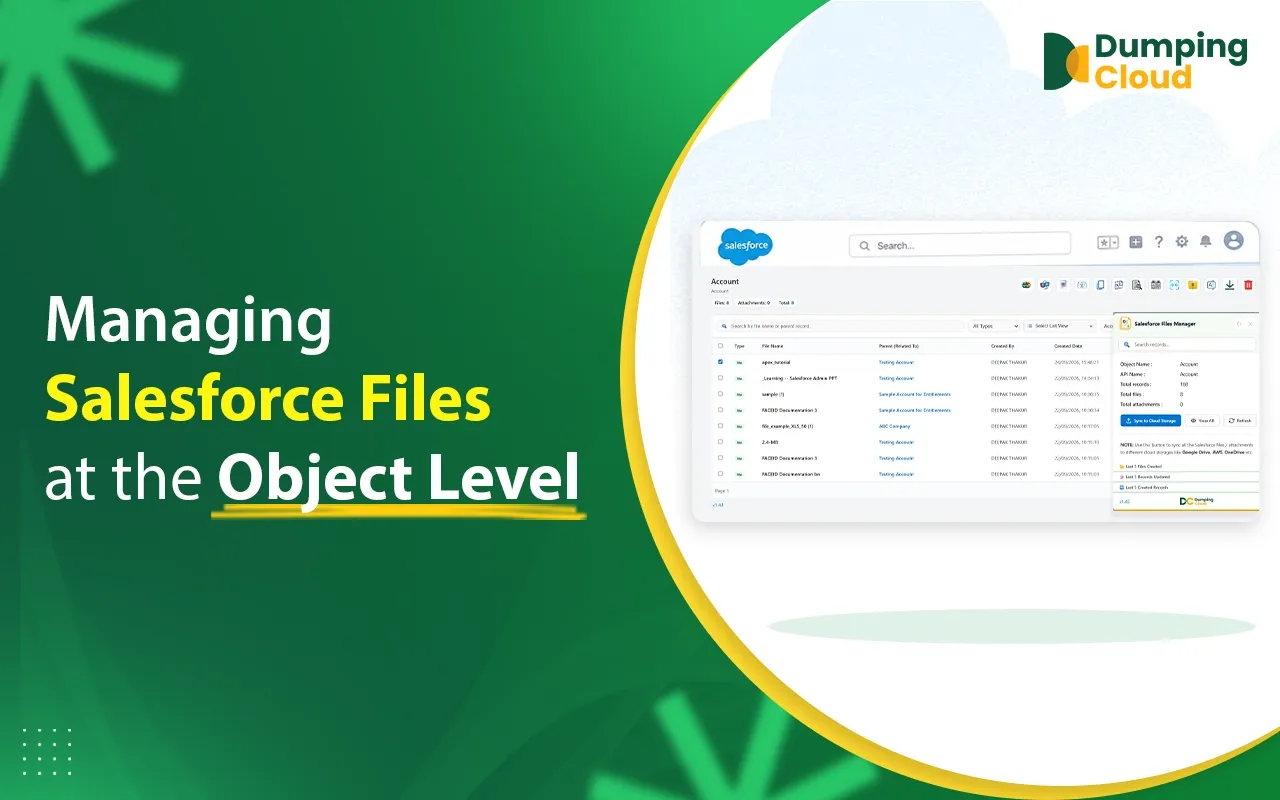
An object is a whole type of record, like all Accounts or all Opportunities. Object-level file management shows the files from every record of that object in one list.
You can see the file name, the record it belongs to, the file type, the size, and the date it was created.
Steps
01
Step 1
Open the Object Tab
Open the object tab, for example Opportunities.
02
Step 2
Open DumpingCloud
Click the DumpingCloud icon. The panel shows file stats for that object.
03
Step 3
View All Files
Click View All. A new page opens with all files from all records of that object.
04
Step 4
Search and Filter
Search by file name. Filter by file type, size, date, or parent record.
05
Step 5
Choose an Action
Select the files you need and pick an action from the action bar.
Record Level vs Object Level
| Record Level | Object Level | |
|---|---|---|
| Scope | Files on one record | Files across all records of an object |
| Best for | Tidying one record | Big jobs across many records |
| Search | Inside that record | Across all records and files |
| Typical user | Any Salesforce user | Admins, power users, team leads |
Who Uses Object-Level File Management?
- Admins run storage audits and bulk delete test files.
- Sales Ops rename files across all Opportunities to follow one naming rule.
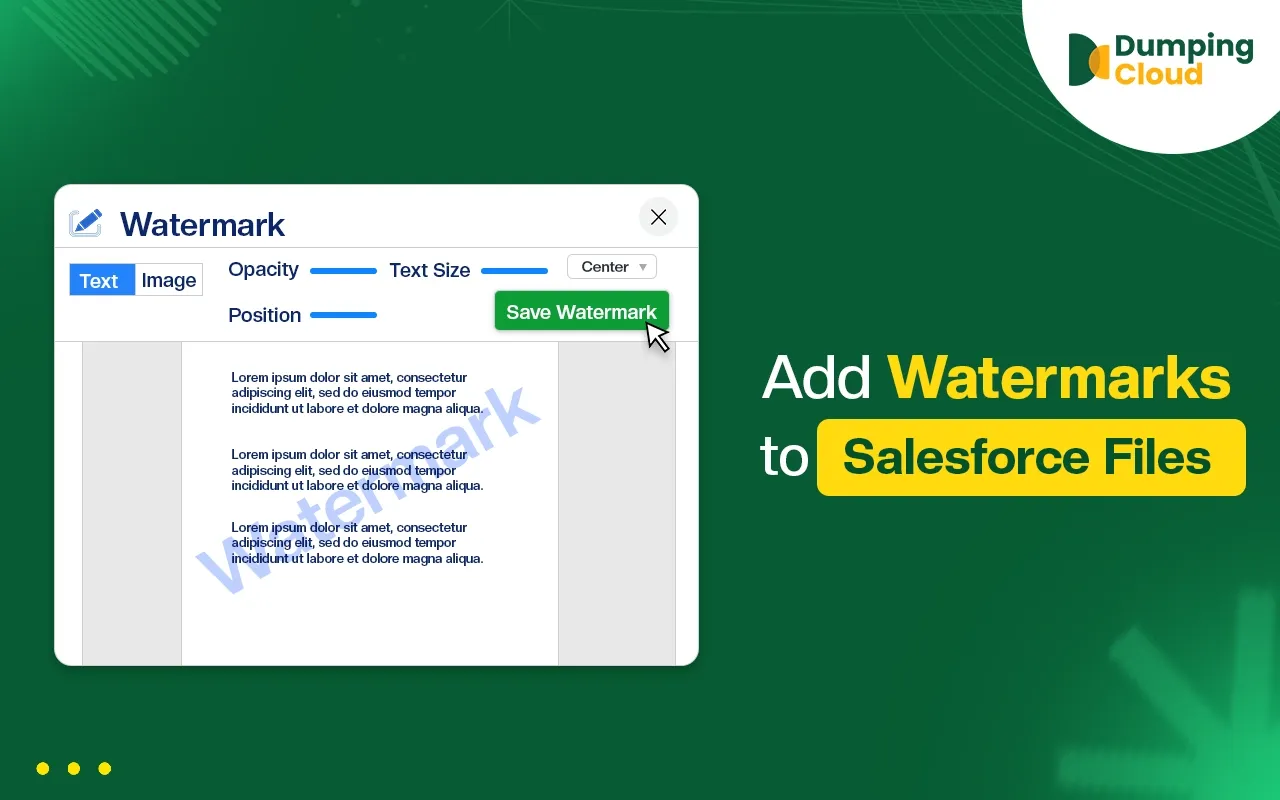
- Legal teams watermark every contract in one go.
- Support teams download all attachments from open Cases.
Want the full story? Read our guide to
object-level file management in Salesforce.
What Are the Limits of Salesforce File Management?
Every tool has limits. Here is what you should know before you start.
Salesforce Limits
- Attachments stop at 25 MB. Files stop at 2 GB.
- Standard screens handle one file at a time. There is no native bulk rename, bulk move, compare, or merge.
- There are no folders inside a record’s Files list. Only Libraries have folders.
- File storage is not endless. It depends on your Salesforce edition and licenses.
- Deleted files stay in the Recycle Bin for 15 days. They still count against your storage until they are permanently deleted.
- Files follow record access. If a person cannot see a record, they usually cannot see its files.
DumpingCloud Limits
- It follows your Salesforce profile and sharing rules. It can only handle files you are already allowed to see or change.
- There is no one-click undo for Move or Bulk Rename. You can run a reverse action if you keep the old names or the old record.
- Bulk Rename uses manual patterns: prefix, suffix, and numbers. It does not yet insert field values like Account Name.
- A watermark is saved inside the file and cannot be removed later. Copy the file first if you need a clean version.
- At the record level, Merge and Compare work with files on the same record. To use files from different records, copy them to one record first, or use the object-level view.
Important
Salesforce updates its rules from time to time. Check Salesforce Help for the newest numbers before a big clean-up.
Why Does Organize Salesforce Files Matter?
- You find things fast: Clear names and one home for each file save time every day.
- You save storage: Fewer duplicate copies means your file storage lasts longer.
- You keep files safe: The right people see the right files. Watermarks help protect sensitive documents.
- You stay audit-ready: Tidy, well-named files are easy to collect and share.
- Records stay clean: Cluttered records slow down admins and support teams.
- Your team works better: Everyone uses the same newest version.
Conclusion
Organizing Salesforce files does not have to be hard. Start with Files instead of Attachments. Add one clear naming rule. Then use record-level and object-level file management to clean up in bulk.
With a little planning, you can turn a messy pile of documents into a neat, searchable library that your whole team trusts.

Frequently Asked Questions
What is the difference between Salesforce Files and Attachments?
Files can be up to 2 GB, can be linked to many records, and keep old versions. Attachments are the older way. They are limited to 25 MB, belong to one record, and have no version history.
Can I rename many Salesforce files at once?
Yes. Standard Salesforce renames one file at a time, but DumpingCloud's Bulk Rename can add a prefix, a suffix, or a number sequence to many files together.
Can I manage Salesforce files across multiple records?
Yes. Open the object tab, click the DumpingCloud icon, and choose View All. You can then search, filter, select, and act on files from many records of the same object.
How do I bulk delete files in Salesforce?
Open a record with files, launch DumpingCloud, select the files, and click Delete. You can also zip them first so you get one archive.
Is it safe to use a file manager extension in Salesforce?
DumpingCloud runs inside your existing Salesforce session. It follows your profile and sharing rules, so it can only reach files you are already allowed to access.
Organize Salesforce Files without code.
Delete, Move, Copy, Rename & Zip your Salesforce Files — without leaving Salesforce.