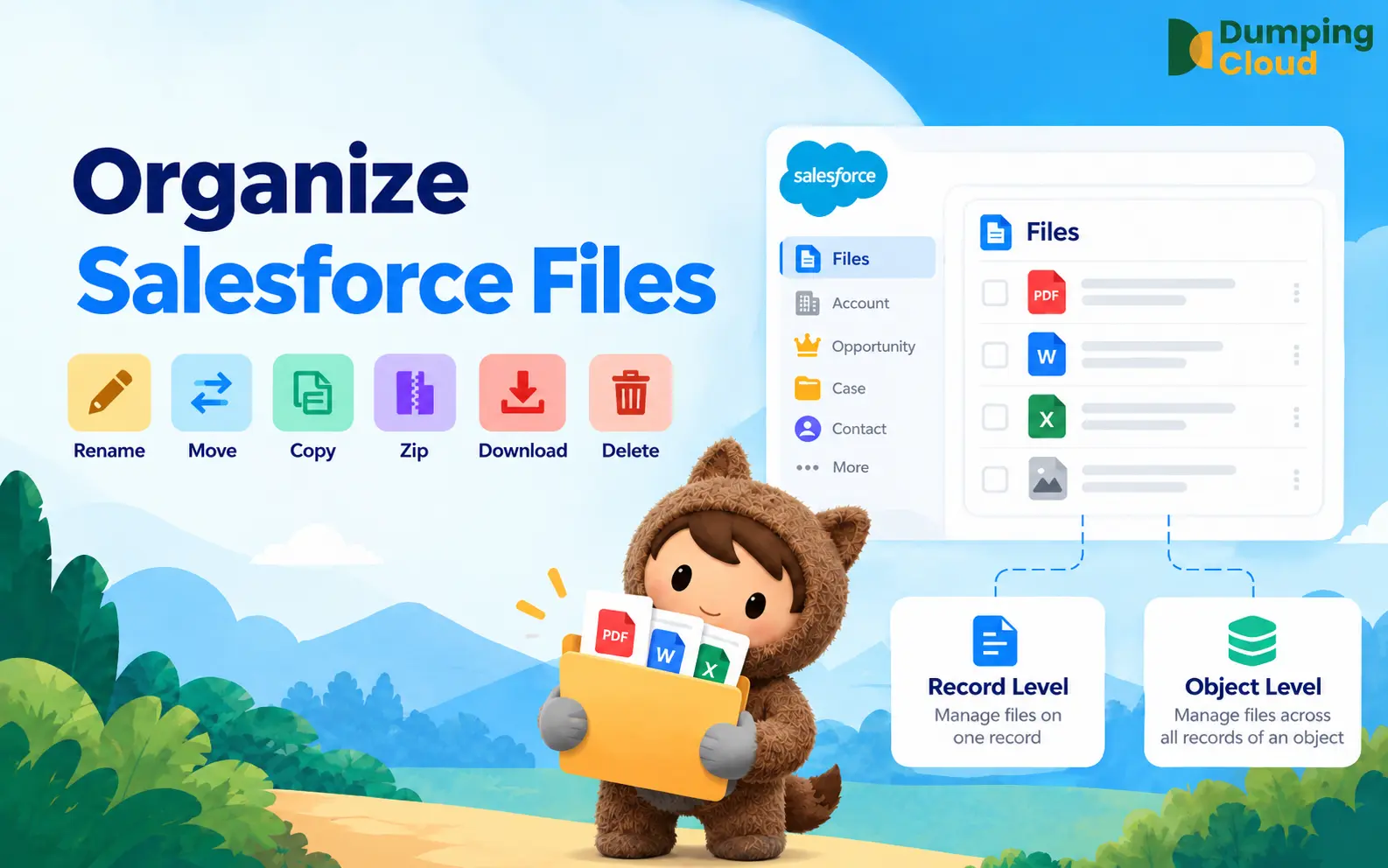

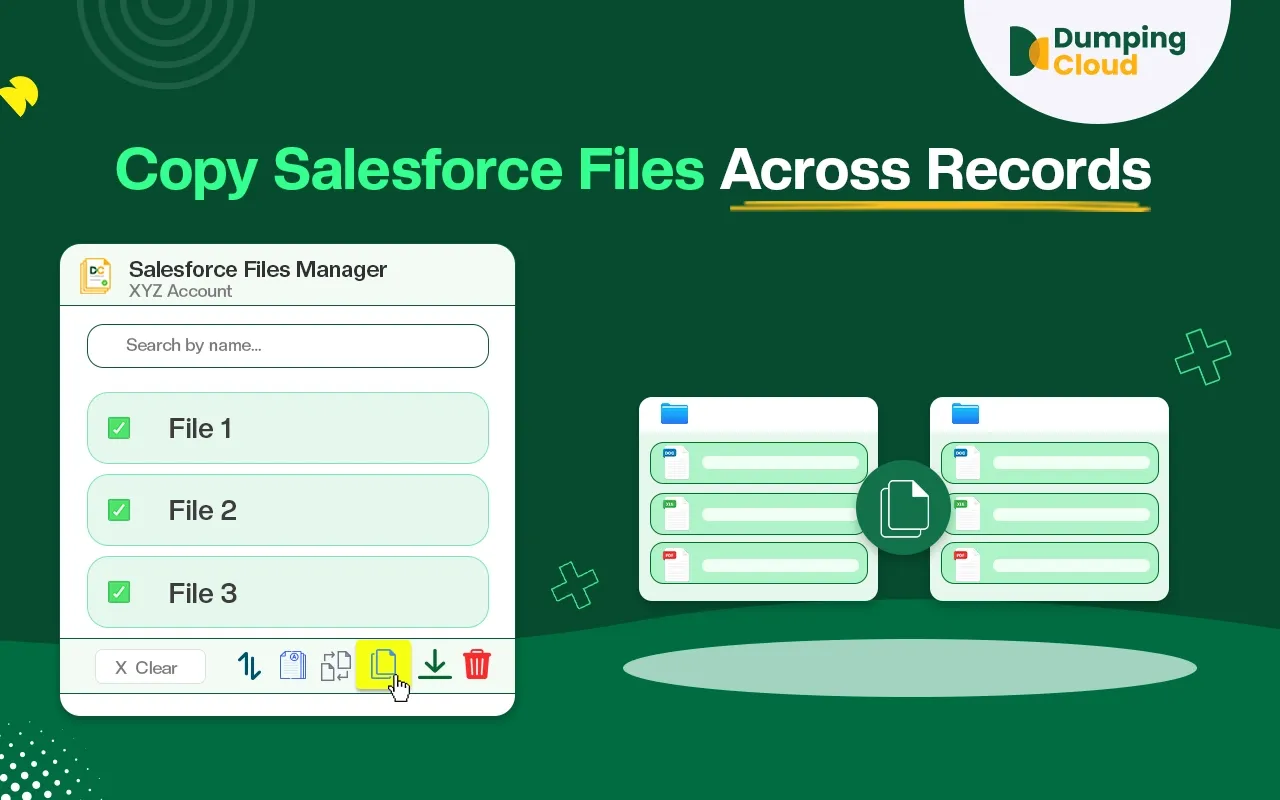
The need to get a file from one Salesforce record to another is one of the most common daily tasks in any active Org — and without the right tool, it means downloading files, switching between records, and re-uploading manually, one file at a time.
The Copy feature in DumpingCloud – Salesforce Files Manager eliminates all of that. Select your files, search for your target record — whether it is the same object type or an entirely different one — confirm the copy, and the extension creates a brand new, fully independent instance of each file on the destination record in seconds. The original stays untouched. The copy is entirely self-contained. And neither file has any dependency on the other.
Fast, flexible, and entirely within your Salesforce workflow.
The Problem: The Same File Needs to Exist on Multiple Records — and Salesforce Gives You No Efficient Way to Do It
It is a scenario every Salesforce user encounters.
A proposal stored on one Opportunity needs to be available on three others in the same pipeline. A compliance document attached to one Account needs its own copy on a related Contact and a Case. A product specification uploaded to one record needs to be independently available on several others — where each team may update, annotate, or version their copy separately without affecting anyone else’s.
The keyword here is independently. These teams do not want a shared link to the same file. They need their own copy — a separate, standalone instance of the document that they can manage, version, rename, or delete without any impact on the original or on copies held by other records.
Native Salesforce provides no built-in way to do this. The only option is to download the file and manually re-upload it to each destination record, one at a time — a process that is repetitive, time-consuming, and entirely disconnected from the record pages where the work happens.
Dumping Cloud – Salesforce Files Manager solves this with a dedicated Copy feature — creating a fresh, independent copy of any file and delivering it to any record in your Salesforce Org, whether on the same object type or a completely different one, in a matter of clicks.
What the Copy Feature Does
The Copy feature in DumpingCloud – Salesforce Files Manager allows you to:
- Copy a single file or multiple files simultaneously from any Salesforce record to any other record in the Org
- Create a new, independent instance of each file on the target record — not a shared link, but a fully separate copy that can be managed, versioned, renamed, or deleted independently
- Copy across the same object type — for example, from one Opportunity to another Opportunity, or from one Account to another Account
- Copy across different object types — for example, from an Opportunity to a Contact, from an Account to a Case, or from a Contract to an Opportunity
- Perform the operation directly from the extension panel — no downloading, no manual re-uploading, no switching between record pages
Who Benefits Most
The Copy feature delivers value across every team that works with Salesforce records and files:
- Sales teams — Replicating proposals, pricing sheets, and product brochures from one Opportunity to multiple others without ever leaving Salesforce
- Salesforce Admins — Distributing standard templates, policy documents, or reference files across multiple records as part of data setup, migration, or org restructuring
- Legal and contracts teams — Copying contract templates or standard agreement documents from a master record to new Contract or Opportunity records for each client engagement
- Customer support teams — Distributing a known-resolution document or product advisory to multiple Case records, each team working from their own independent copy
- HR and people operations — Copying onboarding documents, offer letter templates, and policy files to individual employee Contact records independently
- Finance and procurement — Duplicating standard purchase order templates, approval forms, or financial checklists to new Contract or Account records for each supplier or period
Step-by-Step: How to Copy Salesforce Files Using Dumping Cloud
Prerequisites – Before you begin, ensure the following:
- DumpingCloud – Salesforce File Manager is installed in your browser from the appropriate browser extension store.(Install here)
- You are logged into your Salesforce Org in the same browser
- You have the necessary Salesforce permissions to view files on the source record and create file associations on the target record(s)
01
Step 1
Navigate to the Source Record and Open the Extension
Open Google Chrome and log in to your Salesforce Org. Navigate to the record containing the file(s) you want to copy — this is your source record.
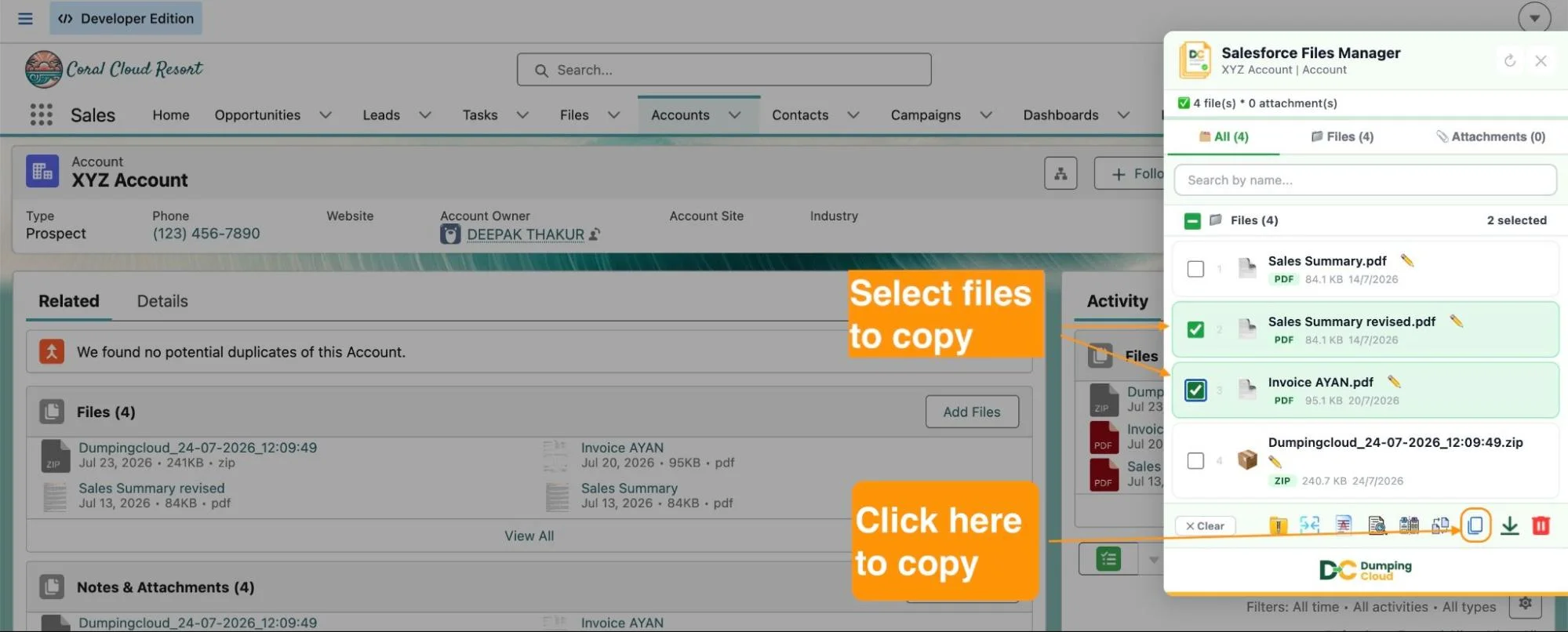
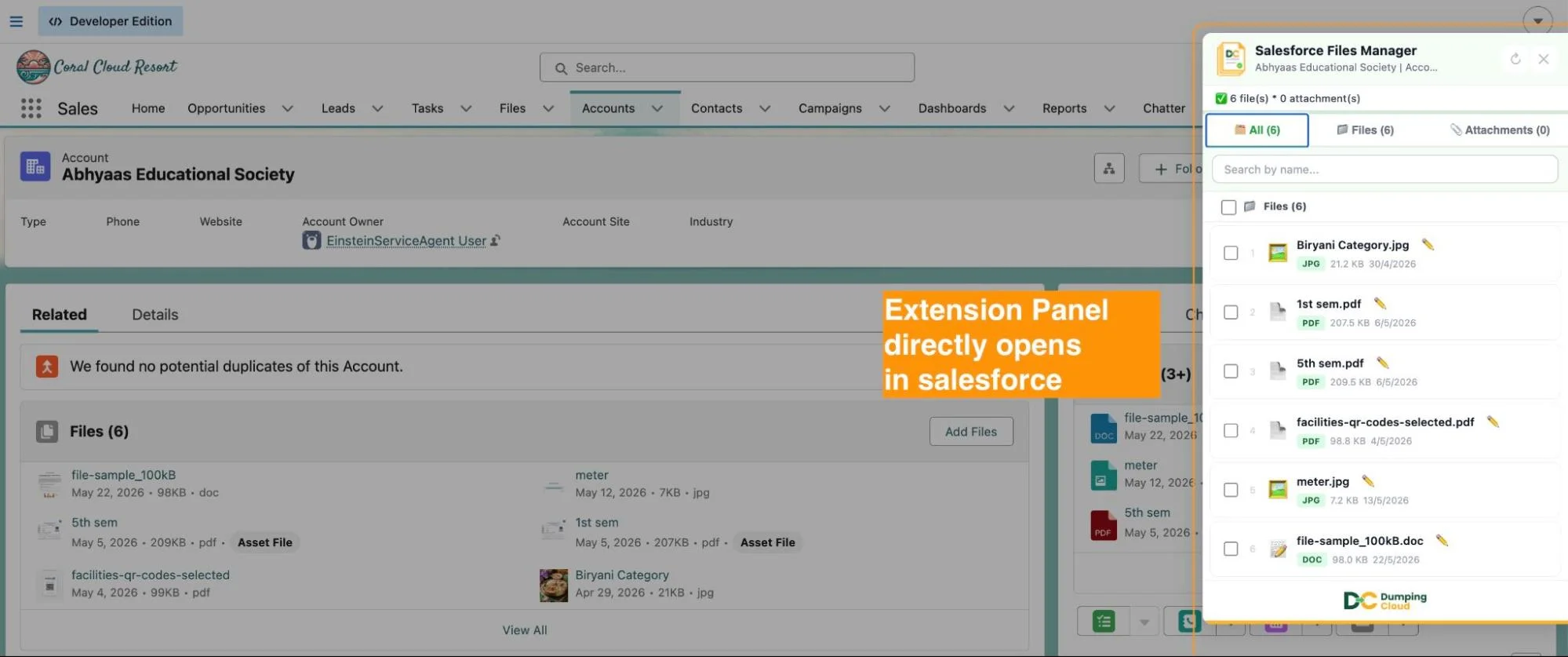
Click the Salesforce Files Manager icon in your Chrome toolbar to open the extension panel. The panel will load all files associated with the current record.
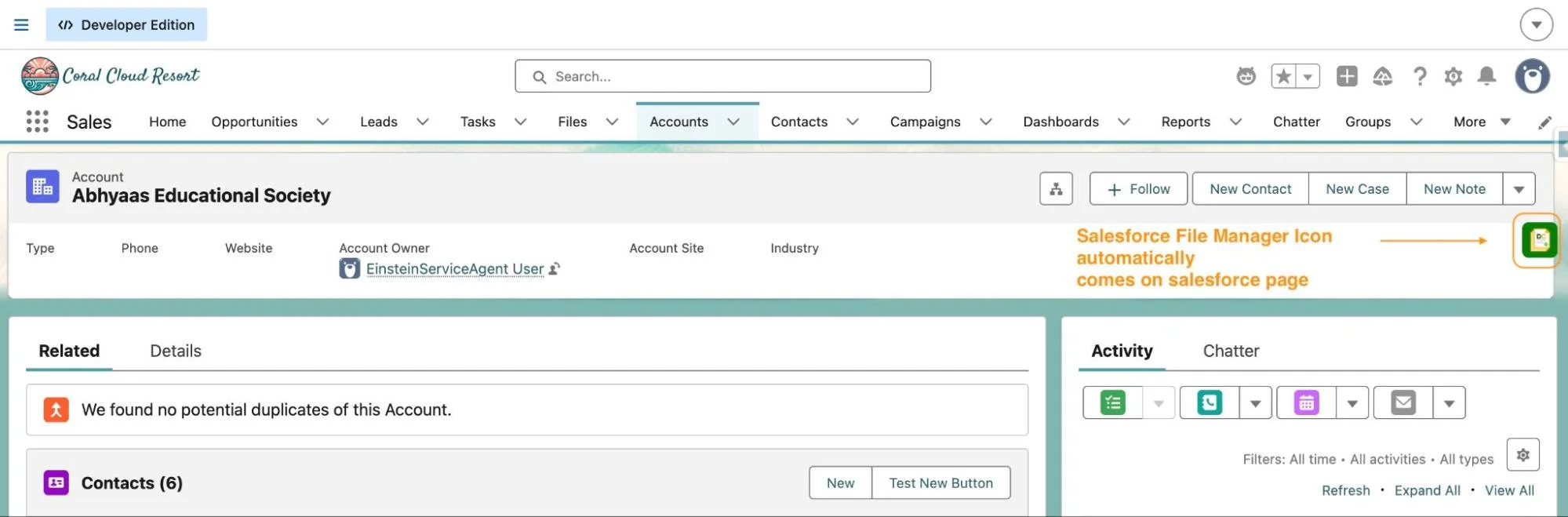
The extension panel will open and automatically load all files and attachments associated with the current record.
02
Step 2
Select the File(s) to Copy
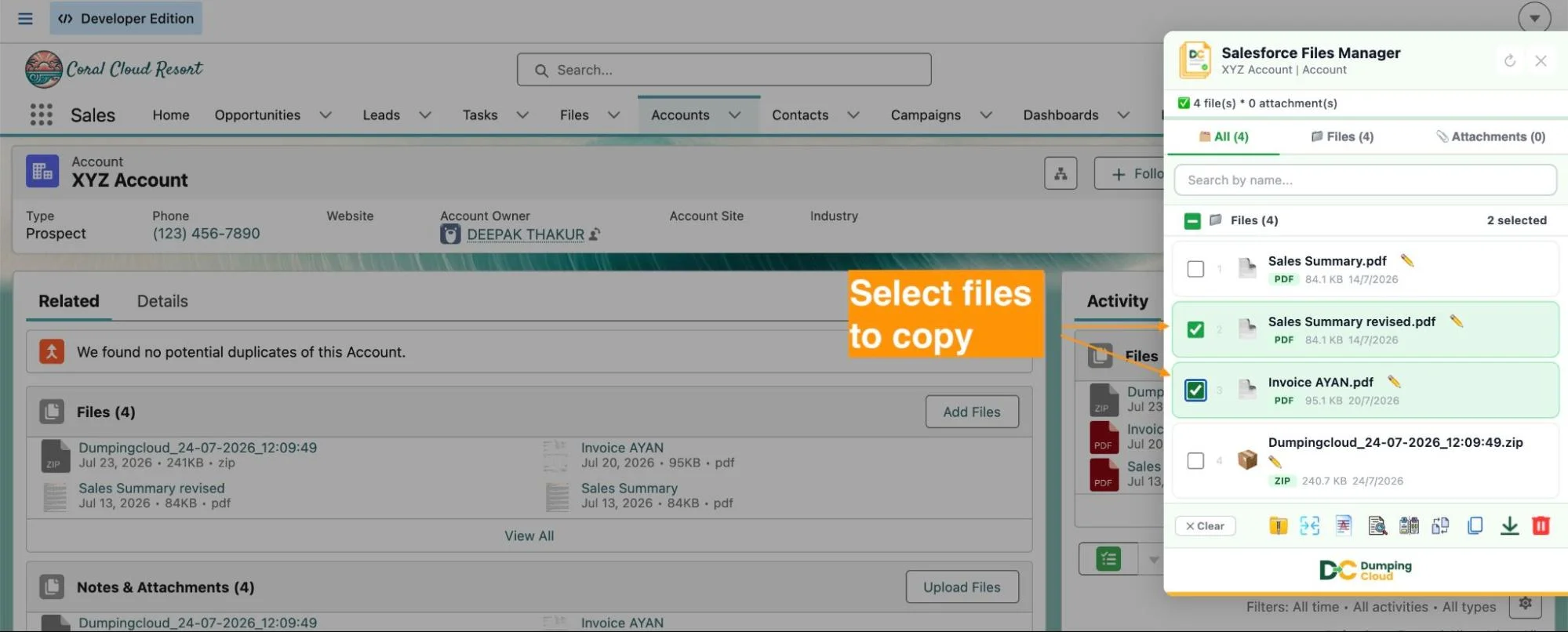
To copy a single file: Click the checkbox next to the specific file you want to copy.
To copy multiple files: Click the checkboxes next to each file you want to copy. Use “Select All” to select every file on the record in one action.
03
Step 3
Click the “Copy” Button
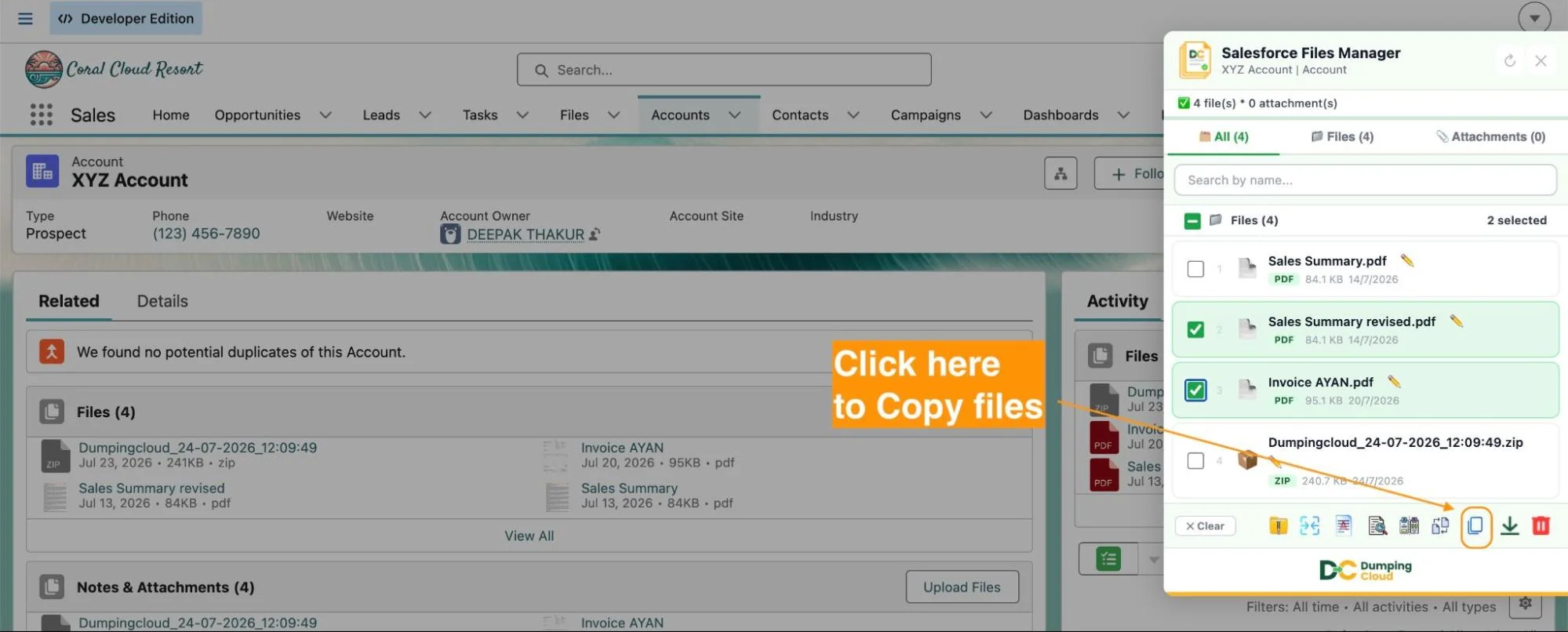
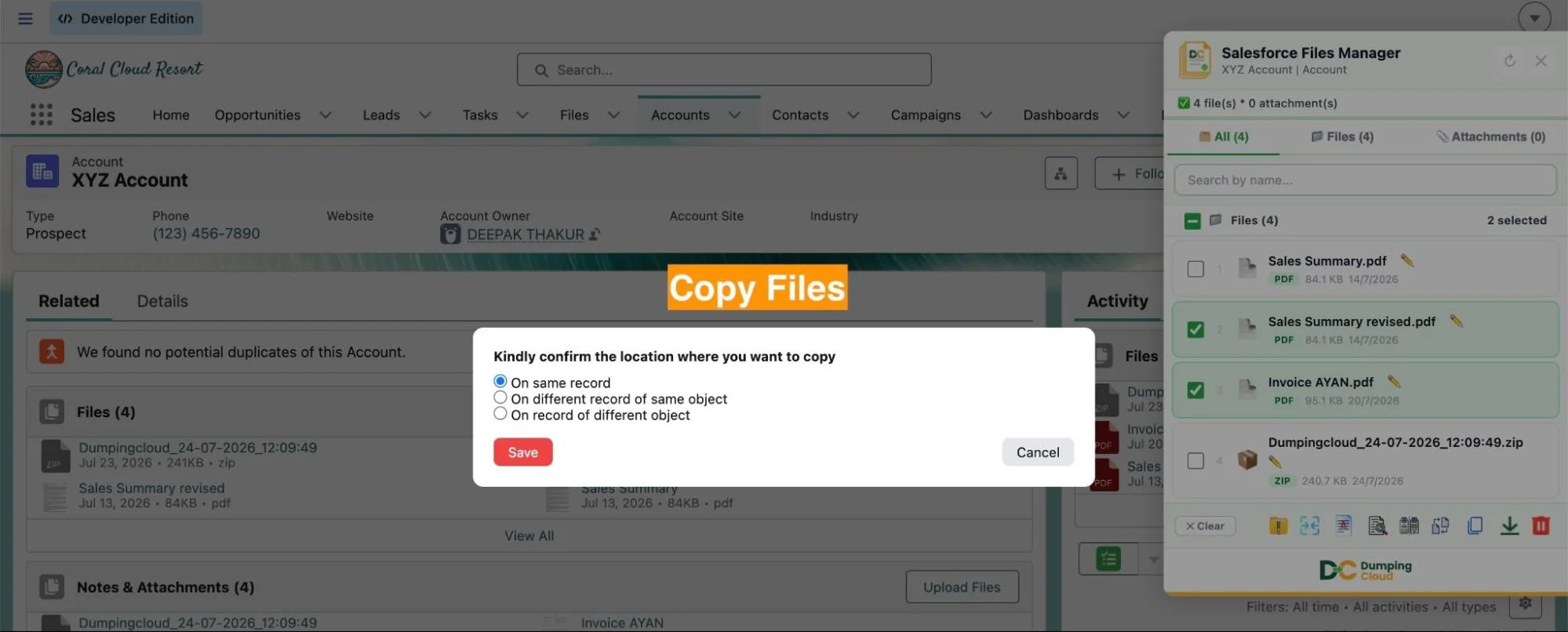
With your files selected, click the “Copy” button in the extension action bar which displays a record selection prompt.
04
Step 4
Search for and Select the Target Record
In the target record search prompt, type the name or ID of the destination record where the copied files should be created. The extension will search across your Salesforce Org and return matching records — from the same object type or a different one.
Users can select the target record destination from the below options. The Files can be copied on:
- On same record
- On different record of same object
- On record of different object
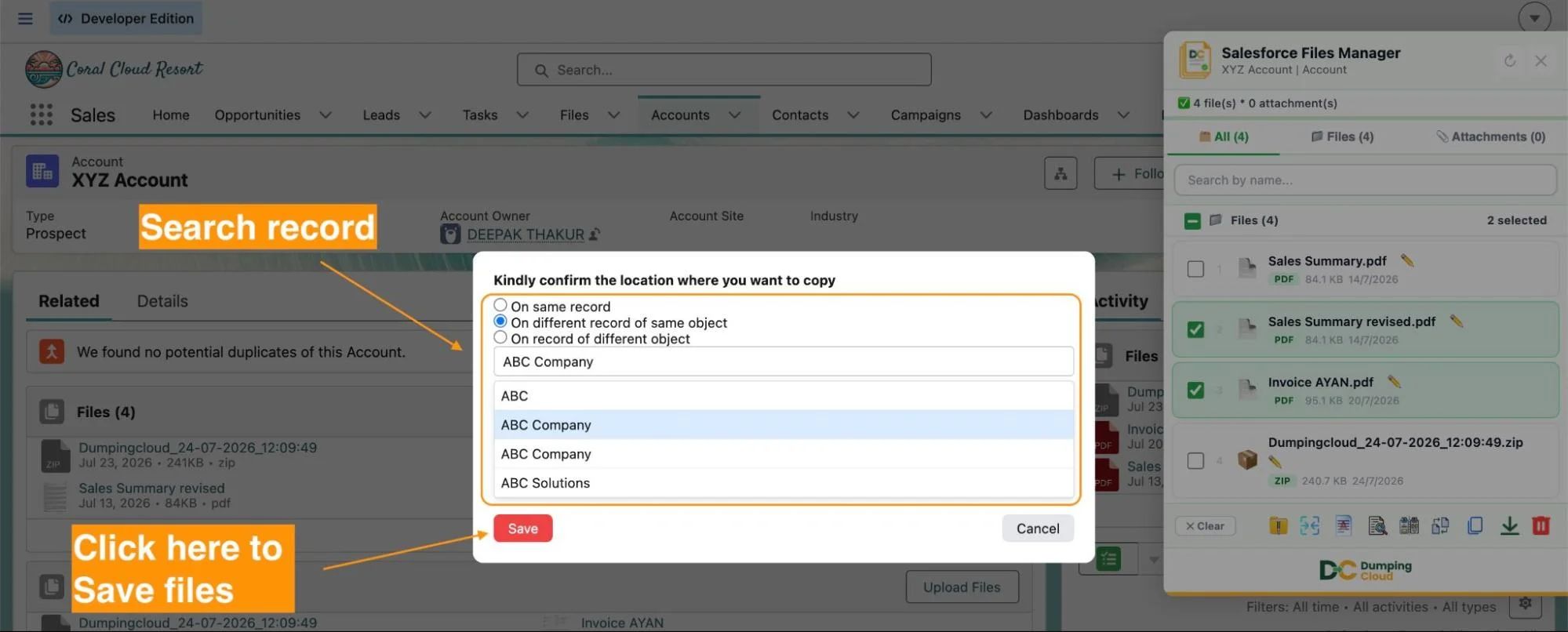
Review your selection — the files to be copied and the target record — then click “Save” to execute the operation.
The extension will create a new, independent copy of each selected file on the target record. The original files on the source record remain completely unchanged.
05
Step 5
Copy Complete — Verify on the Target Record
A success confirmation will display once the copy is complete, showing the file names and the target record they were copied to.
Navigate to the target record in Salesforce and check the Files related list to confirm the copied files are present. Return to the source record to confirm the original files remain intact and unchanged.
Key Advantages Over Manual Re-Upload
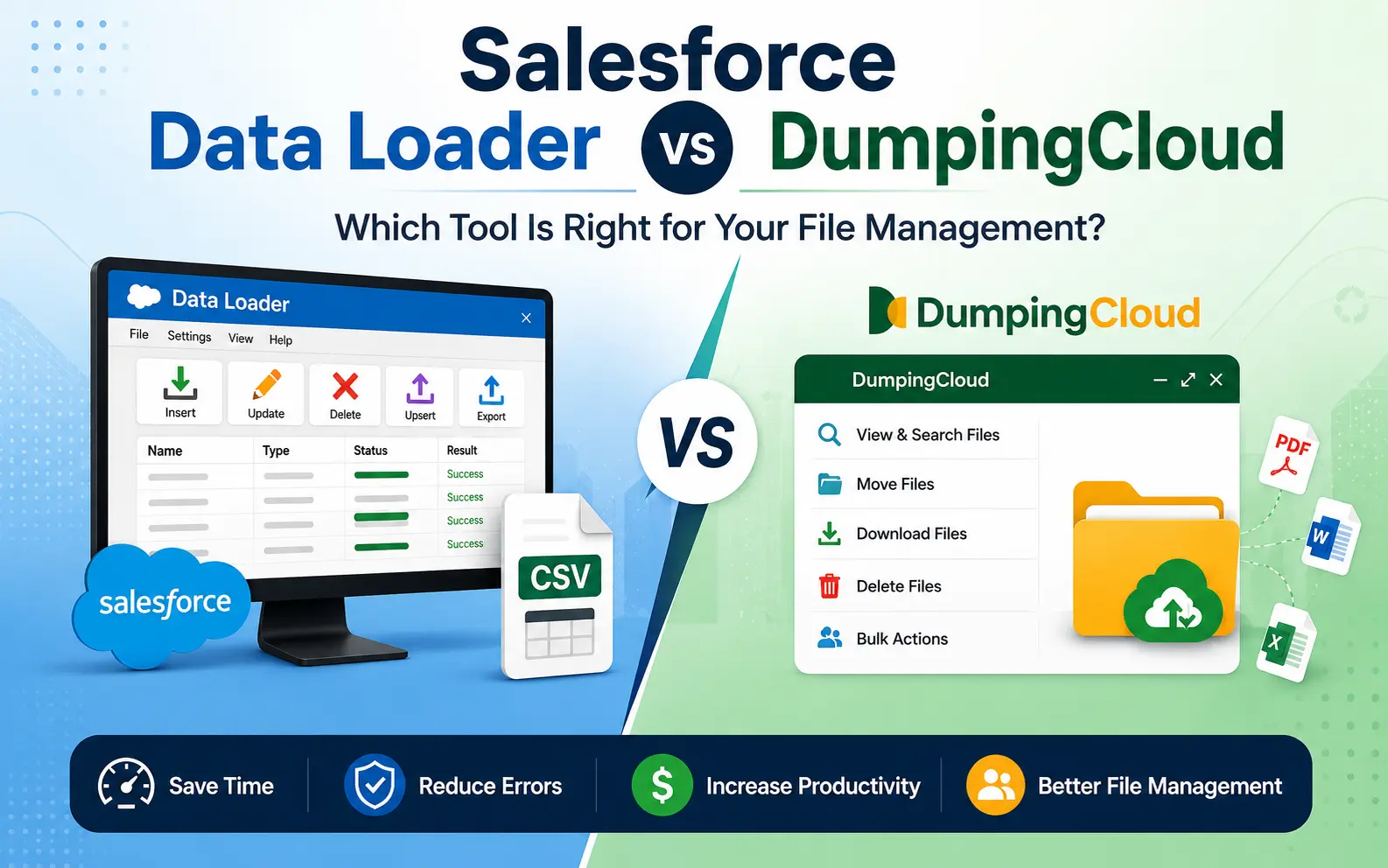
| Capability | Manual Download & Re-upload | Dumping Cloud |
|---|---|---|
| Copy a file to another record | ✅ Possible but manual | ✅ In-app, no download needed |
| Copy multiple files at once | ❌ One at a time | ✅ Bulk copy supported |
| Copy across same object type | ✅ Possible but manual | ✅ Supported |
| Copy across different object types | ✅ Possible but manual | ✅ Supported |
| Creates independent file on target | ✅ Yes (new upload) | ✅ Yes (new independent copy) |
| Original file preserved on source | ✅ Yes | ✅ Yes |
| Requires leaving Salesforce | ✅ Yes — download required | ❌ Entirely in-browser |
| Time per file | Minutes | Seconds |
Install DumpingCloud
👉 Try DumpingCloud — on your favorite browser
Ready to manage Salesforce Files faster?
Download, move, rename, merge, split, convert, compare, and manage your Salesforce Files — without leaving Salesforce.

Frequently Asked Questions
Can I copy files to a record on a different Salesforce object type?
Yes. The Copy feature works across any combination of standard or custom Salesforce objects. You can copy from an Opportunity to a Contract, from an Account to a Case, from a Contact to an Opportunity — or any other cross-object combination — provided you have the necessary permissions on both records.
Can I copy multiple files to the same target record in one operation?
Yes. Select multiple files in the extension panel before clicking Copy, and all selected files will be copied to the target record in a single operation.
What happens to the original files on the source record after copying?
Nothing. The Copy operation does not modify or remove the original files in any way. They remain exactly as they were on the source record.
Will the copied file have the same name as the original?
Yes. The copied file retains the same name as the original on the target record. You can rename it after copying using the Inline Rename or Bulk Rename features in Salesforce Files Manager.
Do I need System Administrator permissions to use the Copy feature?
You need sufficient Salesforce permissions to view files on the source record and to create files on the target record. The extension respects your existing Salesforce profile and sharing rules — it cannot copy files to records your user does not have edit access to.