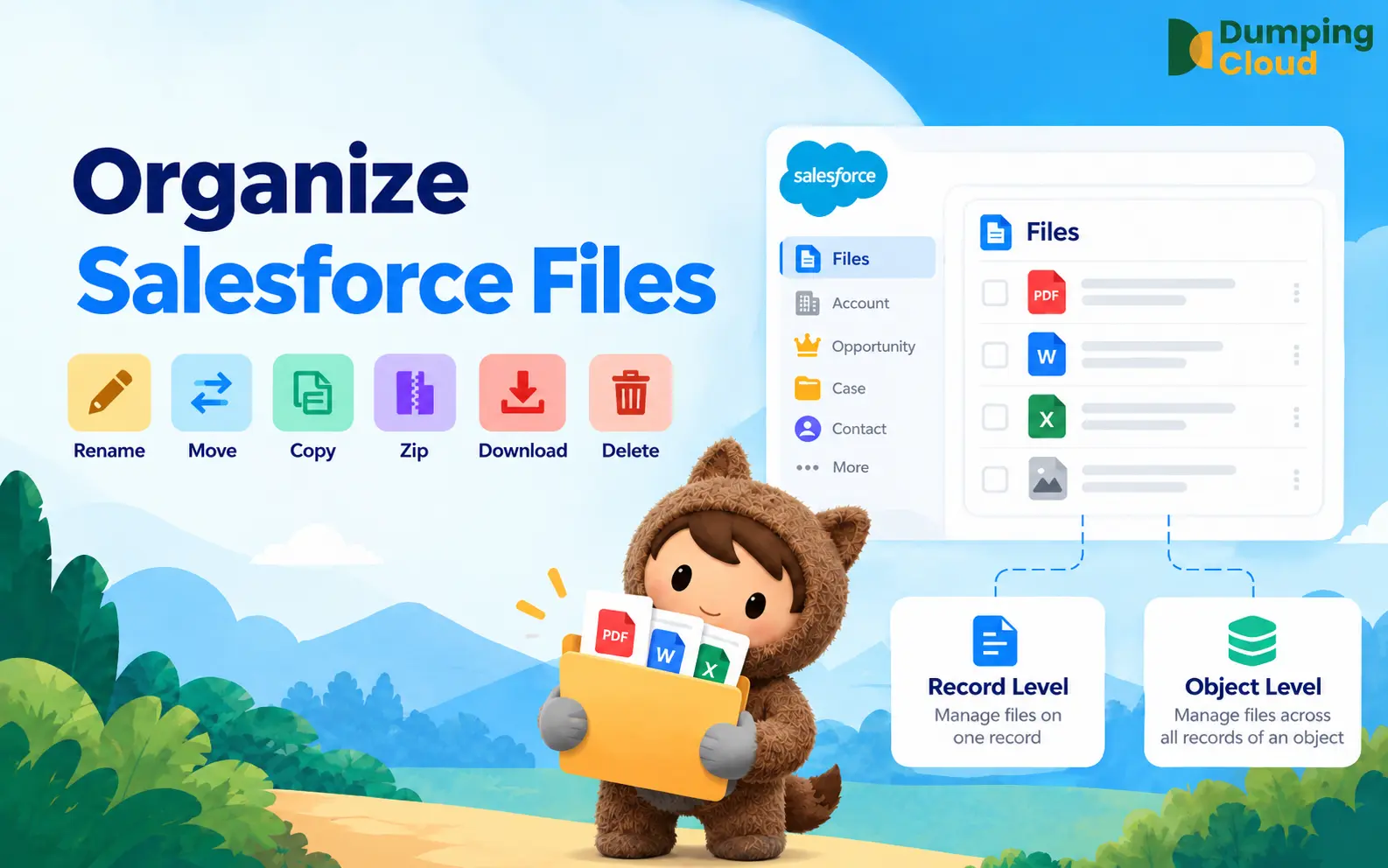

File naming is one of the highest-leverage data quality improvements an Admin can make — and one of the most tedious to implement without the right tools. Native Salesforce forces a one-by-one approach through individual file detail pages with no support for patterns, batching, or previewing.
Dumping Cloud – Salesforce Files Manager changes this entirely with two focused rename capabilities: Inline Rename for precise, individual edits, and Bulk Rename for enforcing consistent naming conventions across entire file sets in seconds. Whether you are correcting a single misnamed document or standardizing hundreds of files as part of an Org-wide initiative, the right rename tool is now one click away.
The Problem: Salesforce File Names Are Often a Mess — and Fixing Them One by One is Unsustainable
Walk into any active Salesforce Org and the file names tell a story no Admin wants to read.
“Final_v2_FINAL_USE_THIS_ONE.pdf.” “Scan0047.jpg.” “Copy of Copy of Proposal_Draft3.docx.” “Untitled.” Files uploaded from mobile devices with auto-generated camera roll names. Documents imported from legacy systems with codes that meant something in 2019 and nothing today.
Poor file naming is not just an aesthetic problem. It slows down users trying to locate the right document, creates confusion during audits, makes compliance reviews harder, and erodes trust in the data quality of the entire Org.
Native Solution allows you to rename salesforce files — but only by navigating into the file’s individual detail page, editing the title field, and saving. One file at a time. No patterns, no batch operations, no efficiency.
DumpingCloud – Salesforce Files Manager offers two powerful rename capabilities designed for different scenarios:
- Inline Rename for quick, precise edits to individual files, and
- Bulk Rename for applying consistent naming patterns across multiple files in a single operation.
Two Rename Modes, One Extension
Inline Rename
A fast, direct way to rename a single file without leaving the extension panel. Ideal for correcting a specific file name, fixing a typo, or applying a precise custom name to an individual document.
Bulk Rename
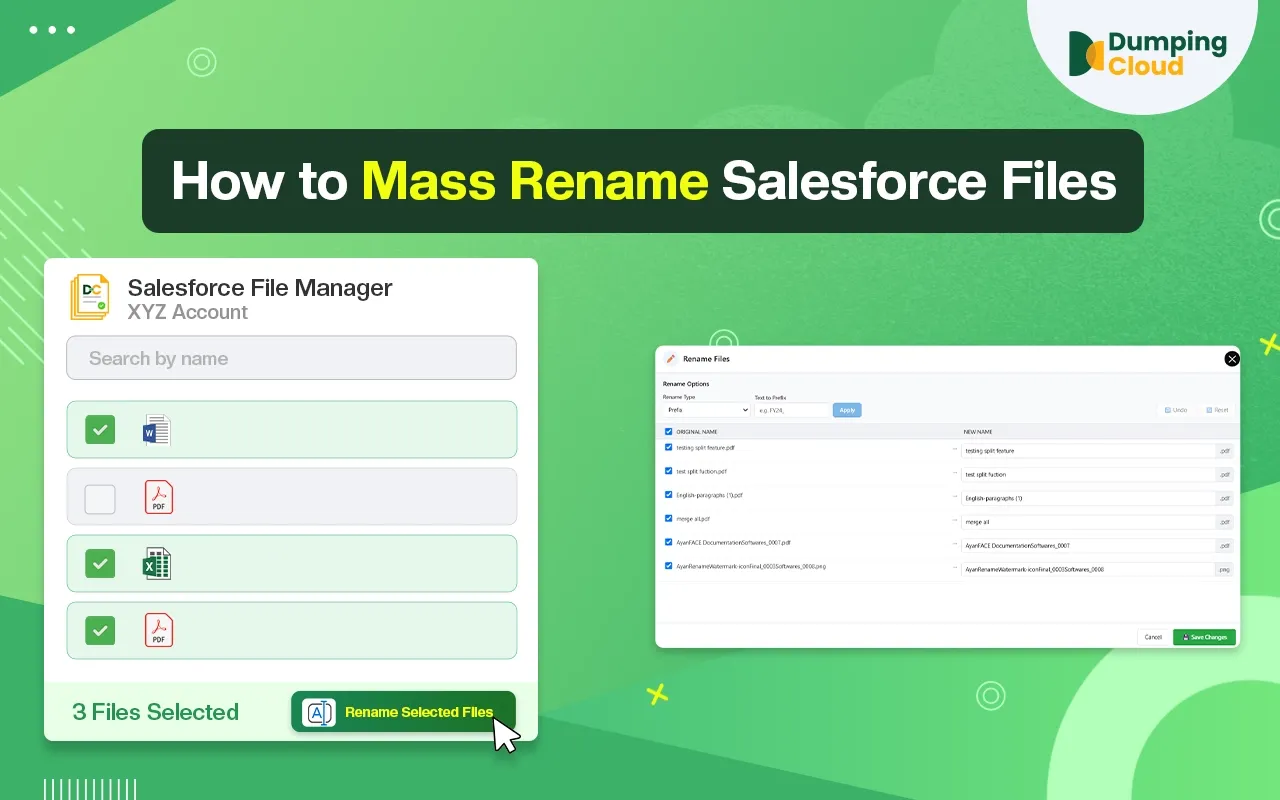
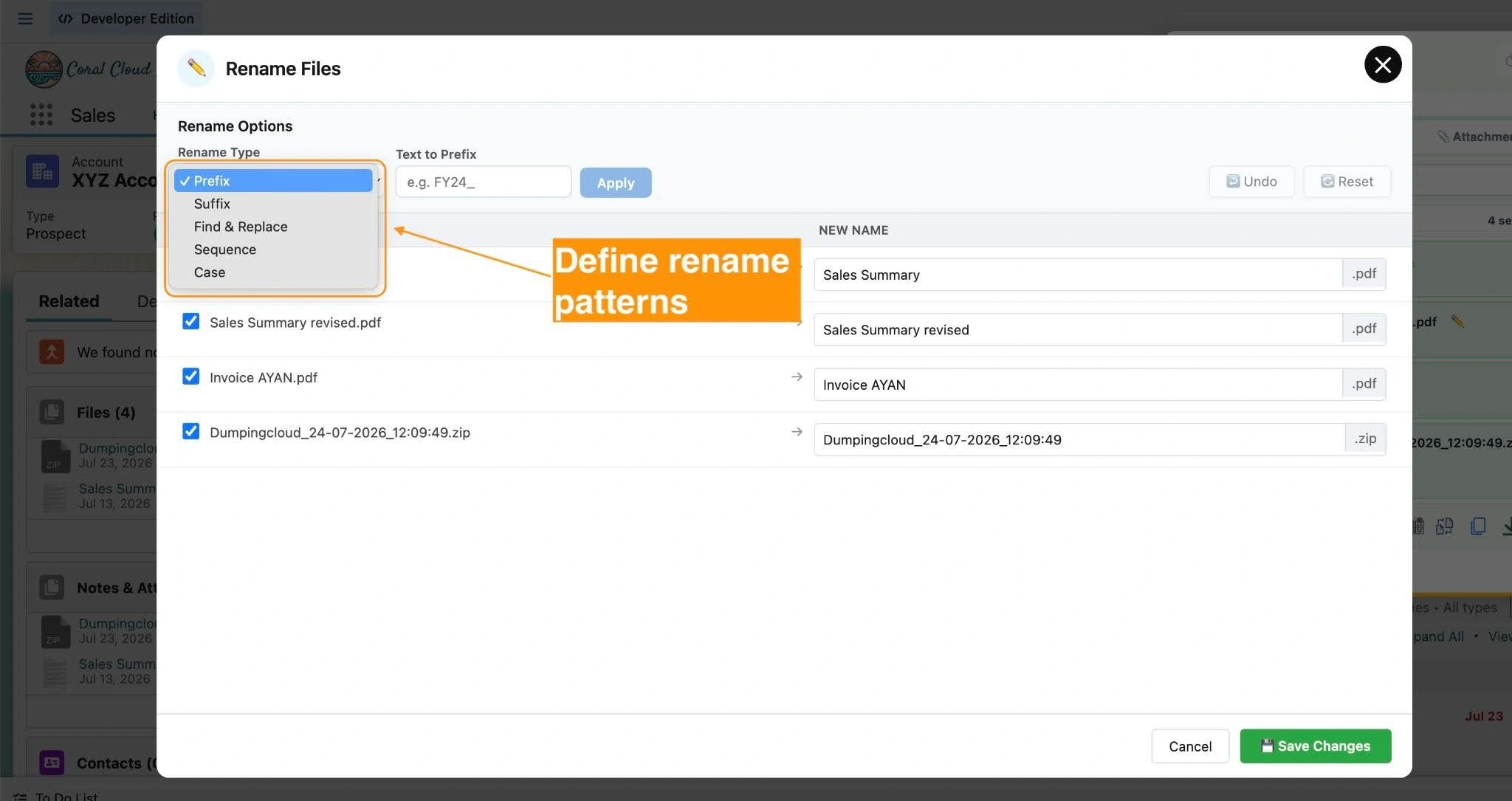
A pattern-based approach that renames multiple files simultaneously using a defined naming structure. Ideal for standardizing file names across a record, applying consistent prefixes or suffixes, or renaming entire sets of files as part of a data quality or migration project. The different rename pattern options available are:
- Apply Prefixes
- Apply Sufixes
- Define the case type (eg: camelCase, UPPERCASE, lowercase etc)
- Find & Replace (text or keyword)
- Sequence (define the order sequence with number, digits, location and separator) eg: Invoice-00001
Who Benefits Most
Both rename features address common challenges faced by Salesforce Admins:
- Post-migration cleanup — Standardising file names after importing documents from legacy systems or external storage platforms where naming conventions differed
- Data quality initiatives — Enforcing consistent naming standards across records as part of an Org-wide hygiene project
- Compliance and audit readiness — Ensuring files follow a naming convention that makes them identifiable and traceable during reviews (e.g., “CONTRACT_AccountName_YYYY-MM-DD”)
- User error correction — Quickly renaming files that were uploaded with vague, incorrect, or auto-generated names
- Record merges — Renaming files from merged records to reflect the correct entity name post-consolidation
- Bulk document standardisation — Applying uniform naming across all files on a record before sharing, archiving, or syncing to external cloud storage
Feature 1: Inline Rename — Rename a Single File Directly in the Panel
When to Use Inline Rename
Use Inline Rename when you need to:
- Correct a specific file name with precision
- Apply a unique, custom name to an individual document
- Make a quick edit without affecting other files on the record
01
Step 1
Navigate to the Record and Open the Extension
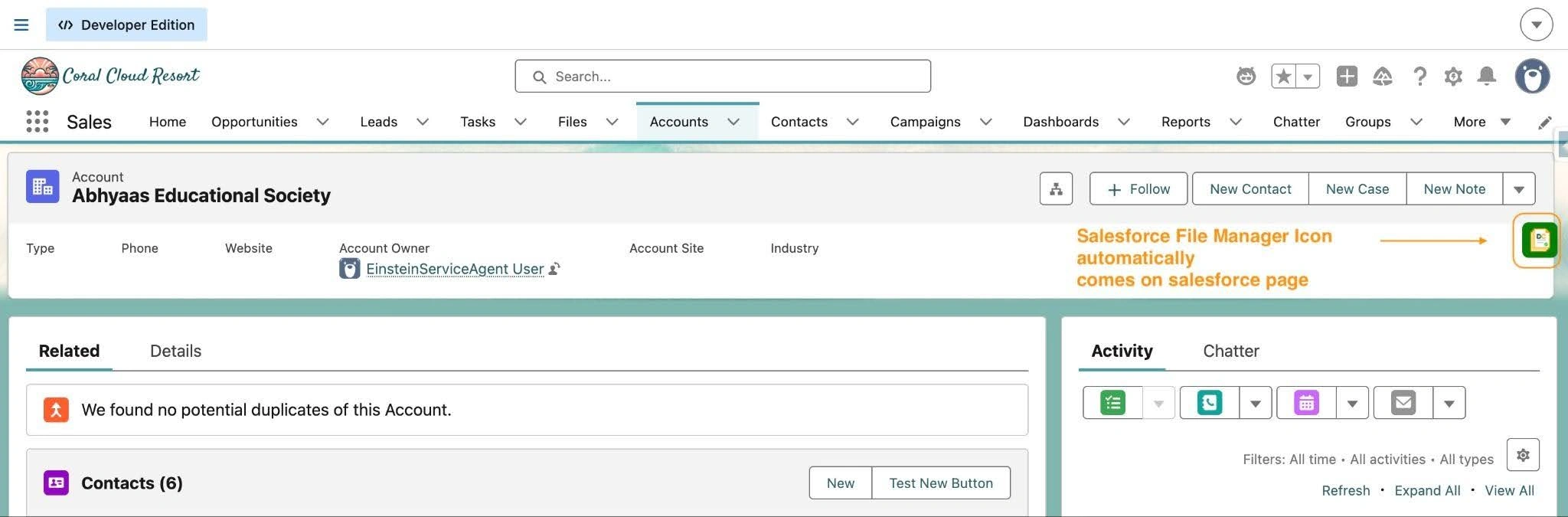
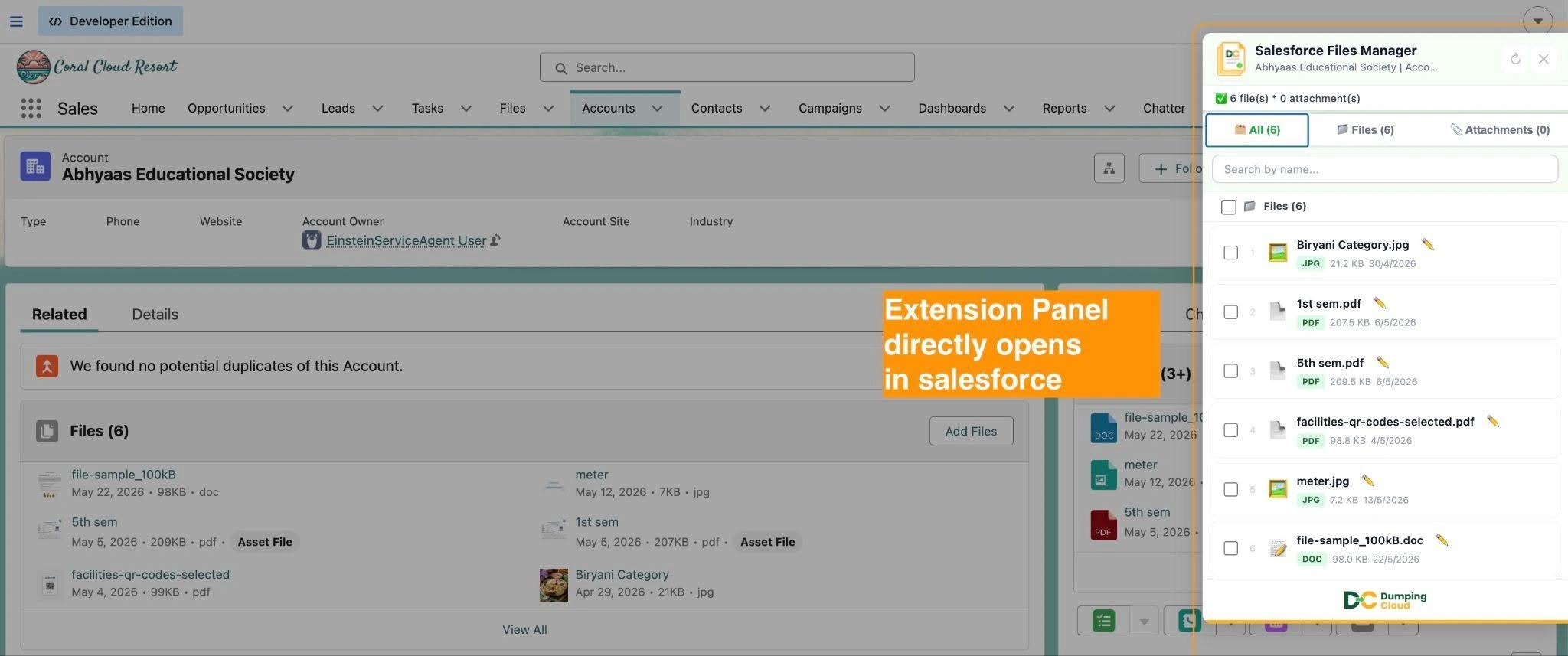
Open Google Chrome, log in to your Salesforce Org, and navigate to the record containing the file(s) you want to rename. Click the DumpingCloud icon. The extension automatically detects your active Salesforce session. No additional login is required.
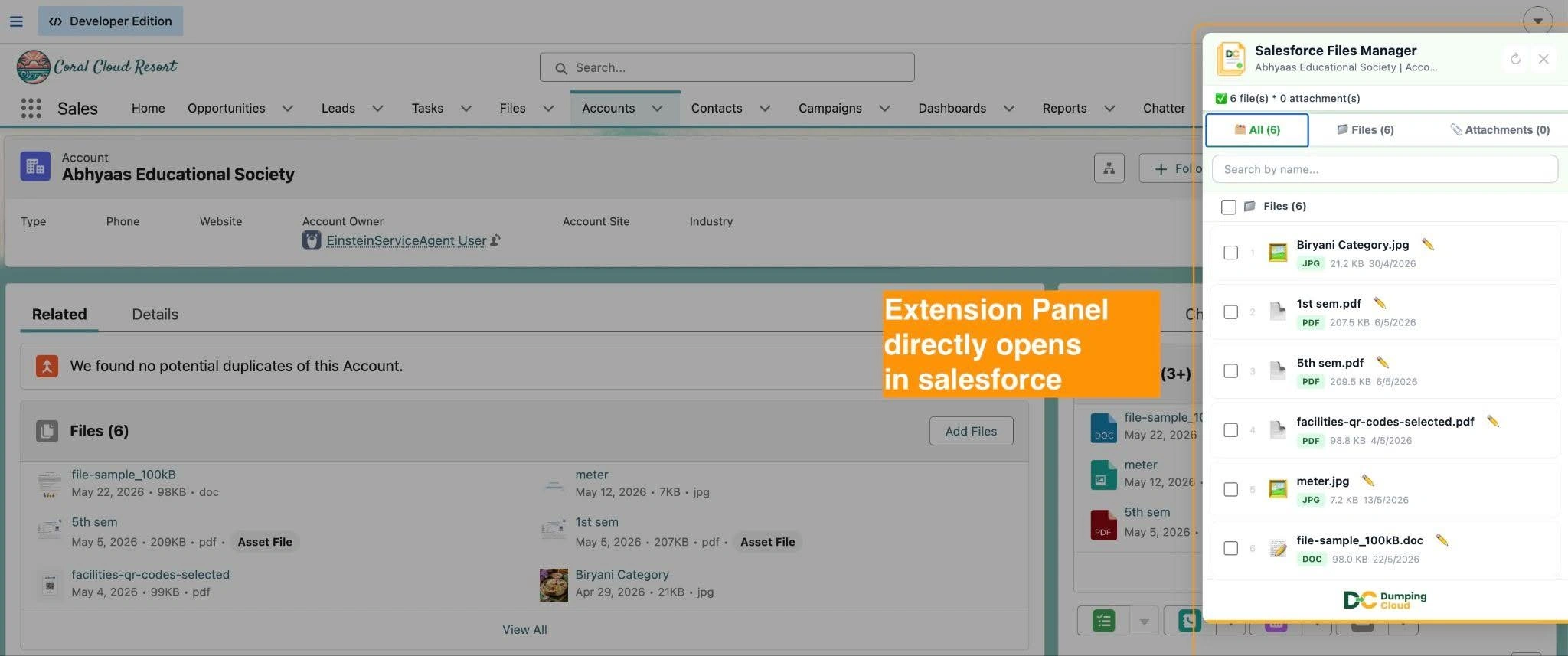
The extension panel will open and automatically load all files and attachments associated with the current record.
02
Step 2
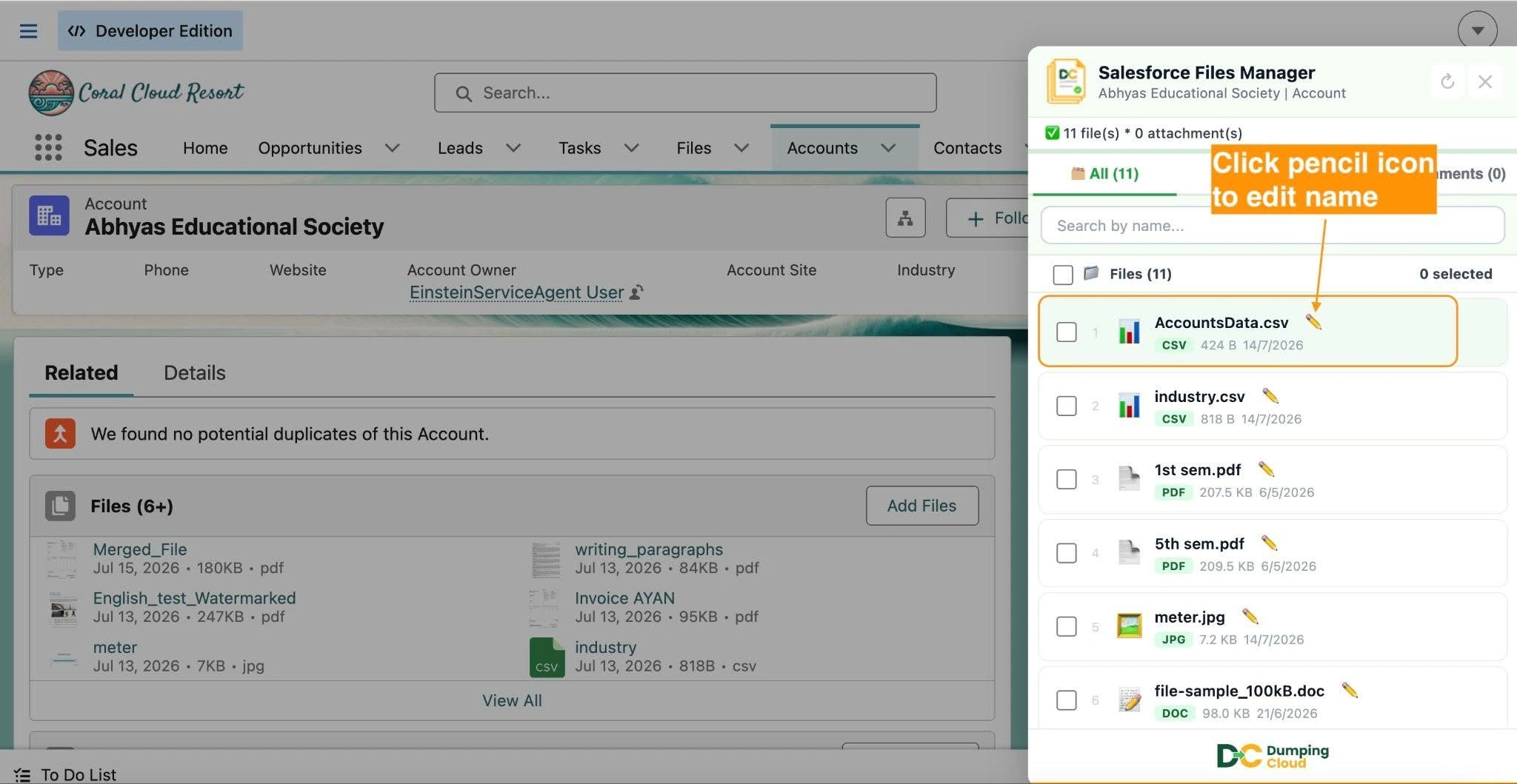
Locate the File and Click the Rename (Edit) Icon
Find the file you wish to rename in the extension panel. Click the edit / pencil icon next to the file name to activate the inline rename field.
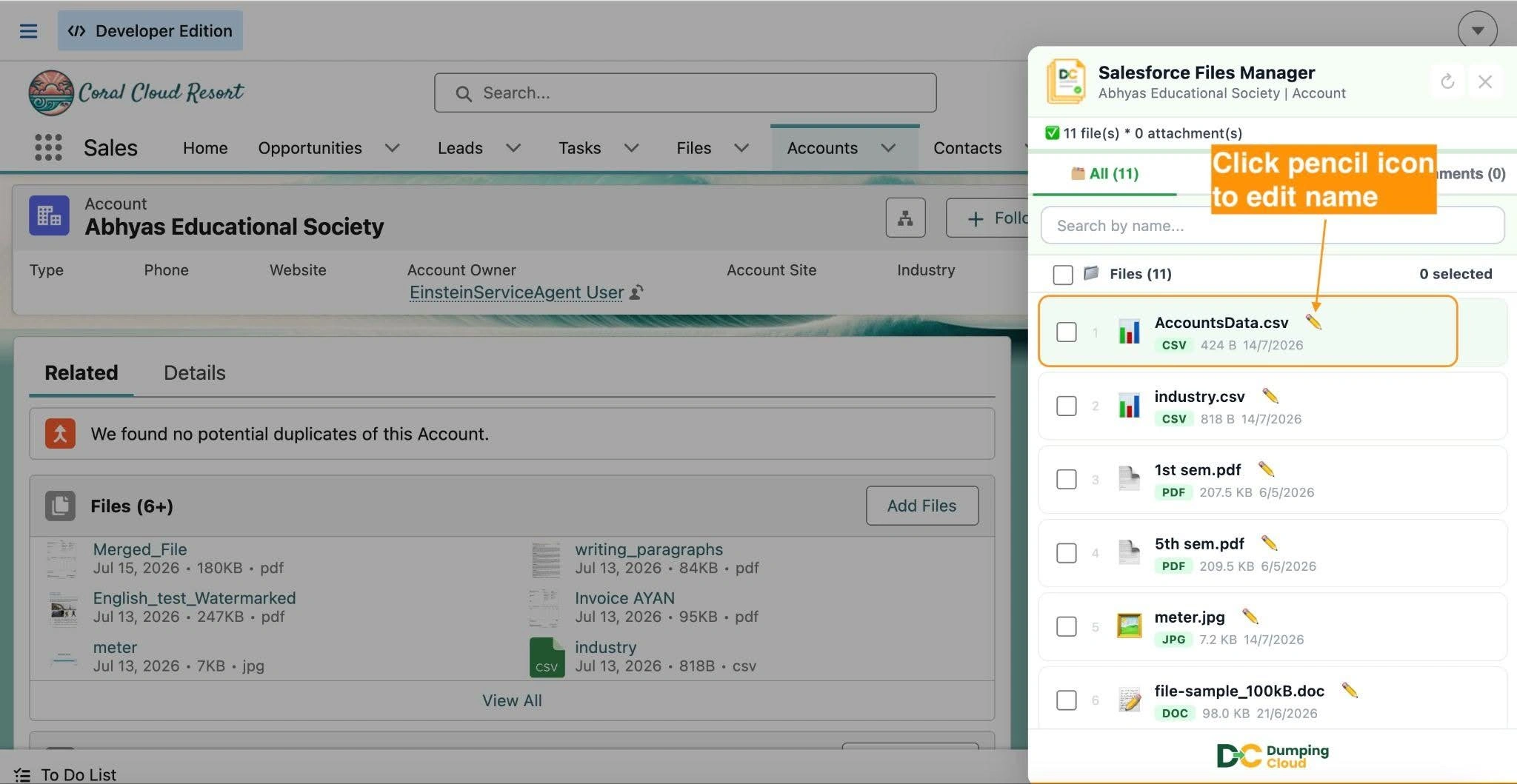
The file name will become an editable text field directly within the panel row.
03
Step 3
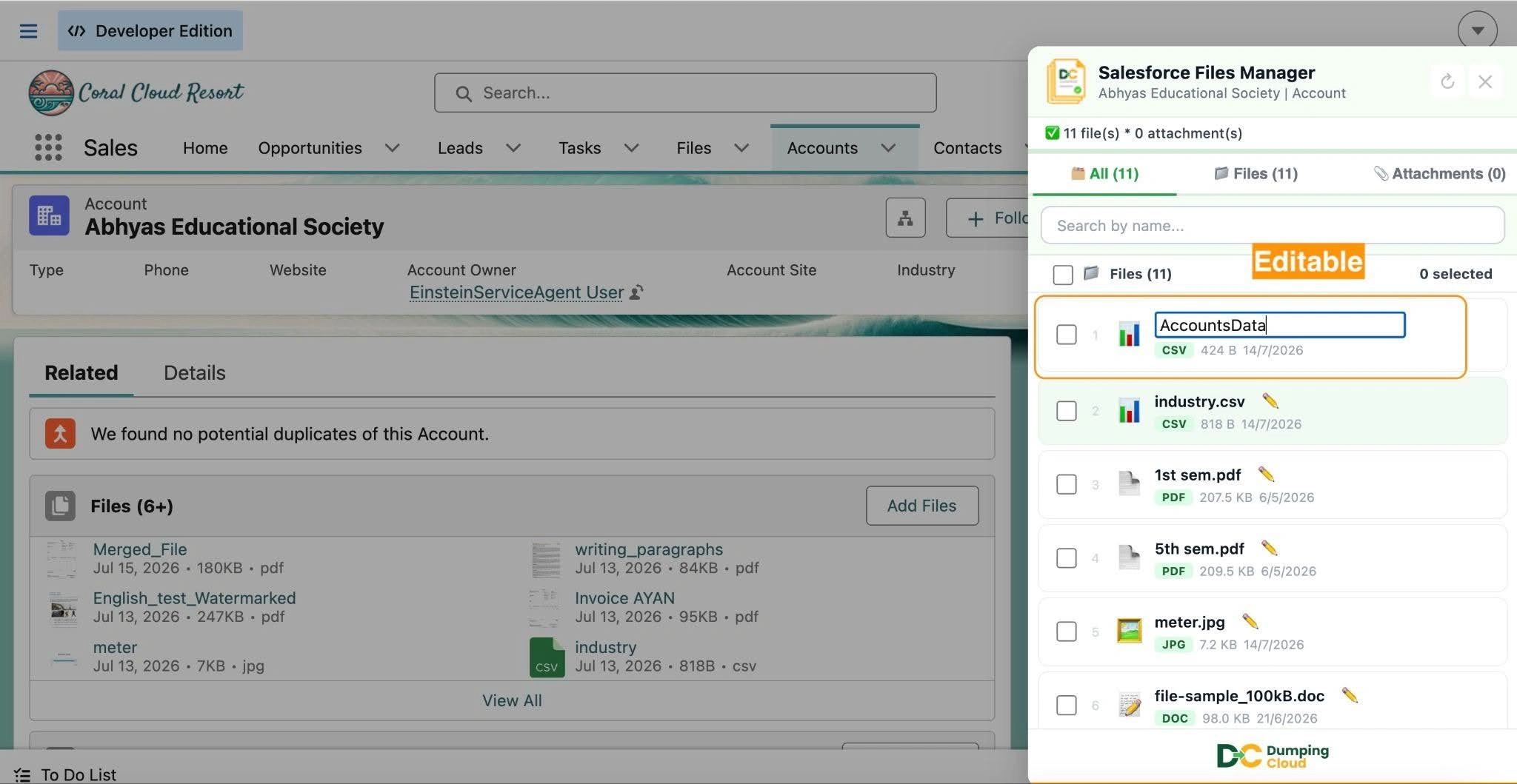
Enter the New File Name
Clear the existing name and type the new file name. Ensure the name is accurate and follows your organisation’s naming conventions before proceeding.
04
Step 4
Save the New Name
Press Enter to the text field to apply the new name.
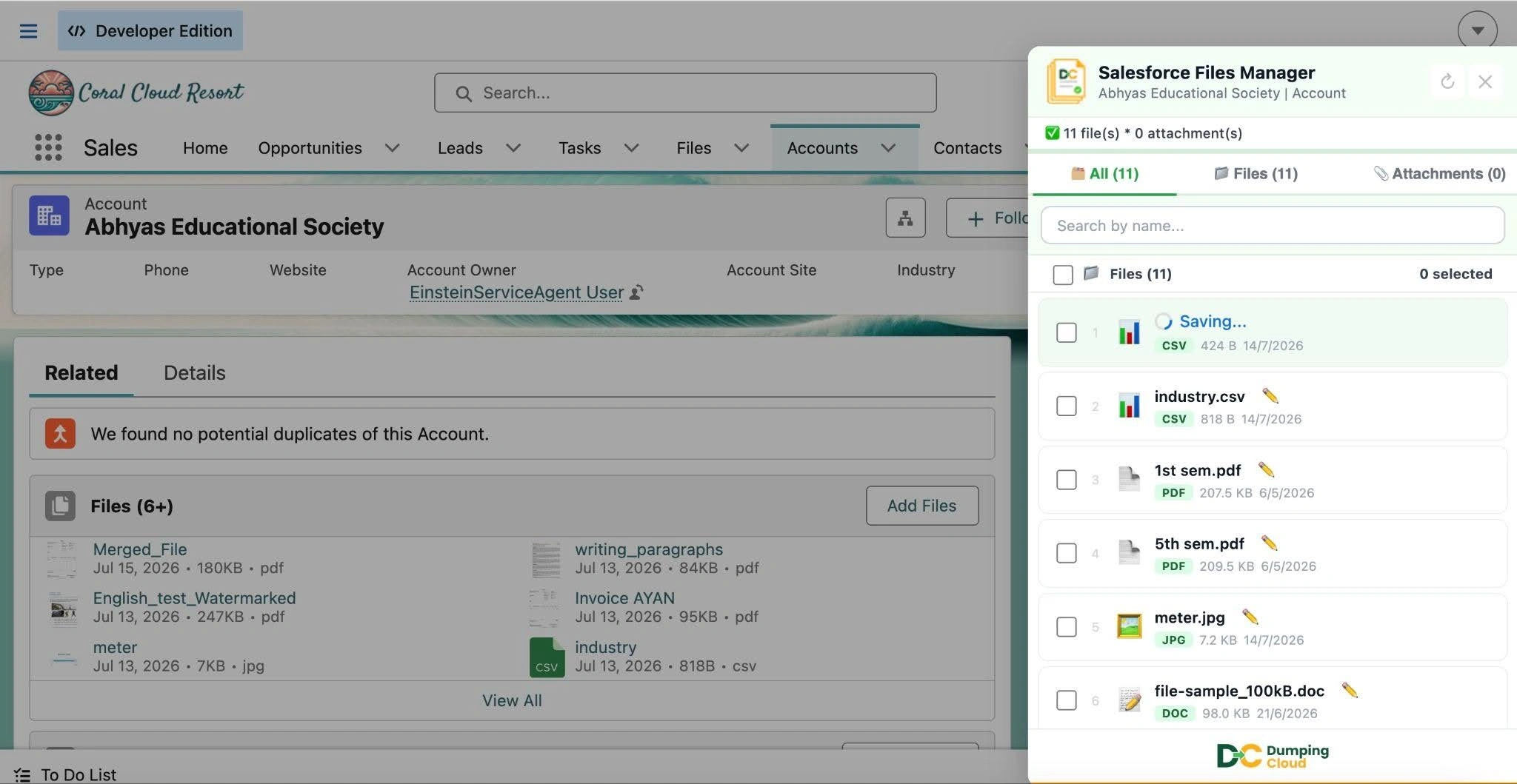
The file list will update immediately to reflect the renamed file.
Feature 2: Bulk Rename — Apply Naming Patterns Across Multiple Files at Once
When to Use Bulk Rename
Use Bulk Rename when you need to:
- Rename multiple files on a record simultaneously
- Apply a consistent prefix, suffix, or naming pattern across a set of files
- Standardize file names as part of a batch operation or migration cleanup
01
Step 1
Navigate to the Record and Open the Extension
Open Google Chrome, log in to your Salesforce Org, and navigate to the record containing the files you want to rename. Click the Salesforce Files Manager icon to open the extension panel.The extension automatically detects your active Salesforce session. No additional login is required.
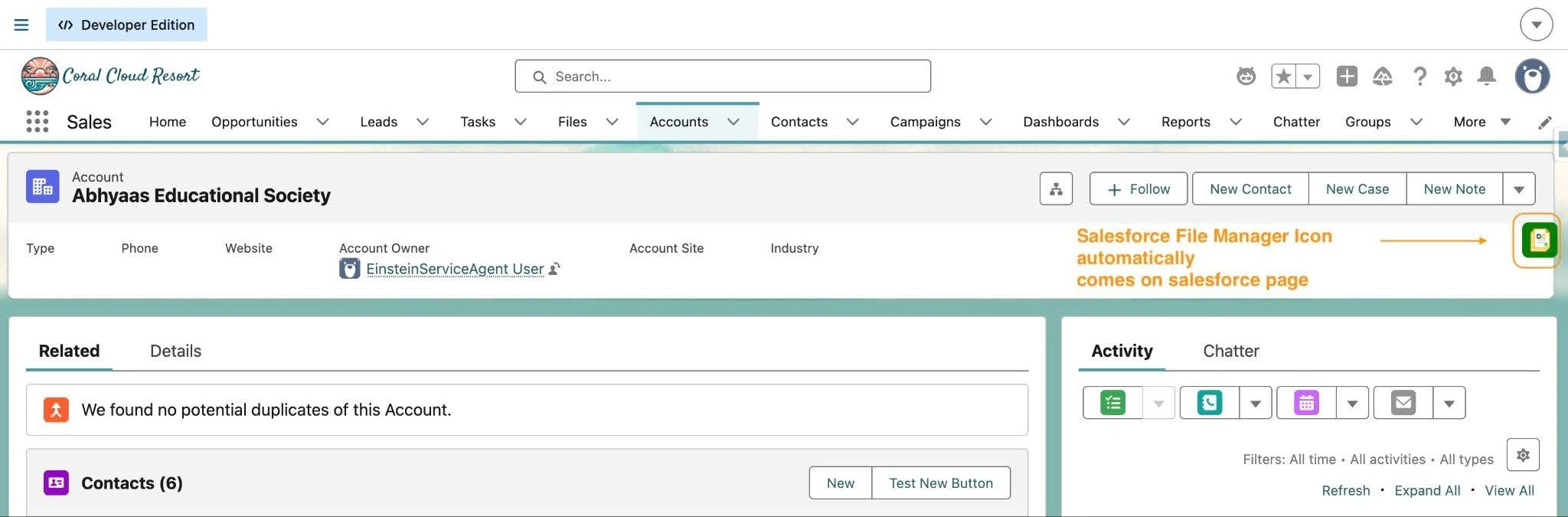
The extension panel will open and automatically load all files and attachments associated with the current record.
02
Step 2
Select the Files to Rename
Click the checkboxes next to each file you want to include in the bulk rename operation. Use “Select All” to select every file on the record at once.
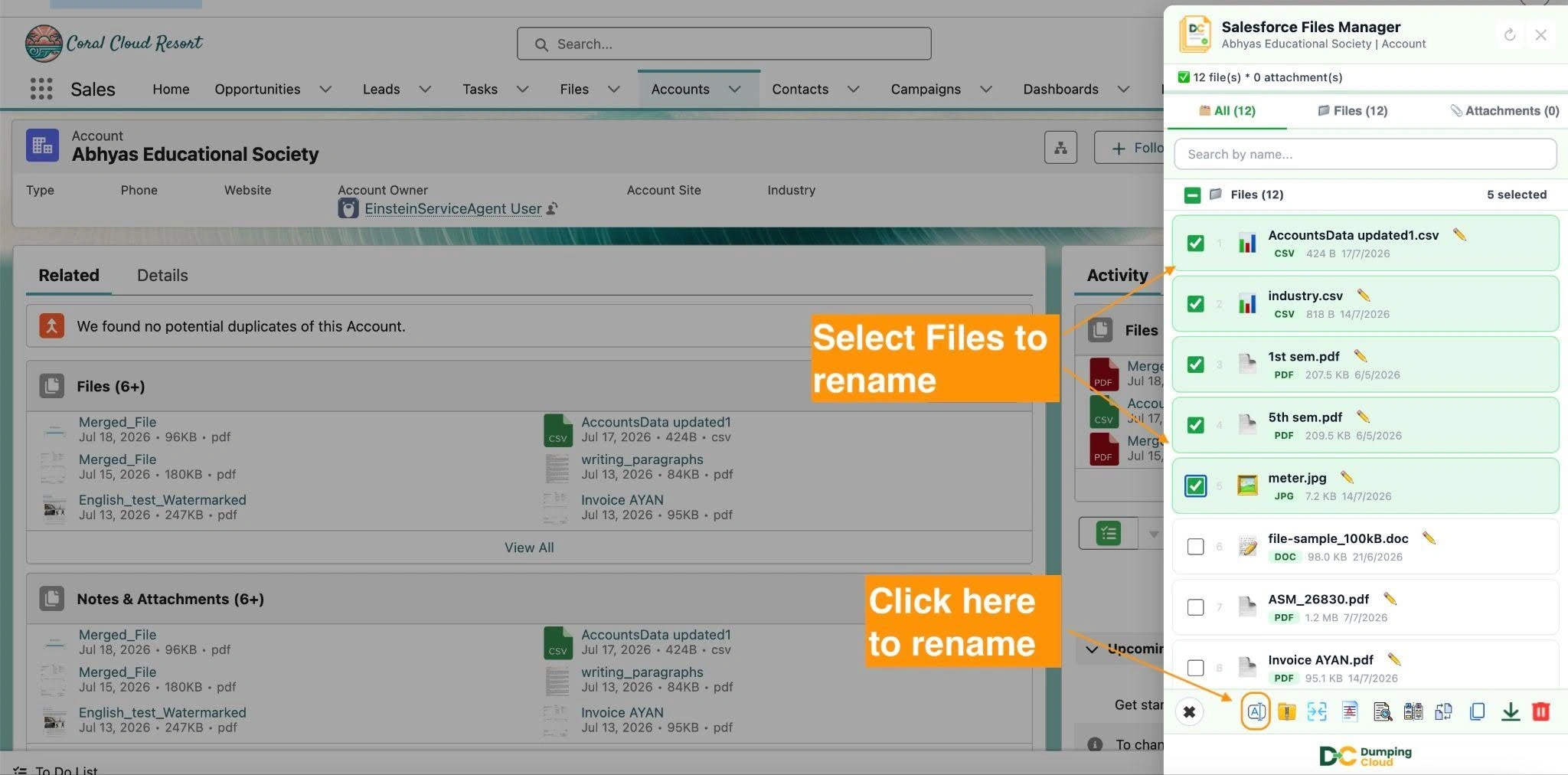
Click the “Bulk Rename” button – With your files selected, click the “Bulk Rename” button in the extension panel action bar. The Bulk Rename configuration panel will open.
03
Step 3
Define Your Naming Pattern
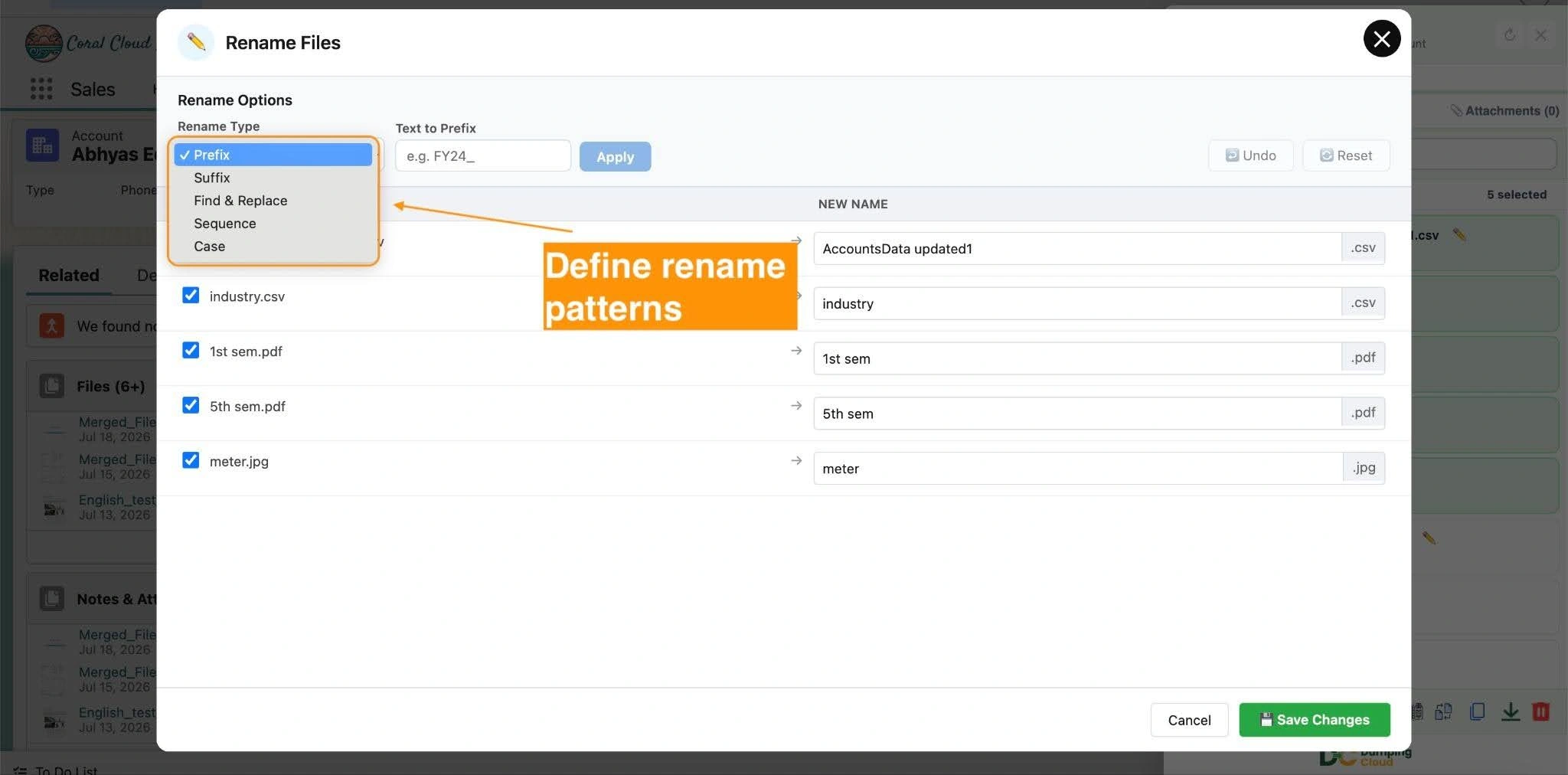
In the Bulk Rename configuration panel, define the naming pattern you want to apply.
04
Step 4
Options typically include:
- Prefix — Text to add before the existing or new file name (e.g., “CONTRACT_”, “2026_”)
- Suffix — Text to add after the file name (e.g., “_FINAL”, “_REVIEWED”)
- Replace — Find and replace specific text within existing file names
- Sequential numbering — Automatically append a number to each file name (e.g., “Invoice_001”, “Invoice_002”)
- Full rename with pattern — Replace all selected file names with a defined pattern applied consistently across the set
05
Step 4
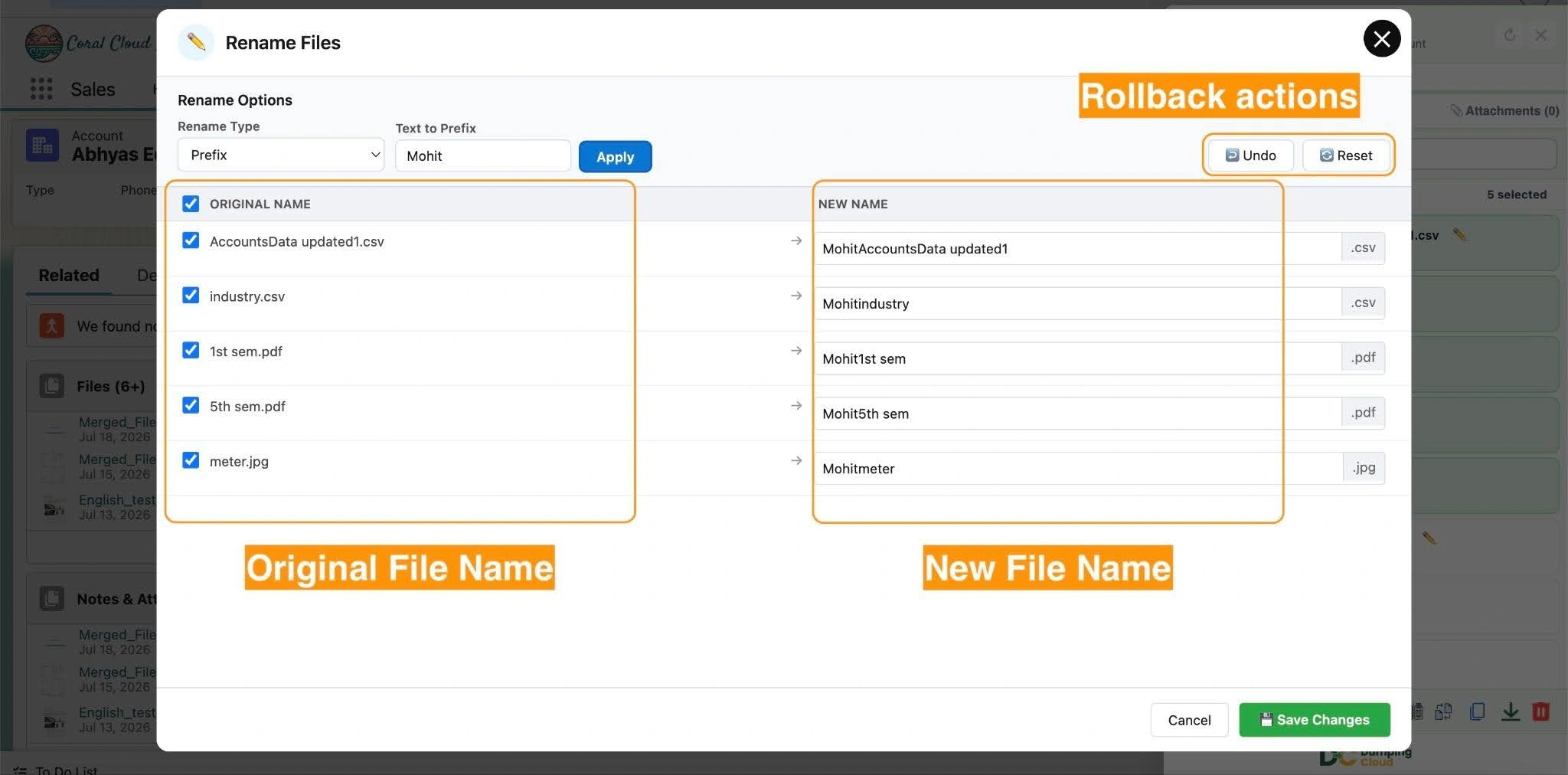
Preview the Renamed Files
Before applying, review the live preview of how each selected file will be renamed based on the pattern you have defined. Verify the output names are correct for all selected files.
06
Step 5
Confirm the Bulk Rename
Once satisfied with the preview, click “Apply Rename” to execute the operation. The extension will rename all selected files simultaneously and display a success confirmation.
07
The extension panel file list will refresh automatically, displaying all files with their new names. Navigate to the Files related list on the Salesforce record to confirm the updated names are reflected in the Org.
Key Advantages Over Native Salesforce
| Capability | Native Salesforce | Salesforce Files Manager |
|---|---|---|
| Rename a single file | ✅ Via file detail page only | ✅ Inline, directly in the panel |
| Rename multiple files at once | ❌ Not supported | ✅ Supported |
| Apply naming patterns / prefixes / suffixes | ❌ Not supported | ✅ Supported |
| Sequential numbering across files | ❌ Not supported | ✅ Supported |
| Preview before applying | ❌ Not available | ✅ Live preview |
| Requires navigating to file detail page | ✅ Required | ❌ Not required |
Install Salesforce Files Manager
👉 Try DumpingCloud — on your favorite browser
Ready to manage Salesforce Files faster?
Download, move, rename, merge, split, convert, compare, and manage your Salesforce Files — without leaving Salesforce.

Frequently Asked Questions
Can I undo a bulk rename?
There is no one-click undo within the extension. However, since file content and associations are unaffected, you can run another Bulk Rename operation to revert to previous names if you have them recorded — or use the inline rename to correct individual files.
Can I use the same naming pattern across multiple records?
Yes, Bulk Rename operates on the files within a record and object. To apply the same naming pattern across multiple records, open the object and rename the files for multiple records within that object.
Do I need special permissions to rename files?
You need sufficient Salesforce permissions to edit the files on the relevant record. The extension respects your existing Salesforce profile and sharing rules.
Can I rename files and include Salesforce field values in the name — for example, the Account Name or Record ID?
The current Bulk Rename feature supports manual patterns including prefixes, suffixes, and sequential numbering. Dynamic field-based naming (inserting Salesforce record field values automatically) is a feature to explore in future extension updates.