
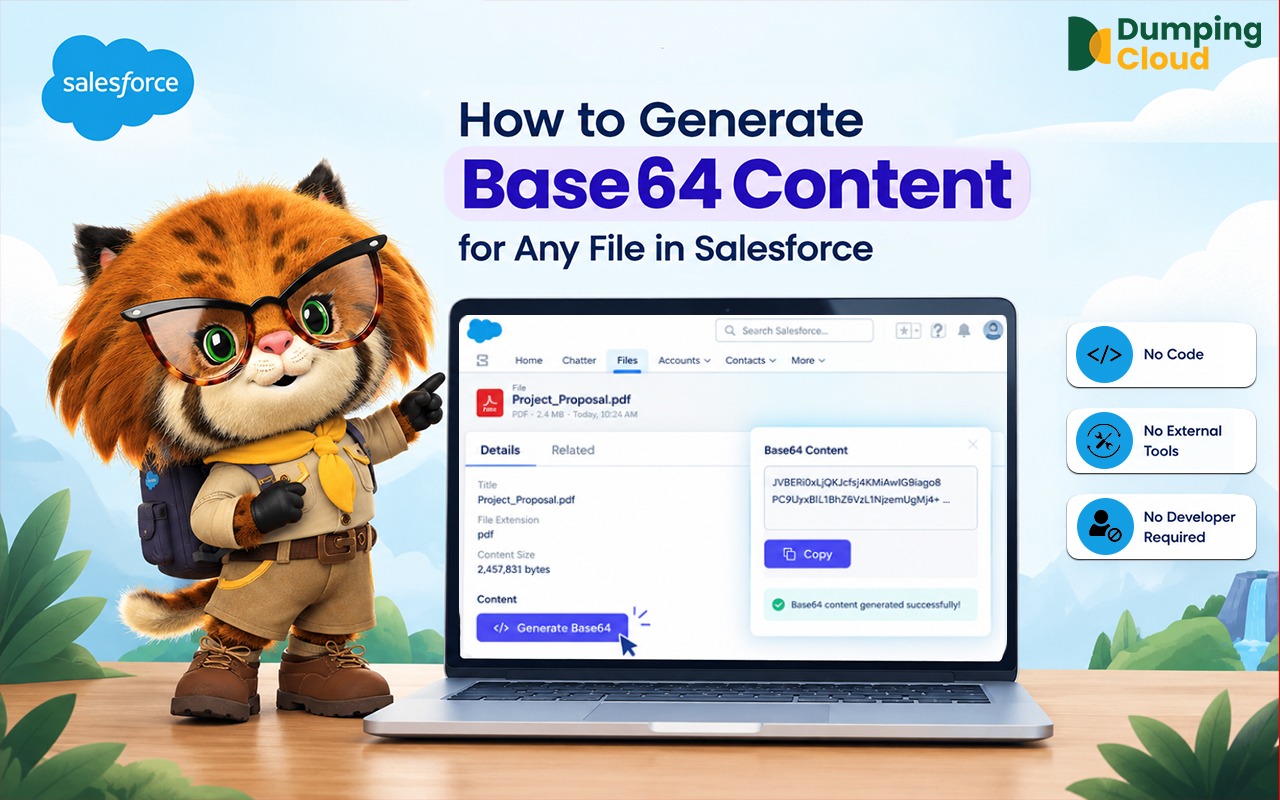
Base64 has always been a developer-only capability in Salesforce hidden behind Apex queries, external tools, and technical knowledge that most users do not have.
The Generate Base64 feature in Dumping Cloud — Salesforce File Manager changes that. Select any file or multiple files click Generate Base64, and the encoded content is in your hands in seconds. Copy it to your clipboard for immediate use, or save it as a file on the record for future reference. No code. No external tools. No developer required.
Whether you are a developer speeding up your workflow, an admin enabling an integration, or a non-technical user responding to a developer’s request — Base64 generation is now as simple as any other file operation in Dumping Cloud.
Quick Answer
Dumping Cloud lets Salesforce users generate Base64 content from any Salesforce File or Attachment in seconds without Apex, SOQL, or external encoding tools. Select one or multiple files, click Generate Base64, then copy the encoded content to your clipboard or save it as a `.txt` file directly to the Salesforce record.
What Is Base64 — And Why Should Salesforce Users Care?
If you have never heard of Base64, you are not alone. It sounds technical. It lives in developer documentation. And for most Salesforce users, it has always been something that only developers deal with.
But here is the reality: Base64 affects more people in a Salesforce Org than most realise — and until now, getting it required writing code, using external tools, or raising a request with a developer.
In plain terms, Base64 is a way of converting any file — a PDF, an image, a Word document, a spreadsheet — into a long string of plain text characters. That text string is a complete, encoded representation of the file’s content. It can be passed around in emails, embedded in code, sent through APIs, stored in text fields, and used in ways that a regular file cannot be.
In Salesforce specifically, Base64 is used in more places than most users realise:
- Sending files through API integrations with external systems
- Embedding images or documents inside Lightning components
- Attaching files to records programmatically without file upload dialogs
- Passing file content to external platforms, payment gateways, document management systems, and signature tools
- Testing and validating file-based workflows during development
- Storing file content in text fields or custom metadata for reference purposes
Every time any of the above happens in your Org, Base64 is involved. And every time a developer or admin needed the Base64 content of a specific Salesforce file, they had to write code, make an API call, or use an external encoder — taking them completely outside the platform to do something that should be a one-click operation.
What the Generate Base64 Feature Does
The Generate Base64 feature in Dumping Cloud allows you to select any file — or multiple files — stored on a Salesforce record and instantly generate the complete Base64 encoded content for each file, directly inside the extension panel.
No Apex. No API calls. No external encoding tools. No copying files to a desktop converter.
Once generated, you have two options for what to do with the Base64 content:
Option 1 — View and Copy in Panel
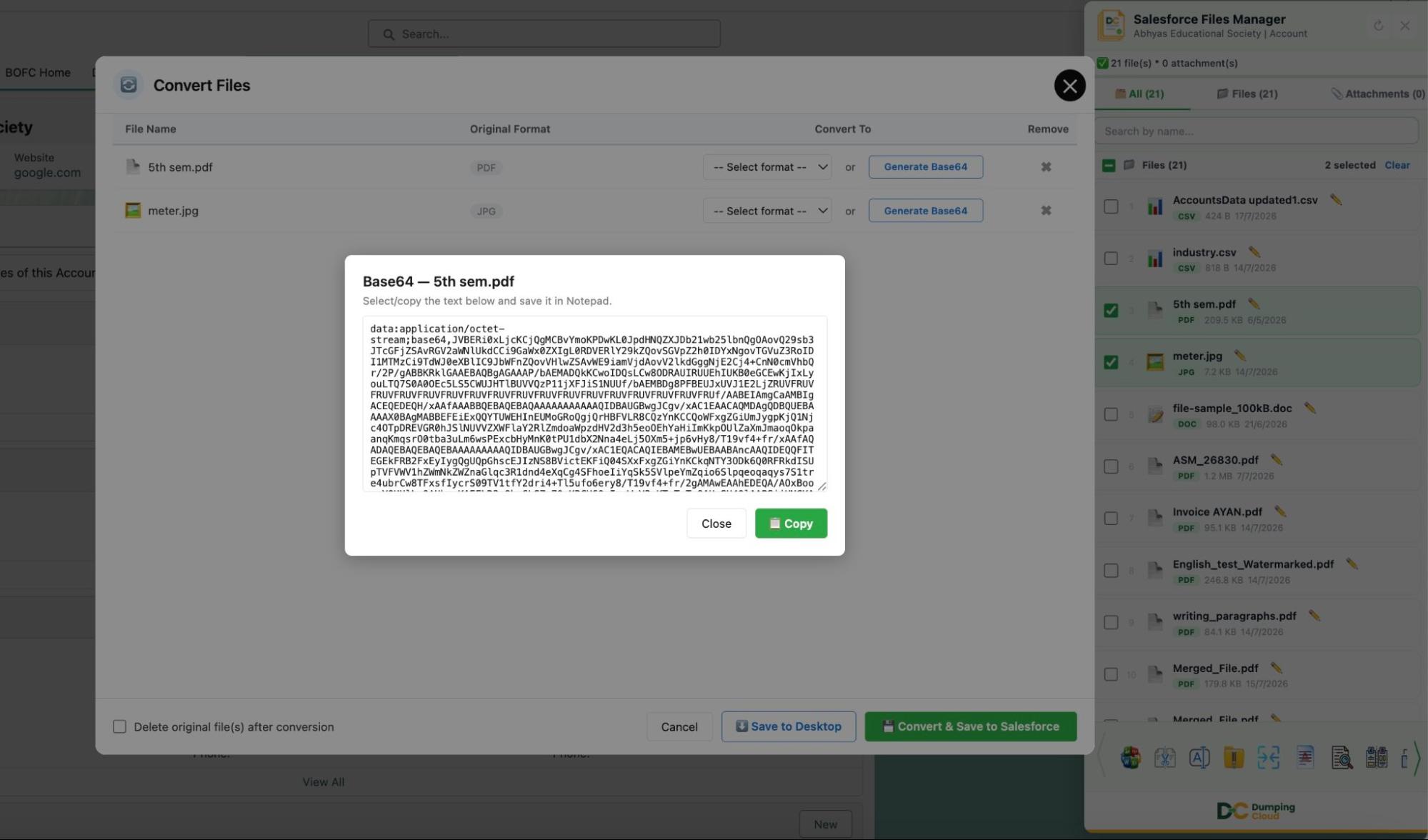
The Base64 string is displayed directly inside the Dumping Cloud panel. A single click on the Copy to Clipboard button copies the entire encoded string — ready to paste into Apex code, a REST payload, a Lightning component, a JSON body, or any other destination that requires it.
Option 2 — Save as a File on the Salesforce Record
The Base64 string is saved as a .txt file directly on the same Salesforce record. It appears in the Files related list alongside the original file and can be accessed, downloaded, or shared by any authorised user at any time — without needing to regenerate it.
Both options are available for every file, and both can be used in a single operation if needed.
Supported File Types
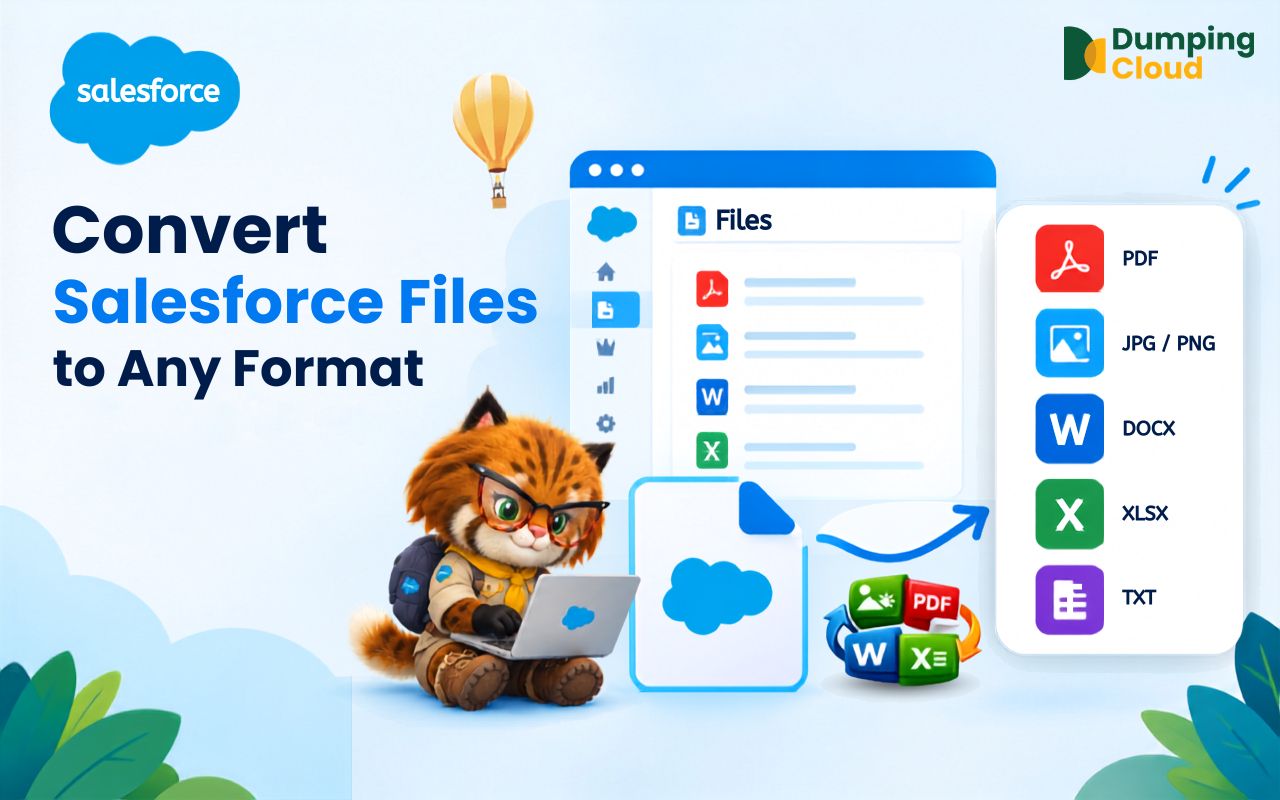
The Generate Base64 feature works on every file type that can be stored in Salesforce Files:
- PDFs — the most common use case for API integrations and document workflows
- Images (JPG, PNG, GIF, SVG) — for inline display in Lightning components or external platforms
- Word Documents (.docx) — for passing document content to external systems
- Excel Spreadsheets (.xlsx) — for financial data integrations
- PowerPoint Presentations (.pptx) — for slide content in external platforms
- Text Files (.txt, .csv) — for data transfer and integration payloads
- Any other file type stored in Salesforce Files
Step-by-Step: How to Generate Base64 Using Dumping Cloud
Prerequisites
- Dumping Cloud — Salesforce File Manager is installed in your browser from the appropriate browser extension store.
(Install here) - Logged into your Salesforce Org in the same browser
- Sufficient Salesforce permissions to view the files on the target record
Follow these simple steps to Convert files using Salesforce File Manager
01
Step 1
Navigate to the Record and Open the Extension
Open Google Chrome and log in to your Salesforce Org. Navigate to the record containing the file(s) for which you want to generate Base64 content.
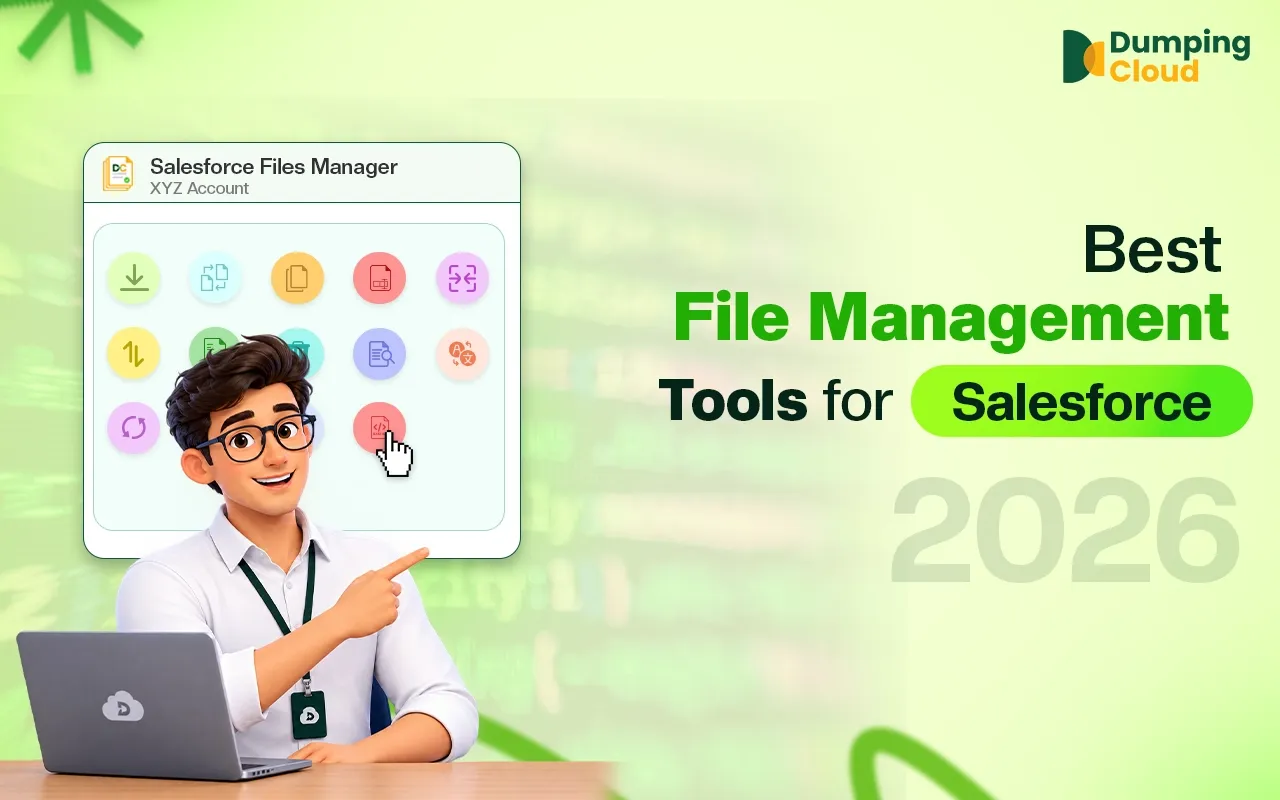
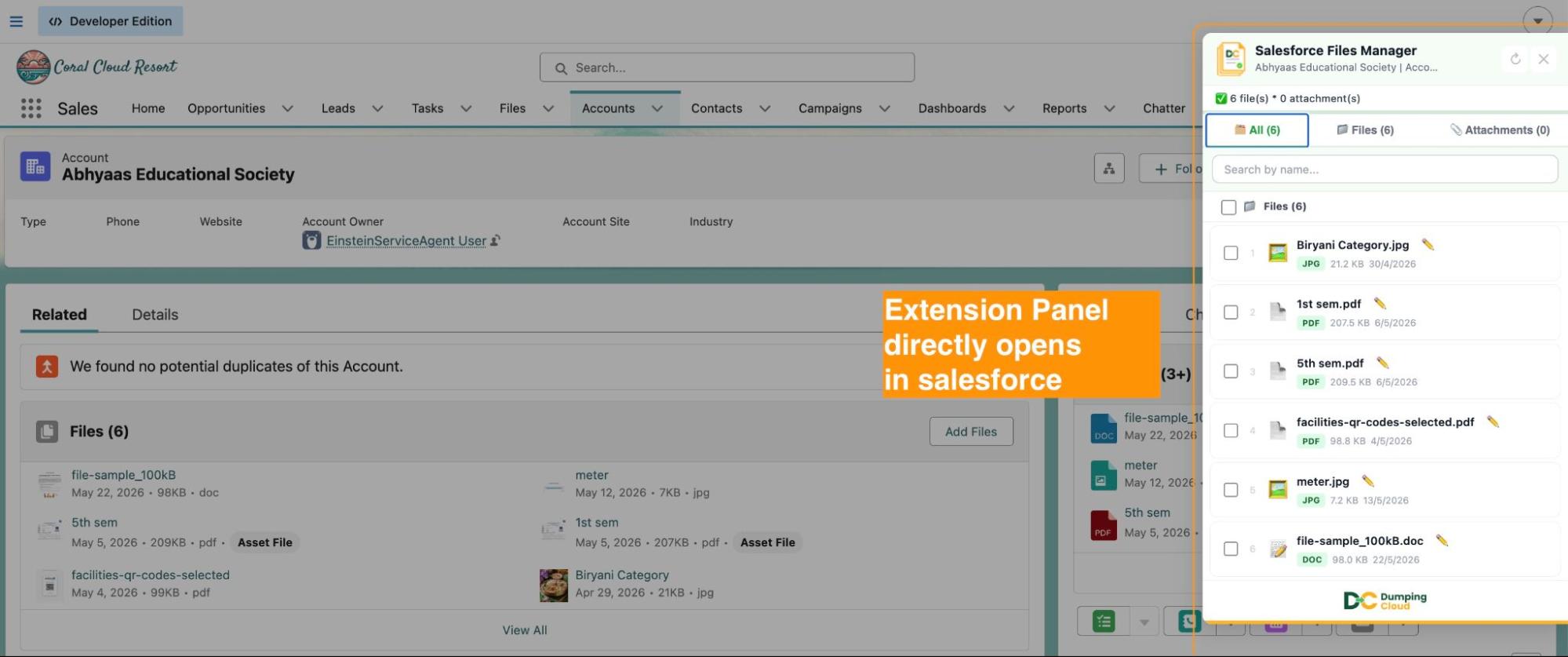
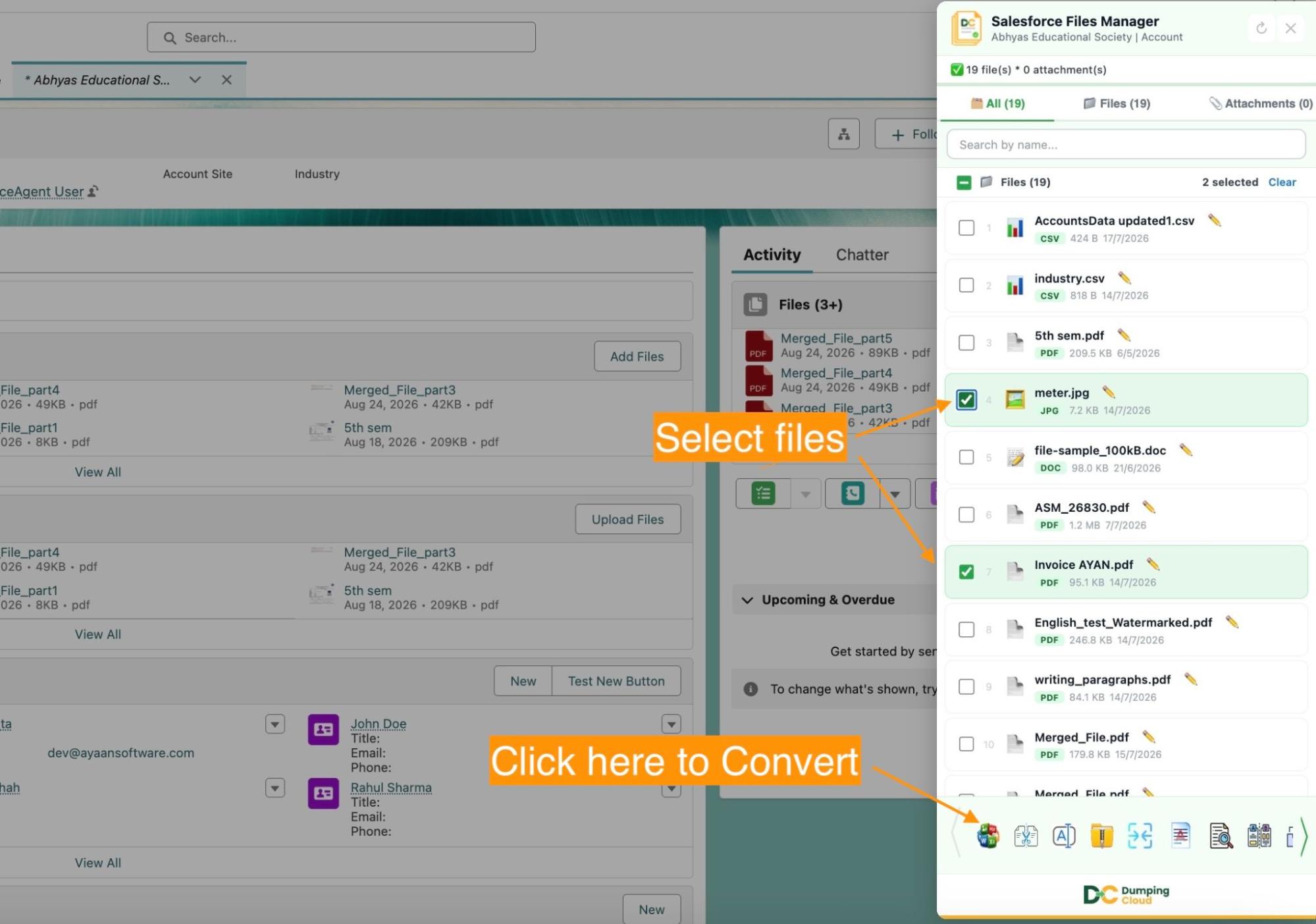
Click the Dumping Cloud — Salesforce File Manager icon in your Chrome toolbar to open the extension panel. The panel will load all files associated with the current record.
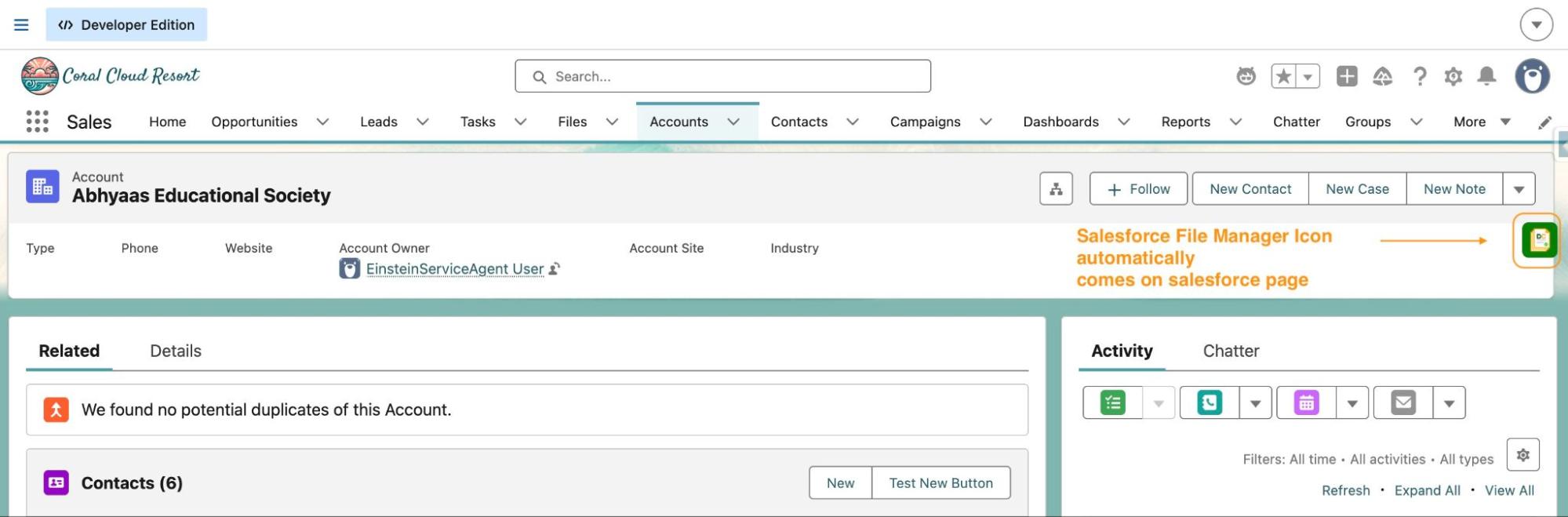
The extension panel will open and automatically load all files and attachments associated with the current record.
02
Step 2
Select the File(s)
For a single file: Click the checkbox next to the specific file you want to encode.
For multiple files: Click the checkboxes next to each file you want to include. Use “Select All” to select every file on the record in one action.
03
Step 3
Click the “Convert” button
Click the Convert button in the action bar. The conversion configuration panel will open.
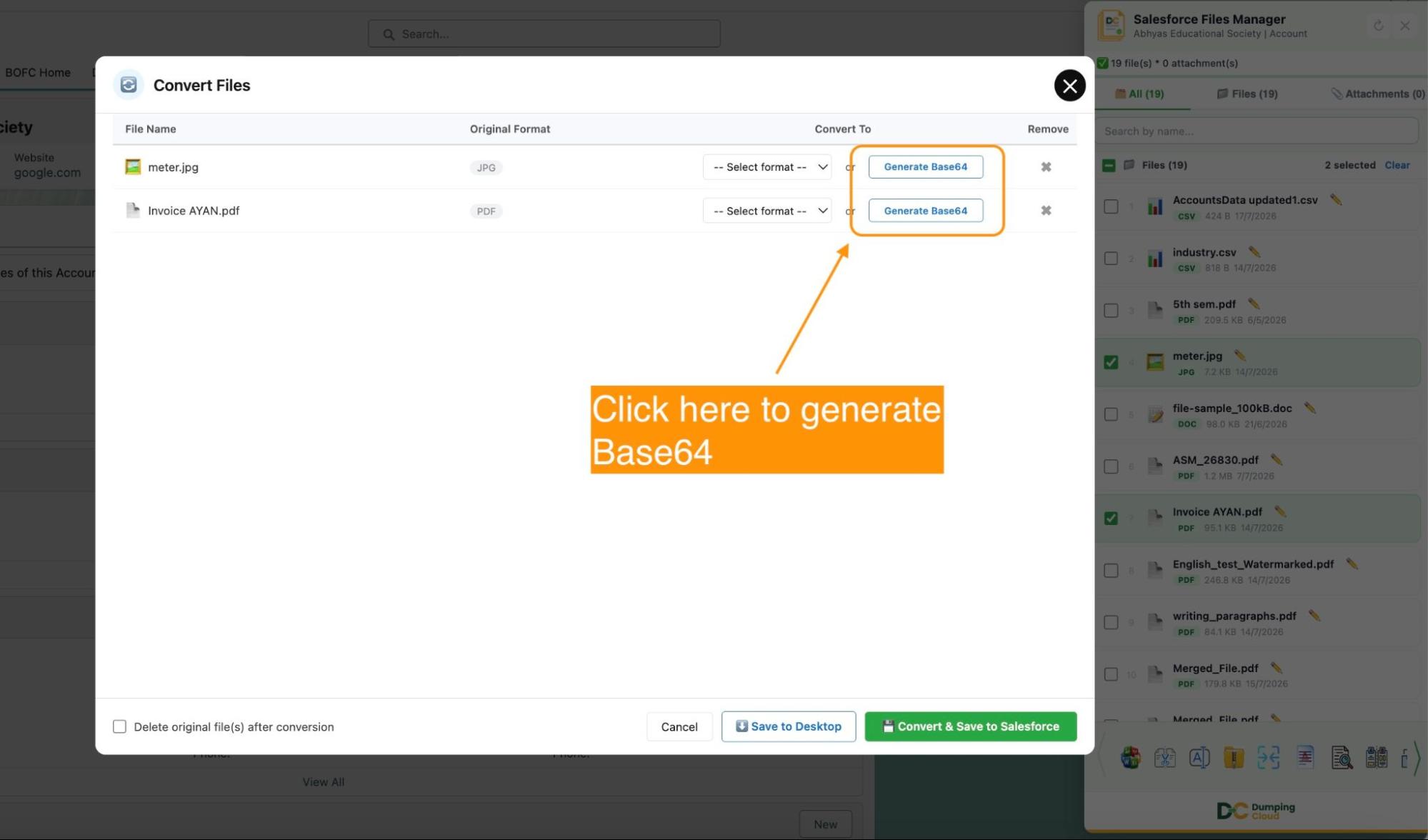
Click “Generate Base64”
With your file(s) selected, click the “Generate Base64” button in the extension action bar.
NOTE: Dumping Cloud will process each selected file and produce the complete Base64 encoded string for each one. For larger files, a brief progress indicator will display during encoding.
04
Step 4
Copy or Save the Base64 Content
The Base64 result panel will open, displaying the encoded content for each selected file.
To copy: Click the “Copy to Clipboard” button next to the file. The complete Base64 string is copied instantly — ready to paste directly into Apex code, a REST body, a Flow variable, a JSON payload, or any other destination.
To save: Click the “Save as File” button. The Base64 string is saved as a .txt file on the same Salesforce record, named after the original file for easy identification.
To do both: Use Copy first, then Save as File — both actions are independent and can be performed on the same result.
05
Step 5
Use the Base64 Content
The Base64 string you have copied or saved is now ready for use in whatever context you need:
- Paste it into Apex code for
EncodingUtil.base64Decode() - Add it to a REST API payload body
- Use it in a Lightning Web Component
data:URI - Pass it to a Flow HTTP callout input variable
- Share it with a developer or integration partner
- Reference the saved
.txtfile from the Salesforce record in an automated workflow
Key Advantages Over the Manual Approach
| Capability | Manual / Code-Based | Dumping Cloud |
|---|---|---|
| Generate Base64 for a Salesforce file | Write Apex SOQL query + encoding | ✅ One click — no code |
| Generate Base64 for multiple files | Separate query per file | ✅ Select all — one operation |
| Copy Base64 to clipboard | Write retrieval code, print to log | ✅ Copy button |
| Save Base64 as a file on the record | Write Apex insert code | ✅ Save as File button |
| Access without developer involvement | ❌ Developer required | ✅ Any user with file access |
| Works across all file types | ✅ With correct SOQL | ✅ All file types — automatic |
| Stays within Salesforce | ❌ External encoder often used | ✅ Entirely in-browser |
| Time to generate Base64 | 5–15 minutes (write + run code) | Under 10 seconds |
Ready to manage Salesforce Files faster?
Download, move, rename, merge, split, convert, compare, and manage your Salesforce Files — without leaving Salesforce.

Frequently Asked Questions
Is the Base64 string generated compatible with Salesforce Apex?
Yes. The Base64 string produced by Dumping Cloud is fully compatible with Salesforce's EncodingUtil.base64Decode() method and can be used directly with ContentVersion.VersionData, Attachment.Body, and any other field that accepts Blob data decoded from a Base64 string.
What happens to the original file when Base64 is generated?
Nothing. The Generate Base64 operation is entirely non-destructive and read-only. The original file on the Salesforce record remains completely unchanged. Base64 generation simply reads the file content and produces the encoded representation — it does not modify, move, or delete the original.
How large can files be for Base64 generation?
Base64 encoding increases the size of the content by approximately 33%. For very large files (above 5MB), the Base64 string will be correspondingly large. For files of this size, it is recommended to use the "Save as File" option rather than copying to clipboard, as very large strings may exceed clipboard handling limits in some environments.
Can I generate Base64 for files stored as Attachments as well as Files?
Yes. Dumping Cloud supports both Salesforce Files (ContentDocument) and Attachments stored on records. Base64 can be generated for either type.
If I save the Base64 string as a file on the record, will other users be able to see it?
Yes. The saved .txt file appears in the Files related list on the Salesforce record and is accessible to any user with sufficient permissions to view files on that record — subject to your existing Salesforce sharing rules and profile permissions.