

Salesforce File Management & Storage Costs More Than You Think.
Manage, move & sync files natively in Salesforce & clouds. Save 80%+ on storage.


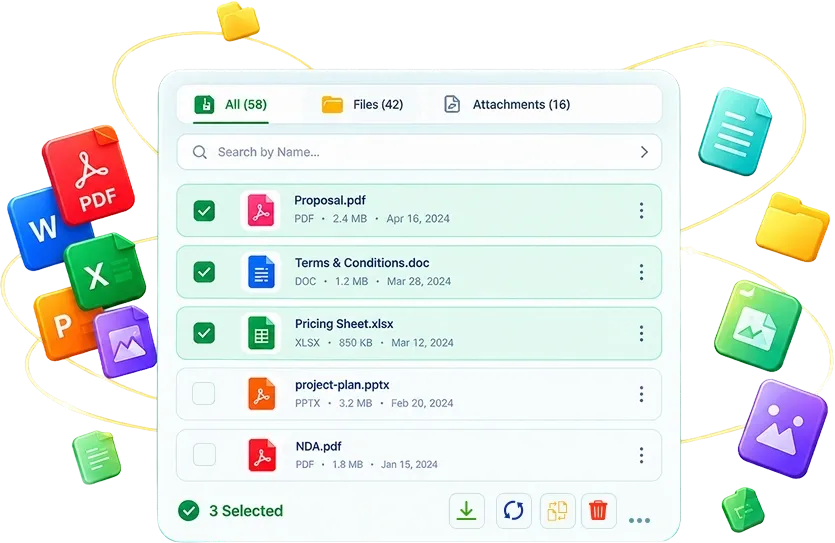
Bulk File Actions
Translation Languages
Salesforce clouds supported
File support Manage
No Login, No Setup
Everything Your Files Need - Across
Salesforce and Cloud Storages
Cloud Sync
Keep your files automatically in sync between Salesforce and your favorite cloud storage, so every team always works on the latest version without manual uploads.

 Preview
 Download
 Compare
 Move
Move
 Copy
Copy
 Rename
 Zip
Zip
Transact
Merge files into clean PDFs, split contracts by page range, apply watermarks, or translate documents into 49 languages right from your Salesforce record.
 Watermark
 Merge
Merge
 Translate
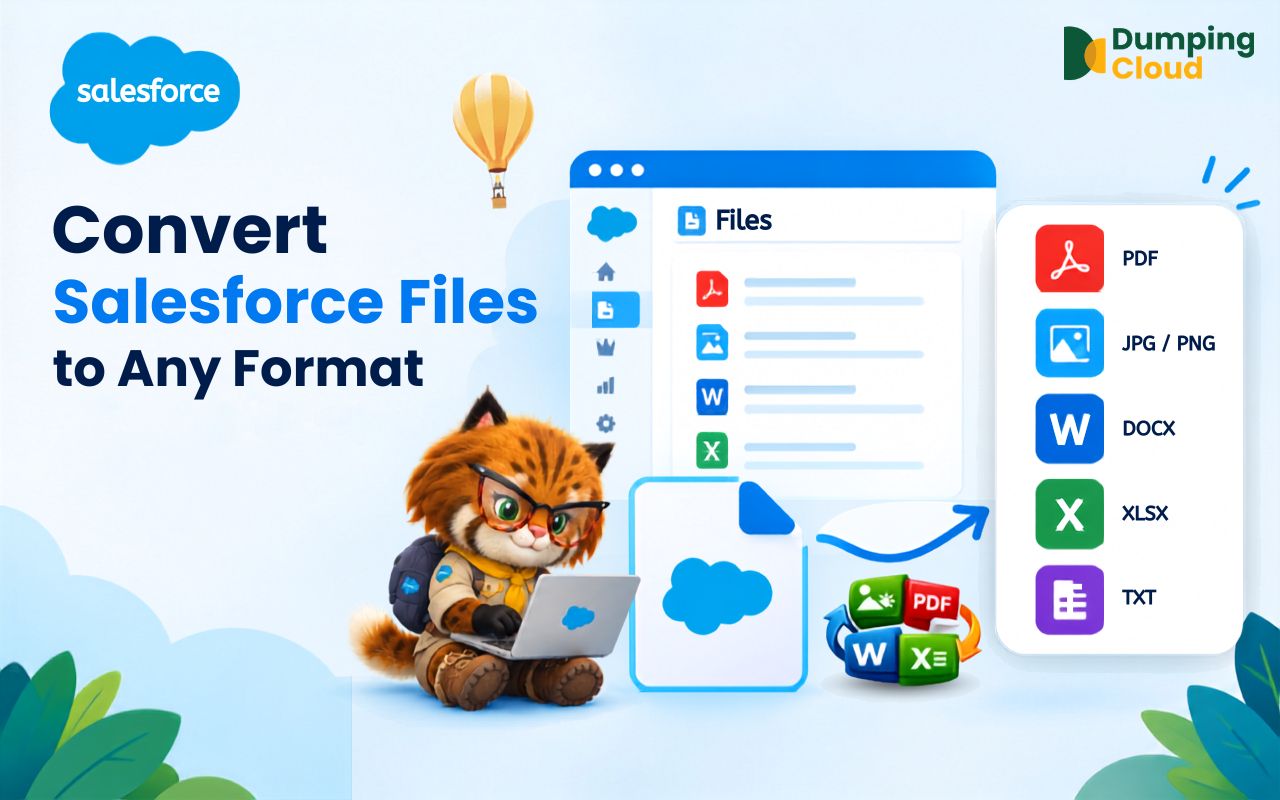
 Conversion
 Delete
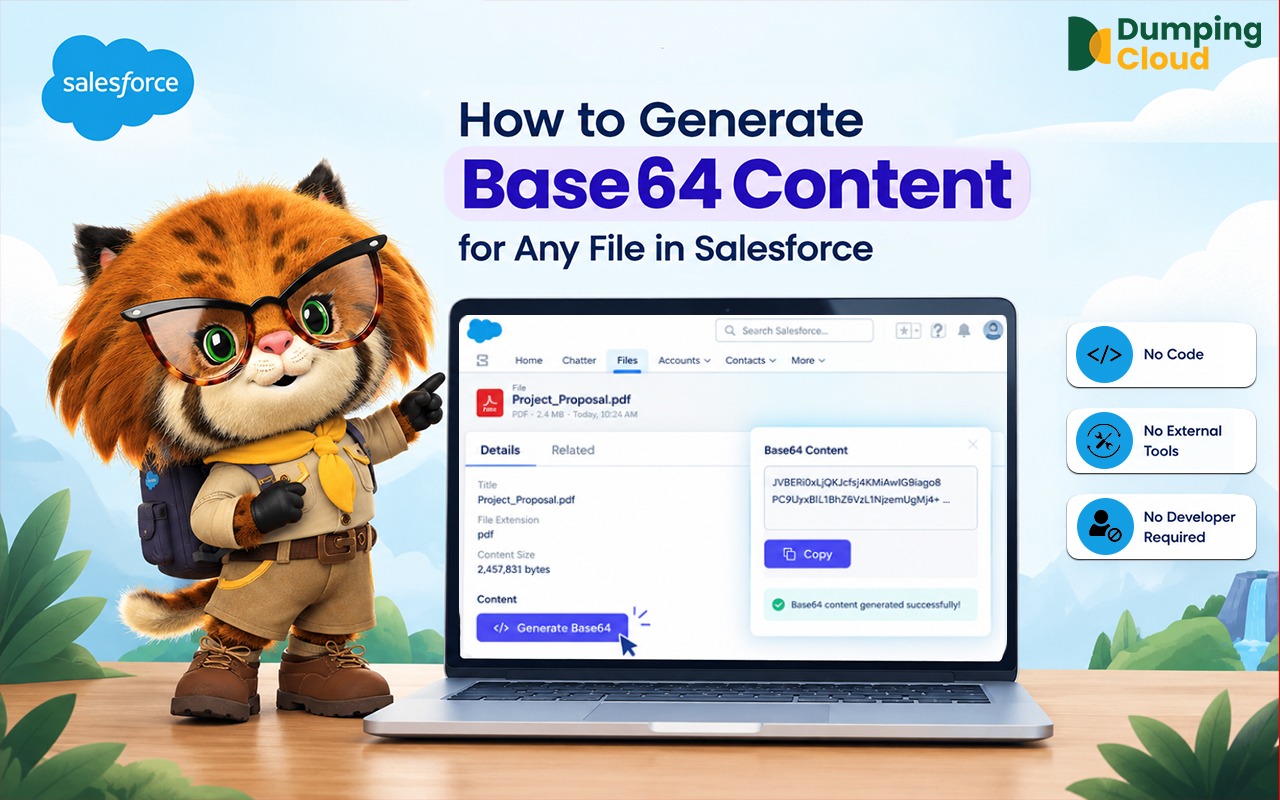
 Generate base64
Transact
Merge, split, watermark, convert, or translate cloud files into 49 languages and save the output back to your storage in just a few clicks.
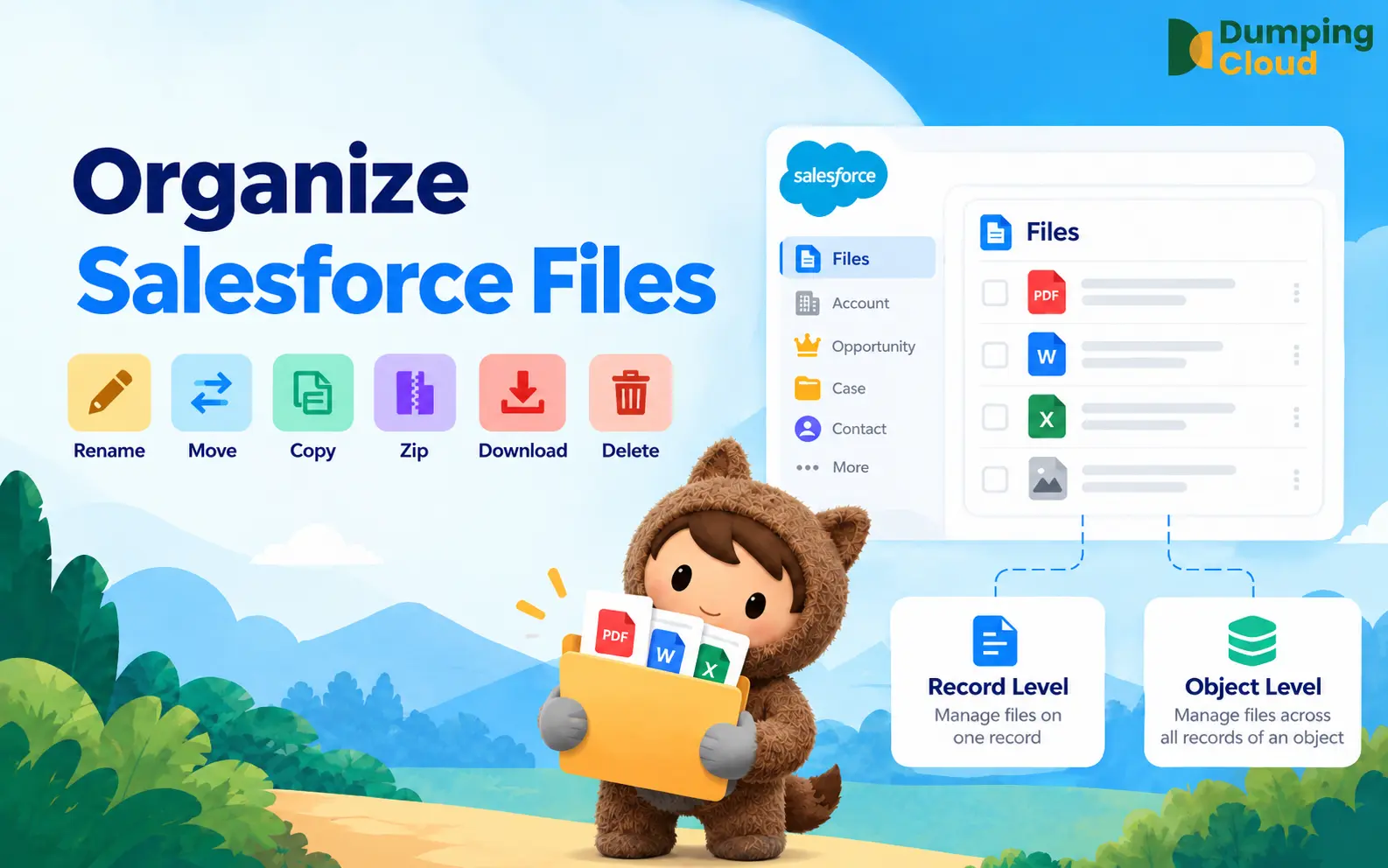
Manage Salesforce Files in Bulk, Natively
With Dumping Cloud Simplify Salesforce file management with secure editing, Bulk download, move, merge, rename, preview, translate, cloud sync, add watermarks, and organize your files, all right inside Salesforce.

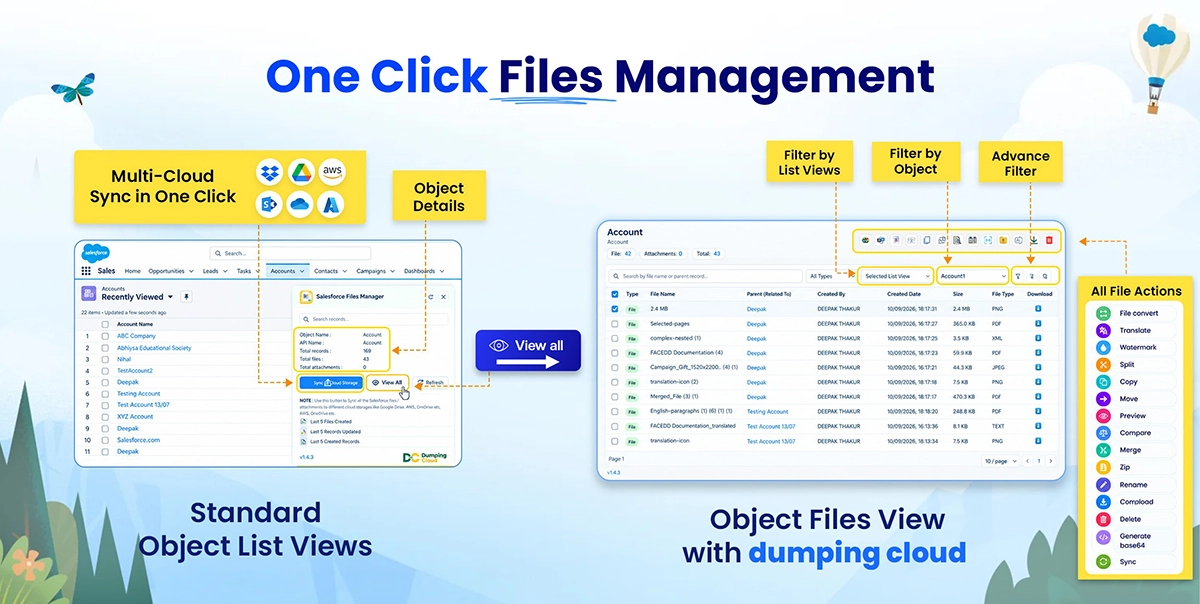
Stop Hunting for tools, We handles it all in Bulk
Every file action below runs natively inside Salesforce object or record page — no downloads, no external tools, just a few clicks.
 Sync
Sync
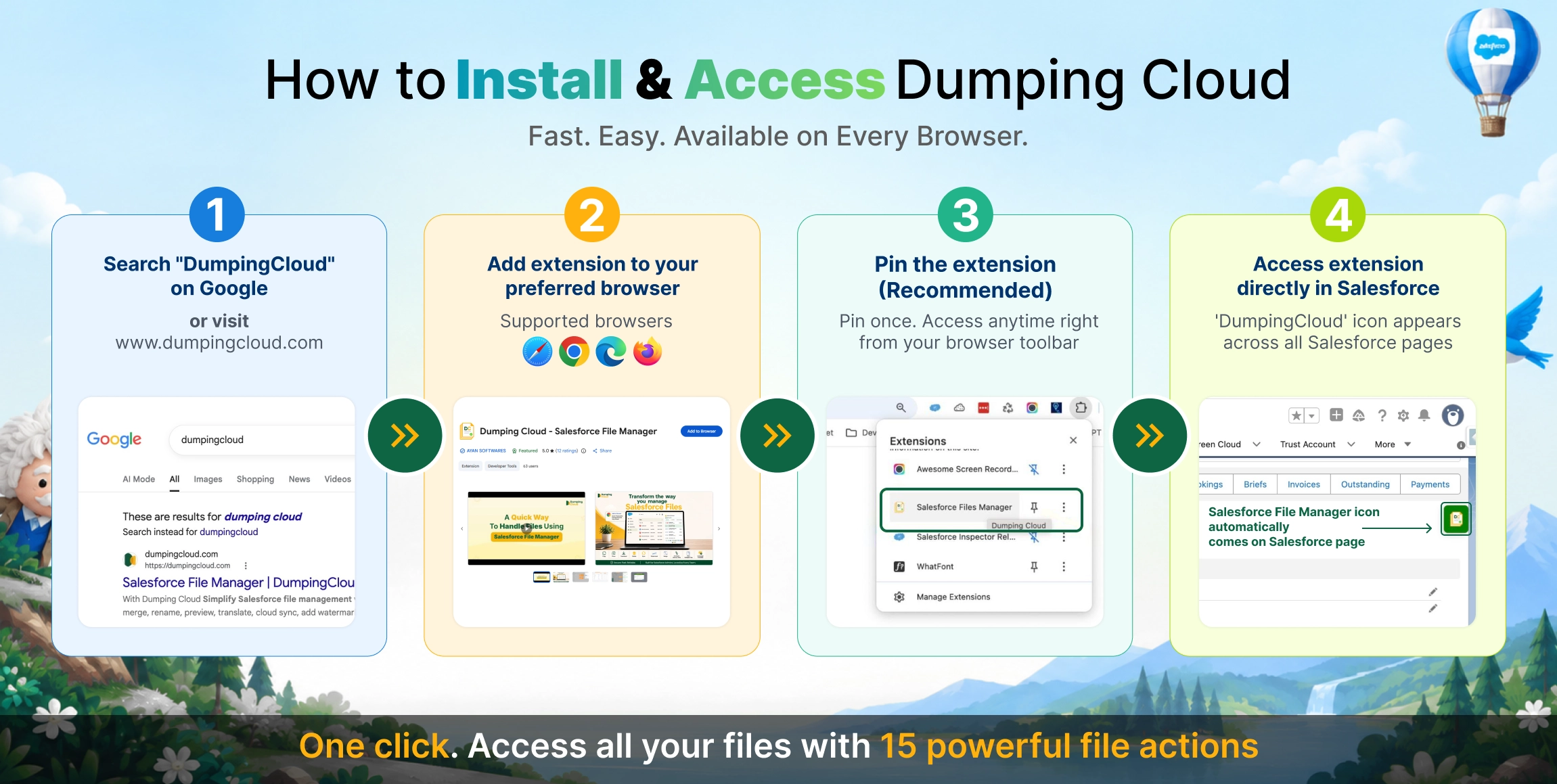
Available on Your Favorite Browsers
Your Browser.
Your Salesforce.
Your Files.

See How it Works
Stop Paying Salesforce Outrageous Fees to Store Your Everyday Files.
Automatically offload Salesforce attachments, contracts, and documents into the enterprise cloud storage you already own — preserving complete folder hierarchy and 1-click Salesforce record access.
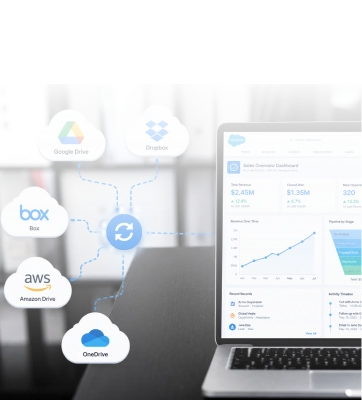
Sync to
Cloud Storage
Merge Files
Combine multiple Salesforce files into a single document in just a few clicks.
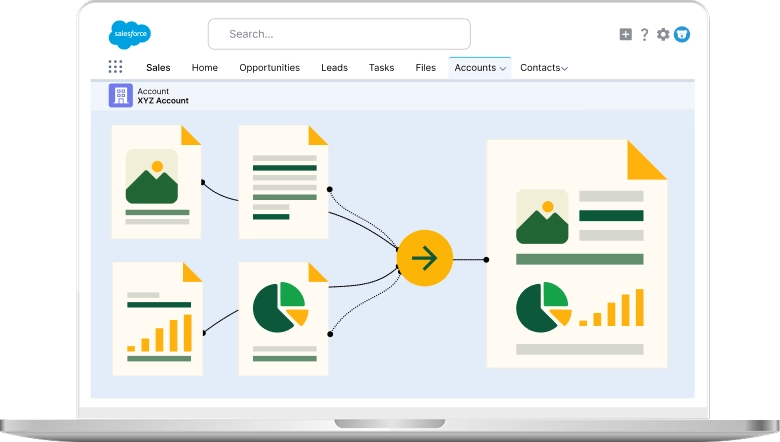

Copy Files
Copy Salesforce files across records in seconds, saving you time on repetitive uploads.

Delete Multiple Files

Download Multiple Files
The Complete salesforce Files Workspace
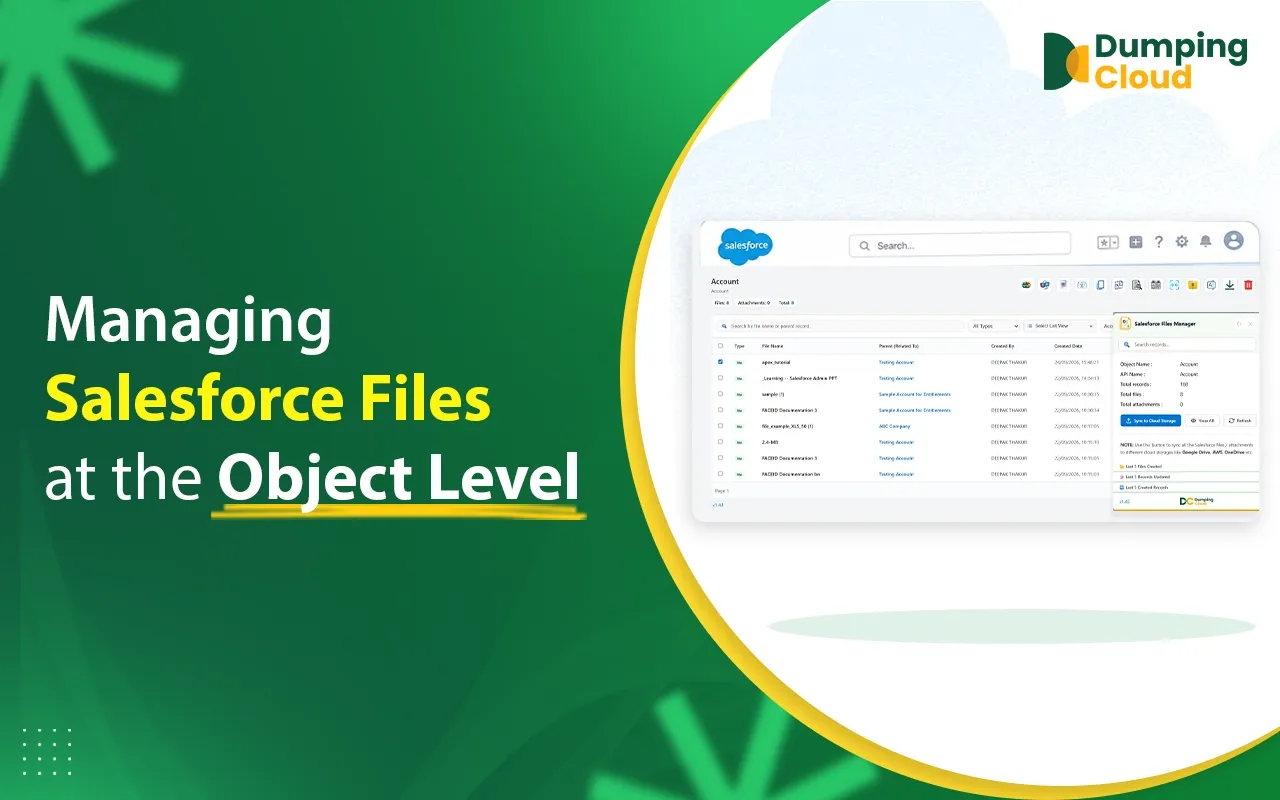
One intelligent workspace to download, move, merge, compare, watermark, and organize Salesforce files effortlessly

View Multiple Files
Preview images and PDFs in-window, with no download or new tab needed.
Compare Files
(side-by-side)
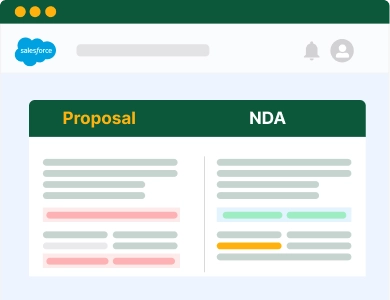

Compress/Zip Multiple Files
Bulk Rename Files with Patterns
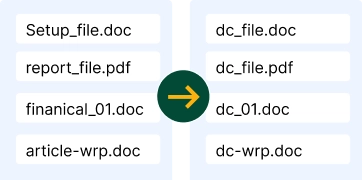

Watermark

Move Files

Translate
Translate Salesforce files into 49 languages while keeping the original file untouched.
Works Across Every Salesforce Cloud
DumpingCloud works natively across every major Salesforce product and cloud.
 Commerce Cloud
 Experience Cloud
 Marketing Cloud
 NonProfit Cloud
 Sales Cloud
 Salesforce Lightning
 Service Cloud


Manage 1,000+ Files in Bulk with DumpingCloud
Our Blogs
Why Choose Us
Everything Salesforce file management should have been from day one.

Built for Bulk
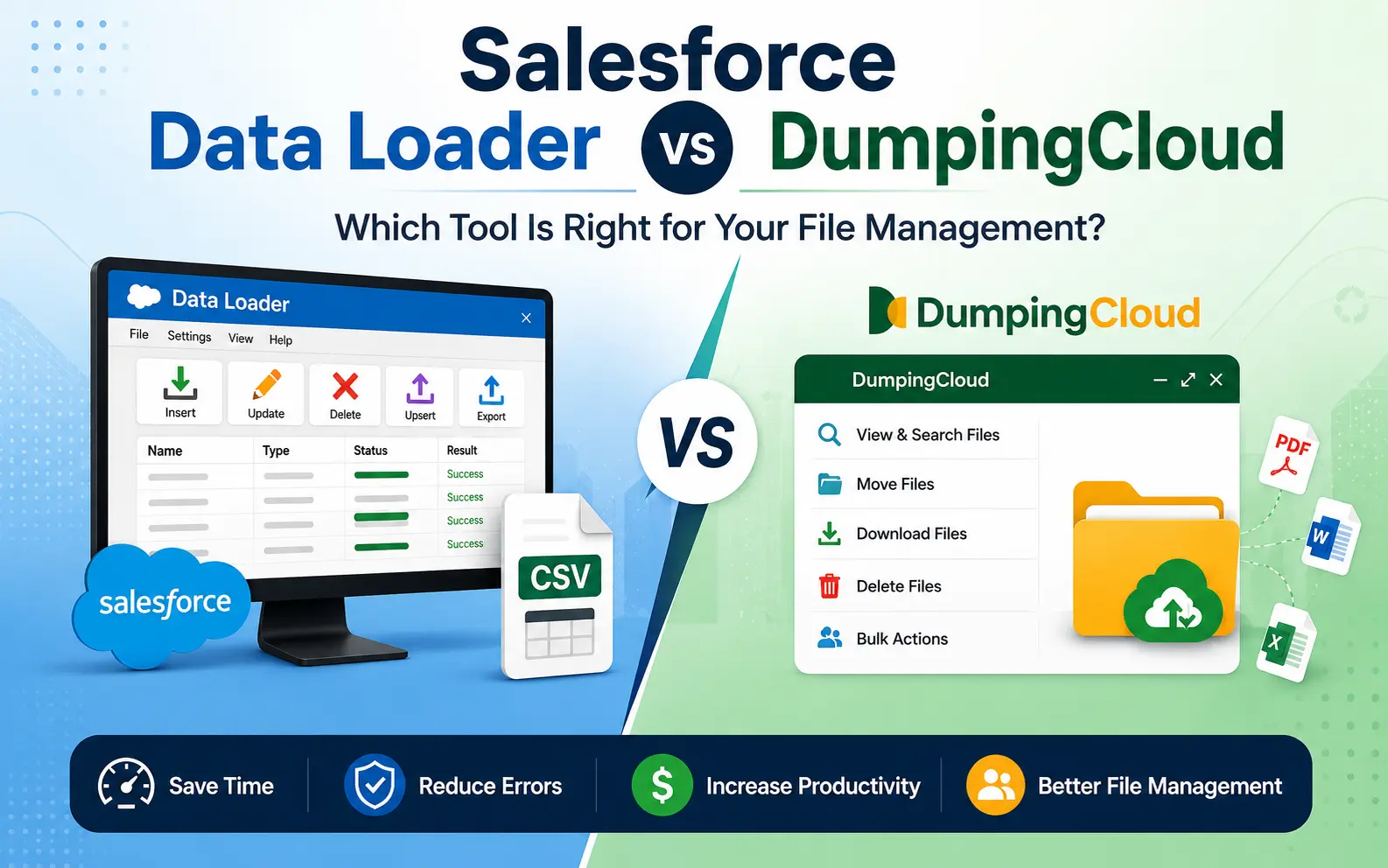
Standard Salesforce handles one file at a time. DumpingCloud does it in bulk. That's the difference.

Native to Salesforce
Runs inside your org, not a bolt-on portal.

No Login Required
Works right where you already work.

Secure by Design
Data stays in your browser session, nothing external.

Loved by Admins
Built for the people managing files every day.
Salesforce File Chaos v/s Dumping Cloud
-
One file at a time, download, delete, rename, one by one
-
Moving files across records and objects needs Data Loader or scripts
-
No native compare, download both versions to check
-
Merging files needs external software
-
No native watermarking or file protection
-
Cluttered records slow down admins and support
-
Bulk download, delete, or rename, in one click
-
Move or copy files across any record or object, instantly
-
Preview and compare files side by side, in-browser
-
Merge multiple files into one polished PDF
-
Add watermarks natively to protect and brand files
-
No login needed, works free, right on the records and object page
#1 Salesforce File Manager
49
languages supported
100%
Secure Data never leaves your browser
0
Extra logins required
400+
Installs

Frequently Asked Question.
DumpingCloud is a free Chrome extension that adds bulk file management to Salesforce — letting you download, delete, move, copy, rename, compare, merge, and watermark files and attachments directly from any record, without leaving Salesforce.
Yes, DumpingCloud is completely free to install and use, with no login, subscription, or setup required beyond adding the Chrome extension.
No. DumpingCloud works inside your existing Salesforce session — once installed, it runs directly on your Salesforce record pages with no separate login or org connection needed.
Install DumpingCloud, open any Salesforce record with files or attachments, select multiple files, and download them all at once — instead of opening and saving each file individually.
Frequently Asked Questions
Find answers to the most common questions about our products, features, pricing and services.
What file formats can I convert using Dumping Cloud?
Dumping Cloud supports several common file conversions, including Word to PDF, PDF to Word, Excel to PDF, PowerPoint to PDF, images to PDF, text to PDF, PDF to images, HTML to PDF, and other supported file types.
Can I convert PDF files to Word directly from Salesforce?
Yes. You can select a PDF stored on a Salesforce record, choose Word as the target format, and save the converted file to the Salesforce record, your desktop, or both, depending on the available options.
Can I convert multiple Salesforce files at once?
Yes. Dumping Cloud supports converting multiple selected files in a single operation, helping reduce the repetitive download-and-re-upload process.
Does converting a Salesforce file delete or modify the original file?
No. The original file remains unchanged. The conversion creates a separate output file, so you can keep, rename, move, version, or delete the original and converted files independently.
Can I split a Word document into multiple files in Salesforce, not just a PDF?
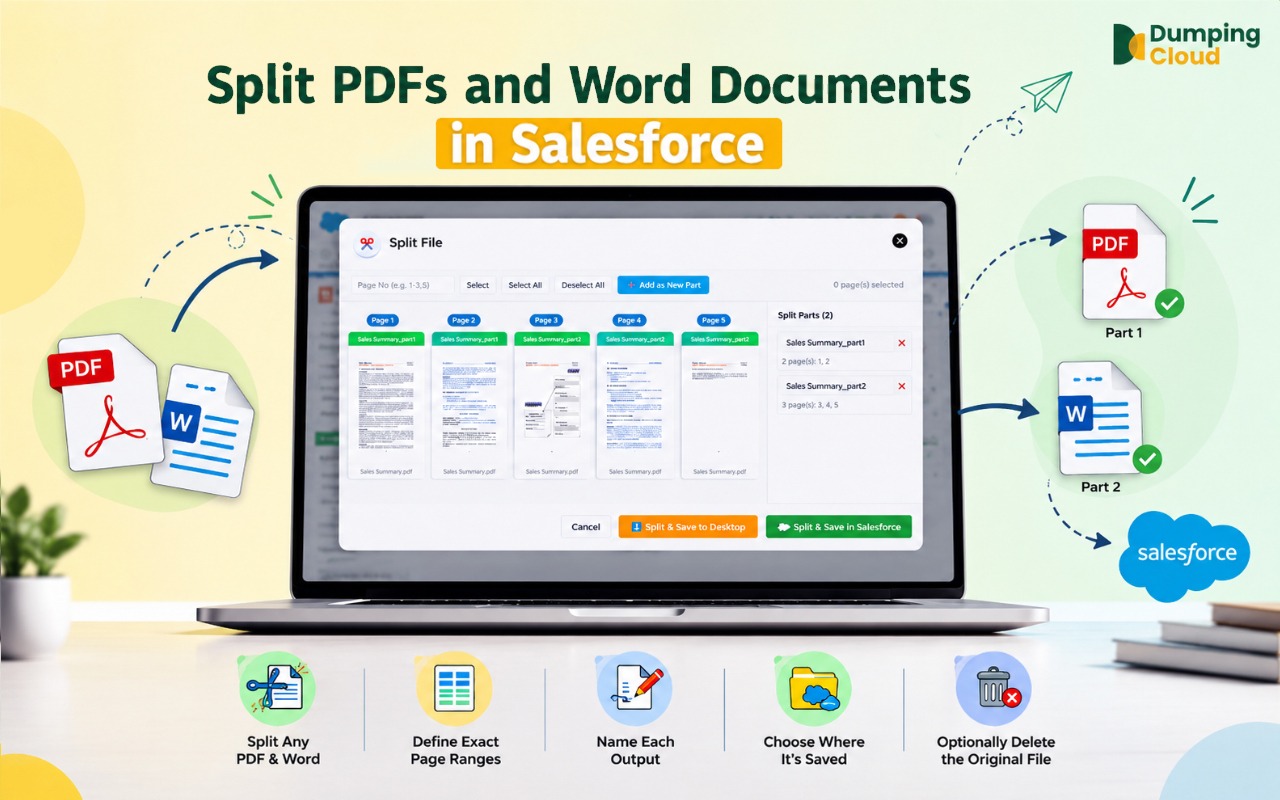
Yes. The Split feature supports both PDF (.pdf) and Word (.docx) files. The process is identical for both formats — define page ranges and each range becomes a separate output file in the original format.
What page range formats can I use to split PDF pages in Salesforce?
The splitter uses familiar print-style notation: a single page (e.g., "5"), a continuous range (e.g., "1-10"), multiple individual pages (e.g., "2, 5, 9"), or a combination (e.g., "1-5, 8, 11-15"). Each range you define becomes its own output file.
Can the split PDF files be saved back to the Salesforce record automatically?
Yes. You can choose to save split files back to the same Salesforce record, download them to your desktop, or do both in the same operation — no manual re-upload needed.
Does splitting a file in Salesforce delete or change the original document?
No, unless you choose to. By default the original file remains on the record untouched. You can optionally check "Delete original file after splitting," which moves the original to the Salesforce Recycle Bin (recoverable for 15 days) once all split files have saved successfully.
Is there a limit to how many files I can zip at once?
The Zip feature supports selecting all files on a record in a single operation. For records with very large numbers of files or very large individual file sizes, processing time may be longer, but there is no fixed limit on the number of files that can be included.
If I choose to delete the original files after zipping, can I recover them?
Deleted files are moved to the Salesforce Recycle Bin and can be restored within 15 days, provided the Recycle Bin has not been emptied. After 15 days, or if the Recycle Bin is manually emptied, the files are permanently removed. It is recommended to verify the zip file is complete and accessible before choosing to delete the originals.
Can I save the zip to both my desktop and the Salesforce record at the same time?
The current save options allow you to select one destination per operation — either desktop or the Salesforce record. To save to both, perform the zip operation twice with different save destinations selected each time.
Will the zip file be visible to other Salesforce users if saved to the record?
Yes. When saved to the Salesforce record, the zip file appears in the Files related list and is accessible to any user with the appropriate permissions to view files on that record.
Can I open and preview the zip file from within Salesforce?
Zip files are not natively previewable within Salesforce. If saved to the record, the zip can be downloaded from the Files related list and extracted on any local machine using standard operating system tools.
Does zipping files affect the original files in any way if I do not choose to delete them?
No. If you do not select the "Delete original files" option, the zip operation is entirely non-destructive. All original files remain on the Salesforce record exactly as they were before the operation.
Do I need System Administrator permissions to use the Zip feature?
You need sufficient Salesforce permissions to view the files on the record. To save the zip back to the Salesforce record, you also need file creation permissions on that record. To delete the original files, you need file deletion permissions. The extension respects your existing Salesforce profile and sharing rules throughout.
Can I apply different watermarks to different files in the same operation?
Bulk watermarking applies the same watermark configuration to all selected files in a single operation. To apply different watermarks to different files, perform separate watermark operations for each configuration.
Can I remove a watermark after it has been applied?
Watermarks applied to files are embedded into the document. They cannot be removed via the extension once applied.
Does watermarking affect the file's version history in Salesforce?
Applying a watermark saves an updated version of the file to Salesforce. Users still have an option to overwrite existing files.
Do I need System Administrator permissions to use the Watermark feature?
You need sufficient Salesforce permissions to view and edit the files on the relevant record. The extension respects your existing Salesforce profile and sharing rules.
Can I copy files to a record on a different Salesforce object type?
Yes. The Copy feature works across any combination of standard or custom Salesforce objects. You can copy from an Opportunity to a Contract, from an Account to a Case, from a Contact to an Opportunity — or any other cross-object combination — provided you have the necessary permissions on both records.
Can I copy multiple files to the same target record in one operation?
Yes. Select multiple files in the extension panel before clicking Copy, and all selected files will be copied to the target record in a single operation.
What happens to the original files on the source record after copying?
Nothing. The Copy operation does not modify or remove the original files in any way. They remain exactly as they were on the source record.
Will the copied file have the same name as the original?
Yes. The copied file retains the same name as the original on the target record. You can rename it after copying using the Inline Rename or Bulk Rename features in Salesforce Files Manager.
Do I need System Administrator permissions to use the Copy feature?
You need sufficient Salesforce permissions to view files on the source record and to create files on the target record. The extension respects your existing Salesforce profile and sharing rules — it cannot copy files to records your user does not have edit access to.
Can I mix pages from different files in any order I choose?
Yes. The drag-and-drop page reordering in the merge editor allows you to freely interleave pages from any of the selected source files into any sequence, regardless of which file they originated from.
What happens if I rotate a page incorrectly?
Click the Undo button to reverse the rotation. Undo works across all editing actions — rotations, removals, and reorders — and can be applied repeatedly to step back through your changes.
Does removing a page from the merge editor affect the original file in Salesforce?
No. All edits in the merge editor — page removals, rotations, and reordering — affect only the merged output. The original source files on the Salesforce record remain completely unchanged.
Will the original source files be deleted after merging?
If you choose "Save as new file", all original source files remain on the record untouched. If you choose "Overwrite existing file", only the specific file you select to overwrite is replaced. No other source files are automatically removed.
Can I merge files from different Salesforce records?
The Merge feature operates on files attached to the same Salesforce record. To merge files from different records, use the Copy feature to bring all required files onto one record first, then perform the merge.
What is the output format of the merged document?
The output is always a single PDF, regardless of the input file types. All source files — PDFs, Word documents, images, spreadsheets, and presentations — are converted and combined into one unified PDF.
Does the merged PDF retain the text searchability of the original files?
Yes. Where source files contain searchable text, the merged PDF will preserve text searchability, making the document suitable for text search and copy-paste operations after merging.
Do I need System Administrator permissions to use the Merge feature?
You need sufficient Salesforce permissions to view and edit files on the relevant record. The extension respects your existing Salesforce profile and sharing rules.
Can I undo a bulk rename?
There is no one-click undo within the extension. However, since file content and associations are unaffected, you can run another Bulk Rename operation to revert to previous names if you have them recorded — or use the inline rename to correct individual files.
Can I use the same naming pattern across multiple records?
Yes, Bulk Rename operates on the files within a record and object. To apply the same naming pattern across multiple records, open the object and rename the files for multiple records within that object.
Do I need special permissions to rename files?
You need sufficient Salesforce permissions to edit the files on the relevant record. The extension respects your existing Salesforce profile and sharing rules.
Can I rename files and include Salesforce field values in the name — for example, the Account Name or Record ID?
The current Bulk Rename feature supports manual patterns including prefixes, suffixes, and sequential numbering. Dynamic field-based naming (inserting Salesforce record field values automatically) is a feature to explore in future extension updates.
How accurate are the translations?
The Translate feature uses AI-powered translation to deliver high-quality output across all supported languages. For routine business documents, the accuracy is suitable for internal review, general comprehension, and operational use. For legally binding documents or highly technical content, it is recommended to have a qualified reviewer validate the translation before formal use.
Can I translate multiple files into different target languages in one operation?
A single translate operation applies the same target language to all selected files. To translate different files into different languages, perform separate translate operations for each target language.
If I choose "Save as new file", will the original file remain unchanged?
Yes. The "Save as new file" option creates a separate translated file on the same Salesforce record without modifying the original in any way. Both versions will be available in the Files related list.
Can I translate files that contain images or scanned content?
Yes. The extension supports all file types, including image-based and scanned documents. OCR (Optical Character Recognition) is applied where necessary to extract text from image-based content before translation.
Does the translated file preserve the original formatting and layout?
The extension aims to preserve the formatting and layout of the original document in the translated output. Complex layouts with advanced formatting may require minor adjustments after translation, particularly for right-to-left languages such as Arabic and Hebrew.
Do I need System Administrator permissions to use the Translate feature?
You need sufficient Salesforce permissions to view and edit files on the relevant record. The extension respects your existing Salesforce profile and sharing rules.
Can I compare more than two files at once?
The Compare feature is designed as a two-file side-by-side comparison. Exactly two files must be selected to activate the Compare button. For multi-file review scenarios, compare files in pairs sequentially.
Does the Compare feature highlight differences between the two files automatically?
The current Compare feature is a side-by-side visual comparison — both files are displayed simultaneously for manual review. Automatic text difference highlighting (diff) is not part of the current feature set. For documents where precise change tracking is required, the redline or tracked changes features within the original authoring application (e.g., Microsoft Word) remain the most appropriate tool.
Does comparing files affect the original files in any way?
No. The Compare feature is entirely read-only. It opens a visual view of both files for review purposes only. No changes are made to either file, their content, their metadata, or their Salesforce record associations.
What file types can be compared?
The Compare feature supports all file types available in DumpingCloud, including PDFs, images, Word documents, Excel spreadsheets, PowerPoint presentations, and more.
Do both files need to be the same file type to be compared?
No. You can compare files of different types side by side — for example, a PDF version and a Word version of the same document. This can be useful when reviewing a source document against a converted or reformatted version.
Do I need System Administrator permissions to use the Compare feature?
You need sufficient Salesforce permissions to view the files on the relevant record. The Compare feature is read-only and does not modify any data, so no elevated permissions beyond file viewing are required.
What happens if I accidentally move a file to the wrong record?
Simply open the target record (where the file was incorrectly moved), launch DumpingCloud - Salesforce Files Manager, and use the Move feature again to send it to the correct destination.
Can I move files between different object types — for example, from an Account to a Case?
Yes. The Move feature works across any combination of standard or custom Salesforce objects, as long as you have the necessary permissions on both records.
Does moving a file affect its version history or metadata?
No. File metadata, version history, and content remain intact. Only the record association is changed.
Do I need System Administrator permissions to use the Move feature?
You need sufficient Salesforce permissions to access files on the source record and create file associations on the target record. The extension respects your existing Salesforce profile and sharing rules.
Can I undo a Move?
There is no one-click undo within the extension. However, you can perform a reverse Move — navigate to the target record, open the extension, and move the file back to the original record.
What if a file is linked to multiple records — will deleting it remove it from all of them?
If a file (ContentDocument) is associated with multiple records, deleting it from one record removes only that specific association (ContentDocumentLink). The file remains accessible from all other records it is linked to. The file is only fully deleted when removed from its last associated record.
Is there a confirmation step before files are deleted?
Yes. DumpingCloud - Salesforce Files Manager displays a confirmation prompt listing the selected files before any deletion is executed. No files are removed until you explicitly confirm the action.
Can I undo a bulk delete?
Individual file restoration is possible via the Salesforce Recycle Bin within 15 days of deletion. There is no one-click bulk undo within the extension, which is why the confirmation prompt and careful selection are important.
Do I need System Administrator permissions to delete files?
You need sufficient Salesforce permissions to delete files on the relevant record. The extension respects your existing Salesforce profile and sharing rules — it cannot delete files your user does not have permission to remove.
Will deleting files through the extension affect Salesforce storage immediately?
Files moved to the Recycle Bin continue to count against your Salesforce storage until they are permanently deleted (after 15 days or upon manually emptying the Recycle Bin). To reclaim storage immediately, empty the Recycle Bin after deletion.
Is there a limit to how many files I can download at once?
The extension handles bulk downloads efficiently. For records with very large numbers of files, it is recommended to download in batches to maintain browser performance.
Will the original file names be preserved?
Yes. Files are downloaded with their original Salesforce file names, making it easy to identify and organize them post-download.
Does this work on custom objects?
Yes. DumpingCloud - Salesforce Files Manager works on any record page — standard or custom — as long as files are attached via the Salesforce Files framework.
Do I need to be a System Administrator to use this?
You need sufficient Salesforce permissions to view the files on a given record. The extension respects your existing Salesforce profile and sharing rules — it can only access files your user is already permitted to see.