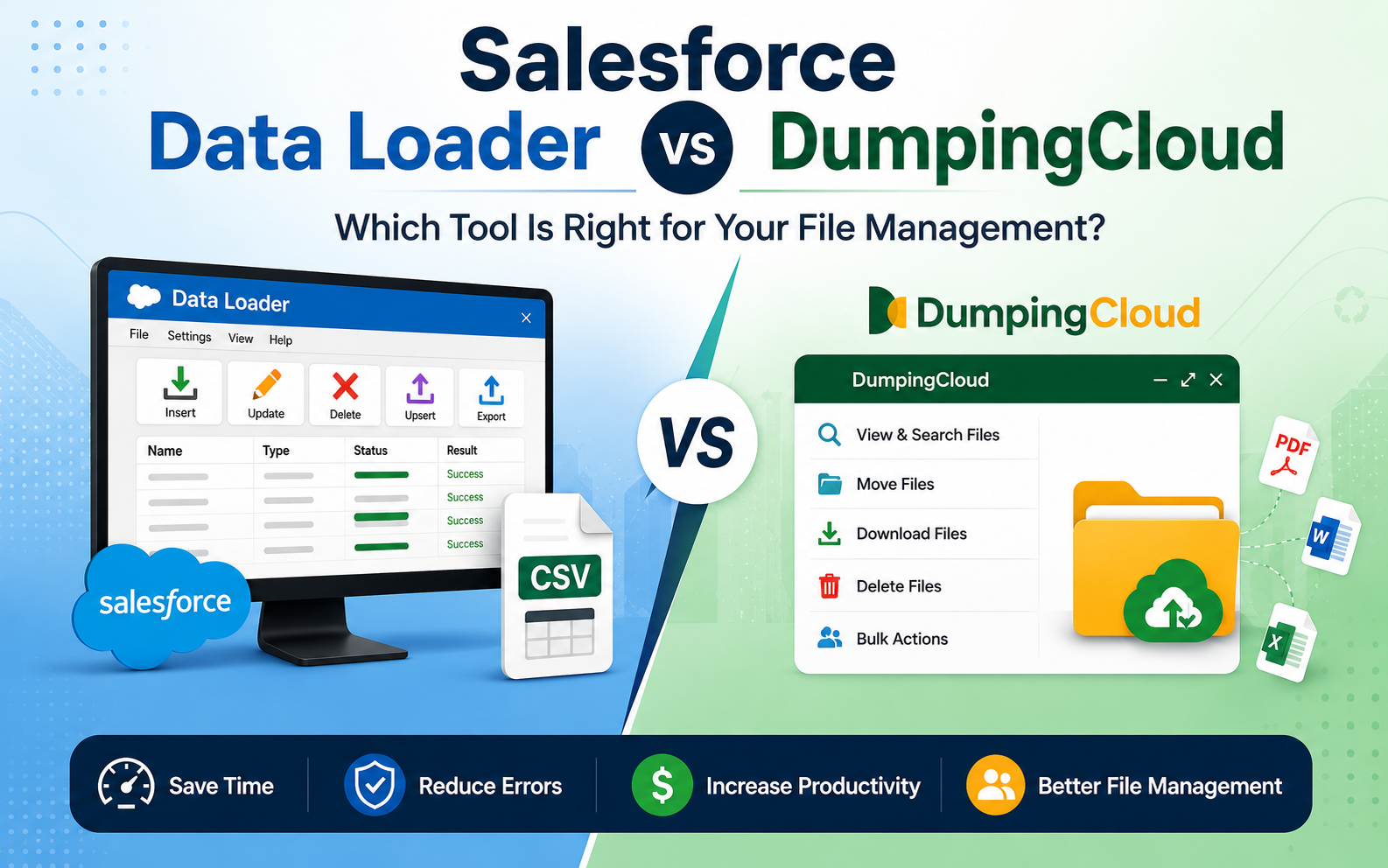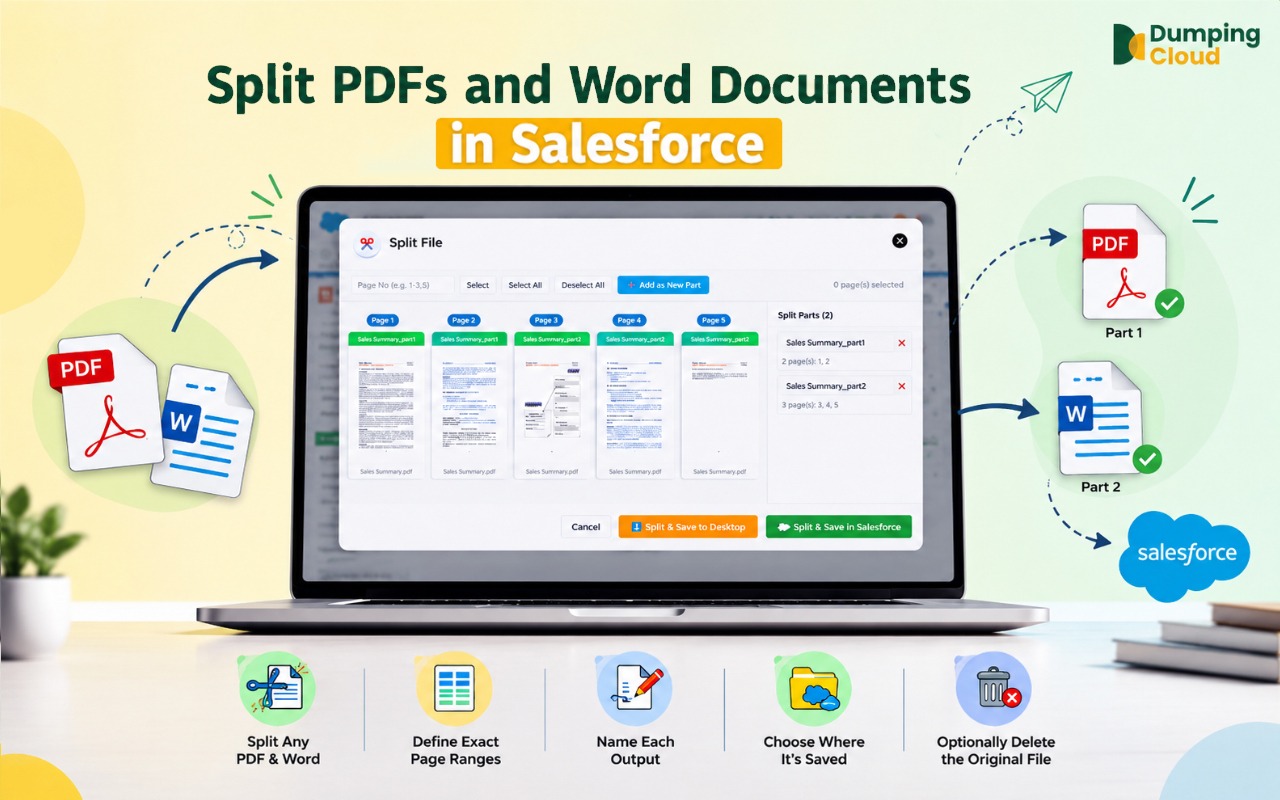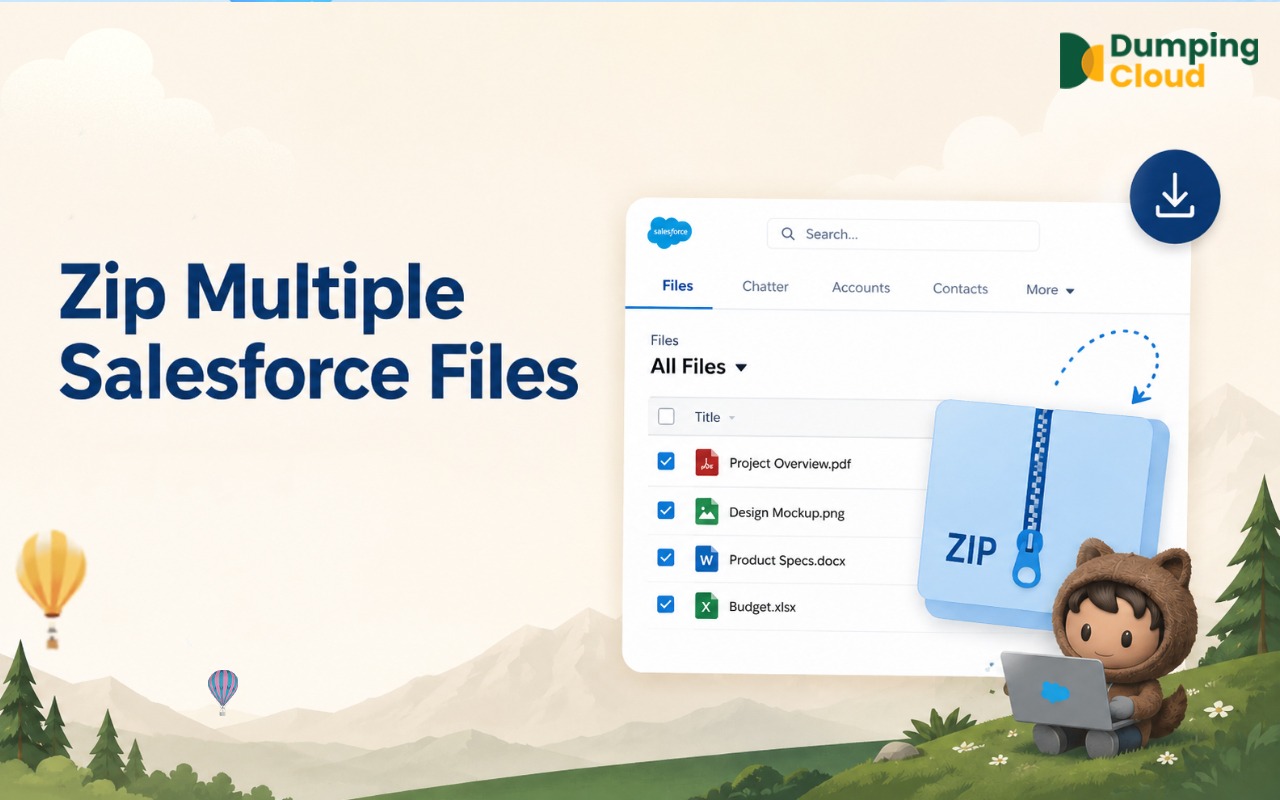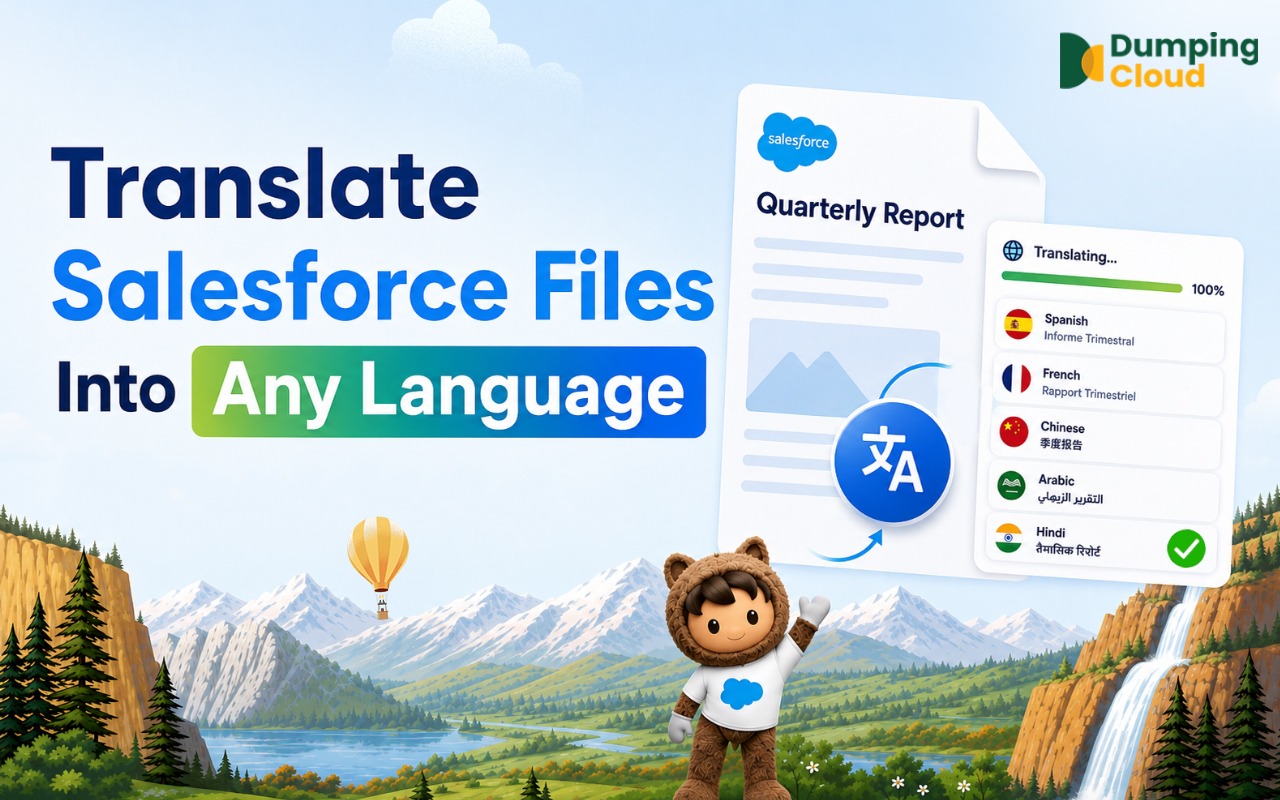

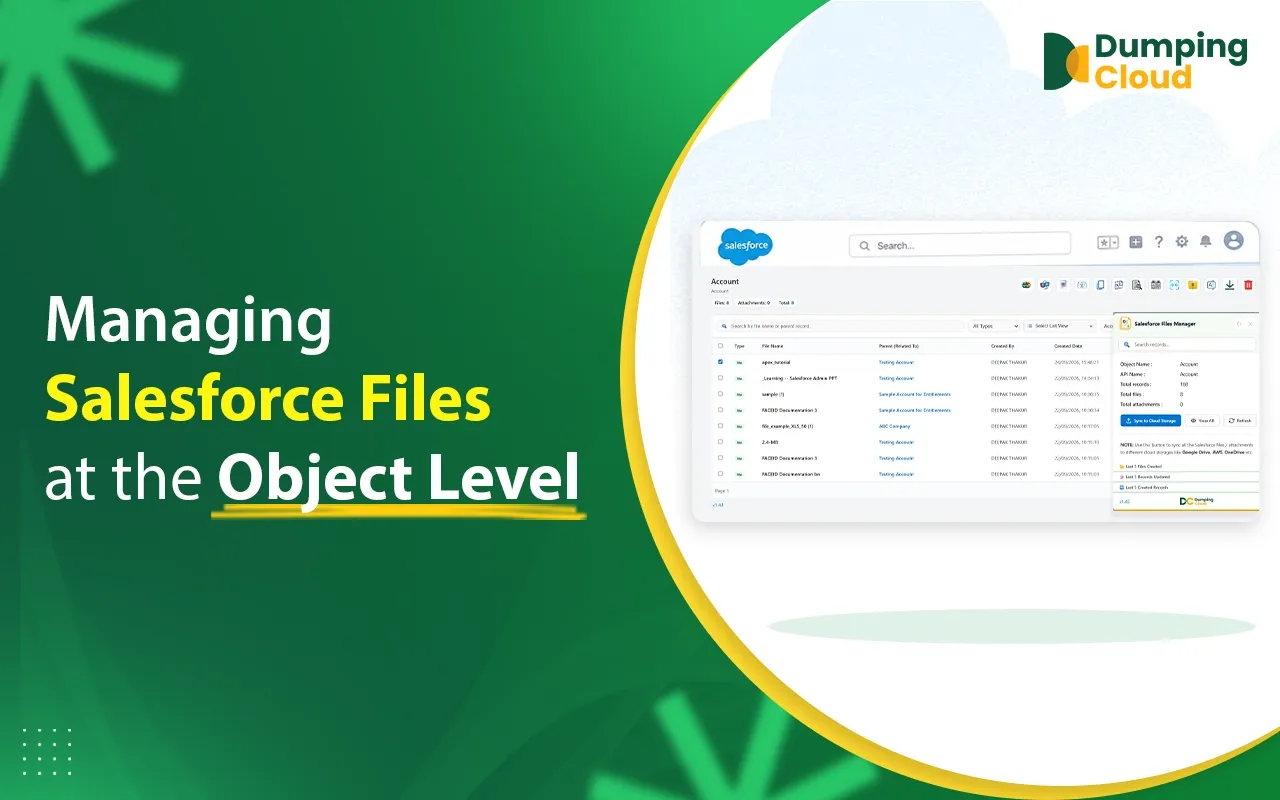
Salesforce file management becomes difficult when you have to open records one by one. DumpingCloud’s Object-Level File Management provides a centralized view of files across an entire Salesforce object, making it easier to search, filter, select, and manage files at scale. Users can perform bulk actions such as downloading, deleting, moving, copying, merging, splitting, watermarking, renaming, translating, and more across multiple records.
In this article, we will read about Salesforce Object-Level File Management and how DumpingCloud helps simplify the process of managing Salesforce files across multiple records from one centralized location.
Quick Answer
Object-Level File Management in DumpingCloud lets you manage files from multiple records of the same Salesforce object in one place. Instead of working record by record, you can search, filter, select, and perform bulk file actions across hundreds or thousands of files.
Record-Level Was Just the Beginning
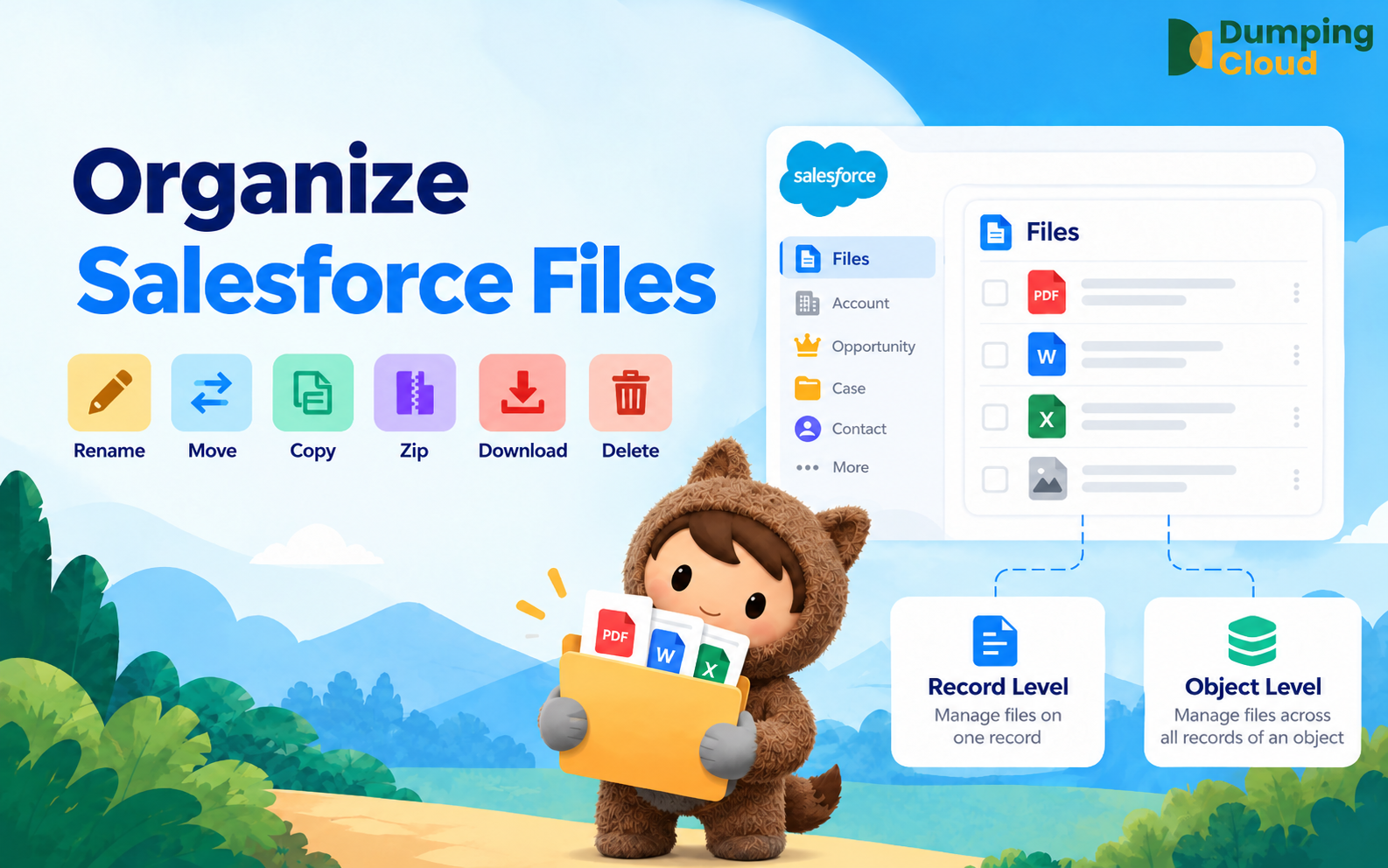
If you have used DumpingCloud at the record level, you already know what it feels like to download, delete, move, copy, merge, split, zip, watermark, translate, and manage files from a single Salesforce record in seconds, without leaving the page.
But most real Salesforce work does not happen one record at a time.
- An Admin tasked with archiving all files from closed Opportunities does not want to open 200 records one by one.
- A legal team that needs to watermark every contract stored across all Contract records should not have to do it record by record.
- A support manager who wants to download every attachment filed across all Cases this quarter needs a faster path than navigating each Case individually. DumpingCloud’s Object-level file management gives you that path.
What Is Object-Level File Management?
At the record level, DumpingCloud opens on a single Salesforce record and loads the files attached to that one record.
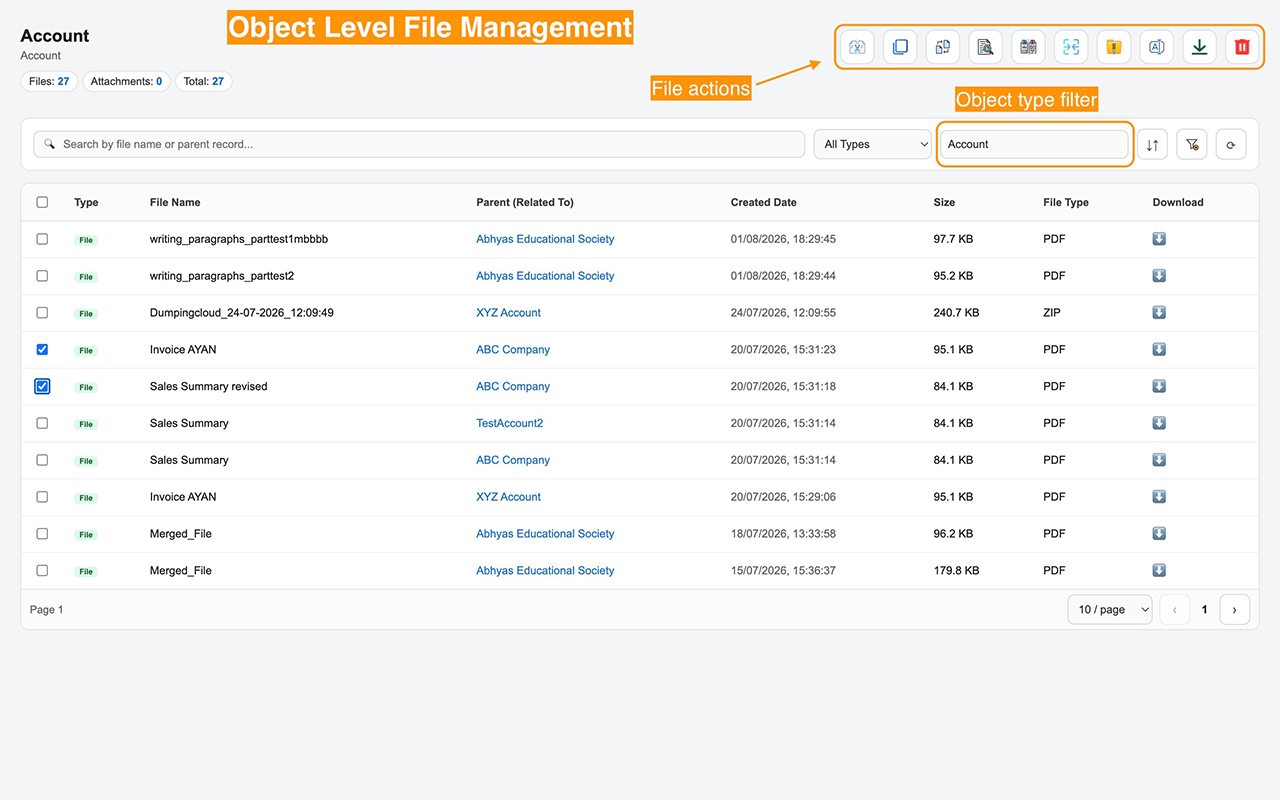
At the Object level, DumpingCloud opens across an entire Salesforce object, giving you a single, unified view of every file attached to every record of that object, all in one place.
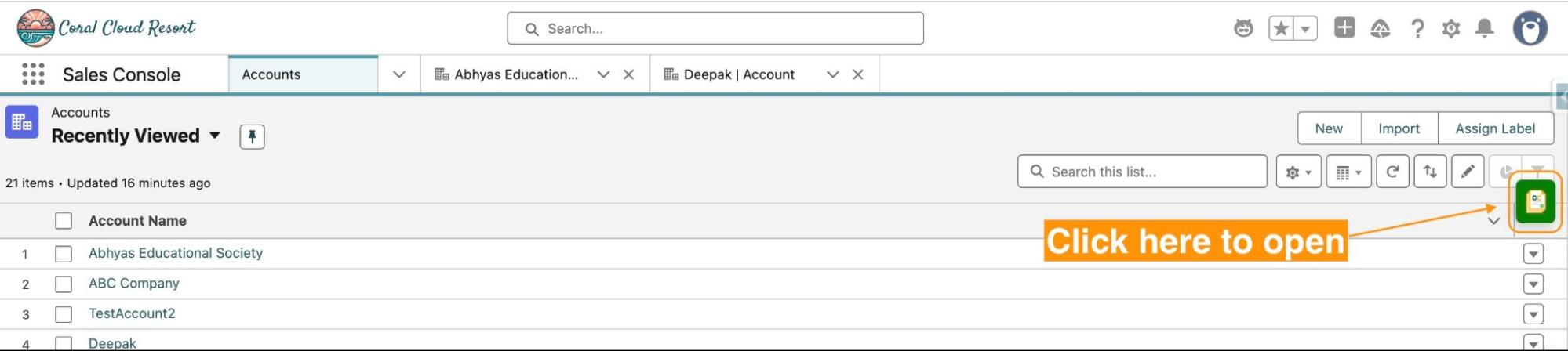
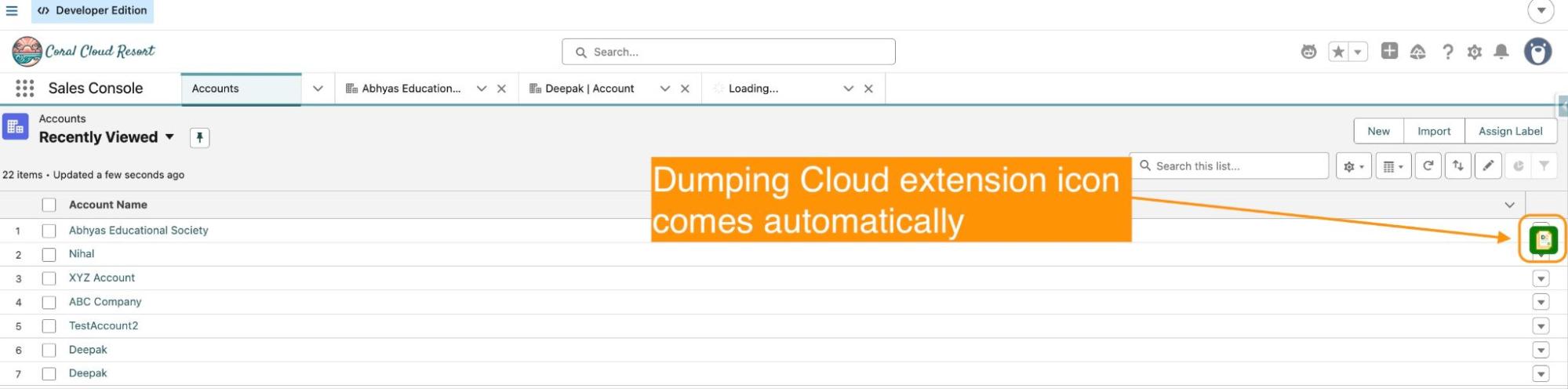
Open the Object tab and click the dumping cloud icon:
- Every file across all records of the selected object, Accounts, Opportunities, Cases, Contacts, Contracts, or any custom object
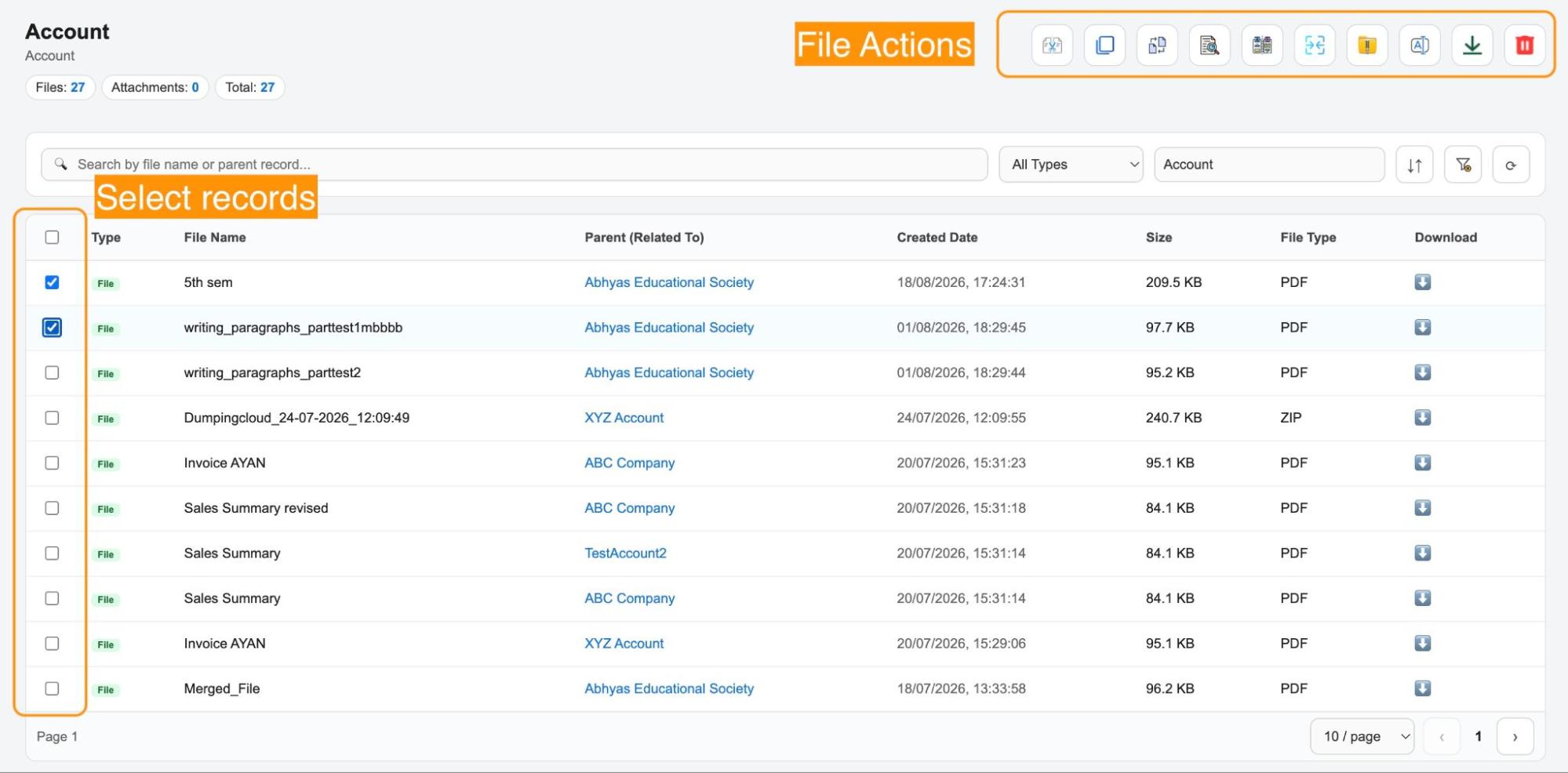
- The file name, parent record it belongs to, file type, size, and created date, all visible at a glance
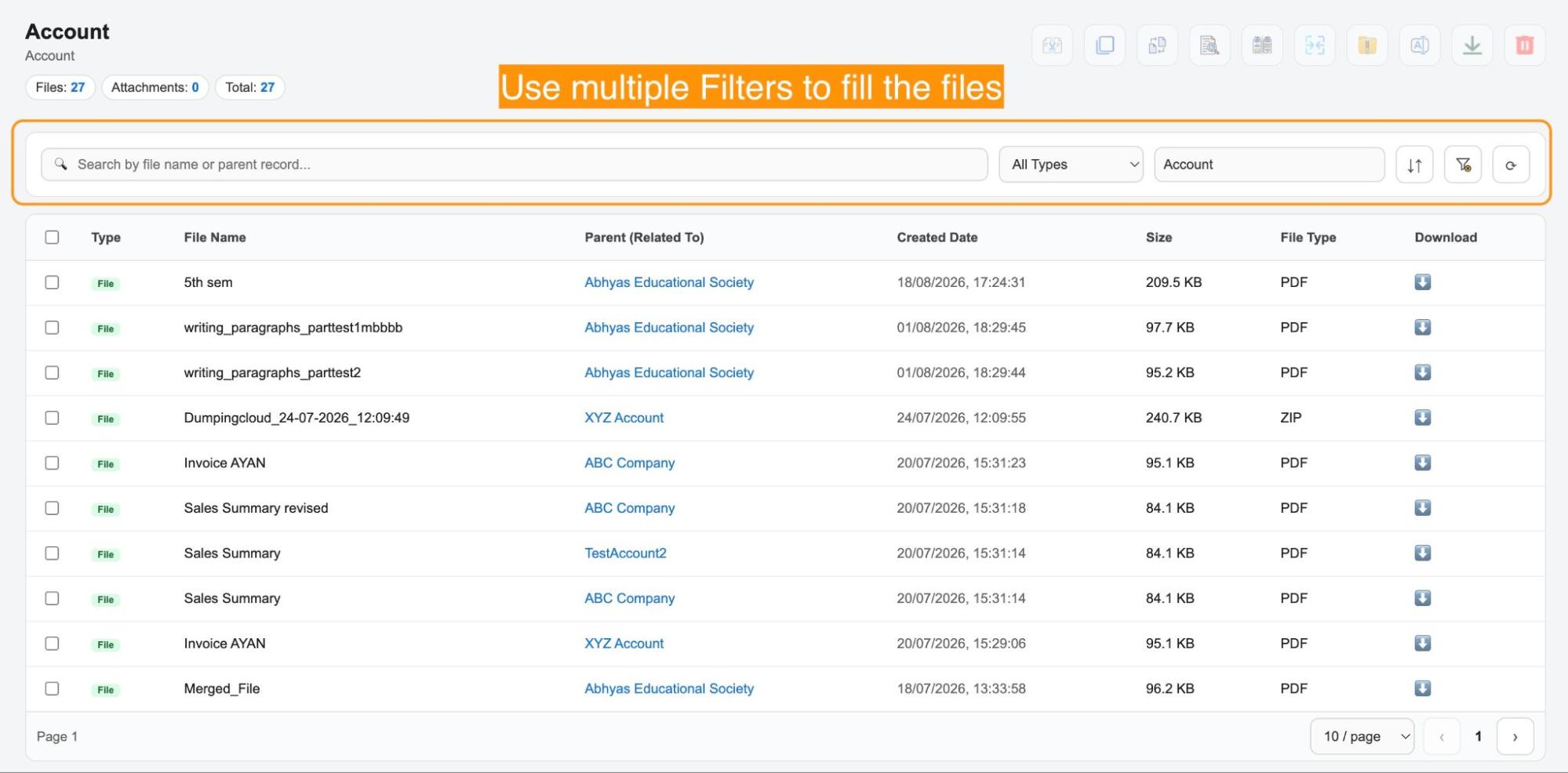
- Powerful search and filter tools to find exactly the files you need across thousands of records
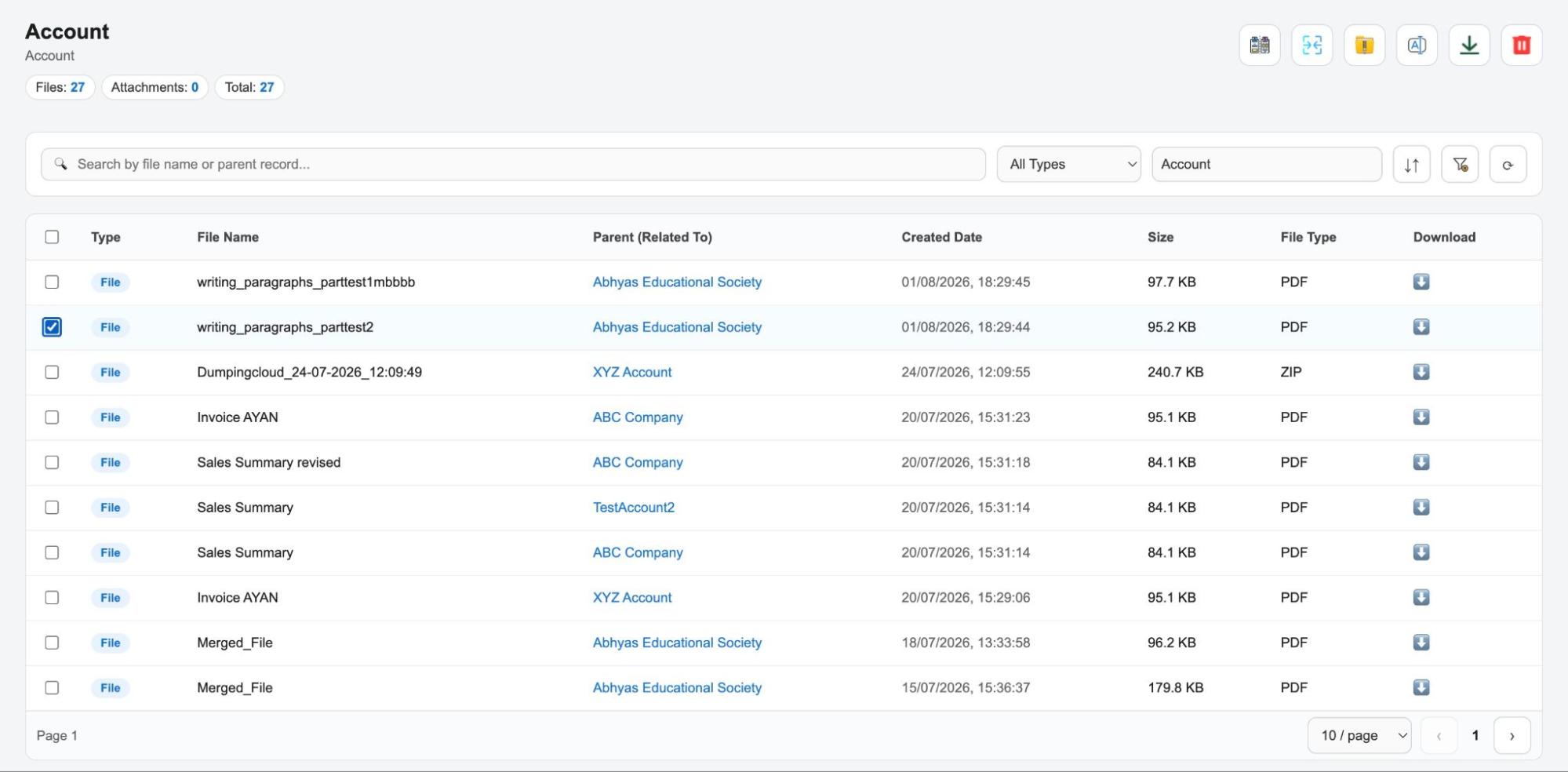
The complete DumpingCloud action bar, every file operation available, now operating at object scale
Object-Level File Management
Record-Level vs Object-Level File Management
| Comparison | Record-Level | Object-Level |
|---|---|---|
| Scope | Files on one record | Files across all records of an object |
| Best for | Individual record files | Bulk operations across the entire object |
| File visibility | Current record only | All records of the selected object |
| Search | Within the record | Across all records and files |
| Typical user | Any Salesforce user | Admins, power users, team leads |
| Scale | Single file to tens of files | Hundreds to thousands of files |
Both modes are available inside DumpingCloud. Switch between them depending on the scope of what you need to do.
Who Needs Object-Level File Management?
Salesforce Admins Running a storage audit? Need to bulk-delete test files uploaded across hundreds of records during UAT? Want to archive and zip all files from a closed financial year’s Opportunities? Object-level is your command centre.
Sales Operations Download every proposal and quote stored across all Opportunities in a given pipeline stage. Watermark all pricing documents stored on Opportunity records before a quarterly review. Rename files across the entire Opportunity object to enforce naming conventions.
Legal and Compliance Teams Watermark every contract stored across all Contract records with CONFIDENTIAL or APPROVED status in one operation. Translate all foreign-language agreements stored on Account records. Compare versions of standard documents across multiple records.
Customer Support Teams Download all attachments filed across every open Case this week. Delete resolved case documents across closed Cases in bulk. Copy a resolution document to multiple Case records at once.
Finance and Procurement Zip all invoice files across Account or Contract records for a period-end audit submission. Bulk rename financial documents across all records to match audit-ready naming conventions. Download all financial statements stored across Contract records in a single action.
HR and People Operations Translate onboarding documents stored across Contact records for an international hiring push. Watermark all employment-related files across Contact records as CONFIDENTIAL. Download all files across a batch of Contact records being offboarded.
How to Access Object-Level File Management
Follow these simple steps to use Salesforce File Manager at Object Level
01
Step 1
Navigate to the Object tab and open the Extension
Open Google Chrome and log in to your Salesforce Org. Choose the Salesforce object you want to work with eg Account, Opportunity or any custom object in your Org.
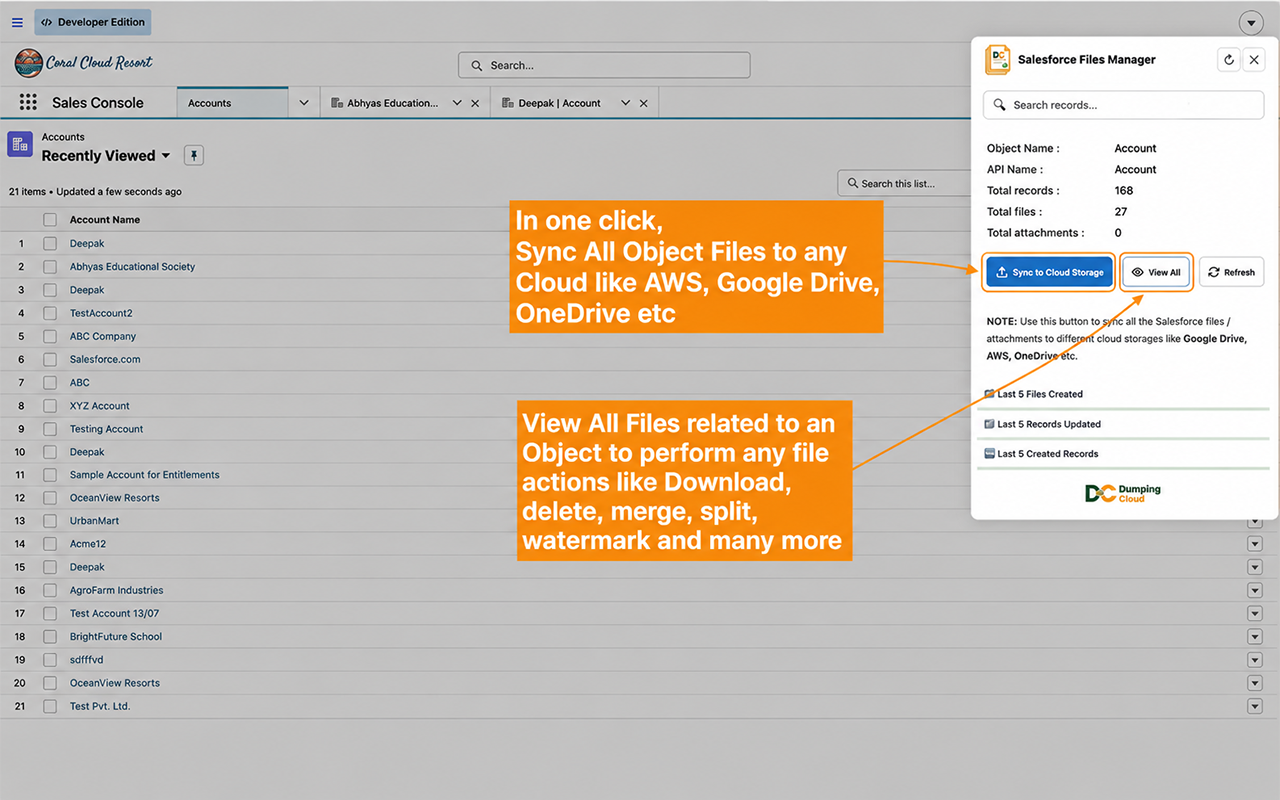
Click the Dumping Cloud — Salesforce File Manager icon in your Chrome toolbar to open the extension panel.
The extension panel will open and automatically display stats related to files and attachments associated with the current object.
02
Step 2
Click on “View All” and navigate to extension page
Once the “View All” button is clicked, it will open the extension page which will load all the files and attachments related to the object for all the records.
03
Step 3
Search, Filter, and Select
Use the search bar to find files by name, the filter options to narrow by file type, size, date, or parent record, and the checkboxes to select individual files or all files at once.
04
Step 4
Apply Any File Action
With your files selected, apply any DumpingCloud action from the action bar, Download, Delete, Move, Copy, Merge, Split, Zip, Watermark, Translate, Compare, Preview, Rename, eSign, Cloud Sync..
Every Feature. Now at Object Scale.
Everything DumpingCloud does at the record level, it now does across an entire object. Here is what each feature unlocks at the object level:
Record-Level and Object-Level Features
| Feature | At Record Level | At Object Level |
|---|---|---|
| ⬇ Download | Download files from one record | Download files from any or all records of an object |
| 🗑 Delete | Delete files from one record | Bulk delete files across all records of an object |
| ↔ Move | Move a file from one record to another | Move files from multiple records to a target in one operation |
| ⧉ Copy | Copy a file to another record | Copy files from multiple records to one or more targets |
| 🔗 Merge | Merge files from one record into one PDF | Merge files from across records into a single document |
| ✂️ Split | Split a file on one record | Split documents across multiple records simultaneously |
| 📦 Zip | Zip files from one record | Zip files across all records of an object into one archive |
| 💧 Watermark | Watermark files on one record | Watermark all files across an entire object at once |
| 🌐 Translate | Translate files on one record | Translate files across all records of an object |
| ⚖ Compare | Compare two files on one record | Compare files from across different records side by side |
| 👁 Preview | Preview a file from one record | Preview any file from any record in the object |
| ✏ Rename | Rename files on one record | Bulk rename files across all records with naming patterns |
| 🔄 Cloud Sync | Sync files from one record to cloud | Sync all files across an object to Google Drive, AWS S3, or OneDrive |
What Makes Object-Level Management Genuinely Different
- Scale without complexity. Every object-level operation works through the same familiar DumpingCloud interface. The action bar is identical. The workflow is the same. The only difference is that instead of acting on files from one record, you are acting on files from all records of an object, simultaneously.
- Cross-record visibility. For the first time, you can see every file across every record of an object in one unified, searchable, sortable view. No more navigating record by record to find what you are looking for.
- Precision at scale. Object-level does not mean all-or-nothing. You can filter by file type, size, date range, or parent record, and select exactly the files you need across exactly the records you choose. Bulk power with individual precision.
- 100% native, 100% secure. Just like record-level operations, every object-level file action runs within your Salesforce Org, under your existing session and security model. No files leave the platform unless you explicitly choose to download or sync them.
Coming Up — Individual Feature Blogs
This overview is the first in a series of blogs covering every DumpingCloud feature at the Object level. Each upcoming blog will go deep on one feature, explaining the use case, the step-by-step workflow, and the specific scenarios where object-level operations change how your team works.
Up next in the series:
- Download Files at the Object Level
- Delete Files at the Object Level
- Move Files at the Object Level
- Copy Files at the Object Level
- Merge Files at the Object Level
- Split Files at the Object Level
- Zip Files at the Object Level
- Watermark Files at the Object Level
- Translate Files at the Object Level
- Compare Files at the Object Level
- Preview Files at the Object Level
- Rename Files at the Object Level
- Cloud Sync at the Object Level

Frequently Asked Questions
What is the difference between record-level and object-level file management?
Record-level file management focuses on files attached to one Salesforce record, while object-level file management lets you manage files across records of an entire Salesforce object. Record-level management is useful for individual records, while object-level management is designed for larger file operations across hundreds or thousands of files.
How can I manage Salesforce files across multiple records?
You can manage Salesforce files across multiple records using DumpingCloud's Object-Level File Management. Open the Salesforce object, launch DumpingCloud, select View All, and use the search, filter, and selection tools to perform actions across files from multiple records.
Can Salesforce Admins manage files across an entire object?
Yes. Salesforce Admins can use object-level file management for tasks such as storage audits, bulk file cleanup, archiving, downloading, renaming, and other file operations across multiple records.
How do I access Object-Level File Management in DumpingCloud?
Open the desired Salesforce object, click the DumpingCloud — Salesforce File Manager icon in Chrome, and use the View All option to open the object-level file management page. From there, you can search, filter, select, and perform file actions.
Ready to manage Salesforce Files faster?
Download, move, rename, merge, split, convert, compare, and manage your Salesforce Files — without leaving Salesforce.